


Apple Music lets you download songs for offline listening, but these downloads are managed by the Music app rather than stored as regular audio files you can freely access. If you want to work with music files outside the app, such as organizing them in folders, backing them up, or transferring them to another device, you'll need to understand the difference between Apple Music downloads and standalone audio files.
In this guide, we'll explain whether Apple Music songs can be downloaded as MP3 or other audio formats, how to convert Apple Music tracks into regular audio files with ViWizard Apple Music Converter, and how to find, manage, and transfer the resulting files across devices. We'll also clarify how Apple Music downloads differ from iTunes purchases and other local audio files.
Part 1. Can You Download Apple Music to Files?
It depends on how you get your music. Apple Music subscribers can download songs for offline listening, but the downloads stay in the Music app. They're protected and tied to your subscription, so you generally can't find them as regular MP3 or M4A files in the Files app on an iPhone or iPad. Regular audio files, on the other hand, can be copied, moved, and played in compatible apps.
On a Mac or Windows PC, you can check the folder where music is stored, but finding a file doesn't necessarily mean you can play it in another app or transfer it elsewhere. Apple Music subscription downloads may use the protected .m4p format, while iTunes Store purchases in the iTunes Plus format are DRM-free AAC files encoded at 256 kbps with the .m4a extension. You can play purchased tracks on compatible devices and manage them in supported music apps. If you want to convert subscription downloads to formats like MP3, tools such as ViWizard Apple Music Converter offer this option.

Need Apple Music in more flexible audio formats? ViWizard Apple Music Converter helps Apple Music subscribers create a personal music library with seamless music backup.
Part 2. How to Download Apple Music to Files
To keep music as regular audio files in the Files app, you'll need compatible audio from another legitimate source, such as a DRM-free purchase, your own recording, or a file you're authorized to use. Once you have the file, you can save it to your iPhone, iPad, or computer and organize it like any other document or audio file.
Option 1. Download Music Files by Purchasing Music from the iTunes Store
Buy a song or album from the iTunes Store, then download it to your computer or supported device. iTunes Plus purchases are DRM-free AAC files, not MP3s. You can store and transfer them to compatible devices or convert them to MP3. This method suits users who want to keep specific tracks, though purchasing music can cost more than streaming.
01Open the Music app on Mac or the Apple Music app on Windows.
02Click iTunes Store in the sidebar. If it isn't visible, open the app's general settings and enable iTunes Store.
03Search for the song or album you want to buy.
04Select iTunes Store in the search results.
05Click the song or album's price or Buy button.

06Sign in with your Apple Account if prompted, then complete the purchase.
07Open the Purchased section of the iTunes Store and click the download icon next to the music you want to save.
Read More: How to Purchase and Download Music from iTunes Store
Option 2. Get Music Files by Ripping CDs
To digitize CDs you own, insert a disc into your computer's drive and open compatible software, such as Apple Music on Mac or a iTunes on Windows. Choose an output format and quality, then import the tracks. Depending on your settings, files can be saved as AAC, MP3, or another supported format. You can then store and transfer them as regular audio files.
01Insert an audio CD into your computer's disc drive or connect an external CD drive.
02Open Music on Mac or iTunes on Windows, then select the CD when it appears.
03On Mac, go to Music > Settings > Files > Import Settings. On Windows, go to Edit > Preferences > General > Import Settings.

04Click Import Using and select MP3 Encoder or another available audio format. AAC is often the default format.

05Click OK to save the import settings.
06Click Import CD near the upper-right corner.
07Select the tracks you want to import if prompted, then confirm.
08Wait for the import to finish, then eject the CD and check that the songs appear in your library.
Read More: How to Rip a CD Using iTunes
Part 3. How to Get MP3 Music Files from Apple Music
There are several ways to get MP3 files from Apple Music or related music sources. You can buy tracks from the iTunes Store and convert them to MP3, rip CDs you own, or convert existing DRM-free audio files into your preferred format. For music from the Apple Music streaming catalog, a tool such as ViWizard Apple Music Converter offers another approach.
The right choice depends on where your music comes from and how you plan to use it. If you prefer a simpler option, purchase music from the iTunes Store and download the files. Creating MP3 versions still requires a separate conversion step.
Option 1. Download Protected Apple Music to MP3 or Other Audio Formats (ViWizard Apple Music Converter)
Purchased tracks can be converted to MP3 using an audio converter, but Apple Music streaming tracks require a different approach if you want files stored outside the Music app. ViWizard Apple Music Converter offers an alternative, converting Apple Music tracks into formats such as MP3, WAV, FLAC, AIFF, M4A, and M4B.
The process is straightforward: open ViWizard Apple Music Converter, select the tracks you want, choose MP3 as the output format, and adjust the settings if needed. Its built-in Apple Music Web Player lets you sign in with an active subscription and access your music as the audio source. Once conversion is complete, the files are saved to a folder on your computer for organization or transfer to other devices.
This method depends on the tool's ability to access and process Apple Music content. An active subscription is required, and conversion doesn't grant ownership of subscription tracks. ViWizard isn't an official Apple Music feature, so check applicable laws and service terms and convert or transfer tracks only when authorized.
Key Features of ViWizard Apple Music Converter
Free Trial Free Trial* Security verified. 5, 481,347 people have downloaded it.
- Convert Apple Music songs, playlists, albums, and artists
- Export Apple Music in 6 formats for different devices and players
- Preserve metadata and lyrics when creating music collections
- Organize converted music by artist and album
- Batch download large Apple Music collections
 Step 1: Download and Install ViWizard Apple Music Converter
Start by visiting the ViWizard website and downloading Apple Music Converter for your computer. It works on both Windows and Mac. Once installed, launch the application and sign in with your Apple Music account to access your Apple Music library, including playlists and albums.
 Step 2: Select MP3 as the Output Format
Choose MP3 as the output format to save your Apple Music songs as local audio files. Click the gear icon in the top-right corner to open the settings. Here, you can adjust options such as the sample rate, bit rate, and channel settings to control the audio quality and file size. When you're happy with the settings, click OK to confirm.
 Step 3: Choose the Apple Music Songs to Convert
Browse your Apple Music library and select the songs, albums, or playlists you want to save as local MP3 files. Click the "+" button to add your selections to the conversion list, then click "Add to Conversion List" to queue them. When you're ready, click "Convert" to start converting the selected Apple Music content to MP3 files.
 Step 4: Access Your Local Apple Music Files
Once the conversion is finished, click the "History" button to view your converted files. Click the folder icon next to a file to open its location on your computer. You can then manage the MP3 files as local music and transfer them to compatible devices for playback without relying on your Apple Music library.
Option 2. Convert Unprotected Music Files to MP3 or Other Audio Formats
Use Apple's built-in conversion feature to convert compatible, unprotected music files into MP3, AAC, WAV, AIFF, or another supported format. Choose the output format in the app's import settings, then select the tracks and create converted copies. This method works for DRM-free purchases, ripped CDs, and other authorized audio files, but not protected Apple Music subscription downloads.
01Open Music on Mac or a compatible version of iTunes on Windows.
02Add the unprotected audio files you want to convert to your music library.
03On Mac, go to Music > Settings > Files > Import Settings. On Windows, go to Edit > Preferences > General > Import Settings.
04Click Import Using and select MP3 Encoder or another available format.
05Click OK to save the settings.
06Select the songs you want to convert in your library.
07Go to File > Convert > Create MP3 Version, or select the corresponding option for your chosen format.

08On Mac, select the converted song and go to File > Show in Finder. On Windows, use the available file-location option to find it in File Explorer.
Part 4. How to Find and Manage Downloaded Apple Music Files
You can import compatible audio files into your music library or locate existing files on your computer.
Option 1. Add Downloaded Music Files Back to the App
On Mac, open the Music app and select File > Import. On Windows, use the import or add-files option in your music app. Imported tracks appear in your library for playback and organization. This works with compatible audio files, but it won't turn protected Apple Music subscription downloads into regular files.
01Open the Music app on Mac or the Apple Music app on Windows.
02On Mac, go to File > Import or File > Add To Library. On Windows, click Sidebar Actions > Import.

03Find the audio file or folder you want to add, then click Open.
04Check your library to confirm that the songs appear.
05Keep the original files in place if the app references them instead of copying them into its media folder.
Read More: How to Add Music Files to iTunes
Option 2. Locate Downloaded Music Files Within the App
Select a track and open its information menu. On Mac, choose Show in Finder if available; on Windows, look for an option to show the file's location in File Explorer. You can also check the app's settings to view or change the media folder. Finding protected subscription downloads doesn't make them standalone audio files.
01Open Music on Mac or Apple Music on Windows.
02Click Songs in the sidebar to find the track.
03On Mac, select the song and go to File > Show in Finder. You can also select Song > Get Info to view its file location.
04On Windows, click the More button next to the song, select Properties, then open File to view its location. Alternatively, choose Show in Explorer.
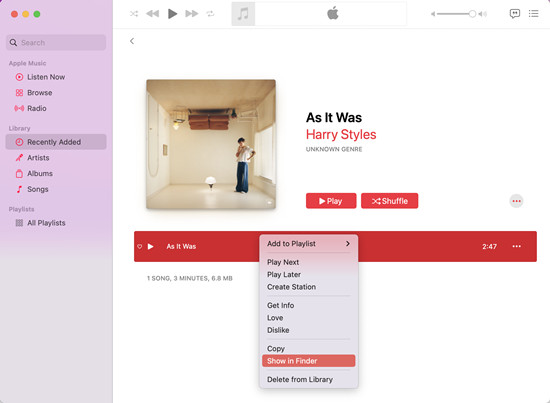
05Open the file location to copy or transfer the audio file as needed.
Part 5. How to Transfer Downloaded Apple Music Files Between Devices
Choose a transfer method based on whether you're moving regular audio files or syncing your Apple Music library.
Option 1. Sync Manually
Connect your device to your computer with a USB cable, then open Finder on Mac or a compatible device-management app on Windows. Select the music files you want to transfer, apply the changes, and wait for syncing to finish. This gives you control over which tracks are stored on each device. Protected Apple Music subscription downloads can't be copied as regular audio files, so manual syncing is intended for compatible music files.
01Connect your iPhone, iPad, or iPod to your computer using a USB cable.
02On Mac, open Finder and select your device in the sidebar. On Windows, open the Apple Devices app and select your device.
03Open the Music section for the connected device.
04Select Sync music onto [device name] on Windows or enable music syncing in Finder on Mac.
05Choose Entire music library or select specific artists, albums, genres, or playlists.

06Click Apply or Sync to transfer the selected music.
07Eject the device before disconnecting it.
Option 2. Sync Automatically
Sync Library lets Apple Music subscribers access eligible songs, albums, playlists, and library changes across devices signed in with the same Apple Account. Enable it in the music settings on each supported device.
Sync Library updates your music library but doesn't transfer standalone audio files. To move personal audio files, use cloud storage, file transfer, or a supported syncing method.
01On Mac, open Music > Settings > General. On Windows, open Apple Music > Sidebar Actions > Settings > General.
02Turn on Sync Library.

03On your iPhone or iPad, open Settings > Apps > Music and turn on Sync Library.

04Sign in with the same Apple Account on each device and wait for your library to sync.
05To listen offline on another device, open the Music app, find the song, and click or tap Download.
Read More: How to Sync Apple Music Library
Part 6. Apple Music Downloads vs. iTunes Purchases vs. Regular Audio Files
These three types of music may seem similar, but they differ in how you access, store, and transfer your tracks. If you want to download Apple Music songs as regular audio files, here's what you need to know.
- Apple Music subscription downloads: These are designed for offline listening through the Apple Music app. You can download songs and play them without an internet connection, but you can't normally save them as standalone MP3 files or freely transfer them to other devices. Access also depends on your subscription and account.
- iTunes Store purchases: Purchased songs offer more flexibility than subscription downloads. Apple says current iTunes Store songs are DRM-free iTunes Plus files, encoded in AAC at 256 kbps. You can download and play them in compatible apps, though they're not automatically MP3 files. Some older purchases may still have DRM protection.
- Regular audio files: Formats such as MP3, AAC, WAV, FLAC, and AIFF are easier to manage independently. You can store them in folders, back them up, and transfer them to compatible devices, provided they're not restricted by DRM and you have the necessary rights.
So, which option should you choose? Apple Music downloads are convenient for offline listening, while iTunes purchases give you downloadable copies of the songs you buy. If you want more control over your music, such as keeping standalone files for an MP3 player, backing up your collection, or using other audio apps, regular audio files are the way to go.
If your goal is to save Apple Music tracks in formats such as MP3, ViWizard Apple Music Converter is worth exploring. Check its current features and supported formats to see whether it fits your needs, and make sure any conversion complies with applicable laws and service terms.
Part 7. Conclusion
Downloading Apple Music tracks as regular audio files isn't as straightforward as saving them for offline listening. While the Music app lets you download songs for offline playback, those downloads generally can't be accessed as standalone files or freely transferred to other devices.
If your goal is to save Apple Music tracks in formats like MP3 for easier storage and transfer, ViWizard Apple Music Converter is worth exploring. Check its supported formats and current features to see if it meets your needs, and make sure any conversion complies with applicable laws and service terms.
You May Be Interested


Adam Gorden is always looking for new ways to explore music and videos. He likes trying different media tools and learning how to manage audio and video files with ease.

Leave a Comment (0)