


Where does Deezer save downloaded music? Unlike normal audio files such as MP3s, Deezer offline downloads are saved as encrypted cache files that can only be recognized and played through the Deezer app. This means you cannot simply open, copy, or move these downloaded songs to another device like regular music files.
In this guide, we'll explain where Deezer stores downloaded music on Windows, Mac, Android, and iPhone, and show you how to manage the storage space used by Deezer downloads. You'll also learn how to redirect Deezer's storage location and save Deezer songs as common audio files like MP3 or FLAC for more flexible offline listening. Let's dive in!

Part 1. Where Does Deezer Store Downloaded Music?
Although Deezer does not store downloaded music as actual audio files (such as MP3s), you can locate downloaded Deezer music on your device by following the detailed steps specific to each device:
1.1 On Windows and Mac:
The Deezer desktop app usually saves downloads to a specific cache folder on Windows and Mac. They are encrypted cached files and are only designed to be played within the Deezer desktop app, as long as your membership is still active.
On Windows:
On Windows, the default location is usually:


On Mac:
You should open the Finder, click Go, then hold down the Option key. A Library option will appear in the dropdown menu; click it to open the hidden Library folder. Then, navigate to:
1.2 On Android and iPhone:
On Android:
On mobile devices, Deezer also saves the offline downloads to an app-specific cache folder. As for Android devices, the Deezer downloads are usually within your phone's internal storage:
On iPhone:
Because of Apple's security protocols, Deezer downloads are stored within the Deezer app's file structure. Users are not accessible to access these files.
Part 2. How to Change Deezer Download Location and Manage Storage
Deezer saves downloaded songs inside its own app storage, which means you cannot directly choose a new download folder from the app settings. However, if your device is running low on space, there are still some ways to better manage where Deezer stores its offline music. Android users can move downloads to an SD card, while Windows and Mac users can use system tools to redirect storage locations.
2.1 Move Deezer Downloads to an SD Card (Android)
If your Android phone supports a microSD card, you can move Deezer downloads from internal storage to the SD card to free up space. This is especially useful if you have downloaded many playlists or albums for offline listening.To change the Deezer download location:
01Insert an SD card into your Android device and make sure it is recognized.
02Open the Deezer app and tap your profile icon.
03Go to Settings > Data and Storage.
04Find the Storage option and select SD Card as the download location.
05Deezer will store new downloads on the SD card instead of your phone's internal storage.

2.2 Use a Symbolic Link to Change Download Path (Windows/Mac)
You cannot pick a custom download folder on the Deezer desktop application, but you can "trick" it by creating a symbolic link. A symbolic link lets your computer operating system and the Deezer app treat it as if it were the actual folder, so that you can redirect where Deezer saves its cache files and free up space on your main drive.
This method does not affect how the Deezer application functions; it merely changes the storage location for Deezer cache files to the location you specify.
On Windows:
01Close the Deezer app completely.
02Create a new folder on the drive where you want your downloads to go (for example, D:\DeezerCache).
03Move the entire Deezer folder (usually under C:\Users\Your_Username\AppData\Roaming\Deezer) into the new location you created (e.g., D:\DeezerCache).
04Search for Command Prompt in the Start Menu, right-click on it, and select Run as administrator.
05Run this command (replace paths with your own):
06If successful, Command Prompt will display a confirmation message: "symbolic link created for...".
07Restart Deezer. It will now pull all cache, settings data, and downloads from the new location on your D: drive and store the future files.

On Mac:
01Close the Deezer app.
02Connect your external hard drive or other storage to your Mac computer.
03Create a new folder where you want downloads to be saved (for example, /Volumes/MyExternalDrive/DeezerCache).
04Open Finder and locate the original Deezer folder (usually under ~/Library/Application Support/Deezer).
05Move the entire old Deezer folder to the new folder location.
06Go to Applications > Utilities > Terminal, and run:

07To give an example, it would turn out to be:

08Press Enter.
09If the command is successful, the Terminal will not show a message, but the link will have been created.
10Restart Deezer. The app will now save downloads in the new folder.
Pro Tip: Clear Storage and Manage Smart Cache on Deezer
Deezer's Smart Cache stores temporary files to help songs load faster, but it can gradually take up a lot of space on your device. Clearing the Smart Cache can free up storage without removing your playlists, favorites, or account information.
Clear Smart Cache
On Mobile (iOS & Android):
01Open the Deezer app.
02Tap your Profile icon in the top-left corner.
03Tap the Settings (gear icon) in the top-right corner.
04Go to Data & Storage (or Offline & Data).
05Find the Deezer data, Disk usage, or Smart Cache section.
06Tap Empty Smart Cache or Clear All, then confirm the action.
On Desktop:
01Open Deezer and click your Profile icon/name in the top-right corner.
02Select Settings.
03Go to Data & Storage.
04Under Disk usage, click Clear all to remove cached files.
Adjust Smart Cache Size
To stop Smart Cache from using too much storage in the future, you can set a storage limit:
01Open Data & Storage settings in Deezer.
02Find the Smart Cache option.
03Adjust the storage slider and choose a suitable limit, such as 1 GB or 2 GB.
Part 3. How to Download Deezer Music to MP3s for Offline Listening
If you want more flexibility than simply freeing up storage space for Deezer downloads, you can save Deezer songs as regular audio files, such as MP3, that can be played outside the Deezer app. A tool like ViWizard Deezer Music Downloader can help you convert and save your Deezer music for more convenient offline use.
With ViWizard, you can download Deezer songs, albums, playlists, podcasts, and personal music collections to common formats, including MP3, FLAC, WAV, AIFF, M4A, and M4B, while keeping the original audio quality. It also preserves important track information, such as album artwork, title, artist, album, and year, so your music library stays organized. After conversion, you can move these audio files to any folder, storage drive, or compatible device for playback whenever you want.

Ready to build your own Deezer music collection? ViWizard Deezer Music Converter helps Deezer subscribers save songs, albums, playlists, and artists with reliable music conversion. Convert your favorites and create a personal audio library.
How to Use ViWizard to Save Deezer Music as Local Files
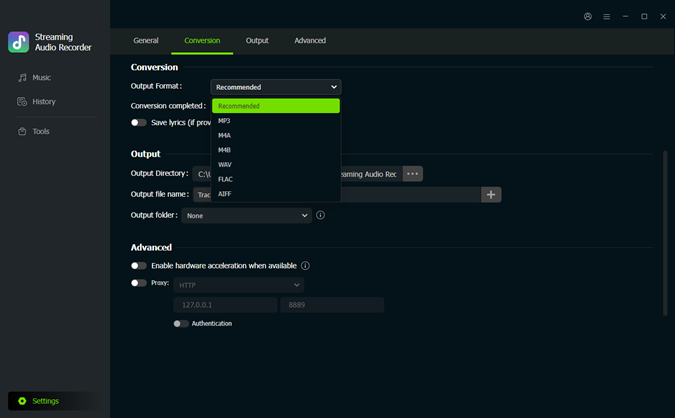 Step 1: Set the Output Preferences
Open ViWizard Deezer Music Downloader on your computer and click the Settings icon at the bottom left. In the Conversion section, choose your preferred output format, such as MP3, FLAC, WAV, AIFF, M4A, or M4B. You can also customize the audio quality and select the folder where you want your converted Deezer music to be saved. After adjusting the settings, return to the Music section.
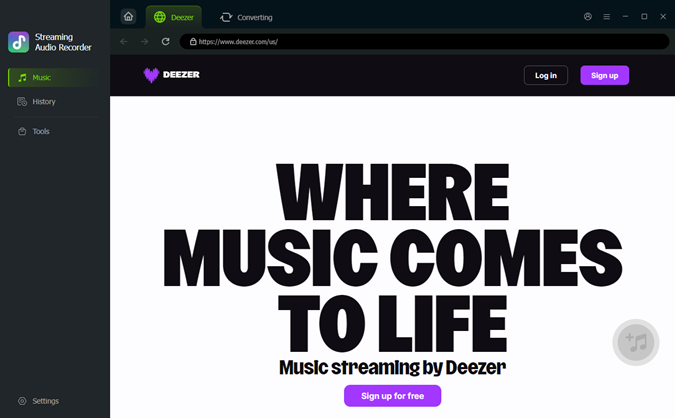 Step 2: Find Deezer Music in ViWizard
Click the Deezer icon in ViWizard to open the built-in Deezer player. Search for the songs, albums, playlists, or artists you want to save, then open the Deezer music page.
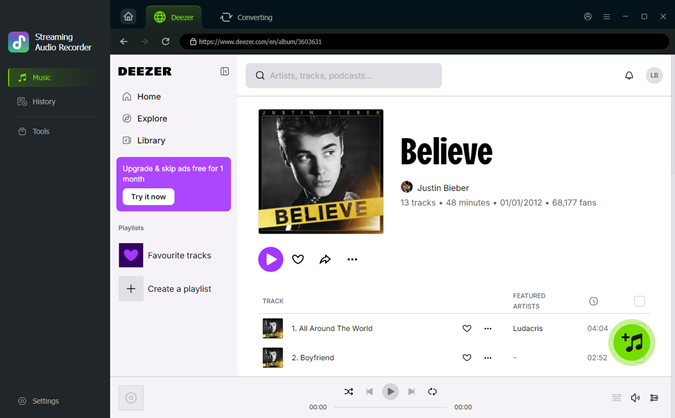 Step 3: Add Deezer Music to the Download List
Open a song, album, or playlist and click the + button. ViWizard will analyze the Deezer content and show the available tracks. Select the songs you want to save and add them to the download list.
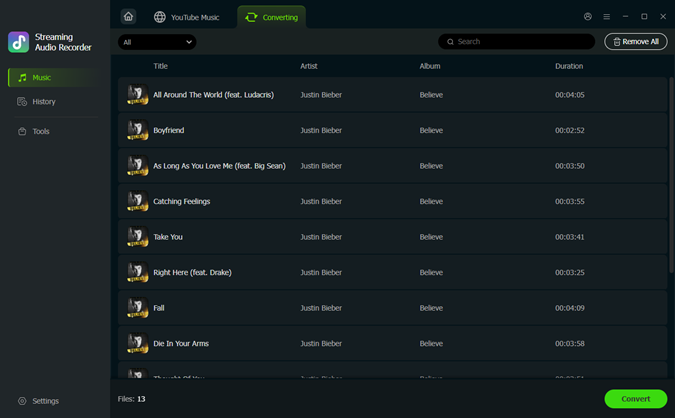 Step 4: Convert and Find Your Deezer Music Files
Go to the download list and select the Deezer tracks you want to convert. Click Convert to start saving them as local audio files. Once finished, open the History section to locate your converted Deezer music in the output folder you selected earlier. Since these are regular audio files, you can move them to another folder, external drive, or device for offline playback without relying on the Deezer app.
Conclusion
Deezer downloads are not stored as regular music files. Instead, they are saved as encrypted cache data that stays inside the Deezer app. Knowing where Deezer stores these files can help you better manage storage, move downloads to another location when possible, and keep your device from running out of space.
However, if you want to access Deezer songs as normal audio files that can be organized, transferred, and played outside the app, you need to convert them into common formats like MP3 or FLAC. With tools such as ViWizard Deezer Music Downloader, you can save your favorite Deezer tracks as local files and enjoy more control over how and where you listen to your music.
You May Be Interested

How to Download Music from Deezer to Phone & PC

Deezer Downloaders for Windows, Mac, Online, and Mobile

Deemix Not Working? Try These 4 Best Deemix Alternatives

How to Download Deezer to MP3 [Step-by-Step Guide]

9 Best Streaming Audio Recorders Review in 2026

How to Connect Deezer with Last.fm on Desktop and Mobile

Dave Henry loves movies and all things video. He likes checking out different video formats and trying new media players to see how they change the viewing experience.

Leave a Comment (0)