


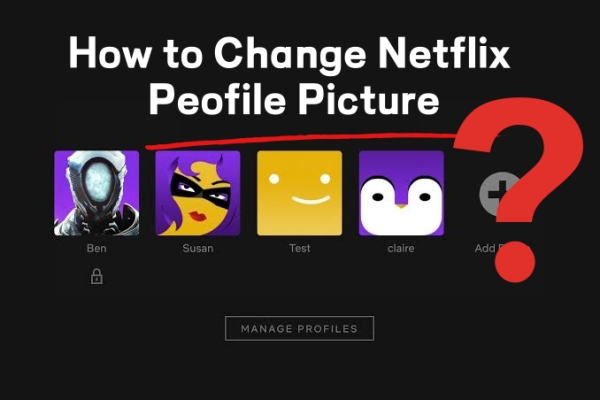
With thousands of movies, shows, and games available, Netflix is the ultimate entertainment hub. Millions of people turn to Netflix every day for entertainment. To add a personal touch to their experience, Netflix also allows users to customize their profile by choosing from a vast library of official character and show icons.
This article provides step-by-step tutorials on how to change your Netflix profile picture for mobile, smart TV, and desktop. Whatever device you use to watch Netflix, this guide will help you get the profile picture you want.
Part 1. Can You Change Netflix Profile Picture?
You might be wondering, "Can I change my Netflix profile picture?" The answer is yes. Officially, subscribers can change their profile picture by choosing from Netflix's library of characters and show icons. You can set your profile pic to your favorite character. For instance, if you love Wednesday from the show Wednesday, you can make her your profile picture. That's pretty fantastic. Moreover, Netflix will regularly rotate its profile icons. The character icons from new shows will be added, and the older icons may be retired.
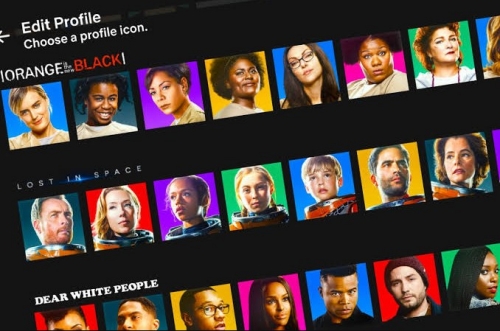
Apart from the official ways, browser extensions are also available to customize your Netflix profile picture. You can select a preferred image directly from the extension that may store all Netflix profile icons. Additionally, you can upload your own pictures. That’s to say, you can even use your own photo as your Netflix profile picture.
Part 2. How to Change Netflix Profile Picture for Mobile
If you're used to watching Netflix on mobile devices, you can easily change your profile picture using the official method. The steps below apply to both Android and iOS.
01Open the Netflix app.
02Tap the My Netflix button at the bottom-right corner and tap the profile name. On tablet or iPad, skip this step.
03Click the Manage Profiles option.
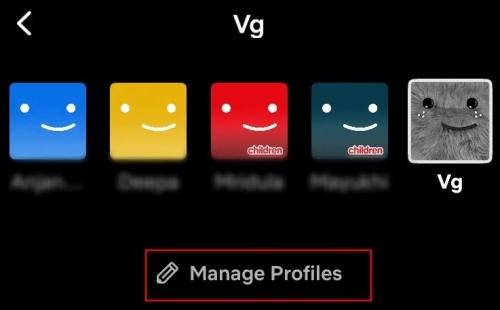
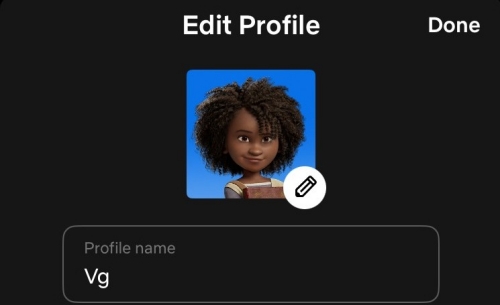
04Tap the pencil icon near or on the profile you want to edit. You’ll then see a list of profile icons provided by Netflix.
05Scroll and choose a preferred profile picture.
06Tap the profile picture you’ve selected. Click Save or Done to confirm your change.
Part 3. How to Change Netflix Profile Picture for Smart TV
For users who prefer to watch Netflix titles on a smart TV, Netflix also allows them to change their profile picture. Options may vary across different devices, but the steps are easy, just as they are on mobile devices.
01Open Netflix and go to the menu section. To bring up the menu, you can press the left, back, or menu button on your remote (depending on the device).
02Choose your profile name or icon by pressing the up button on your remote.
03Press the select or confirm button to continue.
04Choose and highlight the profile you’d like to edit by pressing the arrow button on your remote.
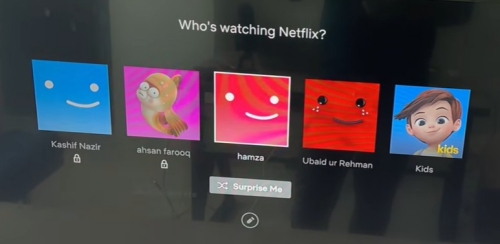
05Choose the pencil or edit icon and press the confirm button.
06Select the Icon option. You’ll then see a list of available profile icons.
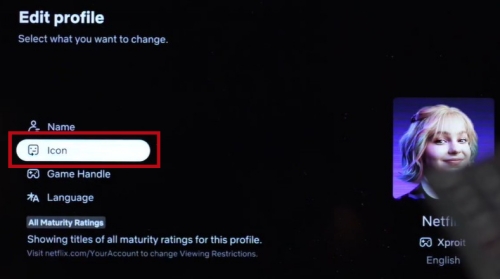
07Choose a profile picture and press the confirm button on your remote.
Part 4. How to Change Netflix Profile Picture for Desktop
On Desktop, you can change your Netflix profile picture on the Netflix web player, though it’s not available to change through the Netflix app on Windows 10. For even more customization, you can use browser extensions, which offer added flexibility and convenience.
4.1Change Netflix Profile Pic Officially
Subscribers can get a new profile picture directly from the Netflix icon library, which is the official way. The step-by-step guide is below.
01Go to Netflix on your browser.
02Hover your mouse over the profile icon at the top-right corner.If the Manage Profiles option is on your screen, skip this step.
03Click Manage Profiles in the dropdown menu.
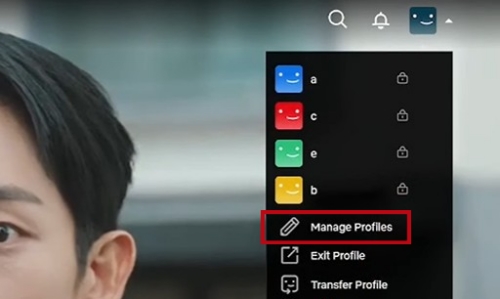
04Find the Profile Settings section and click the profile to be edited.
05Click Edit personal and contact info.
06Click the pencil icon on your profile picture to change the profile picture.
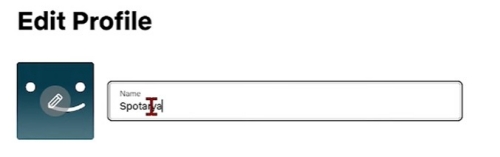
07Choose an image you want to use from the icon list. Click it and then click Save to update your changes.
4.2Customize Netflix Profile Pic with Browser Extensions
With the official method, you're limited to the pictures provided by Netflix. If Netflix retires your favorite profile icons, you can no longer use them. What's more, you can't upload any personalized images. Therefore, here comes an unofficial method.
That's where browser extensions come in. Using an extension designed for Netflix profile pictures, you can restore old icons that Netflix has retired. You can also set a photo of yourself or your pet as your Netflix profile picture. Let’s walk through the process using a reputable extension, Custom Profile Picture for Netflix, as an example.
01Search for and find the Custom Profile Picture for Netflix in the Chrome Web Store.

02Click Add to Chrome and then Add Extension.
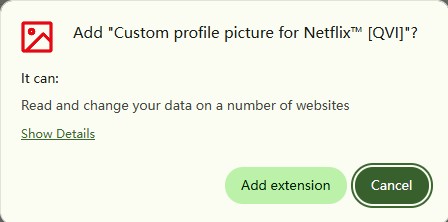
03Go to Netflix and make sure your Netflix account is logged in.
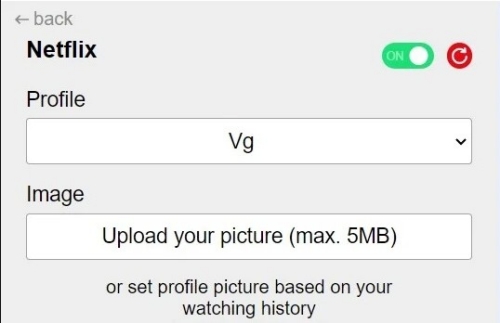
04Click the extension icon. Next, open the Custom profile picture for Netflix.
05Hit the Profile drop-down box and change the profile name to the one you will edit.
06Click Upload your picture, select a picture on your desktop, and upload it. The max size of an image is 5MB.
Bonus: How to Watch Netflix Videos with Friends Whenever and Wherever
Now, with all the methods above, you can set your profile picture just the way you like it, adding a personal touch to your Netflix experience. Here, it also offers a trick to watch Netflix videos with friends whenever and wherever, which can further enhance your viewing experience.
ViWizard Netflix Video Downloader can download Netflix titles in MP4 format and keep them forever. This means you can play the downloaded videos on any device, whether it supports Netflix or not. You can enjoy them even after your Netflix subscription expires, or watch them offline while traveling.
Therefore, whenever you feel like watching a Netflix movie with friends, you can simply open the downloaded video and enjoy it smoothly. Sounds great, doesn't it? Why not have a free trial?

Key Features of ViWizard Netflix Video Downloader
Free Trial Free Trial* Security verified. 5, 481,347 people have downloaded it.
- Download Netflix movies and TV shows as MP4 or MKV files
- Preserve HD, 4K, HDR video, audio tracks, and subtitles
- Accelerate downloads when saving long videos or complete seasons
- Remove ads automatically during video downloads
- Save Netflix videos for playback on different devices
 Step 1: Complete the Netflix Login Process
To access the Netflix library, you should first log in to your Netflix account in the built-in Netflix web player. Your privacy is highly respected. ViWizard Netflix Video Downloader won’t store any personal information.
 Step 2: Choose Suitable Downloading Settings
You can access the download settings section by clicking the menu icon. It’s available to change video format, audio channel, languages, and more.
 Step 3: Select a Video and Download
You can find a favorite title by browsing or searching on the built-in Netflix web player. Once you find it, click the download icon at the bottom-right corner and confirm your download settings. You can select episodes one by one, or click Select All to download the entire series at once. Then, click Download to begin.
 Step 4: Locate the Downloads
After the download is complete, click the history icon to view your list of downloaded titles. Click the folder icon next to each item to locate the file on your computer. From there, you can play the video directly or transfer it to other devices and enjoy it with friends.
Conclusion:
All Netflix subscribers can change their profile pictures, whether on mobile devices, smart TVs, or Desktops. You can select one directly from the Netflix profile icon library. Also, if you’d like a customized profile picture, browser extensions may help. Besides, if your favorite Netflix profile picture has been phased out, you can also find it back by using the browser extension.
While a personalized Netflix profile picture adds a fun touch, it's also enjoyable to watch Netflix titles with friends whenever and wherever with ViWizard Netflix Video Downloader.
You May Be Interested


Rick Lee is the kind of person who likes to figure out why a computer is acting up. He follows useful PC tips, learns about system settings, and looks for simple fixes to common computer problems.

Leave a Comment (0)