


Netflix is now the world's largest streaming platform. It's reported that over 325 million people subscribe to Netflix globally. What's more, on average, every Netflix user has spent over 49 days watching Netflix videos since creating their account.
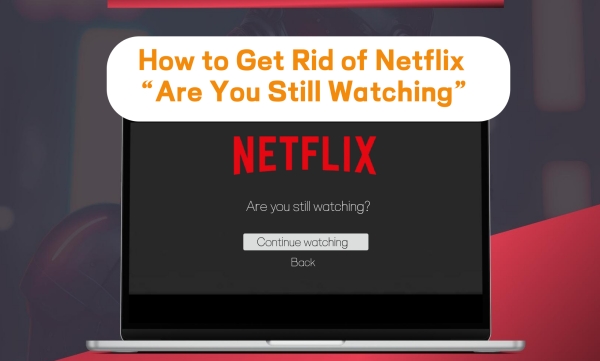
However, while users are immersed in their favorite Netflix shows, a prompt often pops up, disrupting their viewing experience and mood. That's the 'Are you still watching?' message from Netflix. Annoying, isn't it? This article will explain how to get rid of it and why Netflix asks. Then, you can enjoy an uninterrupted, immersive Netflix night.
Part 1. Why Does Netflix Ask "Are You Still Watching"?
Although this prompt can be quite annoying, it actually comes with some benefits. At the same time, turning it off may come with hidden downsides. Therefore, to solve the issue, it's worth understanding why Netflix asks "Are you still watching?".
1.1The Purpose Behind Netflix "Are You Still Watching?"
As announced by Netflix, this prompt is designed to save your internet data and preserve your viewing progress. If you fall asleep or step away to grab some food while a show is still playing, the prompt pauses playback so that no content continues streaming while you're not watching. This means no extra data is consumed, and your viewing progress stays exactly where you left off.
Beyond that, this prompt also helps Netflix improve its personalized recommendations. If Netflix were to keep playing a video you're not really interested in — perhaps because you've fallen asleep or walked away — your viewing data could become skewed. As a result, Netflix might end up recommending shows you find boring.
1.2How Long Until Netflix Asks "Are You Still Watching?"
Netflix waits different amounts of time before asking, depending on what device you're on. If you watch Netflix on a mobile device or desktop, the prompt will pop up after you've watched three episodes of a show in a row. The rule applies regardless of how much time you've actually spent watching. In other words, even if you binge three episodes of an anime and each episode is less than five minutes long, the prompt will still appear.
If you watch Netflix on a TV or TV streaming device, as many users do, the prompt will appear after three consecutive episodes or 90 minutes of uninterrupted streaming. This can be especially annoying when you're watching a movie that's longer than 90 minutes. You can't fully enjoy an immersive movie night without reaching for your remote or responding to the "Are you still watching?" prompt.
Part 2. How to Turn Off "Are You Still Watching" on Netflix
Since the prompt will interrupt your immersive Netflix viewing experience, how can you turn off "Are you still watching" on Netflix? This section introduces three practical methods to help you get rid of it.
2.1Disable Netflix Autoplay
The most common and official method is to turn off Autoplay Next Episode on Netflix. While this means you'll need to manually start the next episode, it also means the "Are you still watching?" prompt will no longer appear. Keep in mind that you can only change this setting once per profile. To turn off autoplay for all profiles on your Netflix account, you should repeat the process below for each one. If you are considering adopting this method, here is a step-by-step guide.
On Mobile Devices
On mobile devices, you can turn Netflix autoplay off directly in the Netflix app. The following steps apply to both iOS and Android.
01Tap the My Netflix button at the bottom-right corner of your screen.
02Tap the name of your profile or the menu icon.
03Choose the Manage Profiles option.
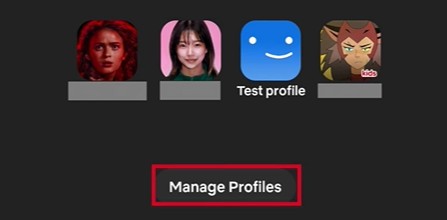
04Tap the profile for which you want to turn off the autoplay feature.
05Scroll and toggle off the Autoplay Next Episode switch.
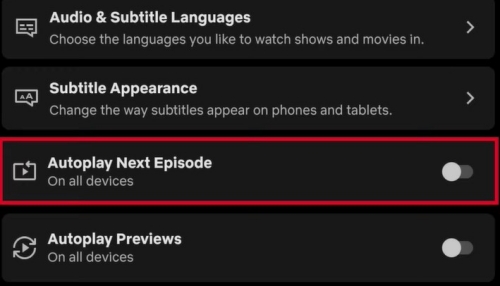
06Refresh to update the settings by switching profiles or signing out of your Netflix account. On iPad or iPhone, select Done to save your changes before refreshing.
On Desktops
On desktops, you can turn off autoplay through the Netflix web player. The setting is simple and easy, just as follows.
01Hover over the top-right profile icon and click Account.
02Click Profiles and select a profile.
03Find Playback Settings and click it.
04Turn off Autoplay Next Episode.
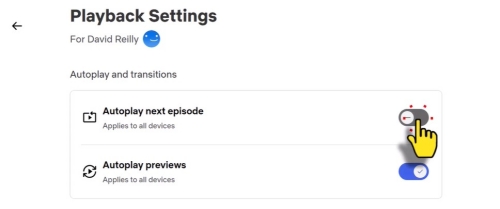
As for the Netflix app on Windows, it should be noted that you can't turn off Netflix autoplay directly in this app. It's not allowed to adjust the playback settings in the Windows Netflix app. You should first toggle off Netflix autoplay on a mobile device or through a browser. After that, switch profiles or sign out of the Netflix app on your desktop to apply the changes.
On TV or TV streaming services, you may also need to disable sleep timers. Go to the settings section first. On Apple TV, select General and turn off Sleep After. On Fire TV, select Display & Sounds and turn off Screen Saver. On Roku, select System, and then Time. Toggle off Sleep Timer.
2.2Use Browser Extensions
For desktop users, it's also recommended to use a browser extension. Many of these extensions also come with extra features. For example, EndlessFlix can automatically skip the "Are you still watching?" prompt and the intros while allowing autoplay.
01Search on Google for a reputable extension designed to skip the Netflix prompt. You can also directly search for EndlessFlix recommended by Netflix users.
02Download and install the selected extension.
03Click the extensions icon on the toolbar to make sure your extension is enabled.
04Go to Netflix to open a show or refresh Netflix.
2.3Stay Active with Your Remote
To avoid Netflix from asking "Are you still watching?" on TVs or Smart TVs, you can stay active with the remote. In other words, you can occasionally interact with the remote while watching Netflix. In this way, Netflix can detect your presence. It can also reset the timer. Therefore, Netflix will not send any prompt to check whether you are still watching.
As some Netflix users have shared, simple actions can do the trick. You can change the volume, pause the video and resume instantly, press the info button and quickly go back to the show, and so on.

Part 3. Watch Netflix Offline Continuously without Any Interruptions
Apart from the methods mentioned above, you can also try to watch downloaded Netflix videos on other media players. This way, Netflix won't be able to interrupt you since you're not watching through the Netflix app or web player. But here's the catch: videos downloaded directly from Netflix can only be played within Netflix. So how can you make this work? Well, that's quite easy.
ViWizard Netflix Video Downloader can help users download Netflix titles in MP4 or MKV format, free from Netflix DRM restrictions. Then you can watch your favorite shows offline on any device without Netflix interruptions. This approach also helps you avoid data charges completely. What's more, if you're on a Netflix Standard with ads plan, you can download shows or movies ad-free with ViWizard Netflix Video Downloader, further enhancing your viewing experience.

Key Features of ViWizard Netflix Video Downloader
Free Trial Free Trial* Security verified. 5, 481,347 people have downloaded it.
- Download Netflix movies and TV shows as MP4 or MKV files
- Preserve HD, 4K, HDR video, audio tracks, and subtitles
- Accelerate downloads when saving long videos or complete seasons
- Remove ads automatically during video downloads
- Save Netflix videos for playback on different devices
 Step 1: Sign in to Unlock the Netflix Library
To download titles on Netflix, you should first sign in to your Netflix account. Then, you can freely browse the Netflix library.
 Step 2: Customize Download Settings
Since the default download settings may not fully meet your needs, you can click the menu icon to customize settings. Change the video format and audio quality if you need. You can also adjust the subtitles, languages, audio channel, etc.
 Step 3: Download Instanly
Browse the Netflix library to find the content you like. Open the content you're interested in. Then, click the download icon. You can confirm download settings again here. Select the episodes you want. Next, click Download.
 Step 4: Enjoy Downloaded Netflix Titles
To watch the downloaded shows, click the history icon and then the folder icon next to each download. You will locate the video on your computer. Right-click it and open it with any player. Then, enjoy your Netflix time.
Part 4. Conclusion
To get rid of the annoying "Are you still watching?" prompt, you can turn off Netflix autoplay on your mobile device or in your browser. Another great option is to use a browser extension, which often comes with additional useful features. Alternatively, watch Netflix videos offline continuously with ViWizard Netflix Video Downloader, which also protects your data usage as Netflix Autoplay Next Episode does.
You May Be Interested




Dave Henry loves movies and all things video. He likes checking out different video formats and trying new media players to see how they change the viewing experience.

Leave a Comment (0)