


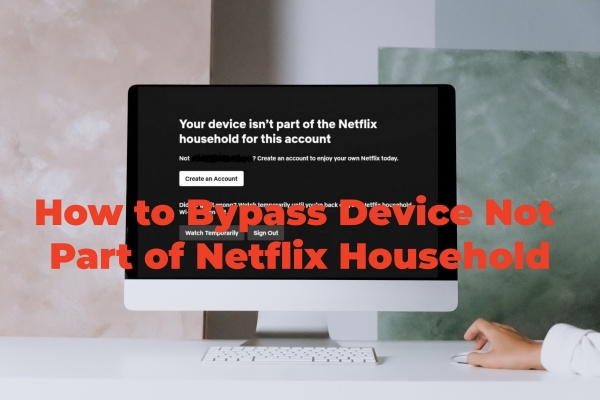
Have you ever been disturbed by the problem "your device isn't part of the Netflix Household"? You'd like to enjoy a good movie night. But this message appeared on your screen. Rather annoying, isn't it? Many Netflix users have met this trouble. Fortunately, this article offers you ways to get rid of it.
Part 1. Why Does Netflix Say "Your Device Isn't Part of the Netflix Household"?
First of all, to avoid such issues later and clear up any confusion, you may wonder why Netflix says "your device isn't part of the Netflix Household".
When you see this message, it means Netflix has found that your account is being used outside the registered home or on too many devices.
The "Netflix Household" is determined by physical internet connectivity. It refers to the collection of devices that connect to the same Wi-Fi network at your registered home address.
To detect outsiders, Netflix tracks your IP address, device IDs, and account activity. Once your IP address changes, Netflix recognizes the mismatch and locks the screen.
Thus, for students in dorms or travelers, the Netflix Household restriction bothers them a lot. If people live far away from their parents, it also disturbs their watching experience. It sometimes even occurs in different rooms of the same house due to a weak Wi-Fi signal.
Part 2. How to Fix Netflix Device Not Part of Household (Official)
To fix this, Netflix offers some ways. The following are step-by-step tutorials for you.
2.1 Make Netflix Household Updated
You can update the Netflix Household so that your device is recognized as part of it again.
TV or TV Streaming Device
01Choose Update Netflix Household on your device when Netflix alerts.
02Select Send Email. Then, Netflix will send the account owner an email.
03Open the email and click Yes, This Was Me within 15 minutes.
04Hit Confirm Update to complete the process.
Mobile Phone or Computer
01Make sure the device is connected to the correct Wi-Fi linked to the Netflix Household.
02Update the Netflix Household from TV or TV streaming devices in your Netflix Household if the problem persists after connecting to the right Wi-Fi. Press the Back (or Menu) button on your remote.
03Find and click Get Help or Settings.
04Click Manage Netflix Household.
05Choose Update Netflix Household and then click Send Email.
06Hit Yes, This Was Me in the email and then Confirm Update.
06Restart the Netflix app or refresh the website on your device.
2.2 Select "I'm Traveling" or "Watch Temporarily"
To help users fix "device not part of household", Netflix provides I'm Traveling feature and Watch Temporarily feature for users to watch Netflix while traveling or in a friend's house.
TV or TV Streaming Device
01Log in to Netflix on the device.
02Click I'm Traveling button and then choose Send Email.
03Hit Get Code to retrieve the 4-digit code.
04Type in the code on the TV screen and tap Next. Then, you'll get 7 days of uninterrupted access to the device.
Mobile Phone or Computer
01Click Watch Temporarily option and hit Send Email.
02Select Get Code in the email to get a 4-digit temporary access code.
03Enter the code and click Submit Code button.
04Tap Continue to Netflix and start watching.
2.3 Select Troubleshoot This TV
If you don't want to update the household, you can use the troubleshoot feature of Netflix.
01Prepare a mobile phone or tablet with a camera. Make sure it is connected to the right Wi-Fi.
02Click This is My Account on the TV screen and next Update Netflix Household.
03Choose Troubleshoot This TV rather than Update Netflix Household. Then there will be a QR code.
04Scan the QR code with the camera on your mobile device.
05Tap Next and then Get Code. A new QR code will appear on the TV screen.
06Scan the new QR code with the camera on your mobile device.
07Choose Start Watching once the verification is finished.
2.4 Verify the Device
On some televisions, you can see a Confirm Device option when Netflix alerts "device is not part of household". Select it and choose Send Email to verify the device. In the email, tap Yes, Confirm Device to complete the verification. Finally, click Continue to Netflix to go back and start enjoying.
Part 3. How to Bypass Device Not Part of Netflix Household
Though these official ways are helpful, they require a mobile device or email, and the same trouble will often come back again. If you want some simple ways to fix it for good, here are some recommended ways.
Desktop and Laptop Computers (Windows and Mac)
On computers, Netflix is only accessible via a web browser. The solutions are as follows.
Developer Tools
01Press F12 on your keyboard or right-click the page and select Inspect when the household error pops up.
02Use Ctrl +F (or Cmd+F on Mac) to search for "NFModel… fullscreen".
03Right-click that line and delete it. You may need to delete it again once it reappears.
04Close the developer page and resume watching.
Browser Extensions
It's also a great choice to use open-source browser extensions like Nikflix or HouseholdNoMore. They are designed to bypass "device not part of Netflix Household".
You can find and download these extensions on GitHub or just search for utilities like Nikflix. After a quick installation, the extension can help you get back to enjoying Netflix without interruption.
Network Toggle Bypass
01Search in the search bar at the bottom of your computer and make sure that proxy and VPN are off.
02Disconnect from the internet when you get the message your device isn't part of the netflix household.
03Refresh the website and play the video.
04Reconnect to the internet.
Direct Link Navigation
As it's shared by Netflix users, you can search for specific Netflix videos on Google and enter Netflix through the official Netflix link.
Then just sign in to Netflix so that you can watch the video. No more Netflix "this device is not part of your household" will be triggered.
Reliable VPN
To bypass the Netflix Household error, using a VPN is one of the most effective approaches.
01Since Netflix has restricted the use of VPN, you should first choose a reputable VPN designed to bypass Netflix restrictions, such as NordVPN and ExpressVPN.
02Download and install the VPN client. Then, start the VPN client.
03Erase the cache and cookies from your browser settings.
04Connect to a server located in the geographic area of your registered Netflix account.
04Finally, enjoy Netflix movies.
Mobile & Tablets
There are also solutions for mobile and tablets.
Airplane Mode
01Make sure the Netflix app is completely shut down and not active in the background.
02Activate Airplane Mode and shut off Wi-Fi entirely.
03Launch the Netflix app while offline. It will automatically take you to your account page or downloaded content.
04When Netflix finishes loading, turn off Airplane Mode and restore your internet connection.
Reliable VPN
On mobile devices, using a VPN such as NordVPN is still helpful. You can use the free Meshnet feature provided by NordVPN to bypass the Netflix Household restriction.
01Download NordVPN and finish the installation on your mobile device that is a member of your Netflix Household and can watch Netflix normally.
02Open the NordVPN app and register for a free account.
03Turn on the Meshnet feature.
04Download and install NordVPN on another device.
05Launch it and register your account or sign up for a new one.
06Turn on the Meshnet feature and Traffic Routing.
07Associate this device with the Netflix account owner. Then, this device can watch Netflix videos anywhere while the IP address is still the same as the account owner.
Part 4. How to Share Netflix Videos with Friends and Family
If all these methods don't work due to Netflix's strict Household Sharing Ban, you can download Netflix videos to share them with friends and family. Though Netflix provides an official download feature, it has limits. Limited devices are supported. The duration of validity is limited. Even, you cannot download movies in MP4 format.
ViWizard Netflix Video Downloader is a desktop application that helps users to download Netflix videos in MP4 or MKV formats. You can download TV shows, movies, documentaries, animations and more for unlimited offline viewing, so you can watch Netflix anytime and anywhere without the Netflix app or the internet. By saving Netflix videos to MP4 locally, you can play Netflix videos on a bigger screen like a TV to watch with friends and family together.
ViWizard Netflix Video Downloader removes Netflix ads and keeps the video quality original. Therefore, your watching experience is guaranteed. Why not have a free trial?

Key Features of ViWizard Netflix Video Downloader
Free Trial Free Trial* Security verified. 5, 481,347 people have downloaded it.
- Download Netflix movies and TV shows as MP4 or MKV files
- Preserve HD, 4K, HDR video, audio tracks, and subtitles
- Accelerate downloads when saving long videos or complete seasons
- Remove ads automatically during video downloads
- Save Netflix videos for playback on different devices
 Step 1: Log in to Your Netflix Account
Double-click ViWizard Netflix Video Downloader to launch it. Then, in the built-in Netflix web player, sign in to your account to have full access to Netflix videos.
 Step 2: Confirm Preferred Settings
Tap the menu button in the top right corner. Then, you can adjust the settings as you prefer, including video format, video quality, audio channel, audio language, subtitles, etc.
 Step 3: Find the Content to be Downloaded
Tap the menu button in the top right corner. Then, you can adjust the settings as you prefer, including video format, video quality, audio channel, audio language, subtitles, etc.
 Step 4: Start Downloading
Set the resolution, audio, subtitles, and file type. Choose the episodes you’d like to download. You can also batch download by pressing Select All. Next, tap Download to start the download process instantly, or click Add to List to add more items to the download list.
 Step 5: Access the Downloaded Content
Click the history button to enter the history section. The downloaded videos will be listed here. Access them by clicking the file folder icon on the right of each video.
Part 5. Conclusion
If you get the message "your device isn't part of the Netflix Household", don't panic. There are abundant solutions to this problem. You can choose official ways or other methods recommended by Netflix users. All of which are shared here.
If none of these methods work for you, it's also a good choice to download Netflix videos with ViWizard Netflix Video Downloader for a smooth viewing experience anytime and anywhere.
You May Be Interested


Rick Lee is the kind of person who likes to figure out why a computer is acting up. He follows useful PC tips, learns about system settings, and looks for simple fixes to common computer problems.

Leave a Comment (0)