


Have you ever met a disappointing scenario like this: you find an interesting Netflix series, and you want to play it on your TV, computer, or other devices, but only to encounter a black screen on your Netflix finally? Many Netflix users have met the black screen problem on Netflix. This is definitely a frustrating thing. Fortunately, whether you are watching Netflix on TV, computers, or mobile devices, this article offers several verified methods for you to fix this problem.
Part 1. Why Is My Netflix Screen Black?
Generally, there are five reasons the screen is black on Netflix. The first one is an internet connection issue. If your internet connection is weak or unstable, there may be buffering problems, even a black screen. Second, if you're using a web browser like Chrome or Edge, sometimes extensions or outdated browsers cause a Netflix black screen.
In addition, if you're streaming on a phone, tablet, or smart TV, your Netflix app can crash or become unresponsive from time to time. Your outdated software or device will cause a Netflix black screen problem, too. The last reason is the HDMI connection or the display settings. A bad cable or wrong settings may lead to the frustrating issue. Due to the above reasons is all possible, so we will help you troubleshoot. The methods to fix black Netflix screen issues are in the following.
Part 2. How to Fix Black Screen in Netflix with Sound
If you encountered the black screen with sound, the main reason may be that your device is glitching, or the connected cable is broken. You can find the corresponding solution and fix. The following are step-by-step tutorials for specific devices.
For Netflix Black Screen on TVs
There are 5 steps for your Netflix black screen on your TV. Let's troubleshoot.
Solution 1: Check the Hardware Connection
Step 1 Unplug the HDMI cable from both your TV and device (such as your streaming box, console, or TV).
Step 2 Inspect the HDMI cable for damage and plug it back in securely.
Step 3 If possible, try a different HDMI cable or port on your TV.
Step 4 Make sure your TV is set to the correct HDMI input.
Solution 2: Update Your Device
Step 1 Go to the Settings menu on your TV.
Step 2 Look for Software Update or Firmware Update under the Support or System section.
Step 3 If an update is available, follow the prompts to update your TV.
Step 4 After the update, restart the TV and try Netflix again.
Solution 3: Clear Netflix Cache
Step 1 Open the Settings menu on your TV.
Step 2 Go to Apps or Applications.
Step 3 Scroll down and find Netflix in the list of installed apps.
Step 4 Select Netflix, then look for options like Clear Cache or Clear Data (not all TVs will have this option). If available, select Clear Cache and confirm.
Solution 4: Uninstall and Reinstall the Netflix App.
Step 1 Go to the App Store or Apps section of your TV.
Step 2 Search for Netflix.
Step 3 UAninstall and then reinstall the Netflix app.
Solution 5: Restart Your Device
Step 1 Unplug your device from power.
Step 2 Press the power button on the device once and wait 1 minute, or leave it unplugged for 3 minutes instead.
Step 3 Plug your device back in.
Step 4 Turn your device on and try Netflix again.
For Netflix Black Screen on Computers
A Netflix black screen on computer is really frustrating. To make you get a good mood again, there are a few common causes and solutions for this. Let's troubleshoot!
For Web Browsers:
Solution 1: Disable Hardware Acceleration:

Step 1 Type chrome://settings (or similar for other browsers) in the address bar.
Step 2 Search for "hardware acceleration" or go to System settings.
Step 3 Turn off "Use hardware acceleration when available" and relaunch the browser.
Solution 2: Clear Your Cache
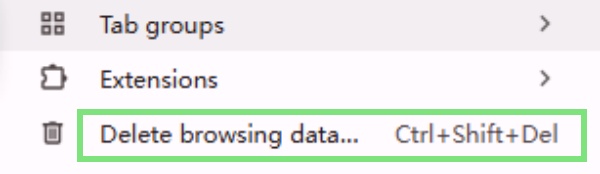
Open Chrome on your computer. Click the three dots in the top-right corner to open the menu. Select More Tools > Clear browsing data. In the pop-up window, select the time range. Choose All time to clear everything. Check the boxes for Cookies and other site data, and Cached images and files. Click Clear data. Once done, restart Chrome and try Netflix again.
In the upper right corner of the browser, click More. Click Settings, then click Privacy & Security. Scroll down and click Clear History. In the Time Range to Clear dropdown menu, select Everything. Uncheck everything except Cache. Click OK, then try Netflix again.
In the upper right corner of the browser, click More. Click Settings, then click Privacy, Search, and Services. Below, Clear browsing data, click Choose What to Clear. Uncheck everything except Cached images and files and Cookies, and other site data. In the Time range drop-down menu, select All time. Click Clear now, then try Netflix again.
Open Safari on your Mac. Click Safari in the top menu and select Preferences. Go to the Privacy tab. Click Manage Website Data. Select Remove All, then confirm by clicking Remove Now. Close the Preferences window and restart Safari. Then, try Netflix again.
For Netflix App (Windows):
If you encountered Netflix black screen issue on your Netflix app on your computer, the solutions below can help fix it.
Solution 1: Sign Out and Sign Back In
Step 1 Type chrome://settings (or similar for other browsers) in the address bar.
Step 2 Open the Netflix app on your desktop.
Step 3 Click the three dots (More Options) in the top-right corner.
Step 4 Scroll down and click Sign Out.
Step 5 Sign back in with your Netflix credentials.
Step 6 Try Netflix again to see if the issue is resolved.
Solution 2: Update or Reinstall the Netflix App
Step 1 Open the Netflix app on your desktop.
Step 2 Open Netflix on your desktop.
Step 3 Right-click the Start menu and select Apps and Features
Step 4 Find Netflix in the list of apps. Click on Netflix and select Uninstall.
Step 5 After uninstalling, reinstall Netflix from the Microsoft Store. Launch Netflix again and check if the issue is fixed.
Solution 3: Turn Off Security Software Temporarily
Step 1 Open your security software (like Norton, McAfee, Windows Defender, etc.) on your computer.
Step 2 Temporarily turn off the security software or firewall.
Step 3 Try opening the Netflix app again to see if it works without the security software running.
For Netflix Black Screen on Phone, iPad, or Tablet
A Netflix black screen on your phone is disappointing. We will help fix the issue. Whether you are use Android phone or iPhone, there are a series of solutions for this. Let's troubleshoot!
On Android Phone or Tablet
To Android phone or tablet users, a Netflix black screen problem may be caused by Netflix app glitching or cache. So, try the steps in the following.
Solution 1: Close and Reopen the Netflix App
Close the Netflix app completely (swipe it off your recent apps list) and then reopen it.
Solution 2: Reinstall the Netflix app
Step 1 At first, go to the settings on your phone or tablet.
Step 2 Then, find the Apps.
Step 3 Search for Netflix or just scroll down and find Netflix.
Step 4 Now, sign in to Netflix with your account again.
Solution 3: Clear Netflix App Cache (Android Only)
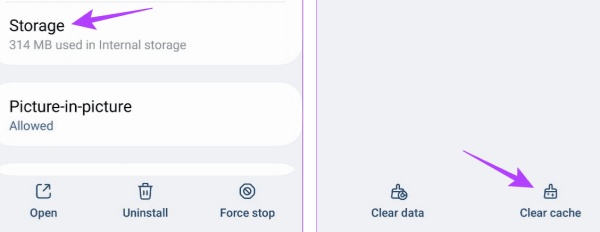
Step 1 At first, go to the settings on your phone or tablet.
Step 2 Then, go to the Apps > Netflix > Storage.
Step 3 Tap Clear Cache and Clear Data and try Netflix again.
Solution 4: Restart Your Device
Step 1 Turn off your phone or tablet compeletly, not just locked.
Step 2 Open it again and try Netflix again.
Step 3 Tap Clear Cache and Clear Data and try Netflix again.
On iPhone or iPad
If you are use iPhone or iPad, you can troubleshoot the problems below.
Solution 1: Close and Reopen the Netflix App
Step 1 Turn off your phone or tablet compeletly, not just locked.
Step 2 Open it again and try Netflix again.
Step 3 Tap Clear Cache and Clear Data and try Netflix again.
Solution 2: Reinstall the Netflix app
Step 1 At first, go to the settings on your iPhone or iPad.
Step 2 Search for Netflix or just scroll down and find Netflix.
Step 3 Uninstall it and go to the App Store to download the Netflix app.
Step 4 Now, sign in to Netflix with your account again.
Solution 3: Restart Your iPhone or iPad
Step 1 Turn off your iPhone or iPad completely by long-pressing the power button.
Step 2 Wait a few seconds, then turn it back on.
For Netflix Black Screen on Game Consoles
Updating your console’s system software can help fix various issues, including problems with apps like Netflix. Here's how to update your system software on PlayStation and Xbox.
PlayStation 5 & PS4
If you're experiencing a black screen while trying to use Netflix on your PlayStation 5 or PS4, these troubleshooting steps will help you fix it.
Solution 1: Open HDCP 1.4
Step 1 If your screen is black while sound plays, it may be a copyright protection (HDCP) mismatch with your TV.
Step 2 Turn off the console.
Step 3 Enter Safe Mode (Just press the power button until you hear a second beep).
Step 4 Find Change Video Output and then the HDCP Mode and choose HDCP 1.4 Only.
Solution 2: Disable HDR
Step 1 For some devices, especially those using first-gen PSVR, turn off HDR.
Step 2 Go to Settings > Sound and Screen > Video Output Settings.
Step 3 Uncheck HDR if it's enabled.
Solution 3: Check Date and Time
Step 1 Go to Settings from the main menu.
Step 2 Scroll down and select Date and Time.
Step 3 Choose Set Using Internet and enable Set Automatically.
Step 4 This will ensure your system time is always correct, which can help prevent Netflix errors.
Xbox Series X/S & Xbox One
If you're experiencing a black screen while trying to use Netflix on your Xbox Series X/S & Xbox One, these troubleshooting steps will help you fix it.
Solution 1: Disable HDR 10
If the screen goes black when navigating menus or starting the app. Go to Settings > General > TV & display options > Video modes and uncheck Allow HDR10.
Solution 2: Clear System Cache (older Xbox consoles)
Step 1 Press the Xbox button on your controller to open the guide.
Step 2 Go to Settings > System > Storage.
Step 3 Highlight your storage device (the hard drive or SSD where your apps are installed).
Step 4 Press the Y button on your controller to select Clear System Cache.
Step 5 Wait for the system to clear the cache and then try launching Netflix again.
Solution 3: Power Cycle & Discharge
Step 1 Turn off the console and unplug it from the wall.
Step 2 Hold the Xbox button on the front of the console for 30 seconds to drain remaining power.
Step 3 Wait 5–10 minutes before plugging it back in.
Go to the Netflix Account page on a web browser and select Sign out of all devices to refresh server-side session conflicts. Or, open the Netflix app on your mobile device (iOS or Android). Go to More Options and scroll down, and tap Account. Under the Settings section, tap Sign out of all devices. Follow the prompts to confirm you want to sign out of all devices.
Part 3. How to Fix Black Screen in Netflix with No Sound
If you play Netflix, the screen is black, and with no sound, you can try the following solutions according to your device.
For Netflix Black Screen on TVs
If you're getting a black screen with no sound when trying to watch Netflix on your TV, it could be caused by a variety of issues. Here are some troubleshooting steps to help you fix it.
Solution 1: Sign Out of Netflix
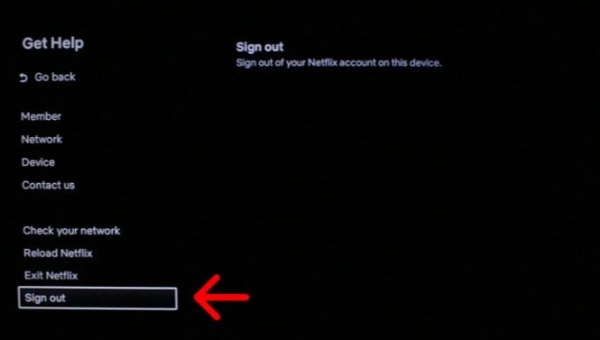
Step 1 Go to the Netflix home screen
Step 2 Press the back button on your remote to navigate to the menu.
Step 3 If the menu is at the top, go left to your profile icon and select Get Help. Choose Sign Out and then select Yes.
Step 4 If the menu is on the left, at the bottom, select Get Help. Choose Sign Out and then select Yes. Sign back in with your Netflix account credentials, then try Netflix again.
If you can’t find Get Help or Sign Out, just use your remote, press the following buttons in this order: Up, Up, Down, Down, Left, Right, Left, Right, Up, Up, Up, Up. A menu will appear. From there, you can select Sign Out, Reset, or Deactivate. Then, sign in to Netflix again to check if it works or not.
Solution 2: Update and Reinstall the Netflix App
Step 1 Go to the App Store or Apps section of your TV.
Step 2 Search for Netflix.
Step 3 If there’s an update available, update the app.
Step 4 If that doesn’t work, uninstall and then reinstall the Netflix app.
Solution 3: Restart Your Device
Step 1 Unplug the device from the power source (e.g., TV, streaming device, console). Press and hold the power button on the device for about 1 minute. This helps discharge any residual power in the device. Alternatively, you can leave the device unplugged for 3 minutes instead.
Step 2 Plug the device back into the power source after the wait time.
Step 3 Turn the device on and check if Netflix is working properly now.
For Netflix Black Screen on Computers (Windows or Mac)
According to the reasons for the Netflix black screen, we have gathered the solutions below:
On Web Browser
If you're encountering a black screen while trying to watch Netflix on your web browser with no sound, this can be caused by a variety of issues ranging from browser settings to problems with your internet connection. Here's how you can troubleshoot and fix it step by step.
Solution 1 Clear Your Browser Cache
Tap the button in upper-right corner of the browser, click More. Then, click More Tools > Clear Browsing Data. Or you can just search Clear Browsing Data in the search bar. Click Advanced. In the Time Range drop-down menu, select All time. Check Cached images and files. Click Clear Data, then try Netflix again.
In the upper right corner of the browser, click More. Click Settings, then click Privacy & Security. Scroll down and click Clear History. In the Time Range to Clear dropdown menu, select Everything. Uncheck everything except Cache. Click OK, then try Netflix again.
In the upper right corner of the browser, click More. Click Settings, then click Privacy, Search, and Services. Below, Clear browsing data, click Choose What to Clear. Uncheck everything except Cached images and files and Cookies, and other site data. In the Time range drop-down menu, select All time. Click Clear now, then try Netflix again.
Open Safari on your Mac. Click Safari in the top menu and select Preferences. Go to the Privacy tab. Click Manage Website Data. Select Remove All, then confirm by clicking Remove Now. Close the Preferences window and restart Safari. Then, try Netflix again.
Solution 2: Update your browser
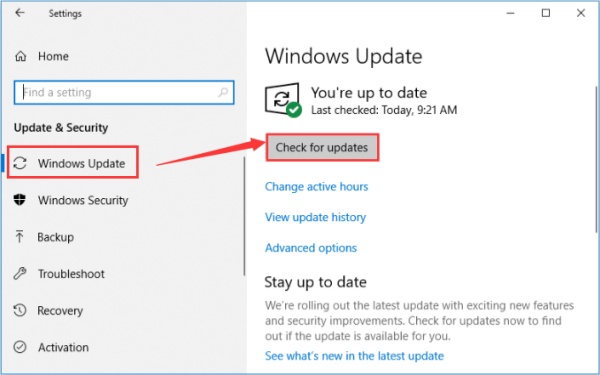
Open Google Chrome on your desktop. Click the "More" button (three vertical dots) in the upper-right corner of the browser. From the dropdown menu, click "Help", then choose "About Google Chrome". Chrome will automatically check for updates. If there’s a new version available, it will download and install it. Once the update is complete, click "Relaunch" to restart the browser and apply the changes. After Chrome restarts, try Netflix again to see if the black screen issue is resolved.
Open Firefox on your computer. Click the menu button (three horizontal lines) in the upper-right corner of the browser. Click "Settings" from the dropdown menu. Scroll down the Settings page until you find Firefox Updates. If an update is available, you’ll see the option to Restart to Update Firefox. Click it, and Firefox will automatically update to the latest version.
Open Microsoft Edge on your computer. Click on the "Settings and more" button (three horizontal dots) in the upper-right corner of the browser. Hover over "Help and feedback", then click "About Microsoft Edge" from the dropdown menu. Edge will automatically check for updates. If an update is available, you’ll see "Download and install". Click "Download and install" and let Edge update. Once the update is complete, you'll be prompted to restart the browser. Click Restart to finish the process. After restarting, open Netflix and check if the black screen issue is resolved.
On Netflix App (Windows)
Due to there are no official Netflix app on Mac, so these solution is for the windows users who troubled in black screen with Netflix.
Solution 1: Sign out of Netflix
Step 1 Open the Netflix app on your desktop, select More Options in the top right.
Step 2 Scroll down to Sign Out.
Step 3 Sign back in and try Netflix again.
Solution 2: Update Netflix App Version or Reinstall Netflix App
Step 1 Open Netflix on your desktop. Then, right-click the Start menu and choose Apps and Features.
Step 2 Find Netflix in the list, click it, and select Uninstall.
Step 3 After uninstalling, reinstall Netflix from the Microsoft Store.
Solution 3: Turn Off Security Software Temporarily
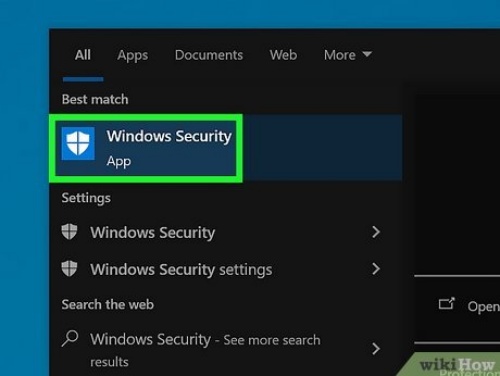
Step 1 Open any of your security software.
Step 2 Then, temporarily turn off your security software and try Netflix again.
Step 3 If the problem is fixed when your security software is disabled, the software may be unintentionally interfering with Netflix.
For Netflix Black Screen on Phone, iPad, or Tablet
If you're facing a black screen with no sound while trying to stream Netflix on your mobile device, it's disappointing. Fortunately, there are a few simple steps you can take to fix this issue. Before diving into solutions, let's go over some common causes for the problem.
On Android Phone or Tablet
If you're seeing a black screen with no sound when trying to watch Netflix on your Android phone or tablet, our content can give you an asisstant. This issue can happen for various reasons, from outdated apps to settings conflicts. Just walk around the steps below to troubleshoot and fix the problem.
Solution 1: Close and Reopen the Netflix App
Close the Netflix app completely (swipe it off your recent apps list) and then reopen it.
Solution 2: Reinstall the Netflix app
Step 1 At first, go to the settings on your phone or tablet.
Step 2 Then, find the Apps.
Step 3 Search for Netflix or just scroll down and find Netflix.
Step 4 Now, sign in to Netflix with your account again.
Solution 3: Clear Netflix App Cache (Android Only)
Step 1 At first, go to the settings on your phone or tablet.
Step 2 Then, go to the Apps > Netflix > Storage.
Step 3 Tap Clear Cache and Clear Data and try Netflix again.
Solution 4: Restart Your Device
Step 1 Turn off your phone or tablet compeletly, not just locked.
Step 2 Open it again and try Netflix again.
Step 3 Tap Clear Cache and Clear Data and try Netflix again.
On iPhone or iPad
Don't worry, your Netflix black screen issues could be solved by the solutions below. So, let's troubleshoot!
Solution 1: Close and Reopen the Netflix App
Step 1 Turn off your phone or tablet compeletly, not just locked.
Step 2 Open it again and try Netflix again.
Step 3 Tap Clear Cache and Clear Data and try Netflix again.
Solution 2: Reinstall the Netflix app
Step 1 At first, go to the settings on your iPhone or iPad.
Step 2 Search for Netflix or just scroll down and find Netflix.
Step 3 Uninstall it and go to the App Store to download the Netflix app.
Step 4 Now, sign in to Netflix with your account again.
Solution 3: Restart Your iPhone or iPad
Step 1 Turn off your iPhone or iPad completely by long-pressing the power button.
Step 2 Wait a few seconds, then turn it back on.
For Netflix Black Screen on Game Consoles
If you're getting a black screen with sound on Netflix while using a game console (like a PS4, PS5, Xbox One, Xbox Series X/S), it's usually related to issues with HDCP (High-bandwidth Digital Content Protection), HDR settings, video output settings, or even a glitch in the Netflix app.There are 5 solutions for you to fix your black screen trouble on your game console.
Solution 1: Check Your Input Resource
Make sure any cables connecting your streaming device to your TV are secure, and that both devices are powered on.Your TV's video input source must be set to your streaming device. To change the input source, press the input source button on your TV remote.
The button or steps to change the input source may be different for your TV. You can find the selection in settings on your TV.
Solution 2: Restart Your Device
Step 1 Turn off your device. If your device has a power cable, unplug it.
Step 2 Make sure your device is completely off, not just in sleep or standby mode.
Step 3 Leave your device off for 15 seconds.
Step 4 Turn on your device and try Netflix again.
Solution 3: Clear Cache and Data
On PlayStation: Go to Settings > Storage > System Storage > Saved Data. Or, you can find the Netflix app on your device, then delete its cache or data in the app settings.
On Xbox: Go to Settings > System > Storage > Clear local saved games and Clear cache.
Solution 4: Update Netflix and Console Software
On Xbox: Update your console’s system software to the latest version.
On PlayStation: go to Settings > System Software Update. On Xbox, go to Settings > System > Updates.
Solution 5: Troubleshoot Your HDMI Connection (For Xbox One)
If you're using an HDMI cable, there might be an issue with the HDMI connection between your Xbox and your TV. Just walk through the steps below: At first, try changing the ends of the HDMI cable. Then, connect your device directly to your TV using an HDMI cable. If it doesn’t work, try a different HDMI port to connect your TV.
Part 4. Best Way to Fix Black Screen with Netflix [Work 100%]
If you think the methods above are too complicated or you want a way to work 100%, there's an exceptional tool for Netflix subscribers looking to fix black screen problem on Netflix: ViWizard Netflix Video Downloader. ViWizard allows you to download shows and movies in MP4 or MKV format for offline viewing. So, you can save your favorite series, documentaries, or films forever right at your fingertips, whenever and wherever, even without an internet connection.
ViWizard Netflix Video Downloader supports downloading Netflix videos with no DRM. So, this means there is no black screen problem while you are watching Netflix. Just download your preferred content to your device, whether you're on a plane, road trip, or in a Wi-Fi-limited area. In addition, if you have a Standard (with ads) plan, ViWizard Netflix Video Downloader can remove ads from your viewing experience. So, why not make the most of your Netflix plan by saving your downloads as MP4 files on your device with the help of ViWizard's support for 5.1 Dolby Atmos sound and the best 4K resolution for later viewing?

Key Features of ViWizard Netflix Video Downloader
Free Trial Free Trial* Security verified. 5, 481,347 people have downloaded it.
- Download Netflix movies and TV shows as MP4 or MKV files
- Preserve HD, 4K, HDR video, audio tracks, and subtitles
- Accelerate downloads when saving long videos or complete seasons
- Remove ads automatically during video downloads
- Save Netflix videos for playback on different devices
Step 1: Download and Register ViWizard Netflix Video Downloader
At first, launch ViWizard Netflix Video Downloader on your laptop. Then, click on the Netflix Web Player option within the ViWizard Page. Just enter your Netflix account credentials and click "Sign in" to unlock access to Netflix's movies, TV shows, documentaries, anime, and originals.

Step 2: Customize Download Settings
In the ViWizard interface, click on the hamburger icon at the top right corner of window. Choose "Settings" and navigate to the "Download" section. Here, you can customize your download preferences: you can select your desired video format (MP4, MKV, etc.) or adjust the codec, quality, audio channel, and language settings. Besides, ViWizard allows you to choose your preferred subtitles. Finally, click "OK" to save your choices.

Step 3: Select Title for Download
Close the Settings window and return to the Netflix Web Player within ViWizard. Then, use the search bar to find specific content by title, keyword, or actor. Alternatively, paste the URL of the Netflix TV show or movie you want to download in the top bar of the page. Once you've located the desired video, click to open it for download.

Step 4: Initiate Download Process
With your chosen content selected, click on the "Download" button. ViWizard will begin the download process, automatically saving individual episodes or entire seasons for TV shows, as well as full-length movies. Wait for the downloads to complete; they will be saved as MP4 or MKV files on your computer.

Step 5: Access Downloaded Content
To view your downloaded Netflix content, go to the "History" section at the top of the ViWizard interface. Here, you'll find all completed downloads ready for transfer to your Smart TV. If needed, click the "Folder" icon next to each title to locate and access the downloaded files individually on your computer.

Step 6: Transfer Netflix Downloads to Your Device
Step 1 Use a USB cable or any preferred method to connect your Smart TV, smartphone, tablet, or other go-to devices to your computer.
Step 2 On your computer, navigate to the default download folder where ViWizard saved the Netflix downloads.
Step 3Typically, this folder is labeled "Downloads."
Step 4 EOpen the folder containing your Netflix downloads.
Step 5 Select the downloaded MP4 or MKV files you want to transfer.
Step 6 Drag and drop these files into the storage folder of your connected device.
Conclusion
Wish the methods above could help you solve the black screen problem on your Netflix! For a stable and forever watch Netflix title, we recommend you to use ViWizard Netflix Video Downloader! This tool can help you get a smooth viewing experience offline and can avoid the black screen problem perfectly. Just enjoy your wonderful Netflix time with it!
You May Be Interested




Dave Henry loves movies and all things video. He likes checking out different video formats and trying new media players to see how they change the viewing experience.

Leave a Comment (0)