


Sometimes you open your Netflix and want to download your favorite movie or TV series for your traveling or business trip. However, Netflix downloads not working at all or getting stuck at 0% may get you nuts. This post is a guide that offers 10 methods to solve the Netflix download not working problem. If you encountered these problems, you can properly solve the problems involved in light of specific conditions.
Part 1. Basic Troubleshooting for Netflix Download Not Working
At first, you can fix it by checking some basic problems with your devices. You can check these reasons step by step.
1. Check Internet Connection
Ensure you have a stable connection. You can try switching between Wi-Fi and mobile data to check if the issue is specific to one connection type.
2. Check Storage
Make sure your device has enough free space to complete the download. Check your storage and properly remove some. It is helpful not only to your download process but also can prevent your device not lagging.
On Android Device
Step 1 Open the Settings app.
Step 2 Search for "storage" or find Storage, Device Care, or Device Maintenance and tap it.
Step 3 You will see a breakdown of your storage, check if it has space to download.
Step 4 Some devices have a Files by Google app where you can find storage information under the "Clean" tab.
On Windows PC
Step 1 Navigate to Start and then Settings. Next, go to System and find Storage.
Step 2 Here, you can find a detailed view of your storage usage, broken down by categories like apps, temporary files, video files, and system files.
On Mac
Step 1 Click the Apple menu in the top-left corner of the desktop.
Step 2 Go to About This Mac and find Storage.
Step 3 There is a breakdown of your storage categories.
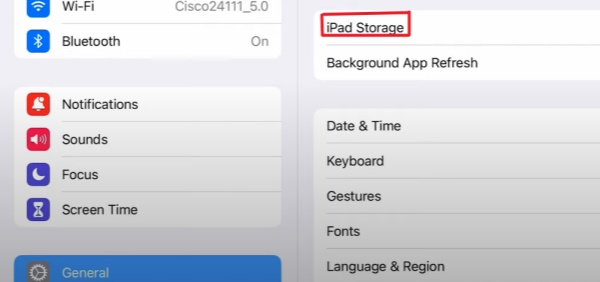
On iPhone/iPad
Step 1 Open the Settings app on your phone.
Step 2 Click General.
Step 3 Click iPhone/iPad Storage
Step 4 The storage breakdown will appear at the top, showing how much space is used out of the total.
Step 5 Scroll down to see a list of your apps and their storage usage.
3. Restart Netflix App & Device
If your storage space is enough, you can try restarting the Netflix application by closing the app completely and reopening it. Also, restarting your device can fix temporary glitches.
4. Clear the Cache of Netflix
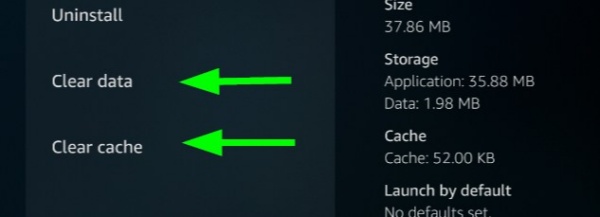
Just click on "Clear cache" This will not delete your downloads, but can fix corrupted temporary files. The following is tutorials about cache clearing
On Mobile Device
Step 1 Open your device's Settings app.
Step 2 Go to Apps or Application Manager.
Step 3 Search/Find and choose the Netflix app from the list.
Step 4 Select Storage (or "Storage & cache").
Step 5 Click Clear Cache.
You may find that "Clear Data" is near "Clear Cache". Clicking it will reset the app and remove all your settings and account information, so you can only do this if "Clear Cache" doesn't solve the problem.
On Computer Browser
Step 1 Go to the netflix.com/clearcookies.
Step 2 Reinstall your Netflix account to clear the cookies and refresh your session.
On Smart TV or Streaming Device
Step 1 Go to the device's Settings menu.
Step 2 Select Apps or Applications.
Step 3 Choose Manage installed applications.
Step 4 Find and choose the Netflix app.
Step 5 Select Clear cache.
Step 6If the issue persists, go back and choose "Clear data" as well, but you'd better tap it when the cache clearing doesn't work. Please be aware that this will require you to sign back into Netflix.
Step 7 Restart your device after clearing the cache and/or data.
5. Update Netflix App & Device OS
Sometimes, Netflix downloads not working may be caused by an older version. In this situation, you can update your Netflix by the following methods. Also, you can open the Settings on your device to check if your device OS is on the latest version. If not, update it because the outdated OS versions may cause compatibility issues.
On Android
Step 1 Open the Google Play Store.
Step 2 Click your profile icon in the top right, then choose the "Manage apps & devices" option.
Step 3 Then, go to "Update available" to see all apps that can be updated.
Step 4 Find Netflix and tap "Update" if it's listed.
Step 5Also, you can open the Netflix page in the Play Store and then click "Update" if it isn't the latest version.
On iPhone or iPad
Step 1 Open the App Store on your device.
Step 2 Click your profile icon or the search tab.
Step 3 Search for "Netflix".
Step 4 If an update is available, you may need to enter your Apple ID password after tapping the "Update". Enter your password and finish it.
For Most Smart TVs
Method 1: Update all the apps on TV
Step 1 Go to your TV's main "Apps" screen or "Settings" menu.
Step 2 Look for an "Update" option: Some TVs have an "Update all" option in the app menu or the settings.
Step 3 On Google/Android TVs, you can open the Google Play Store, tap your profile icon, choose "Manage apps & games," and then tap "Updates" or "Update all".
Method 2: Update Netflix from the app store on TV
Step 1 Go to the TV's app store or "Settings."
Step 2 Find Netflix and tap an "Update" option next to it if there is an option.
On Microsoft Store
Step 1 Open the Microsoft Store
Step 2 Click "More to Downloads and Updates," and find Netflix.
Step 3 Select "Download" next to Netflix.
6. Reinstall the Netflix App
Finally, reinstall the latest Netflix application on your device. Generally, these steps can help solve this problem.
Part 2. Advanced Troubleshooting on Download Not Working on Netflix
If the basic solutions don't work, you can try the following ways:
Way 1: Fix Netflix Download Limits
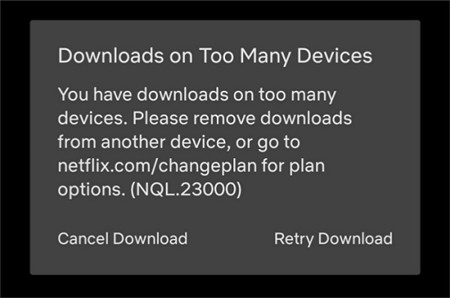
When Netflix indicates that you have downloads on an excessive number of devices, it suggests that you've hit the upper limit of download-enabled devices allowed under your Netflix subscription plan. When Netflix displays the message "Too Many Downloaded Videos," it signifies that you've exceeded the maximum number allowed to keep simultaneously (based on your plan). Your options are:
Clear all downloads from one device to free up space for another. (You also have the option to delete downloads on specific devices via a web browser.).
From Netflix App
Step 1 Open the Netflix app on your phone or tablet.
Step 2 Click My Netflix in the lower-right corner.
Step 3 Click the menu icon (three horizontal lines or your profile icon) in the upper-right corner.
Step 4 Click Account.
Step 5 Scroll down to the Settings section and tap Manage download devices.
Step 6Click Remove device next to the device you want to delete all downloads from.
Step 7 Then tap OK or Delete to confirm.
From Web Browser
Step 1 Go to the Netflix website and sign in to your account.
Step 2 Head to the "Manage download devices" page or go to Account from your profile menu.
Step 3 Click the "Remove device" button next to the device you want to delete all its downloads from.
Upgrade to a more comprehensive plan to expand the number of devices you can download to.
Way 2: Fix Not Downloadable Contents
There are three situations concerning content that cannot be downloaded:
The first situation is that the download is unavailable in your current country. This means that Netflix does not provide the option to download the specific title in the country where you are currently traveling. You should return to the country where this content is accessible for downloading.
The second situation involves the "Netflix Yearly Download Limit." Regrettably, you cannot repeatedly renew downloads that have expired without limit. Some TV series and films can only be downloaded a restricted number of times per year for each account.
The third situation is about Netflix's content copyright protection. Some Netflix TV shows and movies are produced in collaboration with studios that have franchise or intellectual property rights related to the content. To protect the copyright, Netflix can only offer them for streaming, not for downloading.
Don't be upset, in these situations, you still can download the content with the ViWizard Netflix Video Downloader. Click Part 3, and get it!
Way 3: Fix 'Download Failed.'
Netflix shows that 'Download Failed' always means there was a problem with this download. If the download function is not working, it may mean that information needs to be updated. The following actions may be helpful.
Take care of the Download Limit Warning, the last time a video is allowed to be downloaded.
After that, you can connect to the internet and stream those videos.
Step 1 Sign out of Netflix and reinstall it.
Step 2 Open the Settings, find the Apps, and click Netflix. Click Storage & cache, then clear storage, Finally, choose OK.
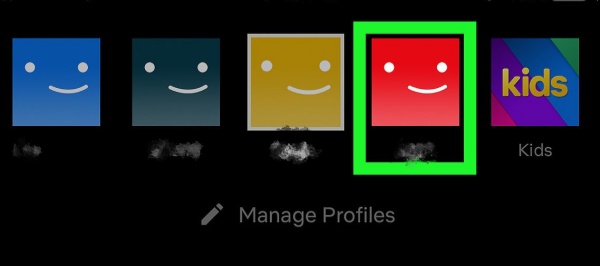
Step 3 Switch Netflix Profiles: If you have more than one profile, tap/click Menu Switch Profile. If not, choose Add Profile. Then choose a different profile.
Step 4 Finally, switch to your original profile.
Way 4: Fix VPN or Proxy Settings
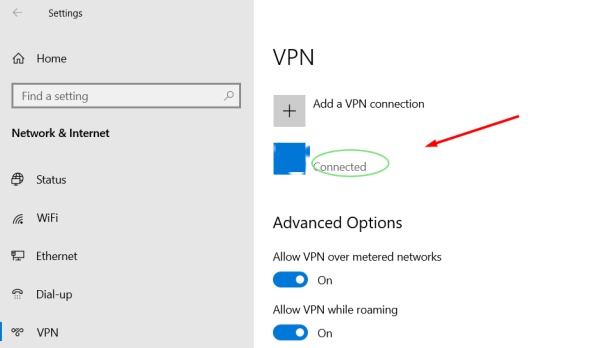
If you are using a VPN or proxy, it might interfere with downloads. So, try turning it off. If you aren't sure whether a VPN is turned on, follow the steps below.
Step 1 Open a web browser that's on the same network as the device with the issue.
Step 2 Go to fast.com. Netflix will start a connection test.
Step 3Once the test stops, click the option Show more information.
Step 4 Tap the Client, note the country.
Step 5 The country doesn't match your location, which means your device or network has a VPN turned on.
Step 6 Try turning it off, then try Netflix again.
Part 3. The Best Tool to Solve Netflix Download Not Working
If the above methods can't solve your issues or you think it's too complicated, we have a better way to help you download the Netflix video to MP4 or MKV format, which can support almost all the playback devices. ViWizard Netflix Video Downloader, an easy-to-use third-party tool that can download Netflix TV shows, movies, or anime, and so on, permanently. After downloading, you can enjoy the Netflix content offline permanently on TV, computer, or iPad etc.
The following guide will help you download movies and TV shows by using ViWizard Netflix Video Downloader in detail.

Key Features of ViWizard Netflix Video Downloader
Free Trial Free Trial* Security verified. 5, 481,347 people have downloaded it.
- Download Netflix movies and TV shows as MP4 or MKV files
- Preserve HD, 4K, HDR video, audio tracks, and subtitles
- Accelerate downloads when saving long videos or complete seasons
- Remove ads automatically during video downloads
- Save Netflix videos for playback on different devices
Step 1Sign in Netflix Account in ViWizard
Firstly, open the ViWizard Netflix Video Downloader on your computer. Then, you can see the integrated Netflix Web Player. In there, sign in with your Netflix account to gain access to Netflix's entire library, including movies, TV shows, documentaries, and anime.

Step 2Customize Download Parameters
Subsequently, click the hamburger icon in the top right corner of the ViWizard interface. Choose "Settings" from the menu, and go to the "Download" section. Here, you can change your settings in Preferences. You can set the video format as MP4 or MKV, codec, quality, audio channel, and language according to your needs. There are also two subtitle options: an independent subtitle and an embedded subtitle. Click "OK" to save these download settings.

Step 3Select Content for Download
When your settings are saved, you can return to the ViWizard Web Player. In the search bar, you can find specific content by entering the title, keyword, or code. Meanwhile, you can also paste the URL of the Netflix movie or TV show you want to download. Then, open the content you want to download.

Step 4Initiate Video Download
After your content is chooseed, click the "Download" icon to start the download. If you want to download it later, you can click "Add to List" to queue it. The downloads will be saved as MP4 or MKV files in your computer's default download folder. Just wait a few minutes for the process to complete.

Step 5View Downloaded Content
To find your downloaded Netflix content, go to the "History" section at the top of the ViWizard interface. You can see a list of the completed downloads. And you can click the "Folder" icon next to each title to locate and access the files. Finally, just play the video with any video media player, and you can enjoy the brilliant shows!

Part 4. Conclusion
Generally, you may encounter all the issues mentioned above, but with this post, you can find solutions quickly to solve the Netflix download not working problem. What's more, We provide the best tool to help you. ViWizard Netflix Video Downloader helps you download any Netflix movies and TV shows to local MP4 files. It is a good assistant for video downloads, let's try it!
You May Be Interested


Dave Henry, a multimedia technologist at ViWizard, focuses on delivering the best solutions for digital media challenges, including audio and video conversion, media optimization, and troubleshooting.

Leave a Comment (0)