


As the largest streaming platform, Netflix offers a massive library of movies, shows, and games. For viewers seeking an exceptional audio experience, it also supports surround sound on select titles like Stranger Things, Dark, and Rebel Moon. Viewers can then have a truly immersive feast for both the eyes and ears.
Then how can you get surround sound on Netflix? Well, this Netflix feature isn't enabled by default. Besides, Netflix service changes can make setup tricky for some users. To help you overcome these hurdles, this article offers a clear, step-by-step guide.
Part 1: What Is Netflix Surround Sound?
Netflix surround sound includes both traditional 5.1 multi-channel audio and Dolby Atmos. Both can make you feel that the sound surrounds you rather than coming directly from your screen. In this way, you can get an immersive viewing experience.
For standard surround setups, Netflix encodes its content in Dolby Digital Plus (DD+), which distributes distinct audio channels to a front left, center, front-right, left-surround, and right-surround speaker, along with a dedicated subwoofer for deep bass.
For premium home theater setups, Netflix upgrades the experience using Dolby Atmos. It can map individual audio elements in a three-dimensional space, utilizing dedicated height channels or upward-firing speakers to bounce sound off your ceiling.
Part 2: Can You Get Netflix Surround Sound?
Netflix offers the surround sound feature to all subscribers. For the standard plan and the standard plan with ads, you can enjoy the Netflix 5.1 surround sound. For the premium plan, you can enjoy Netflix 5.1 surround sound or Dolby Atmos if your device supports.
| Netflix Plan | Monthly Cost (U.S.) | Max Video Quality | 5.1 Surround Sound Support | Dolby Atmos Support |
| Standard with Ads | $8.99 | Full HD (1080p) | Yes | No |
| Standard | $19.99 | Full HD (1080p) | Yes | No |
| Premium | $26.99 | 4K Ultra HD + HDR | Yes | Yes |
You can get surround sound on most modern TVs and TV streaming services. On Mac and PC, Netflix only supports 5.1 surround sound for you on Microsoft Edge and Apple Safari. It should be noted that Netflix on Google Chrome is restricted to 2.0 stereo audio.
PC & Mac Browsers:
- Supported platforms include Microsoft Edge (Windows) and Apple Safari (macOS).
- Google Chrome and Mozilla Firefox are not supported.
- Only 5.1 surround sound.
Netflix App on Computers:
- Only the Netflix Windows app from the Microsoft Store supports.
- The Dolby Access app is required to get surround sound.
Smart TVs:
- Most modern 4K TVs are supported, including LG, Samsung, Sony, TCL, and Hisense.
- Netflix surround sound is not supported on Budget/Legacy 1080p TVs manufactured before 2015.
- Digital Audio Out must be set to Bitstream or Pass-through, depending on the devices, instead of PCM.
Streaming Sticks:
- Supported devices include Apple TV 4K, Amazon Fire TV Stick 4K / Cube, Roku Ultra / Stick+, and Google TV Streamer.
- Unsupported devices include Legacy Chromecast (Gen 1 & 2), Entry-level Roku Express, and Legacy Fire TV sticks.
- Must connect directly to an HDMI ARC/eARC port on the TV or AV receiver.
Part 3: How to Get Netflix Surround Sound for TV
Many people will choose the TV for a better viewing experience. Then how can you get Netflix surround sound for TV? You can follow the tutorials below.
Step 1: Check Device Compatibility
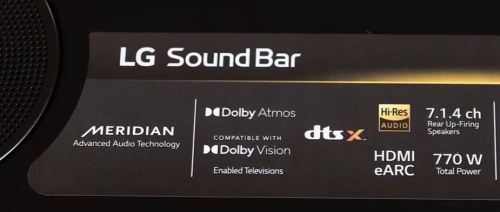
To ensure your device supports surround sound, you can refer to the information provided above, or check your device's surface or settings. Especially for Dolby Atmos, if your TV supports it, there is usually a Dolby Atmos logo or label on the device.
Step 2: Connect via HDMI ARC or eARC
The physical cable connection between the TV and the audio gear may limit your sound quality.
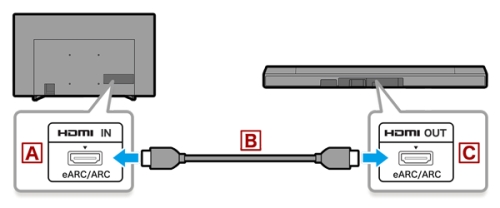
To get better surround sound, you must connect an HDMI cable from the HDMI ARC/eARC port on your TV directly to the corresponding HDMI ARC/eARC port on your soundbar or receiver.
Some Netflix users share that you can also use optical to connect. However, most optical ports only support stereo 2.0. Additionally, it requires several cables to finish the connection if you use optical. It may be a little messy with cables anywhere in your room.
Step 3: Adjust TV Audio Settings
The default audio setting in most TVs is stereo 2.0. Therefore, you should change the setting first. Although the exact options may vary by device, the overall process is similar to the guide below.
01Enter the settings section on your TV.
02Find and select Sound, Audio, or Expert Settings (depending on your devices).
03Select Digital Audio Output or Digital Output Format.
04Change the setting from PCM or Auto to Pass-through, Bit stream, or Dolby Digital Plus.
Step 4: Select Netflix Titles and Play
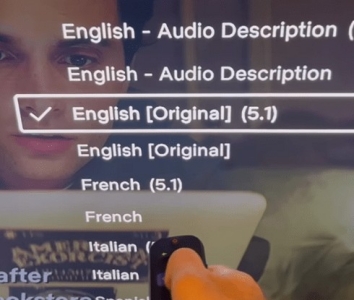
Now you can search for Netflix videos that are marked with 5.1, Digital Dolby Plus 5.1, or Dolby Atmos. Some devices automatically apply DD+ or Dolby Atmos, while others require you to set it up manually. Start playing them and select Audio & Subtitles. Then, you can choose 5.1 or Dolby Atmos if your device supports it.
Part 4: How to Get Netflix Surround Sound for PC & Mac
Officially, Netflix supports surround sound only on the Edge browser and the Netflix app on Windows 10 and later. Additionally, however, as Windows and Netflix change their service, many users find they can't use surround sound on computers. The following guide explains how to get surround sound on Netflix for both PC and Mac, considering most situations.
4.1Get Netflix Surround Sound On PC
Though Netflix works well on PC in general, there are still some issues and complicated procedures when people try to enjoy Netflix surround sound on a PC. The following steps take into consideration the most common problems Netflix users have encountered when setting up surround sound. It can help you achieve the audio experience you're aiming for.
Step 1Choose a Playback Method
If you prefer watching in a browser, we recommend using Microsoft Edge. If you'd rather use the Netflix app, be sure to download and install it from the Microsoft Store. Otherwise, you may run into issues.
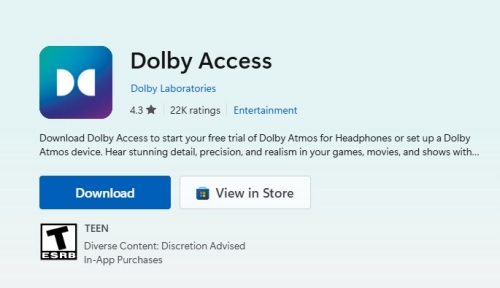
Step 2Download and Install Dolby Access
Starting with Windows 11 version 24H2, Microsoft no longer pre-installs the AC-3 codec (Dolby Digital) required for multi-channel audio. As a result, you may need to install Dolby Access to obtain this codec. Although Dolby Access is the most reputable and convenient option, you can also choose to install all the necessary surround sound codecs manually.
The download and install process is rather simple. Open the Microsoft Store on your PC. Search for and download the official Dolby Atmos app.
Step 3Connect with HDMI
You should use the HDMI cable to connect devices. Plug one end of the HDMI cable into the HDMI Output port on your PC's graphics card or motherboard. Then, plug the other end of that HDMI cable into the HDMI input port on your AV receiver or soundbar. If you use an optical one, only basic 5.1 surround sound is available.
Step 4Adjust Windows Audio Settings
After finishing the above steps, you can now make further settings.
01Right-click the Speaker icon in the bottom-right of your screen.
02Launch the classic Sound Control Panel by clicking More Sound Settings.
03Right-click the default playback device of your PC and click Properties.
04Choose 5.1 surround sound or Dolby Atmos. You can click Test to ensure the sound is right. Then, click Next and Finish to apply your changes.
Step 5Select Netflix Titles and Play
Now you can search on Netflix and find a movie or show marked as 5.1, Digital Dolby Plus 5.1, or Dolby Atmos. Play it. Click the Audio & Subtitles icon and set the audio to 5.1 or Dolby Atmos. Then, have a fun time.
4.2Get Netflix Surround Sound on Mac
Although there's no official Netflix app for Mac, you can still stream Netflix through a web browser. In fact, getting surround sound on a Mac can be easier than on a PC. Here's how.
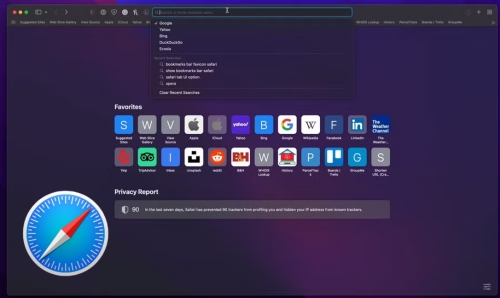
Step 1Use Safari Browser
On macOS, Netflix surround sound is only supported in Safari. Other browsers are limited to Stereo 2.0 audio. Therefore, if you're using a different browser, switch to Safari to enjoy the full surround sound experience.
Step 2Confirm Apple Audio MIDI Setup
If a multi-channel speaker or AV receiver is used, you should verify your system layout.
01Press Cmd + Spacebar to open Spotlight Search.
02Type Audio MIDI Setup and press Enter.
03Choose the primary audio output device from the left-hand column.
04Click the Configure Speakers… button.
05Set the configuration to 5.1 surround and map speakers to the right channels.
06Click Apply to save all changes.
Step 3Use Apple Spatial Audio
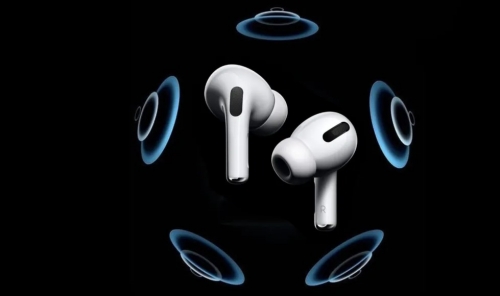
If you own an Apple Silicon Mac, you can experience Netflix surround sound directly through the built-in speakers or your AirPods. In this way, your audio experience is guaranteed. If your device is not an Apple Silicon Mac, you can skip this step.
01Open and play a Netflix video in Safari.
02Enter the Control Center of your macOS and click Sound.
03Toggle on Spatial Audio or Spatialized Stereo and set it to Fixed or Head Tracked.
Step 4Select Netflix Titles and Play
After all settings, open Netflix and play the video marked as 5.1, Digital Dolby Plus 5.1, or Dolby Atmos. Click the Audio & Subtitles button. Shift to your preferred surround sound. Then, enjoy it.
Part 5: How to Download Netflix Videos with Surround Sound
With all the above ways, now you can have an amazing audio experience on Netflix. Whether you'd like to watch Netflix on computers or TVs for a bigger screen, you can get surround sound. Then, what if you don't want to watch through Netflix? What if you want to watch on other devices without internet? Here is a way to download Netflix videos while keeping the original surround sound.
As a professional tool, ViWizard Netflix Video Downloader can download movies and shows from Netflix in MP4 or MKV format with 5.1 surround sound or Dolby Atmos, and original Video quality. These downloaded videos can be permanently kept on your computer and played without Netflix.
You can choose the download format as you like. If 5.1 surround sound is enough for you and you'd like to watch Netflix on all devices, you can download videos in MP4. If Dolby Atmos is your priority, you can download Netflix titles in MKV. Then, you can enjoy videos with brilliant sound and video quality offline on your devices. Now, follow the steps below to have a free trial.

Key Features of ViWizard Netflix Video Downloader
Free Trial Free Trial* Security verified. 5, 481,347 people have downloaded it.
- Download Netflix movies and TV shows as MP4 or MKV files
- Preserve HD, 4K, HDR video, audio tracks, and subtitles
- Accelerate downloads when saving long videos or complete seasons
- Remove ads automatically during video downloads
- Save Netflix videos for playback on different devices
 Step 1: Log in to Your Netflix Account
After installation, launch ViWizard Netflix Video Downloader. Enter your credentials to log in to Netflix. Then, you can use Netflix as you do in a browser.
 Step 2: Confirm Download Settings
Click the menu icon in the top-right corner. Then, you can choose the preferred video format, audio channel, video quality, subtitle languages, etc. Then, click Ok to apply all the settings.
 Step 3: Select Titles and Download
Browse and find movies or shows marked as 5.1 or Dolby Atmos. Select one video and click the download icon to start the download. You can change the audio quality and video quality if the default settings are not suitable. Then, click Download.
 Step 4: Manage and View Downloaded Titles
You can access all the downloads by clicking the history icon. All downloaded titles are listed in the history section. You can locate it on your computer by clicking the folder icon next to each item. Then, play it on your selected devices or media players.
Part 6: Conclusion
All things considered, there are plenty of ways to unlock surround sound on Netflix across TV, PC, and Mac. Each can deliver you a great immersive audio experience. However, the process does have its hurdles. Netflix service changes, device compatibility limits, browser restrictions, and spotty internet can all prevent your settings from working properly, ruining your audio-visual experience.
For the most reliable viewing experience, you can download Netflix titles with surround sound by using ViWizard Netflix Video Downloader. Then, you can keep them forever with the original video and sound quality. No more worrying about platform service changes. You can enjoy steady theater-level audio offline, whenever and wherever you want.
You May Be Interested


Dave Henry loves movies and all things video. He likes checking out different video formats and trying new media players to see how they change the viewing experience.

Leave a Comment (0)