


SoundCloud is a popular music streaming platform for discovering and sharing music, and it allows you to create playlist to collect your favorite songs or albums from its catalog. Whether you're a casual listener or an aspiring music curator, SoundCloud playlists enable you to organize your favorite tracks, keep your created playlists private or public.
If you are new to SoundCloud, we will share a guide with you to walk you through the steps of creating both public and private playlists on Android, iOS, and the Web, along with tips on how to manage and share your playlists. Let's dive in!
Option 1. Create a Public Playlist on SoundCloud
If you just want to create a normal playlist on SoundCloud and want to share it on SoundCloud so that other people can also enjoy your unique music taste. Consider to choose to built a public SoundCloud playlist. A public playlist is visible to all SoundCloud users, making it perfect for sharing your favorite tracks with the world. Here's how you can create one on different devices:
On Android/iOS
Step 1 Launch the SoundCloud app on your Android or iOS device and log in.
Step 2 Choose the any song on SoundCloud that you want to add to playlist to play.
Step 3 Tap the Now Playing bar to enter the full screen, click the three dots option at the bottom right-hand corner.
Step 4 You can see the Add to playlist option in the following pop-up screen, click it and you can create a new playlist by tapping the plus icon at the upper right-hand corner.
Step 5 Head back to SoundCloud Library section to see the playlist your created.
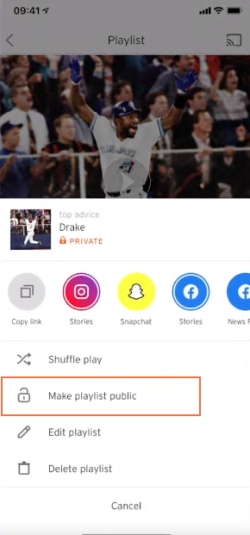
Step 6 Tap it and enter the More option under the playlist cover.
Step 7 Choose Make playlist public option, then you have created a public SoundCloud Playlist.
On SoundCloud Web
Step 1 Enter SoundCloud official website with your frequently used browser.
Step 2 Choose any song on your SoundCloud Home screen or Library section and tap the More option to see the Add to playlist option.
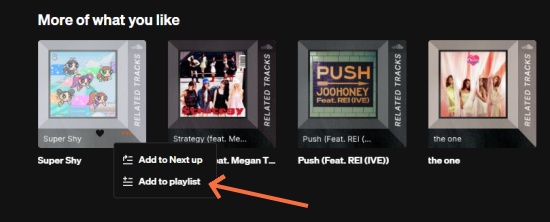
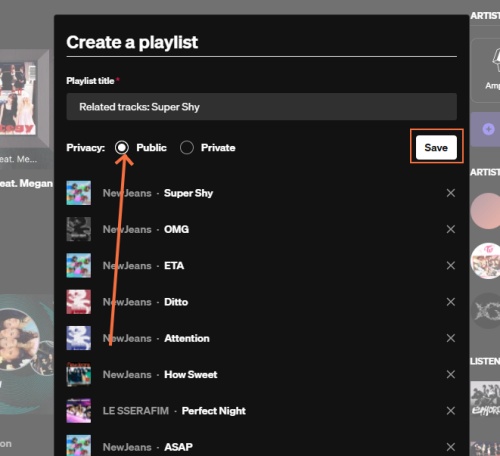
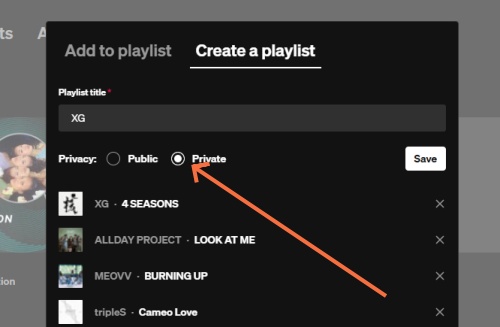
Step 3 After clicking it, you can enter the create playlist page, you can edit the title of the playlist and choose the Public button.
Step 4 Tap the Save icon and then the playlist will be saved to your SoundCloud Library.
Option 2. Create a Private Playlist on SoundCloud
If you don't want your followers or others users to view the songs on your created SoundCloud playlist, you can set the playlist to private so that limits others to access your SoundCloud playlist. For Mobile users, the playlist your created is automatically be set as private, you can follow the step 1 to Step 4 in option 1 to create your private SoundCloud playlist. And the following is how to set up private playlist on SoundCloud:
Step 1 Visit SoundCloud web player on your trusted browser and sign in with your SoundCloud credentials.
Step 2 Click the song or album on SoundCloud that you want to add to your playlist.
Step 3 Tap the More option and choose Add to playlist tab to enter the create page.
Step 4 In the pop-up window, you can edit the title and songs on playlist, toggle on private option and click Save option.
Step 5 SoundCloud will automatically set the playlist as private and store it on Library.
Tip: Whether the playlist public or private, it does not influence the privacy settings of the tracks within the playlist. Plus, there is no collaborate option to allow you and your friends to create playlist together on YouTube Music.
Pro Tip: How to Manage Your SoundCloud Playlist
After knowing how to create SoundCloud playlist, in this part we will guide you to better manage your SoundCloud playlist in your library, like how to customize, how to delete, how to share your SoundCloud playlist step-by-step.
To Customize Your SoundCloud Playlist
Step 1 Go to Library section no matter you are stream SoundCloud app or web player.
Step 2 Choose Playlist option and locate the playlist you want to edit.
Step 3 After enter the full screen of your selected playlist, you can click the Pencil icon on screen to edit the basic info, tracks, or metadata of the SoundCloud playlist your created.
- Tap the Upload image option, you can customize the cover of your SoundCloud album.
- Tap the drop-down icon next to the Playlist, you can customize the types of SoundCloud from Compilation, Single, EP, Album or Playlist.
- Click Tracks option, you can remove songs from the playlist by hitting the x icon.
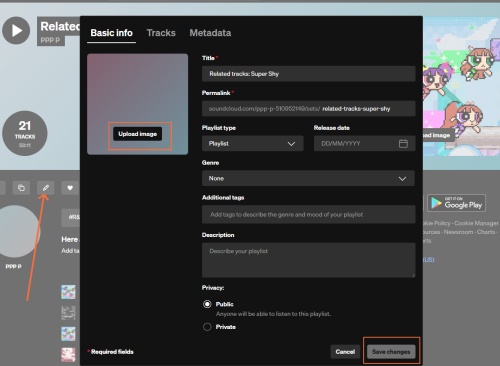
Step 4 Once you finished editing, click the Save changes option.
To Share SoundCloud Playlist
Step 1 Once you locate the playlist section on SoundCloud library, you can select the playlist your want to share with others.
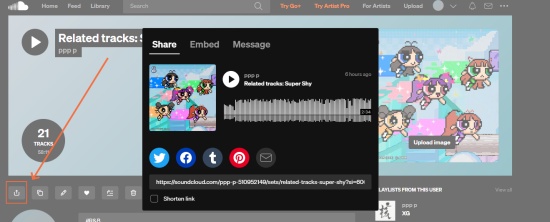
Step 2 After entering the page of your selected playlist, you can find the Share icon under the playlist cover.
Step 3 You can choose to share it in link, embed (you can adjust the color and height), or message.
Step 4 Tap the Send button at the bottom right corner.
Step 5 After doing that, you can share your personal SoundCloud playlist with other if you set it as public.
Bonus: Best Way to Backup Your SoundCloud Playlist
Although SoundCloud is reliable to restore your playlist on its library, choose to backup your unique SoundCloud collection is necessary to avoid accident. You can choose to use Soundiiz or TuneMyMusic to export your SoundCloud playlist to TXT files, but its visual backup and can't allow you to listen your SoundCloud playlist immediately. For better solution, choose to save your SoundCloud playlist offline is a go-to choice.
The easiest and most reliable method is using ViWizard SoundCloud Music Downloader. This tool allows you to download playlists from SoundCloud directly to your computer while keeping the original quality intact.

Download songs, playlists, albums, and your music libraries from SoundCloud, Spotify, Apple Music, Tidal, Deezer, Qobuz, Amazon Music, Pandroa, and Line Music as MP3, FLAC, WAV, AIFF, M4A, and M4B foramts with original audio quality and full metadata information.
Why we choose ViWizard SoundCloud Downloader
- Support multiple audio output formats: MP3, FLAC, WAV, AIFF, M4A, and M4B.
- Allow you batch download SoundCloud Playlist with 65x speed.
- Ensure the downloading audio quality up to 320 kbps.
- Simple and clear user-friendly interface.
[Video Tutorial] How to Download SoundCloud Playlists in 320 kbps MP3.
Conclusion
Now you know how to create a playlist on SoundCloud and manage it effectively. We hope this guide helps you navigate the platform and get the most out of your playlist creation experience. Also, we are delight to get your unique SoundCloud playlist sharing in our comments! If you want to get the backup of your SoundCloud playlist for offline saving, ViWizard SoundCloud Music Downloader will help you a lot!
You May Be Interested




Dave Henry, a multimedia technologist at ViWizard, focuses on delivering the best solutions for digital media challenges, including audio and video conversion, media optimization, and troubleshooting.

Leave a Comment (0)