


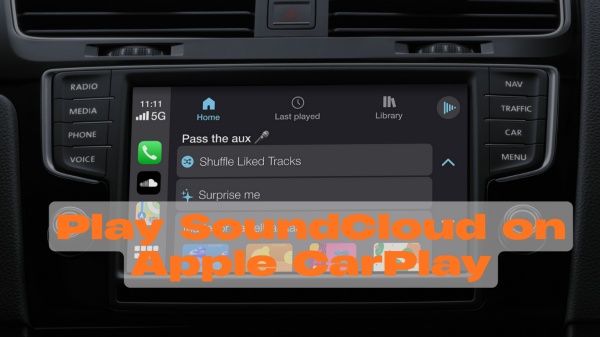
In today's fast-paced world, you have a plethora of options for streaming SoundCloud music seamlessly into your daily routine. Whether you prefer Sonos speakers, MP3 players, a mobile phone, or a computer, each device offers a unique experience for both portable and indoor listening. For those who are frequently on the go, integrating SoundCloud into your car's audio system is a fantastic choice.
iOS users can take advantage of the built-in CarPlay feature, allowing for direct playback of SoundCloud in their vehicles. Meanwhile, Android users may be wondering if they can also enjoy a hands-free music streaming experience in their cars. In this post, we will delve into how SoundCloud functions with Android Auto and provide comprehensive guidance on setting it up.
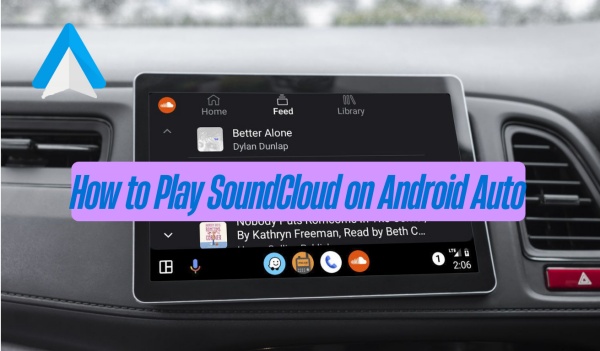
Part 1. Does Android Auto Support SoundCloud?
As of 2021, Android Auto has integrated native support for SoundCloud, allowing users to effortlessly access their liked tracks, playlists, and albums directly through the car's head unit interface. This enhancement significantly elevates the in-car audio experience for Android users, making it more convenient than ever.
Requirements to Use SoundCloud on Android Auto
- Your phone must run Android 9.0 (Pie) or higher. Android 10 or newer; this is a system component. Android 9 or older, you must download the Android Auto app manually.
- Your SoundCloud app is up to date, and your subscription hasn't expired.
- For a wireless connection, your phone generally requires Android 11.0 or higher.
- An active cellular data plan is required to stream music while driving.
- Your vehicle's infotainment system must support Android Auto and Bluetooth.
Part 2. How to Add SoundCloud to Android Auto (Step-by-Step)
Here's a comprehensive guide to getting SoundCloud up and running on your Android Auto display. For various versions of Android devices, we provide detailed steps on how to connect SoundCloud to Android Auto for models running Android 9.0 or higher.
For Android 9.0 users
Step 1 To begin, access the Settings on your mobile device and then proceed to the Apps section.
Step 2 From there, select Android Auto and choose Configure in Android Auto, followed by Connect a vehicle.

Step 3 You have the option to connect your phone to your car either through a USB cable or Bluetooth.
Step 4 Once the connection is successfully established, the Android Auto icon will appear on your car's display, allowing you to click and enter the interface.
Step 5 Upon entering the Android Auto page, the SoundCloud icon is prominently displayed on the screen. Tap it to start enjoying your favorite music.
For Android 10.0 or higher users
Step 1 On your car's display, start by tapping the Home icon and selecting the Phone option.
Step 2 Next, click on the Connect Device icon.
Step 3 Ensure that Bluetooth is activated on your mobile device and confirm the connection.
Step 4 Once the connection is successful, the Android Auto icon will appear on your car's screen, and you can click on it.

Step 5 Upon accessing the Android Auto interface, you will notice the SoundCloud tab prominently displayed. Click on it to enjoy your favorite music effortlessly.
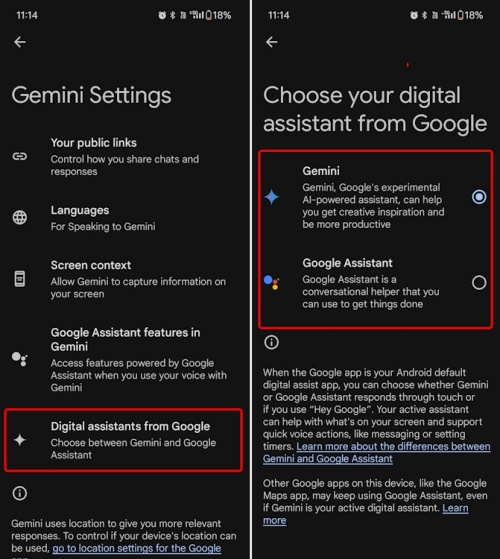
Make Gemini your primary assistant. Switch to Gemini via the Google app or its dedicated settings on your phone. Once eligible, it will automatically serve as your hands-free assistant when connected to your car. Access hands-free help easily with "Hey Google" or your car's steering wheel voice button.
Part 3. Troubleshooting SoundCloud Not Working on Android Auto
An increasing number of users are discovering that SoundCloud performs poorly when accessed through Android Auto. Many individuals are experiencing multiple playback issues with SoundCloud on this platform. In this section, we will provide you with effective solutions to address these challenges.
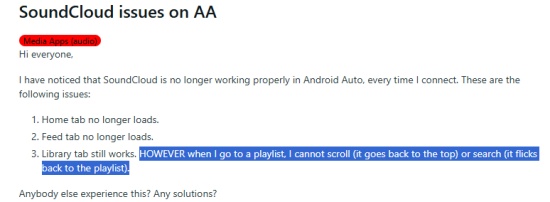
Issue 1. SoundCloud Home Tab Keeps Loading on Android Auto
When the SoundCloud Home tab is stuck loading on your Android Auto display, it likely indicates a synchronization or connection issue between SoundCloud and Android Auto. Follow the ways below to solve it.
Clear App Cache
Over time, the buildup of temporary files can hinder the app's ability to load new content effectively.
To completely clean up SoundCloud cache on your phone, you need to navigate to Settings on your phone, then select Apps, and proceed to Manage Apps. Locate and select SoundCloud. From there, tap on Storage and choose Clear Cache. If clearing the cache does not resolve the issue, you may also want to select Clear Data.

Enable Developer Mode
For users operating a non-standard version of the app, it's essential to enable developer settings in Android Auto.
Begin by navigating to the Android Auto Settings on your phone. Tap on the version number ten times to activate Developer Mode. Once this is done, access the three-dot menu, select Developer settings, and ensure that Unknown sources are enabled.

Issue 2. SoundCloud Feed Tab Disappears on Android Auto
When the Feed tab, which showcases new tracks from your followed artists, is absent from the SoundCloud display on your Android Auto, it's typically a result of a synchronization error between your smartphone and the car's head unit.
Refresh Connection
To refresh your connection, begin by disconnecting your phone from the car. You can do this by either disabling Bluetooth or unplugging the USB cable. Next, turn off the car's ignition and then turn it back on. Once that's done, proceed to reconnect your SoundCloud and Android Auto.
Restart the App & Phone
If you're experiencing issues, consider restarting the app and your phone. Fully close the SoundCloud app on your device and restart your phone to clear any temporary memory problems that may be affecting performance.
Issue 3. Can't Scroll SoundCloud Playlist on Android Auto
Normally, SoundCloud users may encounter scrolling issues with SoundCloud on Android Auto, which are often caused by a weak internet connection or temporary app bugs. To restore scrolling functionality, consider implementing the following workarounds:
Verify Your Network Connection
It is essential to confirm that your mobile data is both active and stable. A weak signal can frequently prevent you from accessing the complete catalog of your SoundCloud playlist. If needed, consider switching to a more reliable cellular data source to seamlessly stream your SoundCloud playlist on Android Auto.
Reinstall SoundCloud and Update
Make sure you have the latest updates for both SoundCloud and Android Auto by checking the Google Play Store. Keeping your apps updated is crucial for optimal performance.
Issue 4. SoundCloud Icon Doesn't Show Up on Android Auto
When the SoundCloud icon is absent from your Android Auto screen, it usually stems from a few key issues: app visibility settings, power-saving restrictions on your smartphone, or the expiration of your SoundCloud Go or Go+ subscription.
Check Launcher Settings
The SoundCloud app might be installed on your device but could be concealed from your car's display.
To address this, navigate to your phone's Settings, then proceed to Connected Devices. Followed by Android Auto, and finally, select Customize Launcher. Once there, locate SoundCloud in the list and confirm that the checkbox next to it is checked. If it is indeed checked but appears at the bottom of the list, simply drag it higher to position it prominently on the first page of your car's screen.

Disable Battery Optimization
Aggressive power management has the potential to obscure apps from Android Auto in an effort to conserve energy.
Go to Settings, then select Apps, followed by SoundCloud, and proceed to Battery or App Battery Usage. Adjust the setting from "Optimized" or "Restricted" to "Unrestricted." For Samsung users, it's crucial to verify that SoundCloud is not included in the "Deep Sleep" list, as this will hinder its visibility in your vehicle.

Ultimate Way to Avoid SoundCloud Android Auto Not Working
If you have followed the steps outlined previously but are still experiencing issues, there's a foolproof method to seamlessly play SoundCloud in your car using Android Auto. By downloading your SoundCloud playlists to local storage devices, such as your Android phone or a USB drive, you can enjoy your music anytime and anywhere without the hassle of playback problems.
Tools You Need – ViWizard SoundCloud Music Downloader
ViWizard SoundCloud Music Downloader can help you download SoundCloud tracks, albums, stations, playlists with the original SoundCloud high audio quality. You have multiple downloaded output format to choose from MP3, FLAC, WAV, AIFF, M4A, and M4B. iWizard ensures the safety of your account while offering a download speed of up to 65 times faster, enabling quick downloads.

Download songs, playlists, albums, and your music libraries from SoundCloud, Spotify, Apple Music, Tidal, Deezer, Qobuz, Amazon Music, Pandroa, and Line Music as MP3, FLAC, WAV, AIFF, M4A, and M4B foramts with original audio quality and full metadata information.
Step 1 Log in to SoundCloud
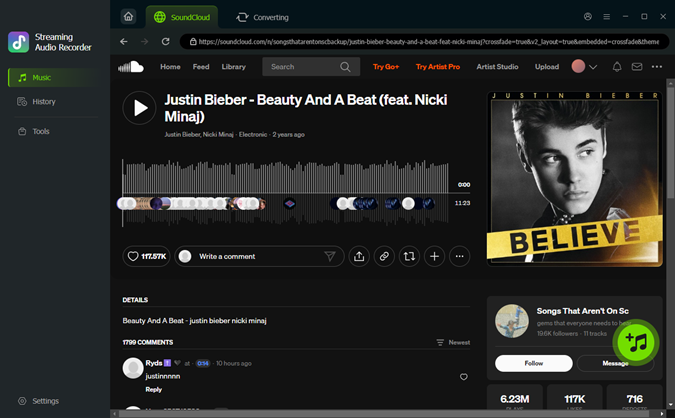
Launch ViWizard and click the SoundCloud icon on the initial interface. Log in with your SoundCloud account to access your profile, playlists, and listening history through the built-in web player.

Step 2 Set the Output Format
Click Menu > Conversion > Output Format in ViWizard. Choose MP3 or FLAC as the output format and select the desired audio quality. Tap the OK button at the bottom right corner to save your format settings.

Step 3 Add and Download SoundCloud Songs
Head back to the conversion page, click Add to List to queue the selected listening history tracks, then click Convert to start downloading and converting the SoundCloud songs to MP3 files.
Step 4 Transfer SoundCloud Music to USB or Android
After downloading, open the History section and click the folder icon to locate the MP3 files on your computer.
To USB
Connect your USB drive into your PC.
Open File Explorer by clicking the folder icon on the taskbar.
Go to the output folder where ViWizard saved your SoundCloud recordings, which can be adjusted in ViWizard's settings.
Select the downloaded SoundCloud files and drag them into your USB drive.

To Android
Connect your Android phone to your computer via USB.
If prompted, choose File Transfer / MTP mode on your phone.

On your computer, navigate to the folder where ViWizard saved the MP3 files.
Select the files or folder, right-click, and click Copy.

Access your phone's storage, go to the Music folder, or create a new one named SoundCloud. Paste the MP3 files into this folder.
Conclusion
SoundCloud is compatible with Android Auto, but performance can be inconsistent. Common issues include loading errors, missing tabs, and playback limitations. While keeping apps updated may help, playing SoundCloud music offline often provides a more stable experience. Tools like ViWizard SoundCloud Music Downloader allow you to enjoy SoundCloud tracks in your car without Android Auto restrictions.
You May Be Interested


Dave Henry loves movies and all things video. He likes checking out different video formats and trying new media players to see how they change the viewing experience.

Leave a Comment (0)