


For years, Spotify users have wanted lossless audio. Spotify now offers lossless streaming for Premium users in supported markets, with quality up to 24-bit/44.1 kHz in FLAC format. However, Spotify's offline downloads remain within the app and cannot be exported as standalone FLAC files.
If you want to play music on a compatible Hi-Fi player, transfer it to a USB drive, or build a local music library, you'll need separate audio files. ViWizard Spotify Music Converter offers a third-party option for converting Spotify music into formats such as FLAC.
In this guide, you'll learn what to consider before converting Spotify music to FLAC, how to use available conversion methods, and how to manage and play FLAC files on compatible devices.
Part 1. Can You Convert Spotify Music to FLAC?
Yes, Spotify music can potentially be converted into standalone FLAC files using third-party software such as ViWizard Spotify Music Converter.
Spotify's Lossless feature allows eligible Premium subscribers to stream supported music at up to 24-bit/44.1 kHz FLAC quality and download it for offline playback within the app. However, these downloads are not standalone .flac files. Spotify states: "Our licensing means there's no way to export our content outside of the app." ViWizard supports conversion to FLAC and other formats, but it is not an official Spotify feature.
FLAC uses lossless compression to preserve the audio information supplied to the encoder. However, converting music to FLAC does not guarantee an exact match with Spotify's original lossless stream or restore information lost in an already-lossy source. Users should also consider applicable licensing terms before using third-party conversion software.
Part 2. How to Convert Spotify Music to FLAC with ViWizard Spotify Music Converter
When Spotify's offline downloads aren't enough and you need standalone FLAC files, ViWizard Spotify Music Converter is one third-party option. It supports converting Spotify tracks, albums, and playlists into FLAC and other formats on Windows and macOS, including for Spotify Free users.
To get started, install ViWizard and open its integrated Spotify player. Sign in, select the songs, albums, or playlists you want, and add them to the conversion list. In the conversion preferences, choose FLAC as the output format and select an output folder. Click Convert; when processing finishes, open the output folder to find your files.
ViWizard supports lossless audio conversion, but choosing FLAC does not guarantee that the output matches Spotify's original lossless stream. The result depends on the source audio and conversion settings. Users should also consider applicable licensing terms before using the software.

Key Features of ViWizard Spotify Music Converter
Free Trial Free Trial* Security verified. 5, 481,347 people have downloaded it.
- Convert Spotify songs, playlists, albums, podcasts, and audiobooks
- Export Spotify music in 6 formats for different devices and players
- Support Spotify Premium and free accounts for music conversion
- Preserve music metadata when organizing converted collections
- Batch download Spotify playlists and large music libraries
 Step 1: Download and Install ViWizard Spotify Music Converter
Download ViWizard Spotify Music Converter for Windows or Mac and install it by following the on-screen instructions. Once installed, launch the program to begin the conversion process.
 Step 2: Log In and Add Spotify Tracks for Conversion
Log in with your Spotify account to access your library. Browse playlists, albums, or search for songs, then click the + button to add them to the conversion list inside ViWizard.
 Step 3: Choose FLAC as the Output Format
Open Preferences from the top-right menu, then select FLAC in the Conversion section. Adjust bitrate, sample rate, and channels as needed for best audio quality before saving your settings.
 Step 4: Convert and Download Spotify Music
Click Convert to start processing your Spotify tracks. ViWizard will convert them to FLAC at high speed. Once finished, open the output folder to access your converted files.
Part 3. Best Alternative Ways to Download Spotify Music as FLAC
For listeners who want high-quality offline playback, Spotify's built-in Lossless option is the simplest choice. Eligible Premium subscribers can open Settings → Media Quality, select Lossless for downloads, and download supported songs or playlists. These downloads remain accessible within Spotify; they are not standalone FLAC files. The setting affects music playback quality, while podcasts and audiobooks remain unchanged.
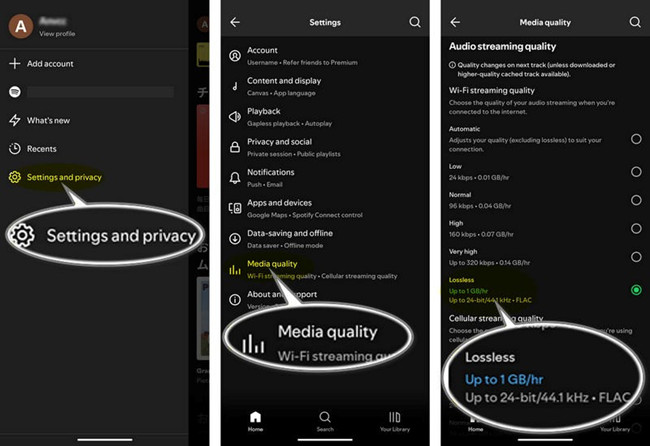
01Open the Spotify app on your phone or tablet. Make sure it is updated.
02Go to Profile > Settings & Privacy > Media Quality.
03Under Download, choose Lossless.
04Find the album or playlist you want to download, or add songs to a playlist first.
05Open it and tap Download. Spotify will save it for offline listening.
06Wait for the download to finish. A green arrow will show when it is ready.
07To remove downloads, tap Download again. The files will be deleted, but the items stay in your library.
Part 4. How to Transfer and Play Spotify Music as FLAC Files
Once the files are available locally, they can be moved between devices and used in different players depending on the setup. Playback depends on the device or software being used, since support for lossless formats varies across systems and players.
01Play FLAC Files on Computer Devices
On Windows and macOS, FLAC files play through apps like VLC or foobar2000. Built-in support depends on the app you use. In general, desktop systems support FLAC well. Android devices and dedicated music players are still the easiest, while Apple devices depend more on extra apps.
VLC Media Player (Desktop)
01Install VLC Media Player from the official website.
02Open VLC on your computer.
03Click Media in the top menu.
04Select Open File.
05Choose your FLAC file.
06Click Open to start playback.
foobar2000 (Desktop)
01Install foobar2000 from the official website.
02Open foobar2000 on your computer.
03Drag and drop FLAC files into the playlist window.
04Or click File > Open and select your FLAC file.
05Double-click the track to start playback.
06Optional: Right-click the track to access playback or file options.
02Play FLAC Files on Apple Devices
On Apple devices such as iPhone, iPad, and iPod touch, FLAC is not part of the default music system. It does not play in the Apple Music app like AAC or ALAC. You need third-party apps like VLC, VOX, or Foobar2000 to play FLAC files.
01Use a USB cable to connect your iPhone, iPad, or iPod to your computer and open iTunes (or Finder on macOS Catalina and later).
02Drag your converted files into iTunes (or Finder). Select your device from the list, then click "Sync Music" to transfer the files to your device.
03After syncing, open the Music app on your iPhone, iPad, or iPod. You will find your converted tracks ready to play.
03Play FLAC Files on Android Devices
Devices running Android support FLAC more directly. Most Android phones can play FLAC in system players, file managers, or music apps. No conversion is needed. This makes Android simple for lossless audio.
01Use a USB cable to connect your Android device to your computer and enable File Transfer mode on your device when prompted.
02Open your Android storage folder on the computer and locate the Music folder (or create one if needed).
03Copy your converted FLAC files into the Music folder or another folder of your choice.
04Open your preferred music player on Android and start playing your transferred FLAC tracks.
04Play FLAC Files on Hi-Fi Devices
Dedicated music players give the best FLAC experience. Devices like Sony Walkman, FiiO, and Astell&Kern are built for high-quality audio. They support lossless formats and use better sound hardware. These devices are best for users who care about sound quality.
Part 5. Converting Spotify Music to FLAC vs. Downloading Lossless Music
| Comparison | ViWizard Spotify Music Converter | Spotify Lossless |
|---|---|---|
| Purpose | Converts Spotify music into audio files. | Downloads music for offline listening in Spotify. |
| Account | Free or Premium, according to ViWizard. | Eligible Premium subscription required. |
| Platforms | Windows and macOS. | Supported Spotify apps. |
| Formats | FLAC, MP3, WAV, AIFF, M4A, M4B. | FLAC. |
| How it works | Select music, choose FLAC, and convert. | Enable Lossless quality and download music. |
| File access | Saves files to a local folder. | Downloads stay within Spotify. |
| Audio quality | Depends on the source and conversion process. | Up to 24-bit/44.1 kHz for supported tracks. |
| Storage | Uses local storage for converted files. | Lossless downloads require more storage. |
| Best for | Getting separate audio files. | High-quality offline listening in Spotify. |
Spotify Lossless and ViWizard serve different purposes. Spotify Lossless offers high-quality playback at up to 24-bit/44.1 kHz for supported tracks, making it the simpler choice for offline listening within Spotify. ViWizard, on the other hand, lets you convert Spotify music into standalone FLAC files for use with other compatible players. Keep in mind that converting music to FLAC cannot restore audio information already lost in the source.
Part 6. Conclusion
If you want high-quality offline listening within Spotify, Spotify Lossless is the easiest option. But if you need standalone FLAC files to use with other compatible players, ViWizard Spotify Music Converter offers an alternative. Choose the option that best fits your listening needs, and if you want to convert Spotify music into separate audio files, try ViWizard Spotify Music Converter to get started.
You May Be Interested




Adam Gorden is always looking for new ways to explore music and videos. He likes trying different media tools and learning how to manage audio and video files with ease.

Leave a Comment (0)