


Spotify is becoming part of the DJ world again. Following Apple Music's "DJ with Apple Music" feature, Spotify has started bringing back DJ integration with popular DJ platforms and AlphaTheta/Pioneer DJ equipment. Spotify Premium users can now access millions of songs and playlists directly inside DJ software like rekordbox, Serato DJ, and djay. This makes it much easier to mix music with the playlists they already use every day.
Even if you are not a professional DJ, Spotify already includes several built in mixing features. Spotify has tested its AI DJ feature with automatic song selection and transitions, along with Auto Mix and advanced mixing controls.
In this guide, we'll cover everything you need to know about DJing with Spotify, including built in features and the best DJ software and hardware for Spotify. If you want offline support, ViWizard Spotify Music Converter has long been a popular choice for DJs who want to use Spotify music as MP3 tracks for mixing.
Part 1. Can You Use Spotify with DJ Software?
Yes. Spotify Premium subscribers can browse playlists and mix available tracks using supported DJ applications, including rekordbox, Serato, djay, VirtualDJ, Cross DJ, and edjing.
The integration launched for desktop versions of rekordbox, Serato, and djay in September 2025, then expanded to additional applications and mobile platforms. Availability varies by device, software, and market. For example, rekordbox requires version 7.2.3 or later on Windows and macOS, or the latest version on iOS and Android.
Spotify supports mixing up to four tracks simultaneously. However, audiobooks, videos, albums, artist pages, and DJ mixes are unavailable through the integration, and users must edit playlists in the Spotify app. Spotify's personal, non-commercial use terms also exclude public performances at clubs, events, and livestreams.

Need Spotify music for offline listening? ViWizard Spotify Music Converter helps Spotify Premium and free users save songs, playlists, albums, podcasts, and audiobooks in popular audio formats with fast, reliable conversion. Start converting and enjoy Spotify music across more devices.
Part 2. How Does Spotify Integration Work in DJ Software?
Choose your DJ software
You need compatible DJ software because not all platforms support Spotify. Apps like Algoriddim djay, along with rekordbox and Serato DJ, are part of the supported ecosystem. Once selected, Spotify becomes a built-in streaming source inside the software. Depending on the device, users may use djay or rekordbox on mobile, or djay, rekordbox, or Serato on desktop. There are also minimum system requirements.
Log in and connect your Spotify account
Sign in with your Spotify account inside the DJ software. This links your playlists and saved music directly to the DJ interface, allowing you to load tracks into decks without exporting or transferring files. This feature is Premium only. Free users must start a trial or upgrade to Premium, which costs $12.99 per month.
Browse and discover music
After connecting, you can access your Spotify playlists and curated editorial selections. You can search by genre, mood, or playlist name, preview tracks, and load them directly into your decks while building a set.
Start mixing in real time
Once tracks are loaded, you can mix using standard DJ tools such as crossfaders, looping, cue points, and beatmatching. You can select up to four tracks, and the music streams directly inside the software for real-time performance.
Part 3. How to Use Spotify with Compatible DJ Software
A Spotify Premium account and an internet connection are required because offline mixing through the integration is not supported. Availability varies by region and software version, and certain content, including audiobooks, videos, albums, artist pages, and DJ mixes, is unavailable.
Users sign in to Spotify through a supported DJ application, browse available playlists and tracks, and load music into the mixing interface. Spotify provides access to eligible music, while the software handles mixing and transitions. Features such as effects, beat matching, and automated mixing depend on the application.
Step One: Upgrade to Spotify Premium and Prepare Your Setup
Open the Spotify app or website and sign in. Click your profile icon in the top right, go to "Account" or "Account Overview," then find "Your plan." Select "Change plan" or "Upgrade to Premium" and complete the payment steps. Confirm that your account shows Spotify Premium in your plan details. Make sure your device is ready for DJ use (Windows, Mac, iOS, or Android depending on software) and stay online, since Spotify streaming in DJ apps only works with an internet connection.
Step Two: Install Supported DJ Software
Download and install a compatible DJ app such as rekordbox, Serato DJ Pro, or Algoriddim djay Pro from the official site or app store. Open the software after installation and finish setup. Select audio device settings, let the library scan, and connect any DJ controller or mixer if you are using hardware.
Step Three: Connect Spotify to Your DJ Software
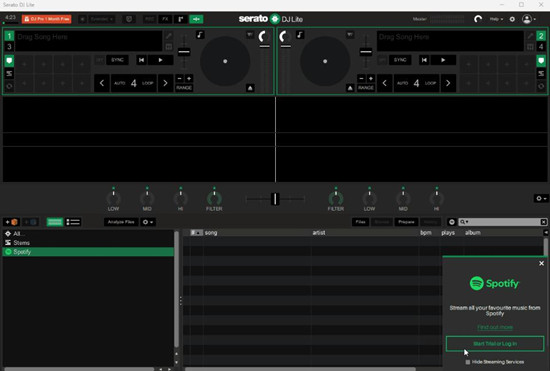
Open settings or preferences in your DJ app. Locate Spotify under available streaming services and click the Spotify icon, then click "Sign in" to log in with your Premium account and approve permissions. If you haven't upgraded to Premium, also check the free trial option if available. Once connected, your Spotify playlists and catalog will appear in the browser panel under "Your Library" and search.
Step Four: Load Tracks into Decks
In the browser panel, open "Your Library" or use search to find tracks. Drag a track to Deck 1 or Deck 2, or click load. The track will stream directly into the deck and be ready for playback. Set cue points, adjust tempo, and prepare transitions using built-in DJ tools.
Step Five: Start Mixing
Press play on your deck or controller. Switch between decks, layer tracks, and use EQ, loops, and effects to mix in real time. You can prepare up to 4 Spotify tracks depending on your software and playlist setup. Keep in mind that streaming requires a stable internet connection.
Step Six: Follow Spotify Limits and Mix
Some content is not supported in DJ software, including audiobooks, videos, album pages, artist pages, and DJ mixes, even if shown in Spotify. Playlist edits must be done in the Spotify app, not in DJ software. Spotify playback is for personal, non-commercial use only and cannot be used for clubs, events, or livestreams.
Part 4. How to Use Spotify Music in DJ Software That Doesn't Support Spotify
Although Spotify integration is available in selected DJ apps, software such as Mixxx, djay alternatives, and other unsupported platforms may still require local audio files. Spotify downloads remain within the app due to DRM protection and cannot be imported directly into DJ software as standard audio files.
A separate conversion workflow can create compatible files for supported local libraries. ViWizard Spotify Music Converter is a desktop tool for converting Spotify music to MP3, WAV, M4A, AIFF, and FLAC. It also offers options to organize converted Spotify songs by artist, playlist, or album. Once saved locally, compatible Spotify audio files can be imported into DJ software and managed like other music in your library.
Key Features of ViWizard Spotify Music Converter
Free Trial Free Trial* Security verified.5,481,347 people have downloaded it.
- Convert Spotify songs, playlists, albums, podcasts, and audiobooks
- Export Spotify music in 6 formats for different devices and players
- Support Spotify Premium and free accounts for music conversion
- Preserve music metadata when organizing converted collections
- Batch download Spotify playlists and large music libraries
4.1 Convert Spotify Music into Compatible Audio Files
Install the Windows or Mac version of ViWizard, connect your Spotify account, and select the tracks you want to convert. Choose an available output format, such as MP3 or WAV, and an output folder, then start the conversion and verify the resulting files. Conversion and reuse must comply with applicable terms and rights. A Spotify Premium subscription alone does not grant permission to extract, redistribute, or use music outside the service.
 Step 1: Install and Open ViWizard
Download and install ViWizard Spotify Music Converter on your computer (Windows or Mac). Open the program and log in to your Spotify account. It works with both free and Premium accounts. The built-in Spotify interface lets you browse playlists, albums, or tracks directly inside the app.
 Step 2: Add the Spotify Tracks You Want
Use the search bar or paste Spotify links to select the playlists, albums, or individual songs you want to download. Click the + button to add them to your download list. You can choose exactly what you want, whether it’s a single track, a full playlist, or an entire album.
 Step 3: Set FLAC as the Output Format
Go to Preferences or Settings and choose FLAC as the output format to ensure lossless quality. You can also adjust audio settings and organize your files by artist or playlist for a neat library.
 Step 4: Convert and Save Your Music
Click the Convert button to start the process. ViWizard will remove DRM and save the music in FLAC format on your computer. Once finished, open the output folder to access your files. They are now ready to play on any device that supports FLAC, letting you enjoy Spotify tracks in true lossless quality.
4.2 Import Local Audio Files into DJ Software
Import your saved files into DJ software that supports local libraries. Unlike Spotify streaming, local playback does not require a Spotify account connection. Open the app’s Library, Collection, Files, or Explorer section, choose Import, Add Folder, or Browse, and select your files. They should appear in the library, ready to load. Some apps play files directly from folders, while others require library analysis or organization.
01 Open your DJ software and locate the Library, Collection, or Browser panel.
02 Choose the option to browse or add local music files. For example, in Mixxx, select Computer in the library sidebar.
03 Navigate to the folder containing your converted audio files and select the tracks you want.
04 If required, import or rescan the folder. In Mixxx, select Library → Rescan Library.
05 Confirm that the tracks appear in the browser and analyze them if needed to generate BPM and waveform information.
07 Keep files in their original folder after importing them. Moving or renaming files may break their library paths.
4.3 Mix Local Audio Files in DJ Software
Select a track from your Library or Collection and drag it onto a virtual deck or choose Load. Load a second track onto another deck, press Play, and use the volume faders or crossfader to blend them. For smoother transitions, adjust tempo, match beats, and use cue points where supported. Some apps also offer effects and automatic syncing. Local files can be mixed without Spotify streaming. Keep files in their original folders or update their locations in the software if moved, so they remain accessible.
01 Open the music library and select the track you want to play.
02 Load it onto the first virtual deck by dragging it onto the deck or using the software’s Load command. In Mixxx, drag the track onto a deck’s waveform display.
03 Select a second track and load it onto the other deck.
04 Press Play to start the first track and prepare the second for the transition.
05 Match the tracks’ tempos using tempo controls or Sync, if available. Check beat alignment manually, as automatic detection may be inaccurate.
06 Start the second track at the desired point and blend it with the first using the crossfader or channel volume faders.
07 Adjust the EQ controls, if available, to balance bass, mids, and highs for a smoother transition.
08 Before playing live, check your speaker and headphone routing in the audio settings. In Mixxx, open Preferences → Sound Hardware.
09 Once comfortable with basic transitions, explore supported features such as cue points, looping, and effects.
Part 5. How to DJ with Spotify Within the App
Spotify also offers in-app listening features that create DJ-like experiences, mainly for Premium users. These include AI DJ, Mixes, and AutoMix, each offering a different way to discover and play music. Of the three, Mixes comes closest to a traditional DJ experience by combining tracks into a continuous listening flow.
AI DJ creates a continuous radio-like session
AI DJ makes a nonstop music flow that feels like a personal radio station. It picks songs based on recent listening, preferences, and interaction patterns, then plays them in a steady stream. Short spoken commentary appears between tracks to split sections and add structure. Playback runs on its own and keeps adjusting over time. Tap the AI DJ button to start and let it play automatically.

Mix focuses on smooth playlist flow
Mix changes how songs connect inside a playlist. Songs with similar tempo and structure blend more smoothly, while others fade or overlap. It works well for workouts or background listening where steady rhythm matters more than breaks. Tap the Mix button to open controls. Choose transition styles like Auto, Fade, Rise, or Blend. Set transition length to 2, 4, or 8 bars. Adjust volume or effects if available. Save changes, then press Play to hear the result.

AutoMix style playback removes gaps in real time
AutoMix smooths song changes by cutting down silence between tracks. Songs can fade or overlap based on their structure, without manual setup. Playback runs as one continuous stream. Go to Settings > Playback > Crossfade and turn on AutoMix to control how transitions sound near the end of each track.

Part 6. Conclusion
Spotify can now be used for DJing again through supported software like Algoriddim djay, rekordbox, and Serato DJ. With a Premium account, you can stream your playlists directly and mix them in real time using standard DJ tools.
It's a simple way to start DJing without a large local library, but it still requires a stable internet connection and has content limits. Many DJs still combine Spotify with local files for better control and reliability in live sets.
If you want full offline flexibility, ViWizard Spotify Music Converter lets you convert Spotify tracks into MP3 and other formats so you can build a local DJ library and use your music anywhere without streaming restrictions.
You May Be Interested





Adam Gorden is always looking for new ways to explore music and videos. He likes trying different media tools and learning how to manage audio and video files with ease.

Leave a Comment (0)