



Perhaps one of the most interesting trends in digital music today is the rise of open-source tools that let people download Spotify tracks outside the official app. ZSpotify GUI is one of these tools. It is made for users who want more control over their music. Unlike Spotify itself, it is developed by independent contributors and lets users save Spotify tracks as local audio files outside the official app. This allows people to truly own the music they listen to on Spotify.
But questions remain. Can ZSpotify GUI really work? Is it safe? In this guide, we will explain what ZSpotify GUI is, how it works, and how to use it to download Spotify songs. If you have heard of Zotify as an alternative to ZSpotify GUI, we also compare them side by side.
Part 1: What Is ZSpotify GUI?
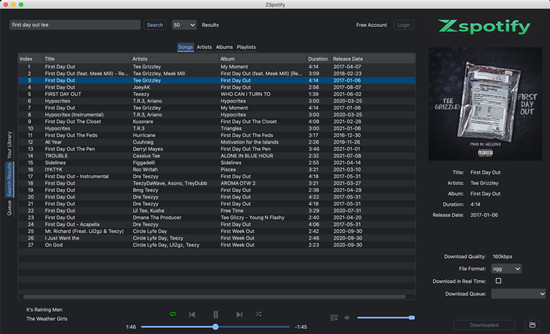
Not everyone feels comfortable using command lines to download music, as with Zotify or SpotDL. That is why ZSpotify GUI stands out. It is an open-source desktop application built to make the original Python-based ZSpotify downloader easier to use on Windows, macOS, and Linux. While the command-line version can feel technical, the GUI provides a visual interface that makes managing downloads simple.
Users can paste Spotify track, album, or playlist links into the built-in search tool. The app matches the audio source and provides a download button, often including metadata or album art. Unlike other tools online, ZSpotify GUI works directly with Spotify and is maintained on GitHub under a GPL-3.0 license, meaning it is free and openly shared.
Like Zotify, ZSpotify uses Python and usually requires FFmpeg to convert audio files. The GUI does not change how it works but presents the same functions in a visual layout. Beyond downloading music, it lets users adjust basic settings and manage downloads without using any command-line code. In short, ZSpotify GUI is the desktop visual version of Zotify, designed to make the tool easier and more approachable for everyday users.
Part 2: How Does ZSpotify GUI Work?
You know what ZSpotify music downloader is, and it uses a GUI, but how does it manage to download Spotify tracks as local files?
Behind the interface, ZSpotify connects to Spotify's streaming system using unofficial methods. It retrieves the audio stream for a track or playlist and converts it into a standard audio file saved on your computer. The GUI wraps this process in a desktop app, so everything is handled through buttons and menus instead of commands.
-

Built-in Music Player
ZSpotify includes a full music player, allowing you to play songs directly in the app. You can preview tracks before downloading to ensure playback works smoothly, especially before saving large playlists.
-
Search While Downloading
You can keep searching for tracks, albums, or playlists while downloads are running. Multiple downloads can happen at the same time, though too many active tasks may slow your device or connection.
-
Download Queue
ZSpotify lets you queue several downloads at once. Tracks, albums, and playlists are processed automatically in order, making it easier to manage larger libraries. Checking the queue helps confirm everything completes properly.
-
Sync Spotify Likes and Playlists
After logging in, your liked songs and playlists appear directly in the app. You can download favorites without copying links individually. Large libraries may take longer to sync.
-
Customizable Settings
You can adjust settings such as download format, save location, real-time downloads, and search behavior. Files are typically saved in common formats like MP3 or OGG, and some formats require more storage space.
-
Python and FFmpeg Handling
Python manages the core operations while FFmpeg handles audio processing in the background. Proper installation is important, since missing components can cause downloads to fail. Once configured, downloads and conversions run efficiently.
Part 3: How to Use ZSpotify GUI to Download Spotify Songs
Thanks to the GUI, ZSpotify music downloader is not overly complex, but it does involve a few steps on Windows, Mac, and Linux to make sure downloads run smoothly.
Requirements:
- A Spotify account (Premium works best)
- VLC media player installed, needed for ZSpotifyGUI
- FFmpeg installed and added to your system PATH to convert audio files. ZSpotifyGUI may ask you to install VLC or FFmpeg or restart your computer if they are missing.
- An internet connection
Install and Use ZSpotifyGUI on Windows
Step 1 Open your browser and go to the ZSpotifyGUI GitHub Releases page. Download the Windows installer file.
Step 2 Double-click the installer and follow the prompts to complete the setup.
Step 3 Open ZSpotifyGUI from the Start Menu or your desktop shortcut. If VLC was not installed before, it is recommended to restart your PC before continuing.
Step 4 When the app opens, log in with your Spotify account using the login panel.
Step 5 Click inside the search bar at the top of the window and type the name of a song, album, or playlist. You can also paste a Spotify URL.
Step 6 When the results appear in the main window, click the Download button next to the item. The app will show a queue panel where you can watch the download progress and status.
Step 7 To change settings, open Settings from the gear icon. You can adjust the download format, folder location, and enable real-time downloads.
Install and Use ZSpotifyGUI on Mac
Step 1 Open your browser, go to the GitHub Releases page, and download the macOS zip file. Move the file to your Downloads folder.
Step 2 Open Terminal and run the following commands:
unzip ZSpotifyMacOs.zip
cd ZSpotifyGUI/
sudo chmod u+x install.sh
./install.sh

Step 3 Enter your Mac password when prompted. The installer will create a launcher in Applications.
Step 4 Open Applications and double-click ZSpotifyGUI. If macOS shows a security warning, right-click the app and choose Open.
Step 5 Enter your Spotify login details when the app window appears.
Step 6 Click the search bar at the top of the window. Type a song, album, or playlist name, or paste a Spotify link.
Step 7 When the results appear, click the Download button next to the item. You can track downloads in the queue panel.
Step 8 If VLC was not installed before setup, restart your Mac after installation to avoid problems.
Install and Use ZSpotifyGUI on Linux
Option 1: Run From Source
Step 1 Open Terminal and install required dependencies such as Python and FFmpeg. For example, on Debian or Ubuntu, run:
Step 2 Clone the ZSpotifyGUI repository and install required packages:
cd ZSpotifyGUI
pip3 install -r requirements.txt
Step 3 Launch the graphical interface with:
Step 4 When the app window opens, log in with your Spotify credentials.
Step 5 Click the search bar at the top and type a song or playlist name, or paste a Spotify URL.
Step 6 When results appear, click the Download button next to the item. The queue panel will show the download progress until the music is saved to your folder.
Option 2: Use a Community Build
Step 1 If you use Wine or an unofficial Linux build, follow the instructions in the release notes to launch the app.
Step 2 Log in with your Spotify credentials.
Step 3 Use the search bar to find tracks, albums, or playlists, or paste a Spotify link.
Step 4 Click the Download button next to the item and watch the progress panel until the download is complete.
Part 4: Is ZSpotify Music Downloader Safe and Legal?
ZSpotify GUI remains appealing for its flexibility and control. Still, it requires technical comfort and an understanding of the potential risks.
Using ZSpotify GUI means stepping outside the official Spotify ecosystem. The project is open source and maintained by independent developers on GitHub, which makes the code transparent but does not make it official. Because it relies on unofficial methods to access Spotify content, it does not operate in a fully legal area. Spotify does not approve it, and downloading music outside the app may violate Spotify's Terms of Service. Legal action against individuals is rare, but account warnings or restrictions are possible.
Stability is another concern. ZSpotify GUI depends on how Spotify's system currently works. If Spotify updates its authentication or streaming structure, the tool can stop working until the community releases a fix.
Compared with tools like ViWizard Spotify Music Converter, which stay updated with Spotify changes and provide customer support, ZSpotify GUI is generally safe to try but can be unstable. For a more reliable long-term option, a maintained tool such as ViWizard Spotify Music Converter may be a better choice.

Need Spotify music for offline listening? ViWizard Spotify Music Converter helps Spotify Premium and free users save songs, playlists, albums, podcasts, and audiobooks in popular audio formats with fast, reliable conversion. Start converting and enjoy Spotify music across more devices.
Part 5: Best Alternatives to ZSpotify Music Downloader
ZSpotify GUI is not the only option. People like it for convenience, but Zotify gives more control, and ViWizard Spotify Music Converter makes things simpler.
1. Zotify
Zotify is a Python-based tool that downloads tracks, playlists, liked songs, and podcasts from Spotify while keeping metadata and album art. It works well for large libraries and can be scripted or automated, which makes it popular with power users. The trade-off is setup complexity. You need Python, FFmpeg, and some authentication steps, which can be tricky for beginners. For those who are comfortable with technical tools, Zotify offers excellent control and reliability, which is why many still prefer it for managing large collections.

Looking to rip music from Spotify? Learn how Zotify works, what it can do, and why ViWizard Spotify Music Converter is a powerful, user-friendly alternative for downloading songs, playlists, and more.
2. ViWizard Spotify Music Converter
ViWizard Spotify Music Converter is a desktop app designed for simplicity. You log in through its Spotify Web Player, select music, podcasts, or audiobooks, choose an output format like MP3, M4A, M4B, WAV, AIFF, or FLAC, and convert. It keeps metadata, supports batch conversion, and works on almost any device.
The main benefit of ViWizard Spotify Music Converter is ease of use. You don't need command-line knowledge, and the conversion keeps artwork and tags intact. The built-in Spotify Web Player makes it easy to access your library, pick tracks, and start converting. It does not have a Linux version, but for anyone using Windows or Mac, ViWizard is the simplest option.
Key Features of ViWizard Spotify Music Converter
Free Trial Free Trial* Security verified. 5, 481,347 people have downloaded it.
- Convert Spotify songs, playlists, albums, podcasts, and audiobooks
- Export Spotify music in 6 formats for different devices and players
- Support Spotify Premium and free accounts for music conversion
- Preserve music metadata when organizing converted collections
- Batch download Spotify playlists and large music libraries
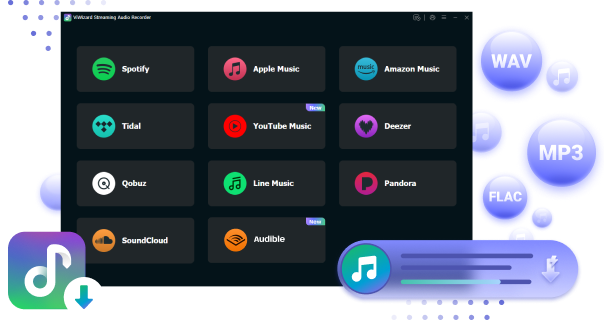
Step 1Install and Open ViWizard

Download and install ViWizard Spotify Music Converter on your Windows or Mac computer. After launching the program, log in to your Spotify account within the built-in player. You can browse your library, playlists, albums, and search for music directly inside the software.
Step 2Select the Spotify Tracks You Want to Save

Find the songs, albums, or playlists you want to download. You can browse your library or paste a Spotify link into the search bar. Add the selected items to the conversion list. Whether it's a single track or a full playlist, you can queue everything at once.
Step 3Set the Output Format and Audio Preferences

Before starting the download, open the settings panel. Choose an output format such as MP3, WAV, or FLAC so the files can play on most devices. You can also adjust the audio quality and select how the files should be organized, for example by artist, album, or playlist. This helps keep your local music library structured.
Step 4Convert Spotify Music to Local Files

Click the Convert button to begin. The software processes the tracks and saves them as standard audio files on your computer. Once finished, open the output folder to access your downloaded songs. You can now transfer them to a phone, USB drive, external storage device, or play them on any compatible media player without using the Spotify app.
Part 6: ZSpotify GUI vs Zotify vs ViWizard: Key Differences
| Aspect | Zotify | ZSpotify GUI | ViWizard Spotify Music Converter |
|---|---|---|---|
| Type | Open-source, command-line | Desktop app GUI | Paid desktop app |
| Ease of Use | Hard | Medium | Easy |
| Interface | Command line | GUI | GUI with Spotify Web Player |
| Setup | Complex (Python, FFmpeg, login) | Moderate | Simple installer |
| Format | Original Spotify streams | Original Spotify streams | MP3, M4A, M4B, WAV, AIFF, FLAC |
| Keeps Metadata | Yes | Yes | Yes |
| Batch Conversion | Yes | Yes | Yes |
| Platform | Windows, Mac, Linux | Windows, Mac, Linux | Windows, Mac only |
| Best For | Power users | Users who want control with GUI | Users who want simple, easy conversion |
| Cost | Free | Free | Paid |
Conclusion:
ZSpotify GUI offers a user-friendly way to access Spotify download features, while Zotify is best for power users who want full control and can handle technical setup. Compared to both, ViWizard Spotify Music Converter is the simplest tool and meets most users' needs. Whatever you choose, these tools can help you download Spotify tracks as local files, but make sure to use them for personal use only.
You May Be Interested




Nick Orin, a software developer at ViWizard, focuses on providing solutions for software-related challenges, including reviews, troubleshooting, and optimization tips.

Leave a Comment (0)