



Adding background music can make your videos more engaging, but getting music from YouTube into Adobe Premiere Pro is not as simple as copying a link or dragging a video into your project. Since YouTube does not provide direct access to audio files, you need to use other methods to save the music in a format that Premiere Pro can recognize.
In this guide, we will show you how to add YouTube music to Premiere Pro using two practical methods. You can download free, copyright-safe tracks from the YouTube Audio Library or use a third-party tool to save audio from YouTube videos for editing. Let's get started.
Part 1. Can You Add Music from YouTube Directly to Premiere Pro?
No, you cannot add music from YouTube directly into Adobe Premiere Pro. Because YouTube is a streaming platform, using copyrighted music from YouTube in commercial or publicly broadcast videos may result in a copyright strike or content deletion.
So, is there a workaround to import YouTube music to Premiere Pro? Yes, two ways. You can use a trusted, legal third-party audio ripper to save the music to your desktop. Another option is to download royalty-free background music via the official YouTube Audio Library.
Part 2. Add YouTube Music to Premiere Pro Via a Third-Party Music Ripper
This method is about using a ripper to extract music from standard YouTube videos. For reliable and safe, we recommend ViWizard YouTube Music Converter. It not only converts music from different streaming services (11 main music platforms) but also has a useful tool - Audio Capture- which can convert a link's audio to MP3, WAV, AIFF, and so on. This way, you can import the audio into Adobe Premiere Pro for video editing.
Before adding the music to Premiere Pro, you can copy the YouTube music link and convert it with ViWizard YouTube Music Converter. Once the audio file is saved to your computer, you can import it into Premiere Pro, place it on the timeline, and edit it just like any other audio track. Follow the steps below to add YouTube music to your Premiere Pro project.

Need YouTube Music for offline listening? ViWizard YouTube Music Converter helps YouTube Music users save songs, playlists, albums, and artists with convenient music conversion. Start converting and enjoy your music beyond the app.
How to Use ViWizard YouTube Music Converter
 Step 1: Install ViWizard and Launch YouTube
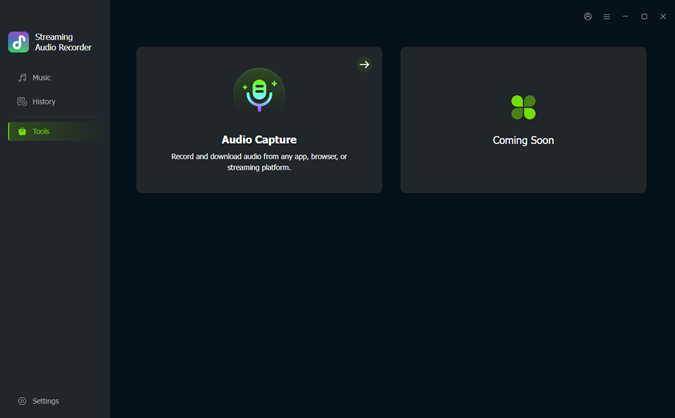
After installation, open ViWizard YouTube Music Converter. Click Tools in the left sidebar to see Audio Capture. Select Audio Capture, and a window, Audio Capture, pops up. In the Capturing section, select your web browser, such as Chrome, Firefox, or Brave.
 Step 2: Customize Output Audio Settings
Click Format at the bottom left of the interface to choose MP3 as the output format. If needed, adjust the sample rate and bit rate to optimize audio quality according to your preferences.
 Step 3: Capture Audio from YouTube
Click Start to begin capturing. The web browser appears. Navigate to the YouTube website and search for the video you want. ViWizard will detect and record the audio from the YouTube video as it starts. Once you're done, click Stop to finish recording, and the recorded file will appear in your Capture List.
 Step 4: Edit and Save the Converted MP3 Audio
You can edit the captured audio by trimming or making adjustments. Once satisfied, click Save to store the MP3 file on your computer. All your saved tracks will be available in the History section for easy access. To locate the file on your computer, hover your cursor over the song and click the file icon.
 Step 5: Import and Edit the Music in Premiere Pro
Open your project in Adobe Premiere Pro. Import the downloaded music file through File > Import or by double-clicking an empty area in the Project Panel. Select the file and click Import. Drag the imported music from the Project Panel to an empty audio track on the timeline. Use the Selection Tool (V) or Razor Tool (C) to trim and adjust the track. Add fade-in or fade-out effects by going to Effects > Audio Transitions > Crossfade and applying Exponential Fade to the beginning or end of the audio clip.
Part 3. Add YouTube Music to Premiere Pro from YouTube Audio Library
YouTube Audio Library offers free music and sound effects that creators can use in videos. Downloading music from the library allows you to import the audio files directly into Premiere Pro and edit them to match your video.
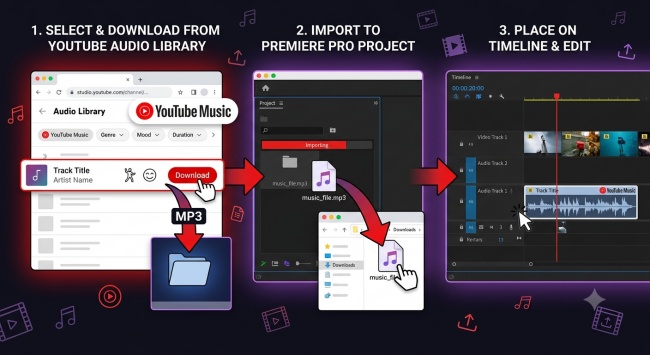
All you need to do is open YouTube Studio, go to Audio Library, choose a song, and click Download. Then open Premiere Pro, import the downloaded music file, and drag it to the timeline to edit. Here are the step-by-step instructions.
How to Use the YouTube Audio Library
01Open the YouTube Studio website on your desktop.
02Click Audio Library in the left-hand menu.
03Locate the track you want and click Download.
04Open your Premiere Pro project.
05Click File > Import.
06Press Ctrl + I on Windows or Cmd + I on Mac.
07Select the downloaded audio file and click Open.
08Open the Project panel and find the imported audio file. Drag the audio file to an empty audio track.
09Place the track below your video clips.
10Select the audio clip on the timeline, and drag the edges to trim the audio length.
11Open the Essential Sound panel, adjust the audio volume, and add fade-in or fade-out effects.
Read More : How to Download Your YouTube Music Library without Premium
Part 4. FAQs about Adding Music from YouTube to Premiere Pro
Is it legal to use YouTube music in Premiere Pro?
It depends on the music's copyright status and how you use it. Music from the YouTube Audio Library is designed for creators and can generally be used according to the listed license terms. For music from YouTube videos, you need to get permission from the copyright owner or use it privately.
What audio formats does Premiere Pro support?
Adobe Premiere Pro supports many formats, including MP3, WAV, AIFF, AAC, and M4A. When you download YouTube music, you can choose a widely supported format like MP3 or WAV. And compared with MP3, WAV is the superior and recommended format.
Why can't I import YouTube music into Premiere Pro?
You may not be able to import YouTube music because the audio is still stored online instead of as a local file on your computer. Other possible reasons include an unsupported file format, a damaged audio file, or incorrect import settings in Premiere Pro. You can convert the audio into a compatible format.
How do I add background music to Premiere Pro?
First, you can use ViWizard YouTube Music Converter to save the music file to your computer. Then open your Premiere Pro project, go to File > Import, and select the audio file. After importing, drag the music from the Project panel to an audio track on the timeline. You can then trim the clip, adjust the volume, and add effects in the Essential Sound panel.
Conclusion
Adding YouTube music to Premiere Pro is easier once you have the audio file saved on your computer. After importing the track, you can edit it in Premiere Pro by trimming the length, adjusting the volume, and adding audio effects to match your video.
If you often need music from YouTube for your editing projects, ViWizard YouTube Music Converter can be a convenient option to help save audio in common formats that work well with Premiere Pro. With ViWizard, you can prepare YouTube music files for your workflow, so you can spend more time focusing on your creative work. Just remember to use music responsibly and make sure you have the proper rights before publishing your videos.
You May Be Interested


From new releases to old favorites, Matt Smith is always on the lookout for good music. He follows the latest in digital entertainment and shares songs and media he thinks are worth checking out.

Leave a Comment (0)