


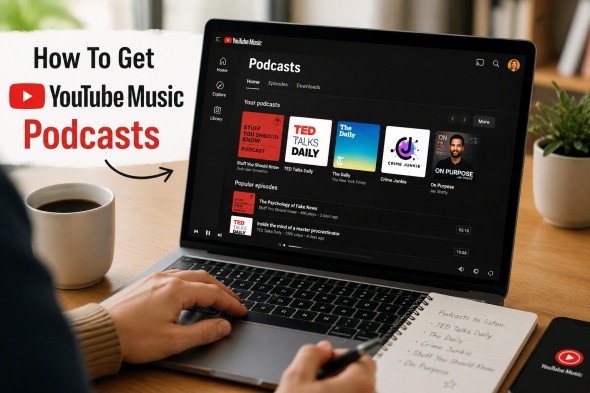
YouTube Music is not only a place to listen to songs but also a platform for finding and enjoying podcasts. You can search for podcasts, follow your favorite shows, listen to episodes in the app, and even add podcasts through RSS feeds. However, some features may not be easy to find if you are new to YouTube Music.
In this guide, we will show you how to find, listen to, add, and remove podcasts on YouTube Music, as well as how to save YouTube Music podcast episodes for more flexible listening.
Part 1. Does YouTube Music Have Podcasts?
Yes, you can play podcasts on YouTube Music. And beyond that, you can browse, stream, and download both audio-only and video podcasts directly in the YouTube Music app. Here are the key features of it:
Background Listening: You don't need a YouTube Premium to listen to podcasts with your screen off.
Switch between Videos and Audios: You can freely switch between the video version and the audio-only version of a podcast, and most importantly, never lose your spot.
Discovery & Subscriptions: There are many genres in the Explore tab, like True Crime, Comedy, News, etc. Just search for your favorite shows or turn to recommendations and customize your feed. If you like, you can also import your favorite shows via RSS feeds.
Part 2. How to Find Podcasts on YouTube Music
You can easily find podcasts on YouTube Music. Once you know the name of your favorite podcast, enter it in the search bar on your browser or mobile app. Another option is making use of the Explore tab to browse customized recommendations and genres. The last method, of course, is to check your library. And the precondition is that there are shows you have followed. Here are step-by-step instructions.
Option 1: Use the Search Bar
01Launch the YouTube Music app or website.
02Select the Search icon at the top of the screen.
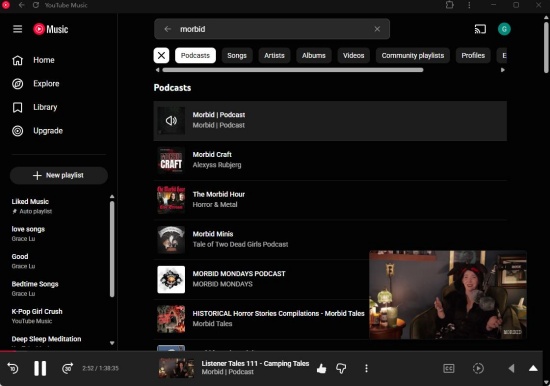
03Type the name of the podcast you want to find (e.g., Morbid).
04Choose Podcasts or Shows from the search results.
05Locate the one you are looking for.
Option 2: Explore Categories
01Sign in to your YouTube Music app or website.
02Open the Explore tab. Or go directly to the YouTube Music Podcasts page.
03Select the Podcasts section.
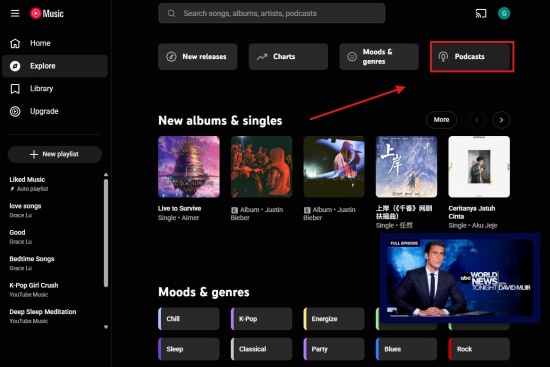
04Explore podcast genres and recommendations like comedy, true crime, and technology.
Option 3: Check Your Library
01Launch the YouTube Music app on Android or iPhone, or the website on a desktop.
02Tap Library at the bottom of the screen or on the left sidebar on the desktop.
03Choose Podcasts from your Library options.
04Browse your followed shows and saved podcast episodes.
Part 3. How to Listen to Podcasts on YouTube Music
After finding the podcasts on YouTube Music using the 3 methods in the last part, you can press Play on any episode. Besides, you can seamlessly switch between audio and video, listen to the podcasts with your screen shut off, or download episodes for offline playback.
Listen to Podcasts on YouTube Music
01Log in to YouTube Music on the mobile app or web browser.
02Use the search bar, the Explore tab, or the library to find out podcasts on YouTube Music in Part 2.
03Select any podcast to open the main page.
04Scroll down on the page to read the description of each episode.
05Locate the episode you prefer and hit Play to stream the audio.
06For filmed episodes, toggle between the full video and an audio-only version from the Now Playing screen.
07For background play, turn off your screen or switch to another app.
08To easily navigate through podcast episodes, use the 10-second rewind and 30-second fast-forward buttons.
09Tap the playback speed icon or Sleep Timer on the Now Playing screen to change listening speed or set a time for playback to stop.
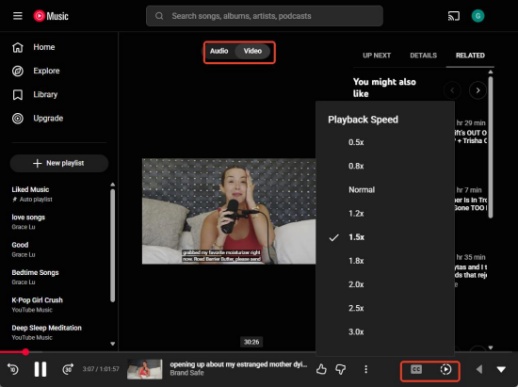
10Tap the three-dot menu next to an episode to add it to your queue, play it next, or save it to a playlist.
11Tap the three-dot menu on an episode to mark it as played or filter shows to view only unplayed episodes.
Part 4. How to Add Podcasts to YouTube Music
Both listeners and artists can add podcasts to YouTube Music. Listeners can follow a show, and a creator can distribute a podcast.
For listeners, if a podcast is not in YouTube Music's catalog, you can add it via its RSS feed. And this move is only available in the YouTube Music app for Android and iOS. Creators can publish a show on YouTube Music via an RSS feed or create a podcast using YouTube videos.
For Listeners: Adding an RSS Feed (Mobile Only)
01Open the YouTube Music app.
02Select Library at the bottom of the screen.
03Tap Podcasts at the top of the Library page.
04Tap Add podcast in the bottom-right corner.
05Select Add a podcast by RSS feed.
06Paste the podcast's RSS feed link, accept the disclaimer, and tap Add.
For Creators: Distributing Your Podcast
There are two main ways to get your podcast published on YouTube Music: go to YouTube Studio to submit your RSS feed, or convert an existing playlist.
Option 1: Submit Your Podcast RSS Feed
01Log in to YouTube Studio.
02Click Create in the top-right corner and select New podcast.
03Click Submit RSS feed.
04Paste your podcast's RSS feed link and take the terms.
05Enter the verification code sent to your email address to confirm ownership.
06Select whether to upload all past episodes, recent episodes, or only future releases.
Option 2: Create a Podcast Using YouTube Videos
01Upload your podcast episodes as videos to your YouTube channel.
02Add your podcast episodes to a playlist.
03Open YouTube Studio and go to Content > Playlists.
04Click the three dots next to your podcast playlist and select Set as podcast.
05Type your podcast title, description, and other details.
Part 5. How to Remove Podcasts from YouTube Music
If you want to delete podcasts from your YouTube Music library or app, visit your Library, find the podcast, select the three dots near it, and choose Remove from library.
If you are a creator who manages a podcast and want to permanently sever the connection between your external RSS feed and YouTube, you must do it on a computer via YouTube Studio.
For Listeners: Remove Podcasts and RSS Feeds
01Launch the YouTube Music app or website.
02Select Library at the bottom on mobile or on the left sidebar of the official website.
03Find the podcast you want to remove.
04Tap or click the three dots next to the podcast or episode.
05Select Remove from library.
For Creators: Remove RSS Feeds (Desktop Only)
01Sign in to YouTube Studio on your desktop browser.
02Go to Content and select Podcasts.
03Hover your cursor over the podcast you desire to edit.
04Click the Details (pencil) icon.
05Find your RSS feed URL and click Disconnect.
06Confirm that you want to disconnect the RSS feed from your channel.
Part 6. Why Can't I Find Podcasts on YouTube Music?
You cannot find podcasts directly in the YouTube Music app because there is no general podcast search engine within YouTube Music. It only shows podcasts that are officially labeled as podcasts or uploaded through an RSS feed by YouTube channels that publish full episodes on the platform. You can try these workarounds to find a missing podcast or start listening to your favorite shows.
Fully Use the Podcasts Filter: Open YouTube Music and go to your Library. Select the Podcasts filter to view shows and episodes you have followed, saved, or liked. You can also check the Home tab for recommended podcast episodes.
Check Your YouTube and YouTube Music Connection: Make sure your YouTube and YouTube Music accounts are using the same account. Go to your settings and enable the option to show your liked music from YouTube so podcasts you liked on YouTube can appear in your YouTube Music library.
Add a Podcast with an RSS Feed: If a podcast is not available on YouTube Music, you can add it manually through its RSS feed. Go to Library > Podcasts > Add Podcast > Add a podcast by RSS feed, then enter the podcast's RSS feed link.
Search on YouTube Instead: Since YouTube Music uses content from YouTube, some podcasts may be easier to find through the main YouTube app. Search for the podcast on YouTube, save it to a playlist, and check if it appears in your YouTube Music library.
Bonus: How to Convert YouTube Music Podcasts to MP3
YouTube Music provides a convenient way to discover, stream, and manage podcasts with features like personalized recommendations, background listening, offline playback, and RSS feed support. However, the official download option is limited to the YouTube Music app, which means downloaded episodes cannot be easily transferred or played on other devices.
For users who want more control over their podcast library, ViWizard YouTube Music Converter offers a simple way to convert YouTube Music podcasts into common audio formats, including MP3, FLAC, WAV, AIFF, M4A, and M4B. It preserves important metadata such as titles and cover information while allowing you to customize output settings like bitrate and sample rate.
With ViWizard, you can save your favorite YouTube Music podcast episodes as local audio files and enjoy them on more devices and media players. Whether you want to build a personal podcast collection or listen offline without app limitations, it offers a flexible way to manage your YouTube Music content.

Need YouTube Music for offline listening? ViWizard YouTube Music Converter helps YouTube Music users save songs, playlists, albums, and artists with convenient music conversion. Start converting and enjoy your music beyond the app.
How to Use ViWizard YouTube Music Converter
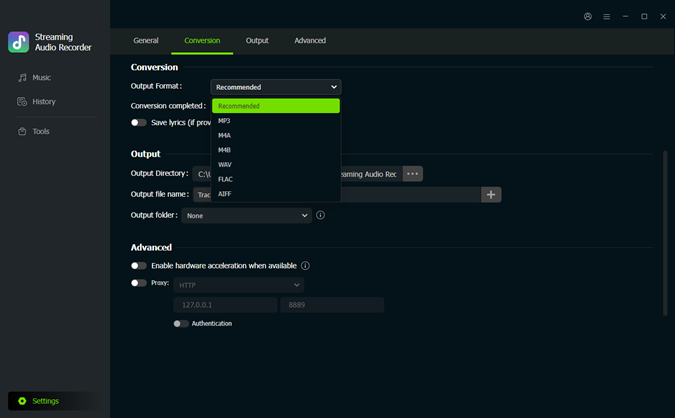 Step 1: Choose Output Settings
Open ViWizard YouTube Music Converter on your computer. Go to the Settings menu at the bottom left of the screen. Select Conversion. Choose the audio format you want, such as MP3, FLAC, WAV, AIFF, M4A, or M4B. You can also change the audio quality, select where to save the files, and adjust file settings. After that, go back to the Music section.
 Step 2: Open YouTube Music in ViWizard
Click the YouTube Music icon in ViWizard to open the built-in YouTube Music player. Sign in to your YouTube Music account, then search for or browse the songs, albums, playlists, or artists you want to convert.
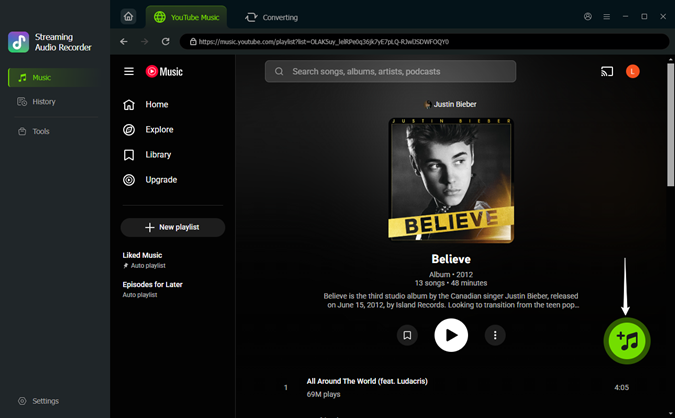 Step 3: Add Music to the Download List
Open the song, album, or playlist you want to save and click the plus (+) button. ViWizard will scan the page and show the available songs. Select the tracks you need and add them to the list.
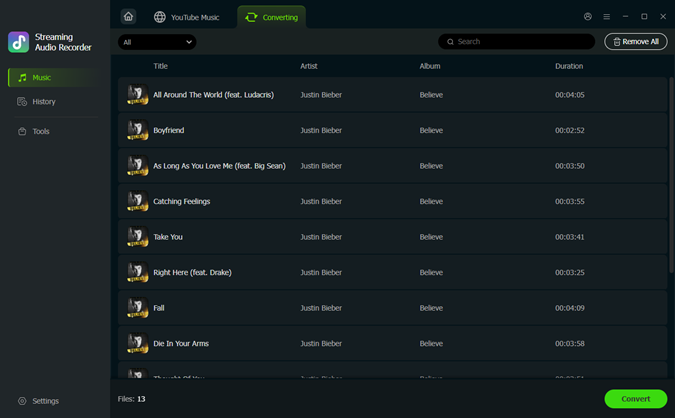 Step 4: Convert YouTube Music to Audio Files
Go to the conversion list and check the selected songs. Click the Convert button to start. When the process is finished, open the History section to find your converted files. You can play them directly or open the output folder to view them.
Conclusion
YouTube Music makes it convenient to discover and manage podcasts with features like search, recommendations, subscriptions, background listening, and RSS feed support. Whether you want to follow your favorite shows or publish your own podcast, the platform provides useful tools for both listeners and creators.
If you want more control over your podcast collection, saving episodes as common audio files can make playback easier across different devices. Tools like ViWizard YouTube Music Converter can help convert YouTube Music podcasts into MP3s. Just try it!
You May Be Interested



From new releases to old favorites, Matt Smith is always on the lookout for good music. He follows the latest in digital entertainment and shares songs and media he thinks are worth checking out.

Leave a Comment (0)