


If you're using Deezer but haven't really explored the podcast section yet, you might be surprised by how much is actually there. It's not just music—Deezer also has a full Podcasts tab where you can jump into everything from true crime and comedy to news updates and storytelling shows. The good part is you don't need to overthink it: simply open the app, browse a bit, and you'll quickly find something that fits your mood or spare time.
In this guide, we'll show you how to find, play, and add Deezer podcasts step by step, so you can make the most of the feature.
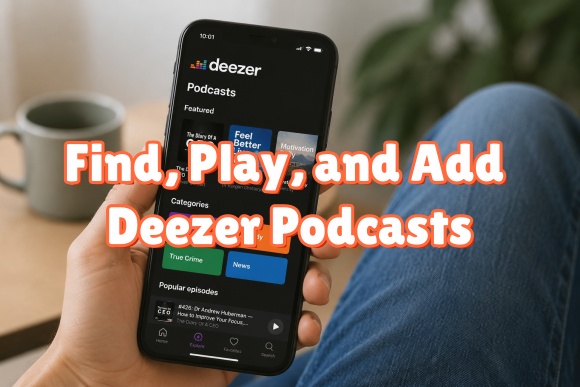
Part 1. Does Deezer Have Podcasts?
Yes, Deezer does have podcasts. It features a dedicated "Podcasts" or "Shows" tab. You can explore and watch a wide selection of shows across categories like true crime, comedy, and sports.
Do we need a Premium subscription to Deezer for podcasts? No, you don't need to own a Deezer Premium subscription. Podcasts are available on different tiers. Users in most countries have access to Deezer podcasts. If you are in an eligible country, the "Podcast" or "Shows" tab will show up in your app menu. What features does Deezer Podcast hold?
Key Features of Deezer Podcasts:
- View by Length: Deezer filters podcasts by duration, like 10 minutes or less, so you can find a podcast that fits your available time.
- Offline Listening: If you are a Premium subscriber, you can download podcast episodes for offline playback.
- Curated Collections: Multiple categories, genres, and themes for users to choose from.
- Multi-Device Sync: Whether you are on mobile (iOS & Android), desktop, or smart speakers, you can easily pick up where you left off.
- Show Notifications: With a click or tap of the heart icon, you can save the podcast to your library and get notifications about updated episodes.
What Podcasts Are on Deezer?
There are a large number of Deezer podcasts, including original productions and major networks. Here are the details.
True Crime: Crime Junkie, Morbid, Last Podcast On The Left, Casefile True Crime.
Comedy: Distractible, Dungeons and Daddies, My Therapist Ghosted Me.
News, Science & Politics: The Daily, TED Talks Daily, The Rest Is Politics, Up First.
Pop Culture & Story Telling: Hello From The Magic Tavern, Pop Culture Happy Hour, The Magnus Archives, Serial.
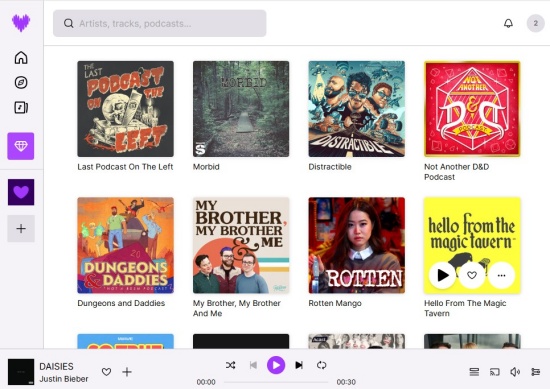
Part 2. How to Find Podcasts on Deezer
You can find podcasts on Deezer quickly and easily. Just locate the podcasts via the Podcasts Hub under Explore, the search bar, or your saved podcasts. Here are the steps to find podcasts on Deezer.
Find Deezer Podcasts Via the Podcasts Hub (Mobile & Desktop)
01Navigate to the Deezer app or website on your device.
02Select Explore located at the bottom of the screen on your phone or on the left sidebar on desktop.
03Scroll all the way to find Podcasts.
04Find the podcasts divided by genre or theme.
05For mobile users, scroll down to Podcasts by duration to filter the show by a specific length, such as 45 minutes.
Find Deezer Podcasts Via the Search Bar (Mobile & Desktop)
01Open the Deezer app or website on your phone or desktop.
02Select the Search icon.
03Enter the name of a podcast, a host, or a topic into the search bar.
04Filter the result by Podcasts.
05Tap or click the podcast you want.
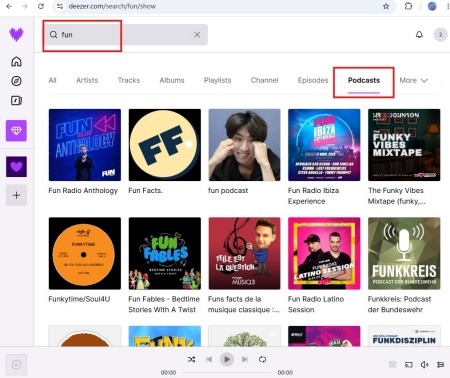
Find Deezer Podcasts Via Your Saved Podcasts (Mobile & Desktop)
01Make sure you have podcasts in your Library.
02Go to the Deezer website or app.
03Select the Favorites or Library tab.
04Tap or click Podcasts, and you find all the podcasts you have saved.
Part 3. How to Listen to Podcasts on Deezer
After finding the podcasts by the methods above, you can hit the Play tab to enjoy the show. In this part, we will talk about how to listen to the dedicated Podcasts tab on mobile or the Explore menu on desktop.
On Mobile (iOS & Android)
01Activate your phone and open the Deezer app.
02Select Library at the bottom of the screen.
03Choose Podcasts.
04In the Podcasts category, you can choose podcasts by genre or theme.
05Select a show or episode to listen to.
06If you like it, you can tap the Heart icon to save it to your Favorites.
On Web & Desktop
01Open the Deezer website or app on your desktop.
02Sign in with your account.
03Click the Explore tab on the left sidebar.
04Scroll down to find the Podcasts by category tab. (If you cannot see it, reload the page.)
05Choose the theme you like, and hit the play icon.
06Enjoy your show now.
Part 4. How to Add a Podcast to Deezer
Adding a podcast to Deezer, for creators and artists, means submitting your hosting platform's RSS feed to Deezer's portal or directly through your hosting platform. For listeners, adding podcasts involves saving existing shows to your library on Deezer. Here are the step-by-step instructions.
For Artists and Creators
One thing to note is that you can submit your show via many hosting platforms, like Buzzsprout and Captivate, without leaving your dashboard. But if your host does not support submission through it, don't worry. You can add your podcast using your RSS feed. Here are the two methods.
Submit Podcasts Via Your Podcast Host
01Sign in to your podcast hosting dashboard.
02Go to the Distribution, Directories, or Integrations tab.
03Find Deezer and click Submit or Start Submission.
04Follow the prompts, and your host will automatically communicate with Deezer to list your show.
Submit Podcasts Directly Via Deezer
01Navigate to your podcast host's dashboard.
02Find your own RSS Feed URL and copy it.
03Visit Deezer Podcasts .
04Click Publish My Podcast.
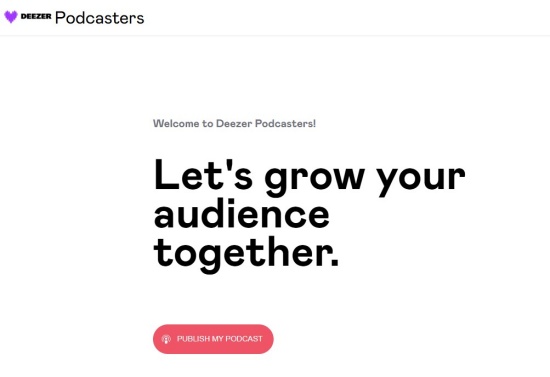
05Paste the URL you copied from your host into the given field, and click Verify Podcast RSS or Next.
06Go to your email inbox that shares the same account as your podcast.
07Check if you receive an email with a confirmation code from Deezer. Copy the code.
08Get back to Deezer, type the code, and click Next.
09Finish the podcast details, check it carefully, and click Submit.
For Listeners
As a listener, you may not upload podcasts yourself, but saving your favorite shows to your library is common.
01Go to the Deezer app or website on your device.
02Find the podcast in your preferred way:
Through the Search Bar: Type the specific podcast name, host, or episode in the search bar. Filter by podcasts and locate the show.
Through the Podcast by category: Go to Explore inside Deezer, and scroll all the way to find Podcast by category. Choose the genre you want.
03To add the podcast, click the Heart icon next to it.
Part 5. How to Convert Deezer Podcasts to MP3 for Offline Listening
Simply put, you can easily discover, stream, and organize Deezer podcasts through its dedicated Podcasts Hub, search function, and library. There are so many podcasts to choose from, and you can save your favorite shows with the heart icon. If you like, you can even enjoy multi-device syncing across mobile, desktop, and smart speakers. While Premium users can download episodes for offline listening, free users still have access to a wide range of podcasts across categories like news, comedy, true crime, and storytelling.
However, downloaded episodes are limited in the Deezer app, which can restrict how and where you listen. At this time, tools like ViWizard Deezer Music Downloader become useful. It helps you save Deezer podcasts into common audio formats like MP3, WAV, and FLAC. You can even customize the quality settings so that you can enjoy the episodes for offline playback. After downloading the podcasts, you can play them freely across different devices without relying on the Deezer app or subscription limits.

Ready to build your own Deezer music collection? ViWizard Deezer Music Converter helps Deezer subscribers save songs, albums, playlists, and artists with reliable music conversion. Convert your favorites and create a personal audio library.
How to Download Deezer Music Using ViWizard
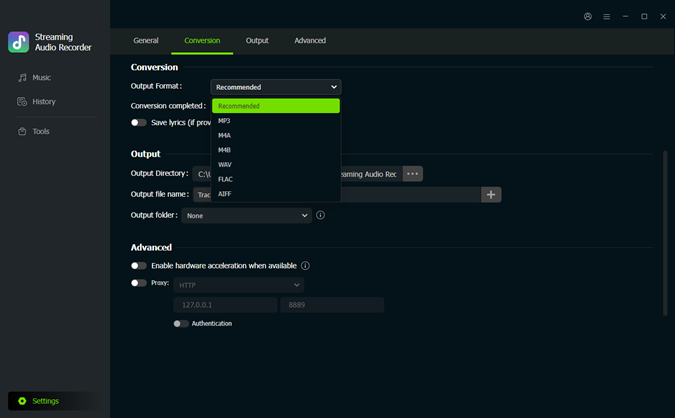 Step 1: Choose Output Format and Audio Quality
After installing ViWizard Deezer Music Downloader, open the program and click the menu icon in the top-right corner. Go to Preferences > Conversion, then select your preferred output format such as MP3, WAV, FLAC, AIFF, M4A, or M4B. You can also fine-tune audio settings like bitrate, sample rate, and bit depth (up to 24-bit, 320 kbps, and 192 kHz). Click Save to confirm your settings.
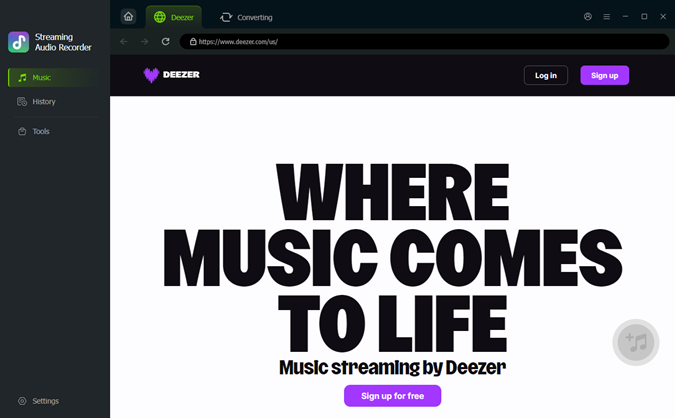 Step 2: Sign in to Deezer
Go back to the main screen and choose Deezer as your source platform. The built-in Deezer web player will launch automatically. Log in with your Deezer account to access your playlists, albums, liked songs, and podcasts.
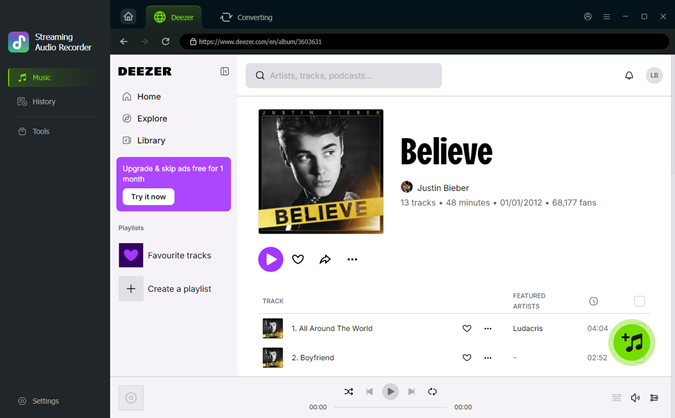 Step 3: Select Music or Podcasts to Download
Browse your Deezer library and open the playlists, albums, tracks, or podcast episodes you want to keep. Click the "+ Add to List" button to load them into the conversion queue. The tool will analyze and prepare all selected items for processing.
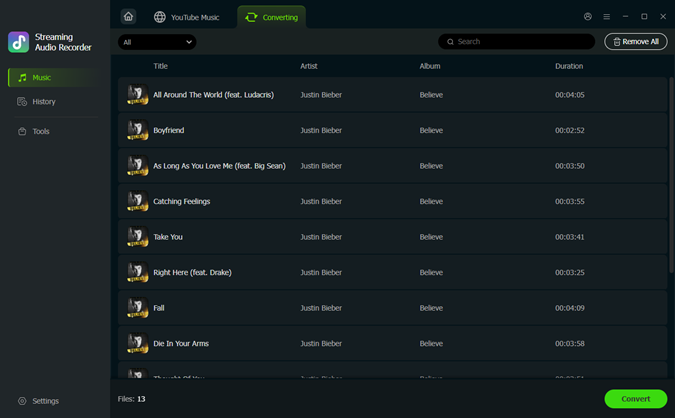 Step 4: Convert and Save Offline
Click Convert to start processing. ViWizard will convert your selected Deezer podcasts to MP3 while keeping original audio quality and ID3 tags. Once finished, open the output folder to access your files and enjoy Deezer podcasts offline anytime, on any device, without relying on the app or an internet connection.
Conclusion
All in all, Deezer offers you a pretty smooth way to discover and enjoy podcasts, whether you're streaming on mobile, desktop, or saving shows to your library. But if you want more flexibility—especially when it comes to offline listening or keeping episodes outside the app—there are still some limits.
That's where ViWizard Deezer Music Downloader comes in. It lets you convert Deezer podcasts into MP3 and other common formats, so you can save episodes locally, move them between devices, and listen whenever you want, even without the Deezer app or an internet connection. Just click the button and let it surprise you!
You May Be Interested

Spotify Podcasts to MP3: 15 Best Podcast Downloaders

Discover the Top 10 Best Spotify Podcasts of 2026

How to Play Tidal Podcast and the Best Alternatives to It

Listen to Apple Podcasts on iPhone, iPad, Mac, and Web

Top 10 Amazon Music Podcasts 2026: How to Find and Download
How to Get YouTube Music Podcasts

Dave Henry loves movies and all things video. He likes checking out different video formats and trying new media players to see how they change the viewing experience.

Leave a Comment (0)