


What is the music like? I believe most of us want to know. As YouTube Music users, we always listen to songs and switch between YouTube Music and YouTube, where music, with a burst of colorful visuals, seems incredibly alive. By now, many music streaming services have launched their visualizers, which transform your track into a vibrant, real-time visual journey. Then what about YouTube Music? Can we visualize songs on YouTube Music? And how to use it? This post aims to help you. Let's read.
Part 1. Does YouTube Music Have a Visualizer?
No, YouTube Music doesn't have a built-in visualizer for web or app players. As we know, music videos are unprecedentedly prevalent, while interactive visuals require much effort. Therefore, there is a decline in mainstream visualizers. But don't worry. You can use third-party browser extensions or online tools to create or display visuals while listening.
Part 2. How to Use a Visualizer with YouTube Music
To use a visualizer with YouTube Music, you can install browser extensions like YouTube™ Music Visualizer on your device for real-time effects, or you can use Vizzy.io as your online visualizer. And for Mac users, it cannot be more convenient for you to use Loopback to route audio from YouTube Music into visualization software by creating a virtual audio device.
Method 1. Use YouTube™ Music Visualizer
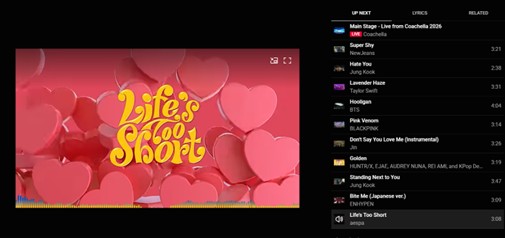
If you always listen to YouTube Music through the web player, you can use Chrome Web Store extensions like "YouTube™ Music Visualizer. When you listen to a song, it will add circular visualizers, color changes, and animation improvements directly to the player. And this is easy to operate. The details are as follows:
Search for chromewebstore.google.com in your browser.
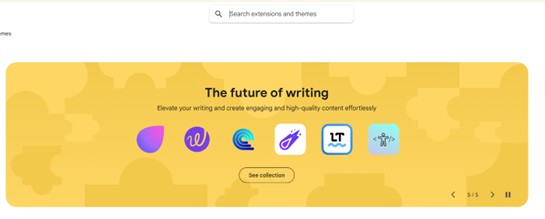
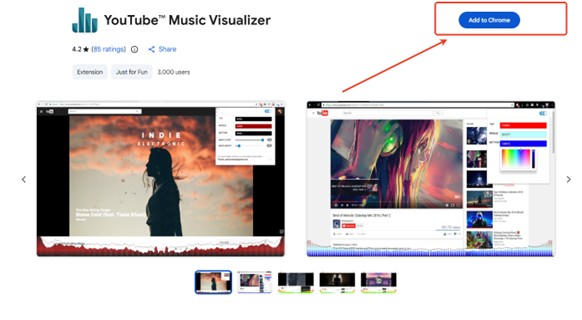
Find the search bar at the top and type "YouTube™ Music Visualizer". Then the download page appears. Click "Add to Chrome" to add the visualizer. Click "Add Extension" to confirm. The setup of the Chrome Extension, "YouTube™ Music Visualizer", is completed.
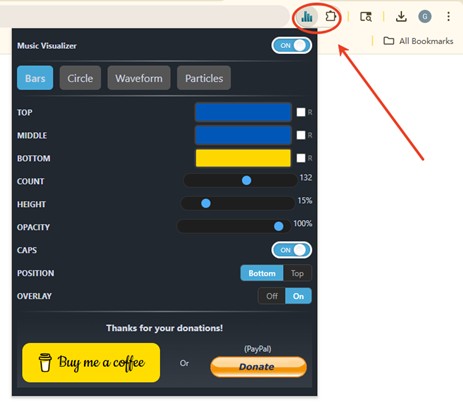
Click the extension icon in your browser toolbar to configure your preferred visual style, including bars, circle, waveform, and particles.
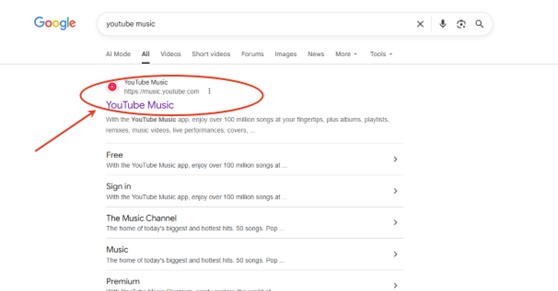
Open Google Chrome and search for YouTube Music. Click the first link and sign in to it with your account.
Find the song you want to play and click the bottom player page to see the visuals. Enjoy your audio journey!
Briefly speaking, it won't take long to have this visualizer. This browser extension is simple to set up. But every coin has two sides. YouTube™ Music Visualizer can be resource-intensive, which may cause lag on slower computers or drain battery faster on laptops. And sometimes, the visualizer might not perfectly sync with the music or might show a gap between the audio beat and the visual reaction.
Method 2. Use Vizzy.io
For this method, ensure you have the YouTube Music file before visualizing it, as YouTube Music streams share no link with Vizzy.io. So, you need to own the audio file on your desktop.
On Desktop/Web
Open Google.com and search for Vizzy.io. Log in to the web and allow you to save projects.
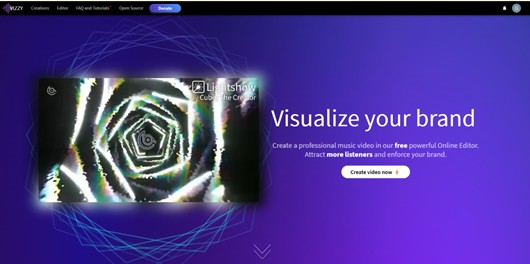
Select "Editor" to start a new project or select from pre-made templates to set a base. The editor works with layers like background, particles, and so on. Drag and drop images for the background. Change opacity or have effects like filters, vignetting, and camera effects.
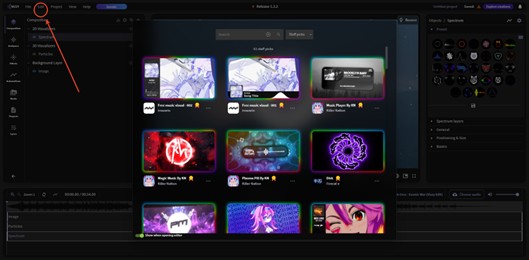
Click on the "Media" or the audio placeholder to upload your song file. Vizzy will analyze the audio to make the visual react to the beat.
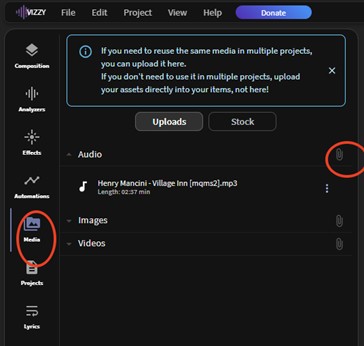
Select a template or add a new player. Choose Spectrum for wave visuals and add image/particle layers for backgrounds.
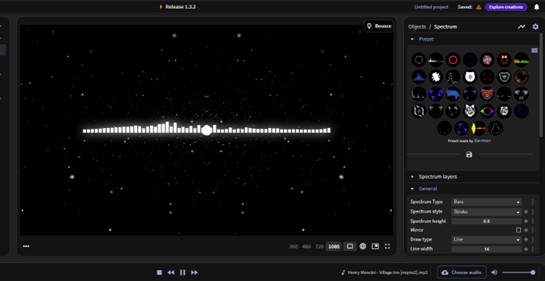
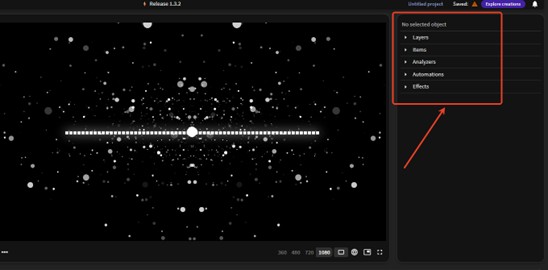
Add effects like camera shake or bloom to the spectrum or background. Adjust the "audio impact" setting in the behavior panel to make particles or backgrounds respond to the bass or beat.
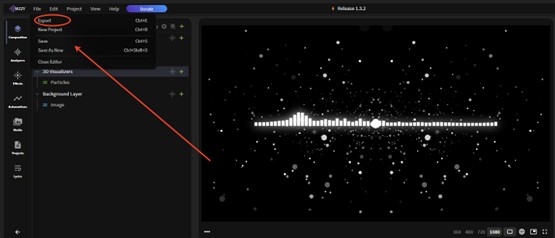
Click "File" > "Export". Choose your resolution and click "Start Exporting": to download your visualized video.
With Vizzy.io, you can get free exports, and there are no watermarks. Besides, it offers extensive customization, including real-time audio-reactive effects, particle effects, 3D elements, and shaders, which react to the bass and beats of the music. Most importantly, you can get high-quality output. Unfamiliar with it? You can load and customize projects created by others in the community. The drawback is that it can be unstable sometimes, and rendering can be heavy on the computer's processor.
Method 3. Use Loopback as Routes Audio (Mac only)
Install Loopback (macOS only). Create a virtual audio source and select your browser (Safari, Chrome, etc) that's playing YouTube Music. This duplicates the audio stream from YouTube Music so SYQEL can "hear" it.
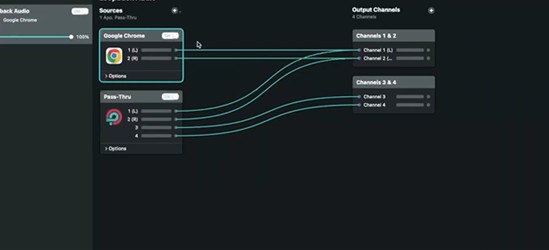
Go to your SYQEL dashboard and log in.
Under "Audio Source", pick the Loopback Audio device.
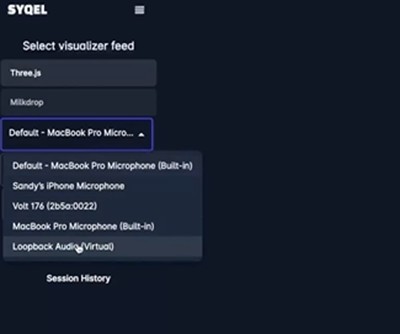
Choose a visual engine. (two options for you)
- Milkdrop: routes through 50,000 trippy visual presets.
- Three.js: use 3D shaders and shapes that respond to beats.

Click Start Visualizer – your YouTube Music audio now animates in real time. There are multiple settings within SQEL, including visual playlists, watermarks, visualizer behavior, frequency reactiveness and much more.
SQEL also works on Windows using your default desktop audio or virtual audio cable rather than Loopback.T
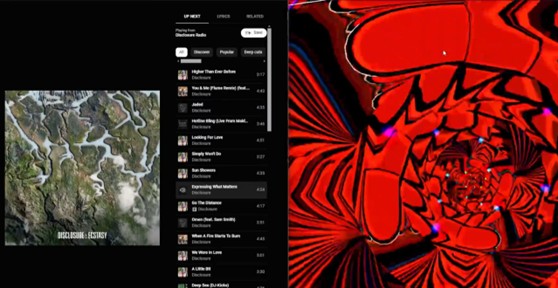
All in all, if you just want to visualize YouTube Music from time to time, use the YouTube Music Visualizer Chrome extension (Method 1). To make and export audio-reactive visuals, Vizzy.io is a good choice for you.
Part 3. Download YouTube Music to Visualize
To visualize YouTube Music, you have explored different ways. But there is still a prerequisite you cannot ignore. That is the fact you need to download the audio file locally. As a YouTube Music subscriber, you can download it with ease, but it won't work if you play it on other platforms, as it is encrypted. At this time, to truly "own" the audio file, you can rely on ViWizard YouTube Music Downloader. And then use a media player with visualization features, like VLC Media Player, to visualize the songs without limits.
ViWizard YouTube Music Downloader can be a powerful tool if you want to download songs, playlists, and albums from YouTube Music to your computer in one go. And the speed of downloading can be up to 30x, and you don't need to worry about the original data or loss of audio quality, as each file keeps its original meta tags, ranging from title to its cover art. Moreover, you can select output formats such as MP3, FLAC, WAV, AIFF, M4A, M4B, and the like.
For this part, we divide it into two sections. To begin with, we talk about how to use ViWizard YouTube Music Downloader. And then we will explain the steps to visualize downloaded files on VLC Media Player.

Download songs, playlists, albums, and your whole music library from 10 major streaming platforms, including YouTube Music, to MP3, FLAC, WAV, AIFF, M4A, or M4B with original sound quality and full song info and keep your music forever.
Steps to Use ViWizard YouTube Music Downloader
Step 1 Design Your Settings
After downloading and launching ViWizard YouTube Music Downloader, click Preferences and then Conversion. And you can set your favorite format, such as MP3, FLAC, etc. If you want the best listening experience, set the bitrate to 320kbps. Click OK to retain the settings.

Step 2 Sign in with Your Account
Choose the YouTube Music icon, and the website will jump out in the built-in player. Sign in to the website.

Step 3 Select Your Songs/Playlists
Look through your library to pick out the songs or the playlists to download. Select the Add to List (green icon in the corner).

Step 4 Download Your Music
Tap the convert page (the second icon at the top), and click Convert to activate the process.

Step 5 Enjoy Your Downloads
View the songs you've downloaded on the third page (at the top). Find the files in your output folder, and listen to them on any device, and most of all, free of an internet connection.
Steps to Visualize Downloaded Files on VLC Media Player
Step 1 Download VLC Media Player
Open your browser available and visit VLC Media Player official website: https://www.videolan.org/. CLick DownLoad VLC.
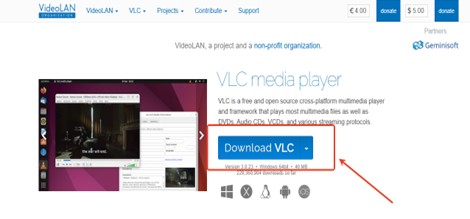
Step 2 Open VLC on the Desktop
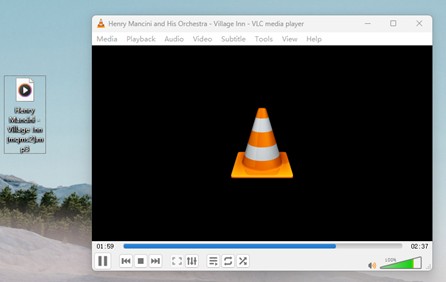
Launch VLC. Click the Media Menu and choose Open File to play your song on VLC.(Drag the music into the main page, or simply play the music.)
Step 3 Choose Audio menu
While the music is playing, click on the Audio menu at the top of the window.
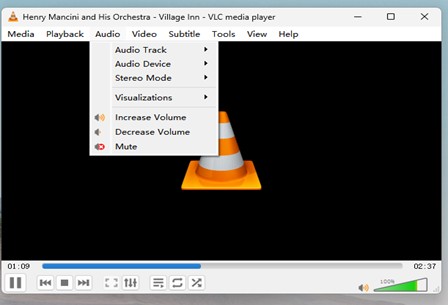
Step 4 Select Visual Effects
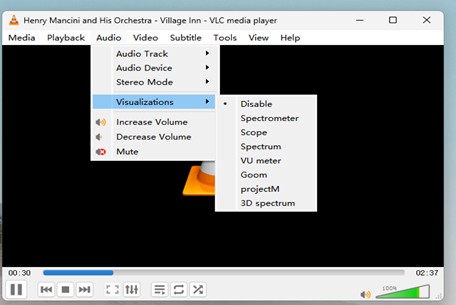
Select Visualizations and choose visual effects: Spectrometer, Scope, Spectrum, VU meter, Goom, or Project M.
Alternative method: while the music is playing, right-click anywhere and choose Audio > Visualizations > Spectrometer (any style you like).
Conclusion:
Visualizing songs on YouTube Music can be enjoyable, and there are many ways to achieve it. If you want casual listening, choose YouTube Music Visualize. For an enriched experience, Vizzy.io and Loopback can impress you. And the last and at the same time, easiest method, must be ViWizard YouTube Music Downloader, which helps you download your favorite songs and visualize them on any platform. Really convenient, isn't it?
You May Be Interested





From new releases to old favorites, Matt Smith is always on the lookout for good music. He follows the latest in digital entertainment and shares songs and media he thinks are worth checking out.

Leave a Comment (0)