


Keeping Apple Music playlists as regular audio files sounds simple until you actually try it. You need to find the right tracks, choose an output format, and manage the converted files afterward. TunePat Apple Music Converter is designed for downloading and converting Apple Music, keeping much of the process in one place.
But these features are only part of the experience. Supported formats, the conversion workflow, pricing, trial limits, and terms of use can also affect whether it fits your needs.
This review looks at how TunePat works in practice, what its conversion process is like, how much it costs, and what to consider before using it.
Part 1. DRmare Apple Music Converter Overview

DRmare Apple Music Converter is an Apple Music conversion and downloading tool for Windows and Mac. It is designed to turn Apple Music tracks into MP3, M4A, AAC, WAV, FLAC, or M4B. In other words, it is mainly for turning Apple Music content into local audio files that you can manage outside the Apple Music environment. The current version can access Apple Music through the supported Web Player and your Music library, so you can select tracks directly for conversion.
Part 2. What Can DRmare Apple Music Converter Do?
DRmare Apple Music Converter can convert supported Apple Music tracks in batches, which is useful when you have more than a few songs to process. You can choose the output format and adjust the available settings before starting the conversion. DRmare lists Recommended, MP3, M4A, M4B, WAV, and FLAC as output options; it also provides metadata and ID3 editing for details such as the title, artist, album, genre, year, composer, and cover.
- Convert Apple Music songs, albums, or playlists to common audio formats;
- Download Apple Music tracks as local audio files for offline playback;
- Convert multiple Apple Music tracks or playlists in batches;
- Save Apple Music as MP3, M4A, M4B, WAV, FLAC, or AIFF;
- Preserve song metadata and ID3 tags, including title, artist, album, and genre;
- Customize output settings such as format, bit rate, and sample rate;
- Organize converted files with customizable file names and output folders;
Part 3. How Does DRmare Apple Music Converter Work?
Using DRmare Apple Music Converter is fairly straightforward. Open the program on a supported Windows or Mac computer, access Apple Music through the supported environment, and select the tracks you want to convert. The newer version can use the Apple Music Web Player, so your Apple Music library is available directly inside the converter. Then choose an output format and the available settings, start the conversion, and DRmare saves the resulting files to the selected location.
The reason this works differently from a normal file converter is that Apple Music downloads are managed by the streaming service rather than stored as ordinary local audio files. DRmare processes supported content into conventional audio formats instead.
Step 1Launch DRmare Apple Music Converter and Access Apple Music
Download and install DRmare Apple Music Converter on your Windows PC or Mac, then launch the program. The current version uses a built-in Apple Music Web Player to access your Apple Music library, so sign in to your Apple Music account when prompted. Once the library loads, you can browse your songs, albums, and playlists directly in the converter.
Step 2Select the Apple Music Songs You Want to Convert
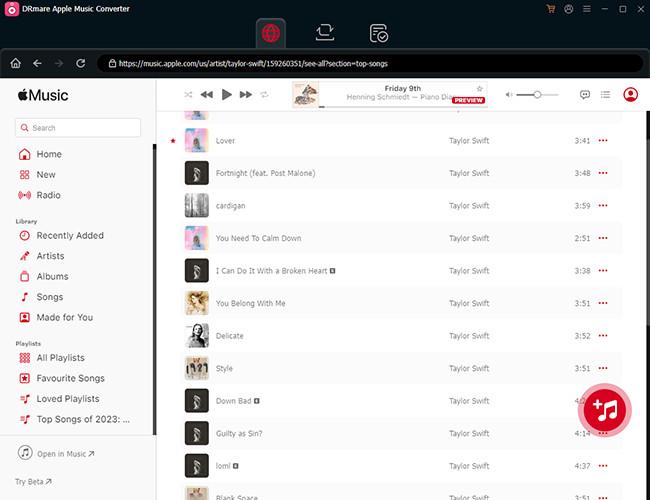
Browse the Music library in DRmare and select the songs, albums, or playlists you want to convert. You can select multiple tracks at once for batch conversion, which is more practical when you want to process a larger collection. Keep in mind that the content available for conversion depends on what DRmare can currently access through Apple Music and the supported Web Player environment.
Step 3Choose MP3 as the Output Format
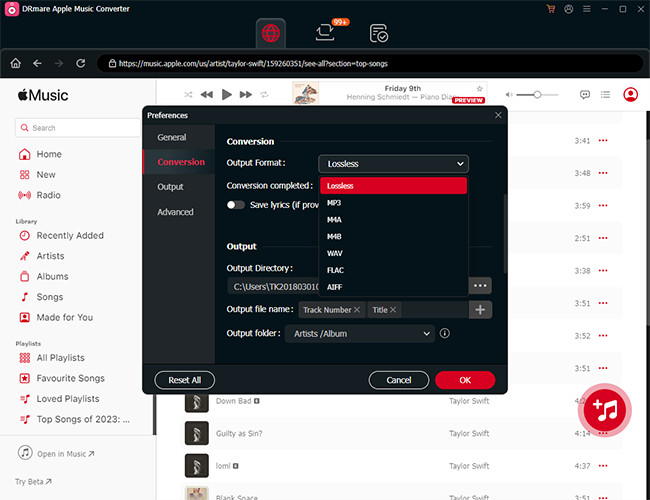
Open the output settings and choose MP3 as the format. DRmare also provides other output options, including M4A, M4B, WAV, FLAC, and AIFF, depending on the current version. You can adjust the available audio settings and organize the output information before starting the conversion.
Step 4Start Converting Apple Music to MP3
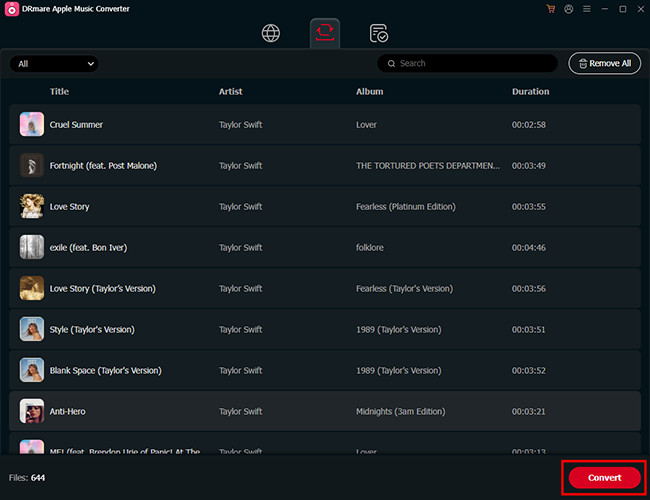
Start the conversion after selecting your songs and output settings. DRmare will process the selected Apple Music tracks and save the resulting MP3 files to the output location you have chosen. Once the process is complete, you can open the output folder and manage the converted files as regular local audio files.
Part 4. DRmare Apple Music Converter Pricing and Plans
DRmare sells Apple Music Converter through paid licenses, with plans and promotional prices subject to change. So, for current pricing, the purchase page is the place to check for the latest deals. All plans include free technical customer support.
| Plan | Price | License | Free Upgrades | Money-Back Guarantee |
| Monthly License | $19.95 | 1 PC / 1 month | 1 month | 14 days |
| Yearly License | $44.95 | 1 PC / 12 months | 12 months | 30 days |
| Lifetime License | $87.95 | 1 PC / lifetime | Lifetime | 30 days |
| All-in-One Plan | $139.95 | 1 PC / lifetime | Lifetime | 30 days |
Keep in mind that a DRmare license and an Apple Music subscription are separate. Buying DRmare does not include access to Apple's music catalog, and an active Apple Music subscription is currently required for conversion.
Part 5. DRmare Apple Music Converter Benefits and Limitations
DRmare Apple Music Converter keeps Apple Music downloading fairly simple in practice. You can select supported content, save it as MP3, M4A, AAC, WAV, or FLAC, process multiple tracks, and clean up the metadata afterward. For a basic local music library, the workflow covers what you need without much extra setup.
The main thing to watch is compatibility. The current workflow depends on Apple's service and DRmare's implementation, so changes on Apple's side can affect what you can convert. DRmare states that an active Apple Music subscription is currently required, and previously supported content may stop working after service changes. Windows and Mac behavior can also differ, with recent user feedback reporting compatibility changes and version-specific macOS issues. It is worth checking the current requirements and testing your own tracks before buying.
- The built-in Web Player makes it easy to find Apple Music songs and playlists and start downloading them.
- The simple interface keeps the workflow straightforward, from selecting music and choosing a format to starting the conversion.
- Formats like MP3 and FLAC provide more flexibility for playing converted files outside the Apple Music app.
- Batch conversion is useful when processing a full playlist or a larger music collection.
- Customer support can be helpful for handling licenses, updates, and technical issues.
- Conversion results can vary, with some tracks producing low-volume output or other conversion issues.
- Update problems can occur, and performance may vary depending on the operating system and software version.
- Newer versions can provide better performance, but occasional hangs and conversion issues may still occur.
- The feature set remains fairly focused on downloading and converting, with fewer tools for organizing and fine-tuning a large local music library.
Part 6. DRmare Apple Music Converter Alternatives

If DRmare does not work with your computer, Apple Music setup, or the content you want to convert, ViWizard Apple Music Converter is an alternative. Like DRmare, ViWizard Apple Music Converter is a desktop Apple Music converter that uses a built-in Apple Music Web Player to save Apple Music songs as local audio files. Both support batch conversion, common formats such as MP3 and FLAC, and metadata preservation.
ViWizard suits users who want more control over downloaded music, with options to adjust output settings, preserve music information and lyrics, and organize larger collections. DRmare is more focused on selecting songs or playlists, choosing a format, and saving them locally. Both offer straightforward interfaces and batch downloading.
ViWizard offers more control for managing and customizing a converted Apple Music collection for backup, while DRmare keeps downloading and conversion more straightforward.

Key Features of ViWizard Apple Music Converter
Free Trial Free Trial* Security verified. 5, 481,347 people have downloaded it.
- Convert Apple Music songs, playlists, albums, and artists
- Export Apple Music in 6 formats for different devices and players
- Preserve metadata and lyrics when creating music collections
- Organize converted music by artist and album
- Batch download large Apple Music collections
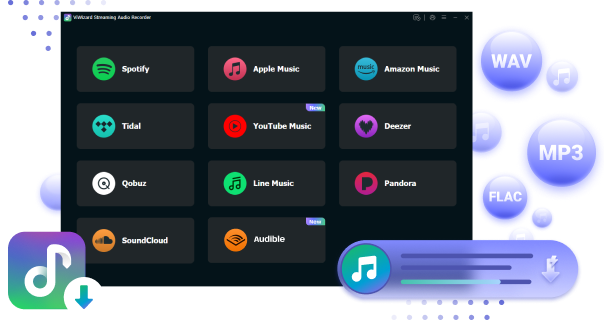
 Step 1: Install and Sign In
Download and install ViWizard Apple Music Converter on your Windows PC or Mac. Launch the program and sign in to your Apple Music account through the built-in web player. Once signed in, your Apple Music library, including songs, albums, and playlists, will appear in the program.
 Step 2: Choose MP3 as the Output Format
Open Preferences and select MP3 as the output format. ViWizard also supports M4A, WAV, FLAC, and AIFF if you need another format. You can adjust the audio quality and choose to keep basic metadata such as the song title, artist, and album.
 Step 3: Select Apple Music Songs to Convert
Browse your Apple Music library and select the songs, albums, or playlists you want to convert to MP3. You can select multiple items at once, which is useful if you want to convert a larger collection in one batch.
 Step 4: Start Converting Apple Music to MP3
Click Convert to start the process. ViWizard will process the selected Apple Music tracks and save them as MP3 files in your chosen output folder. Once the conversion is finished, open the folder to access the MP3 files for offline playback or transfer to other devices.
Part 7. Is DRmare Apple Music Converter Worth It?
If your main goal is to save Apple Music songs and playlists as local files, DRmare covers the basic workflow. Its built-in Web Player, supported formats, and batch conversion make it fairly straightforward to get started. If you also need more control over a large local music library, such as audio settings, lyrics, or file organization, you may want to consider another tool.
Before buying, think about how you plan to use the converted files. Choose DRmare if simple downloading and conversion are enough for you. If you need more control over formats, audio settings, metadata, lyrics, and file organization, try ViWizard Apple Music Converter instead. Either way, test a few of your own tracks with the trial version first to make sure the workflow and conversion results fit your setup.
You May Be Interested
Is TunePat Apple Music Converter Worth It? Full Review
AudiFab Apple Music Converter Full Review and Guide

Soundloader Apple Music Downloader Review: Apple Music Online to MP3

Online Apple Music Downloaders for Songs, Albums, and Playlists

Full Review: Is NoteBurner Apple Music Converter Worth It in 2026?

Nick Orin often turns to tech forums to see what apps people are talking about. He likes testing different software, comparing features, and finding out which tools are worth a try.

Leave a Comment (0)