


Keeping Apple Music playlists as regular audio files sounds simple until you actually try it. You need to find the right tracks, choose an output format, and manage the converted files afterward. TunePat Apple Music Converter is designed for downloading and converting Apple Music, keeping much of the process in one place.
But these features are only part of the experience. Supported formats, the conversion workflow, pricing, trial limits, and terms of use can also affect whether it fits your needs.
This review looks at how TunePat works in practice, what its conversion process is like, how much it costs, and what to consider before using it.
Part 1. What Is TunePat Apple Music Converter?

TunePat Apple Music Converter is a desktop tool for downloading and converting Apple Music songs, albums, playlists, and podcasts into MP3, AAC, ALAC, WAV, FLAC, and AIFF. It mainly uses a built-in Apple Music Web Player, with the option to switch to iTunes or the Apple Music app depending on the platform. You can browse and select content, choose the output settings, and convert it into local audio files. The downloaded files therefore remain available after the Apple Music subscription ends, as stated by TunePat.
TunePat Apple Music Converter supports Windows and macOS. Its Japanese product page lists Windows 7 or later and macOS 11 or later. According to its help documentation, the free trial limits each converted song to one minute; the full version removes this limitation.
Part 2. What Can TunePat Apple Music Converter Do?
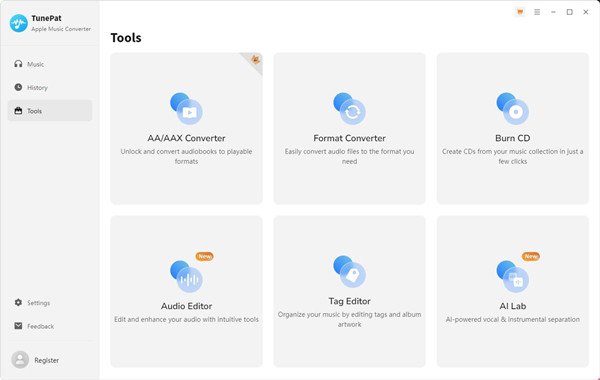
TunePat describes its Apple Music Converter as "a complete solution for converting Apple Music." Besides converting Apple Music content into standard formats for offline listening, it supports metadata preservation, file organization, batch conversion, and lyric export. It also includes a format converter, audio editor, CD burner, ID3 tag editor, Audible converter, and AI Audio Splitter.
-

Up to 10× Faster Conversion
TunePat highlights 10× conversion speed as one of its main features. The official page says users can convert songs and albums "up to 10 times faster"; its earlier product page explains that the acceleration mechanism is intended to save conversion time.
-
Convert Apple Music to common audio formats
TunePat Apple Music Converter lets you convert Apple Music songs, albums, playlists, and podcasts into common audio formats such as MP3, AAC, ALAC, WAV, FLAC, and AIFF.
-
Save Apple Music for offline playback
Apple Music normally keeps downloaded content within its own app, but TunePat lets you save selected music as local audio files on your computer. You can then play the converted files offline and manage them like other music files on your device.
-
Preserve music metadata
TunePat can preserve ID3 tags such as title, artist, album, cover, year, and genre when converting music. This means you do not have to add the same information to your converted tracks manually. It also makes the files easier to organize as part of a larger local music library.
-
Organize converted music
TunePat gives you several ways to organize converted music, including sorting files by playlist, artist, album, genre, year, and more. You can also customize file names and keep the original track order of albums and playlists.
-
Use the built-in Apple Music Web Player
TunePat includes an integrated Apple Music Web Player, so you can browse and select music from within the converter itself. You do not need to install the Apple Music or iTunes app separately for this workflow. Instead, you can find the songs, albums, and playlists you want and send them directly to the conversion process.
-
Download lyrics with your music
TunePat can also save song lyrics as LRC files when converting music. Instead of keeping the lyrics only within the Apple Music environment, you can have a separate lyric file alongside your converted audio.
-
Convert multiple tracks at once
If you have more than a few songs to convert, TunePat supports batch conversion, allowing you to add multiple tracks, albums, playlists, or other supported content to a conversion queue and process them together. Combined with the up-to-10× conversion speed, this lets you process a larger collection in one go instead of handling every song separately.
-
Use additional music tools
TunePat is not limited to Apple Music conversion. It also includes tools such as a format converter, audio editor, CD burner, ID3 tag editor, Audible converter, and AI Audio Splitter, all accessed through the TunePat Music Converter interface. The CD burner is available only in the Windows version, while the AI Audio Splitter is supported by Apple Music Converter and Music One.
Part 3. How to Use TunePat Apple Music Converter
Open TunePat and choose the Apple Music Web Player, Music, or iTunes workflow. Sign in if required, select the songs, albums, playlists, or other supported content, choose the output format and settings, and start the conversion. TunePat then saves the converted files locally, while batch conversion lets you process multiple items together.
The exact workflow depends on the selected source and platform. The Web Player lets you find Apple Music content inside TunePat, while the Music or iTunes workflow uses the corresponding Apple software and library. TunePat states that the software is intended for personal, non-commercial use.
01Open TunePat Apple Music Converter and click "Apple Music Web Player" at the top of the main window.
02Sign in to the Apple Music Web Player with your Apple ID, then browse or search for the songs, albums, or playlists you want to convert.
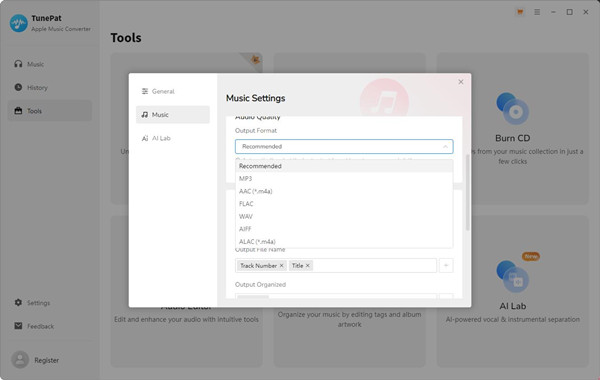
03Click the gear icon in the lower-left corner to open the settings. Choose an output format such as MP3, AAC, FLAC, WAV, AIFF, or ALAC, and adjust the output quality and other settings if needed. You can also enable "Organize Output Folder" to arrange files by artist and album.
04Open the Apple Music track, album, or playlist you want to convert and click "Add Music" in the lower-right corner. TunePat will load the selected content into the conversion list.
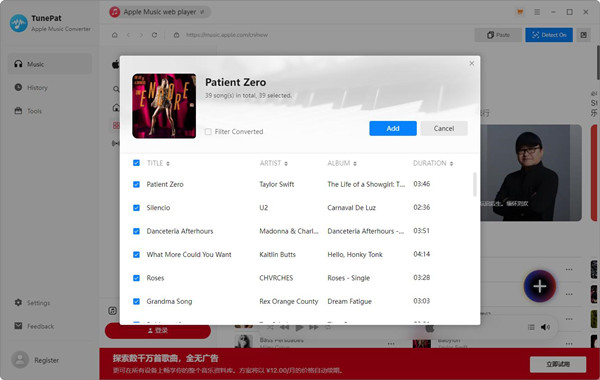
05Review the songs TunePat has selected and uncheck any tracks you do not want to convert. You can also enable "Hide Converted Songs" to avoid selecting tracks that have already been converted.
06Click the blue "Convert" button to start converting the selected Apple Music content using your chosen output settings.
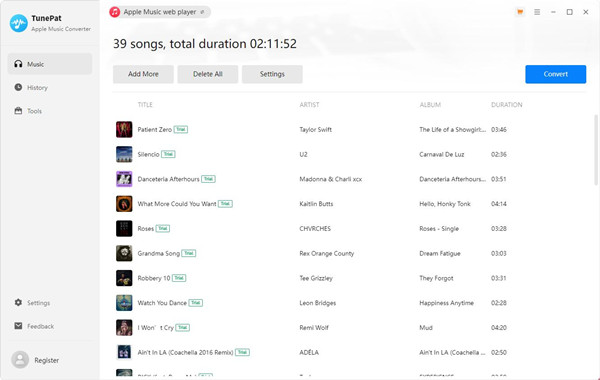
07Once the conversion is complete, click "Converted" on the left side to view the converted files. Click a song to play it in TunePat, or click the folder icon to open its location on your computer.
08If you're using the free trial, keep in mind that TunePat limits each song to one minute of conversion before registration.
Part 4. How Much Does TunePat Apple Music Converter Cost?
TunePat Apple Music Converter is paid software with a free trial for users who want to test the conversion workflow before upgrading. The trial has limitations compared with the full version. For continued use, TunePat offers three licenses. The quarter license suits short-term use. The annual license costs $3.75 per month at the listed price, discounted from $59.95. The lifetime license is a one-time $89.90 purchase, reduced from $129.90.
All paid options cover 1 PC, support Windows 11, 10, 8.1, 8, and 7, and include free updates and 24/7 support.
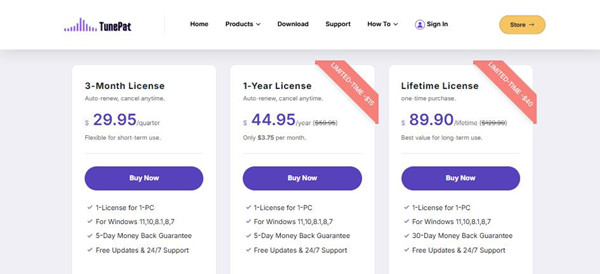
| License | Price | Renewal | Money-Back Guarantee |
| 3-Month | $29.95 | Auto-renew, cancel anytime | 5 days |
| 1-Year | $44.95 ($59.95) | Auto-renew, cancel anytime | 5 days |
| Lifetime | $89.90 ($129.90) | One-time purchase | 30 days |
TunePat also offers Music One for $159.90/lifetime, reduced from $259.90. It supports downloads from 15+ streaming services.
Part 5. Is TunePat Apple Music Converter Safe and Legal?
TunePat states that its software is intended for personal, non-commercial use, so download it from the official TunePat website rather than unofficial sources. However, Apple's terms place restrictions on reproducing its content. They state that users may not use "You may not use any software, device, automated process, or any similar or equivalent manual process to scrape, copy, or perform measurement, analysis, or monitoring of, any portion of the Content or Services." Apple also states that users may access its Services only using Apple's software.
Whether converted files can be used legally depends on local copyright law and your rights to the content. TunePat's personal-use statement does not determine what is permitted in every country, so use converted files only where you have the necessary rights and follow applicable laws and service terms.
Part 6. TunePat Apple Music Converter Alternatives

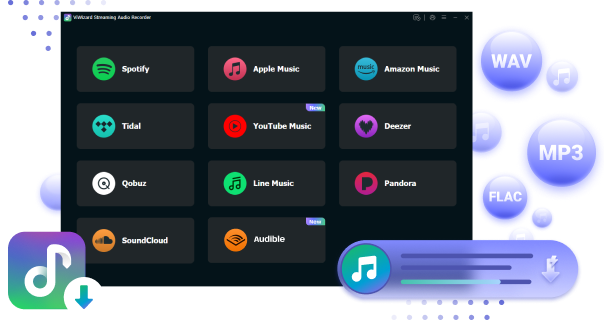
Other desktop Apple Music converters, such as NoteBurner, offer a similar workflow and interface. Another option is ViWizard Apple Music Converter, which focuses specifically on Apple Music conversion rather than a broader set of audio tools. Its clean interface can make it easier for beginners to get started, while still offering batch conversion, metadata preservation, file organization, and common output formats. ViWizard works on Windows and macOS and converts Apple Music songs, albums, playlists, and artists to MP3, M4A, M4B, WAV, FLAC, and AIFF. It also supports customization of bit rate, sample rate, bit depth, and channel, while preserving metadata and lyrics.
Its built-in Apple Music Web Player keeps the workflow simple. Sign in, browse or search for music, select songs, albums, or playlists, choose an output format, and click Convert. You can also paste an Apple Music playlist or album URL to select content directly. Batch conversion and automatic file organization make it practical for larger Apple Music collections.

Key Features of ViWizard Apple Music Converter
Free Trial Free Trial* Security verified. 5, 481,347 people have downloaded it.
- Convert Apple Music songs, playlists, albums, and artists
- Export Apple Music in 6 formats for different devices and players
- Preserve metadata and lyrics when creating music collections
- Organize converted music by artist and album
- Batch download large Apple Music collections
 Step 1: Install and Sign In
Download and install ViWizard Apple Music Converter on your Windows PC or Mac. Launch the program and sign in to your Apple Music account through the built-in web player. Once connected, your Apple Music library, including songs, albums, and playlists, will appear inside the program.
 Step 2: Choose MP3 as the Output Format
Open the Preferences section and select MP3 as the output format. ViWizard also supports M4A, WAV, FLAC, and AIFF if you need a different format. You can adjust the audio quality settings and choose to preserve basic metadata such as the song title, artist, and album.
 Step 3: Select Apple Music to Convert
Browse your Apple Music library in the program and select the songs, albums, or playlists you want to convert to MP3. You can select multiple items at once, making it possible to process a larger collection through batch conversion.
 Step 4: Start the MP3 Conversion
Click the Convert button to start. ViWizard will download and convert the selected Apple Music tracks to MP3 and save them to the specified output folder. When the process is complete, you can open the folder to access the MP3 files for offline playback or transfer them to other devices.
Part 7. TunePat vs ViWizard Apple Music Converter
| Feature | TunePat Apple Music Converter | ViWizard Apple Music Converter |
|---|---|---|
| Platform | Windows, macOS | Windows, macOS |
| Apple Music access | Built-in Apple Music Web Player | Built-in Apple Music Web Player |
| Supported content | Songs, albums, playlists, podcasts | Songs, albums, playlists, and Apple Music library content |
| Output formats | MP3, AAC, WAV, FLAC, AIFF, ALAC | MP3, M4A, M4B, WAV, FLAC, AIFF |
| Batch conversion | Yes | Yes |
| Conversion speed | Up to 10× | Up to 20× faster processing |
| Audio settings | Customizable output settings | Bit rate, sample rate, channel, and other output settings |
| Metadata | Preserves ID3 tags and song information | Preserves song metadata and album information |
| Lyrics | Export lyrics as LRC files | Preserves lyrics |
| File organization | Organizes files by playlist, artist, album, genre, and more | Organizes files by artist, album, playlist, and other categories |
| Additional features | Audio conversion, CD burning, ID3 editing, and other tools depending on version | Built-in local music player, playback-speed controls, and music library management |
TunePat and ViWizard follow a similar workflow, with both offering a built-in Apple Music Web Player, batch conversion, metadata handling, and file organization. TunePat supports MP3, AAC, ALAC, WAV, FLAC, and AIFF with speeds of up to 10×, while ViWizard supports MP3, M4A, M4B, WAV, AIFF, and FLAC with speeds of up to 20×. TunePat may be a good fit for users who need AAC or ALAC output, while ViWizard is a more user-friendly option for getting started, with detailed output settings and a straightforward Apple Music-based workflow.
Based on user feedback, both tools are often praised for their ease of use and customer support. ViWizard users also commonly mention its intuitive interface and simple conversion process, making it a convenient choice for users who want to quickly turn Apple Music playlists into local audio files.
Part 8. Is TunePat Apple Music Converter Worth It?
TunePat Apple Music Converter is worth considering if you want a desktop tool for converting Apple Music songs, albums, and playlists into local audio files. Its built-in Apple Music Web Player, batch conversion, metadata preservation, file organization, and wide format support make the process fairly straightforward.
- Built-in Apple Music Web Player
- Supports batch conversion
- Wide range of output formats
- Preserves metadata and lyrics
- Easy-to-use interface
- Conversion speed limited to 10×
- Some users report software issues
- Licensing and refund issues reported by some users
If you're new to Apple Music converters, it makes sense to compare TunePat with another option before settling on one. ViWizard Apple Music Converter offers a similar Web Player-based workflow on Windows and macOS, with batch conversion, metadata and lyrics preservation, file organization, and output customization for MP3, M4A, M4B, WAV, FLAC, and AIFF. If you're just getting started with Apple Music converters, try ViWizard Apple Music Converter and see if its interface, supported formats, and output settings work better for your needs.
You May Be Interested

Use the Best Apple Music Rippers for Free MP3s

Record Apple Music: Best Apple Music Recorders You Can Try

Soundloader Apple Music Downloader Review: Apple Music Online to MP3

Online Apple Music Downloaders for Songs, Albums, and Playlists

Full Review: Is NoteBurner Apple Music Converter Worth It in 2026?

Nick Orin often turns to tech forums to see what apps people are talking about. He likes testing different software, comparing features, and finding out which tools are worth a try.

Leave a Comment (0)