


Downloaded audiobooks from Audible are protected by DRM and stored in .aax or .aaxc format. These files are designed to work within the Audible ecosystem and played through the Audible app on supported devices, which can limit use on other devices like MP3 players.
AAXtoMP3 is one tool used in this situation. It is an unofficial open-source bash script that converts Audible's .aax and .aaxc files into formats like MP3, M4A, M4B, FLAC, or Ogg. Its purpose is to make audiobooks more flexible outside the Audible platform.
In this review, we cover what AAXtoMP3 does, how it works at a high level, and important considerations. We also look at simpler alternatives like ViWizard Audible Converter, which offers a more user-friendly interface.

Need more flexibility with your Audible audiobooks? ViWizard Audible Audiobook Converter helps Audible subscribers save audiobook titles with simple and reliable audiobook conversion. Convert your audiobooks and manage your collection across devices.
Part 1. What Is AAXtoMP3? (GitHub AAX to MP3 Converter Overview)
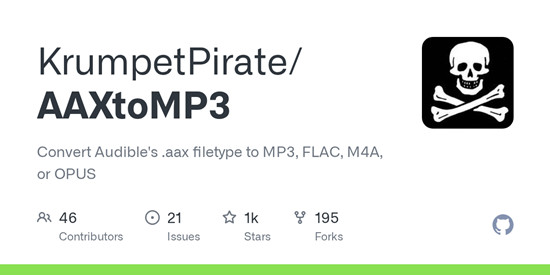
AAXtoMP3 is a tool found on GitHub that converts Audible audiobook files in AAX and AAXC formats into standard audio formats with chapter and metadata preservation. It is an open-source program hosted by KrumpetPirate, meaning it is built and shared by the community rather than an official Audible product.
Built as a Bash script using FFmpeg as its main audio engine, it is often used on Linux, macOS, and Windows via WSL or Git Bash as a lightweight command-line tool to convert audiobooks into formats like MP3, M4A, M4B, FLAC, or OPUS.
Part 2. What Does AAXtoMP3 Do?
AAXtoMP3 converts Audible AAX and AAXC files into common audio formats like MP3, M4A, or FLAC. It works as a frontend that automates FFmpeg commands to process audiobook files, helping turn them into standard audio files for use outside the Audible ecosystem.
It supports both single-file and batch conversion. During processing, it uses FFmpeg to handle conversion and can preserve chapters and metadata when available, keeping the output organized.
- Multi-Format Audio Conversion: Choose output formats like MP3, M4A, M4B, FLAC, or OPUS using FFmpeg
- Chapter and Metadata Preservation: Keep audiobook chapters and basic metadata during conversion
- Batch Processing Support: Convert single audiobooks or multiple files in batch
- Local Processing with FFmpeg: Run on your computer without uploading files online
- Support for AAX and AAXC Formats: Support both AAX and AAXC audiobook formats
- Simple Command-Line Automation: Use command-line scripts to start and control conversion
- Lightweight and Open Source Design: Keep the tool lightweight, open source, and script-based
- Offline Audiobook Management: Create audio files that work on most devices
Part 3. Is AAXtoMP3 Legal and Safe to Use?
AAXtoMP3 is an open-source GitHub project, and many users consider it safe when downloaded from official repositories. It runs locally on the user's computer using tools like FFmpeg. As with any script-based tool, safety depends on using trusted sources and proper installation.
On the legal side, AAXtoMP3 processes Audible AAX and AAXC files, which are protected by DRM. The tool does not provide or remove usage rights, so legal considerations depend on local laws and how the converted files are used. Because of this, it is commonly used for personal use only.
Users are responsible for following Audible's terms and applicable laws in their region.
Part 4. How to Use AAXtoMP3 (Step-by-Step Guide)
AAXtoMP3 works as a command-line Bash script that controls FFmpeg to handle audiobook conversion.
First, the script takes one or more AAX or AAXC files as input and prepares them for processing. For AAX files, it may rely on Audible authentication data to access the audio stream. For AAXC files, additional key handling may be required depending on the setup.
Once the audiobook stream is accessible, FFmpeg decodes and extracts the audio. The script then applies encoding settings based on the selected format, such as MP3 or M4B. During this stage, it can also split chapters, tag metadata, and organize output files.
The tool processes the file and outputs it in the selected format. The converted audio files are saved directly to the user's system, and the process runs offline after setup.
Windows (Using WSL)
01Open PowerShell as Administrator, install Windows Subsystem for Linux by running the command below, then restart your computer and open Ubuntu from the Start menu.

02In Ubuntu, install required tools by running the commands below, since FFmpeg is needed for audio conversion and jq helps process audiobook metadata, especially for AAXC files.
sudo apt install ffmpeg git jq lame
03Download AAXtoMP3 from GitHub and move into the folder using the commands below.
cd AAXtoMP3
04Start converting your audiobook by running the command below. Make sure the file path uses /mnt/c/ so WSL can access your Windows files.
05If you want a guided setup, run the command below to open interactive mode where you can select files and output format step by step.
Linux
01Open Terminal and install required tools. FFmpeg is used for conversion and jq is needed for metadata handling in audiobook files.
sudo apt install ffmpeg git jq lame
02Download AAXtoMP3 from GitHub and enter the folder.
cd AAXtoMP3
03Allow the script to run by setting executable permission.
04Convert your audiobook by running the command below. You can place the file in the same folder or use a full file path.
05If you prefer a guided process with prompts for format and chapters, run interactive mode.
macOS
01Open Terminal and install Homebrew if it is not already installed, then restart Terminal if needed so everything is recognized correctly.
02Install required tools using Homebrew. FFmpeg is required for conversion and jq is used for metadata support.
03Download AAXtoMP3 from GitHub and move into the folder.
cd AAXtoMP3
04Run the conversion by pointing to your audiobook file.
05If you want a guided interface, run interactive mode to choose files and settings step by step.
Part 5. Pros and Cons of AAXtoMP3 Converter
AAXtoMP3 is flexible and supports several output formats, which makes it useful for people who want control over their audiobook files. It is also free and open-source, which adds to its appeal. On the other hand, it is not very beginner-friendly. There is no visual interface, and users need to work with commands and setup steps, which can feel difficult at first.
- Free and open-source
- Works with formats like MP3, M4A, M4B, FLAC, and OPUS
- Keeps chapters and basic audiobook info
- Good output quality since it uses FFmpeg
- Can convert multiple files at once
- Runs locally, no need to upload anything
- Only works through command line, no app interface
- Setup can feel tricky if you are new
- Sometimes needs Audible login or extra keys
- Not actively updated anymore
- Can be a bit hit or miss depending on setup
- Not very beginner-friendly overall
Part 6. Best Alternatives to AAXtoMP3 for Audible to MP3 Conversion
AAXtoMP3 is powerful, but it is not the only option available. Some users prefer tools that are more straightforward and do not require command-line setup. In these cases, desktop software can offer a more guided experience.
One common alternative is ViWizard Audible Converter, which is designed for users who want a simpler workflow in a desktop app. It is available for both Windows and Mac. Instead of working through scripts, it provides a visual interface where users can connect to their Audible library, select a format, and download and convert audiobooks in a few steps. It supports common output formats like MP3, M4A, M4B, WAV, AIFF, and FLAC, while also keeping chapters and metadata intact. Batch conversion is also supported, which makes it easier to process multiple books at once.
If you prefer a ready-to-use application rather than a script-based tool, ViWizard Audible Converter is often a more convenient choice.
Key Features of ViWizard Audible Audiobook Converter
Free Trial Free Trial* Security verified. 5,481,347 people have downloaded it.
- Convert Audible audiobooks without AA/AAX format limitations
- Export audiobooks in 6 formats for different devices and players
- Split audiobooks by chapters or sections for personalized listening
- Preserve chapter information and metadata when creating collections
- Manage Audible audiobook libraries across converted files
 Step 1: Open ViWizard and Sign In to Your Audible Library
Launch ViWizard Audible Converter on your Windows or Mac computer. The app includes a built-in Audible library view, so everything is managed in one place. Sign in with your Audible account to load your purchased audiobooks directly inside the program. Once logged in, your full library appears within the interface.
 Step 2: Set Output Format and Preferences
Before starting, open the Preferences or Settings menu. Choose your output format, such as MP3. You can also adjust audio settings like bitrate, sample rate, and channels if needed. Then select an output folder so your converted files are easy to find later. Save your settings to continue.
 Step 3: Select Audiobooks for Conversion
Browse your Audible library inside the app or use the search bar to find a specific title. Once you find the audiobook you want, click the Add button or plus icon to move it into the conversion list. You can add one book or multiple titles at the same time.
 Step 4: Start Conversion and Export MP3 Files
Review the selected audiobooks in the conversion window. After checking your list, click the Convert button to begin. The software will download and convert the audiobooks into MP3 while keeping chapters and metadata intact. When finished, open the output folder to access your files, ready for playback on any device.
Part 7. Conclusion
AAXtoMP3 is a free open-source option that supports multiple formats and keeps chapters and metadata, but it requires command-line setup and some technical steps. Desktop tools like ViWizard Audible Converter offer a simpler workflow with a built-in interface for built-in Audible access and conversion.
In short, AAXtoMP3 suits users who want control, while desktop converters are better for simple Audible to MP3 conversion.
You May Be Interested




Nick Orin often turns to tech forums to see what apps people are talking about. He likes testing different software, comparing features, and finding out which tools are worth a try.

Leave a Comment (0)