


Audiobooks from Audible are easy to access. You can carry your full library on your phone and switch devices without losing your place. Many people listen while driving or cooking. Over time, those monthly credits grow into a large collection.
As the collection grows, one limit becomes clear. Your books stay inside the Audible app. They are protected by DRM, so you cannot move or organize them like normal audio files. If you want a backup or plan to use another device, your options feel limited.
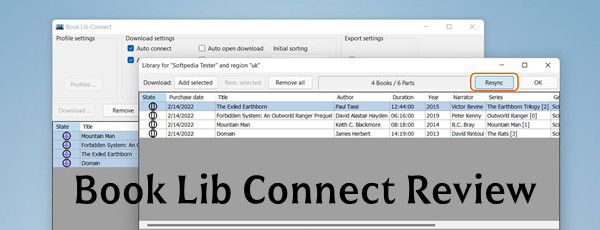
That is why some users turn to tools like Book Lib Connect. It works alongside AAX Audio Converter and can download and manage Audible audiobooks directly through your account. When paired with AAX Audio Converter, it removes the need for manual activation codes, making the process much simpler. In this review, we will explore whether Book Lib Connect offers a more convenient way to manage your Audible library.
Part 1: What Is Book Lib Connect?
Book Lib Connect is a free, open source app that lets you access and download your Audible library straight to your PC. It's hosted on GitHub and developed by a contributor known as audiamus. Designed for 64‑bit Windows and running on Microsoft .NET, it's often seen as a modern replacement for the old, discontinued Windows Audible app.
The app makes it easy to keep local copies of your audiobooks. You can export them as standard .m4b files, or go with optional .aax files that include full metadata. These files also work well with tools, like AAX Audio Converter, if you want to organize or process your collection further.
For listeners who care about chapters, proper organization, and long-term backups, these Book Lib Connect features make managing Audible libraries simple and practical:
Key Features of Book Lib Connect:
- Free and Open Source: Anyone can use or view the code.
- Direct Audible Downloads: Get audiobooks you purchased from Audible.
- Browser-Based Login: Sign in securely through your web browser. The app never sees your password.
- Library Listing: Shows all your Audible audiobooks so you can choose what to download.
- Exports to .m4b: Converts books into standard .m4b files for easy playback.
- Optional .aax Export: Allows exporting .aax files for use with AAX Audio Converter.
- Shows Download Progress: Lets you see exactly how the download is going.
- Includes Manual: Comes with a PDF guide to help get started.
Part 2: How Does Book Lib Connect Work?
Book Lib Connect connects to Audible, shows your library, and downloads your books for offline listening.
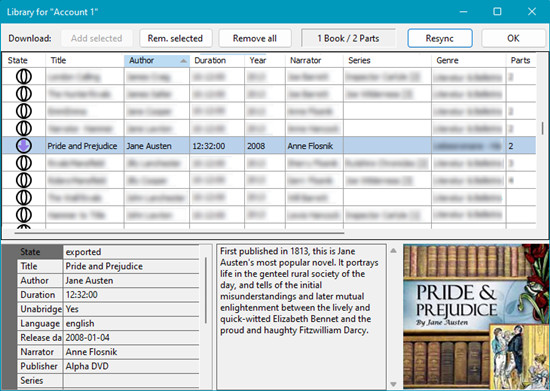
You log in through a secure browser-based sign-in, and the app uses the access information from your account without storing your password. Once signed in, your audiobooks appear in a clear list. You can pick which ones to download, and the app retrieves them from Audible's servers. Only books you own are available. During download, AAXClean converts .aax and .aaxc files into unprotected .m4b format, keeping chapter markers and metadata so your library stays organized. Progress is shown in real time.
By default, files are saved as .m4b, ready to play on any compatible audiobook player. Book Lib Connect works best on modern 64-bit Windows PCs. If you use an older version, make sure Microsoft .NET is installed and up to date.
- Pros
- Free to use
- Downloads your Audible books
- Converts to common audio formats
- Keeps chapter information
- Good for personal backups
- Cons
- Windows only
- Setup may feel technical
- No official customer support
- Legal concerns around DRM removal
- Not beginner-focused
Part 3: Is Book Lib Connect Safe and Legal to Use?
Yes and no. The app does not remove DRM in the usual sense. It uses the authorization keys from your Audible account, similar to Audible's official apps, to access audiobooks you purchased.
However, Audible's Terms of Service do not allow accessing content outside their apps or sharing files. Many users view downloading and converting their own audiobooks for personal use as low risk, but it may still technically violate the agreement. For most people, these are minor concerns, and tools like Book Lib Connect, AAX Audio Converter, or ViWizard Audible Converter remain practical solutions for keeping local copies of purchased audiobooks.
Part 4: How to Use Book Lib Connect on Windows
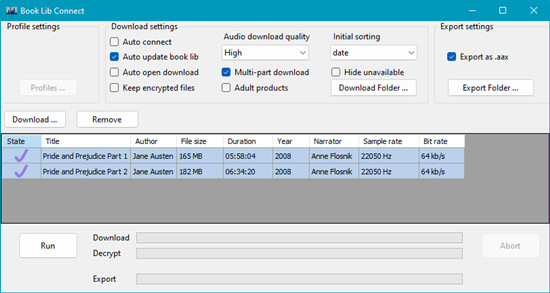
Book Lib Connect is easy to set up and use on Windows. To convert Audible books to MP3 or M4A, you first download them with Book Lib Connect and then load them into AAX Audio Converter. The two tools work together because Book Lib Connect retrieves the files from Audible with chapters and metadata preserved, while AAX Audio Converter handles the format conversion.
Better Option: ViWizard Audible Converter
For a simpler solution, ViWizard Audible Converter connects directly to your Audible library and converts audiobooks to MP3, M4A, M4B, WAV, AIFF, or FLAC. It keeps chapters and metadata intact and saves audiobooks directly to your Windows or Mac computer. ViWizard handles the entire process in one step, making it easier to manage and play your library on any device.

A unique and innovative Audible audiobook converter to convert any protected Audible audio book from AA or AAX formats to universal formats, including lossless audio, MP3, AAC, FLAC, M4A, M4B, 2AV, AC3, and more in an easiest yet fastest way ever and with up to 100× super faster speed.
Important Requirements and Setup Considerations
- 64-bit Windows: Book Lib Connect only works on 64-bit Windows. The minimum supported version is Windows 7.
- .NET 6 Runtime: This must be installed on your PC. If it is missing, the app will prompt you and open a download link. Choose .NET 6 Runtime x64 for Windows desktop.
- Audible Account: You can only download audiobooks you have purchased and are signed into through your Audible account in the browser.
Step 1: Get Started with Book Lib Connect
Follow these steps to install Book Lib Connect on your Windows PC and access your Audible library.
On your Windows PC, open a web browser and go to the Book Lib Connect GitHub releases page. Scroll down and click BookLibConnect‑Setup.exe to download the installer.
When the download finishes, double-click the file to open the installer and follow the prompts to install the app.
If Windows asks for permission, choose Yes to continue. Pick the installation location and click Install.
After installation, open Book Lib Connect from the Start menu. You will see the main library window once you sign in.
Step 2: Sign In to Your Audible Account
In the app window, follow the guide to create the login URL.
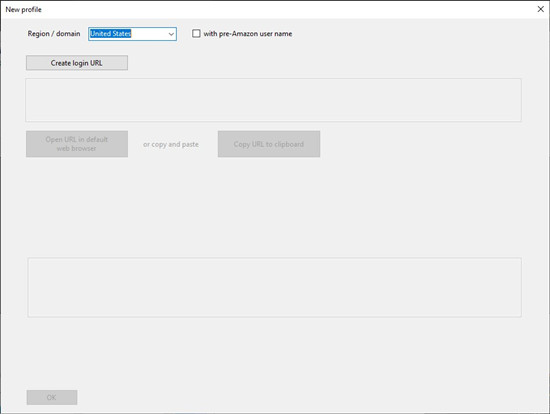
Your web browser will open and take you to the Audible login page. Enter your Audible email and password, then complete the sign-in process.
When Audible asks you to register the device, click Continue. You will be redirected back to Book Lib Connect with your library loaded.
Step 3: Select Audiobooks to Download
Once your Audible library appears, scroll through the list to find the books you want.
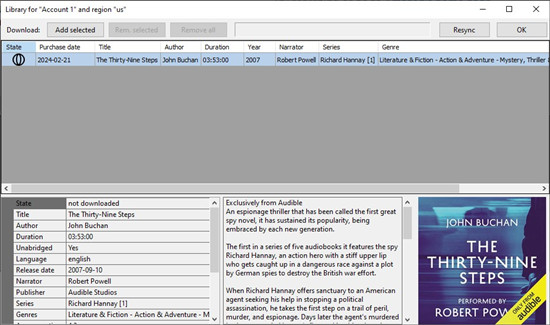
Click the State icon next to each title to select it. You can pick a few at a time, then click Add selected.
As you select, the app shows the number of chosen books at the top or bottom of the list.
One of the main limitations of Book Lib Connect is that it only works with audiobooks Audible still allows you to access. If a book has been removed from Audible or your account is not signed in correctly, the app will deny access and you will not be able to download it. This is not a problem with the app itself but a result of Audible's licensing rules, which can affect older or restricted titles.
Step 4: Download Your Audiobooks
After selecting the books, click the Download button above the library list.
In the dialog that opens, choose where to save the files on your computer and click Start.
Watch the progress bars as each book downloads. Larger files take longer, but you can see real-time updates in the main window.
Step 5: Convert or Export Audio Files
Downloads are saved as plain .m4b audiobook files by default. If you want a different format, click the Export or Save as .aax button.
To convert .aax files into MP3, M4A, or split them into chapters, open AAX Audio Converter and click Add files to import your downloaded books.
Choose your desired output format, then click Convert to start.
Part 5: Best Book Lib Connect Alternatives for Windows and Mac
Book Lib Connect is not the only choice. It focuses on downloading and preserving files with chapters and metadata, while AAX Audio Converter handles format conversion for broader use. For an all-in-one approach, ViWizard Audible Converter simplifies the workflow by combining downloading, DRM removal, and conversion in a single application.
5.1 AAX Audio Converter
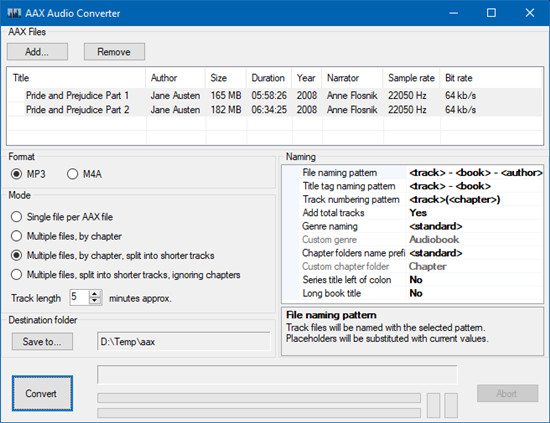
AAX Audio Converter is a free, open-source Windows application that converts Audible's .aax and older .aa files into MP3, M4A, or M4B. First, download your Audible files or use a tool like Book Lib Connect. Then open AAX Audio Converter, load the files, and choose the format you want. You can also adjust settings like bitrate or split chapters before converting.
The program keeps chapters and book information, so your audiobooks work on any media player or device. Converted files are saved in a folder you select and can be moved to other devices. Make sure the files are legally downloaded and that any required Audible activation codes are available. You can convert multiple files at once to save time when working with larger libraries.
- Pros
- Free
- Converts Audible files to MP3 and other formats
- Keeps chapters
- Good for personal backups
- Cons
- Windows only
- Must already have Audible files downloaded
- Setup may feel technical
- No official support
5.2 ViWizard Audible Converter
ViWizard Audible Converter is a paid application for Windows and Mac that combines downloading, DRM removal, and conversion in one workflow. It connects to your Audible library, downloads audiobooks, and converts them to formats such as MP3, M4A, M4B, WAV, AIFF, or FLAC while keeping chapters and metadata intact. You can convert multiple books at once, and the library interface makes it easy to manage them. A trial version is available, which converts the first 30 seconds of each audiobook before purchase. A stable internet connection helps ensure smooth downloads for large libraries.
- Pros
- Downloads and converts in one tool
- Works on Windows and Mac
- Supports many audio formats
- Keeps chapters and book info
- Easy to use
- Cons
- Paid software
- Requires Audible login
- Needs installation
- Free trial has limits
Key Features of ViWizard Audible Audiobook Converter
Free Trial Free Trial* Security verified. 5,481,347 people have downloaded it.
- Convert Audible audiobooks without AA/AAX format limitations
- Export audiobooks in 6 formats for different devices and players
- Split audiobooks by chapters or sections for personalized listening
- Preserve chapter information and metadata when creating collections
- Manage Audible audiobook libraries across converted files
Step 1Open ViWizard and Access Your Audible Library
Launch ViWizard Audible Converter on your Windows or Mac computer. The program includes a built-in Audible browser, so you do not need to switch between apps. Sign in with your Audible account details to load your purchased audiobooks. Once logged in, your full library becomes available inside the software.

Step 2Set Your Output Preferences
Before downloading, open the menu in the upper-right corner and select Preferences. Choose the audio format you prefer, such as MP3, M4A, M4B, WAV, FLAC, AIFF, or lossless. You can also adjust settings like bitrate, sample rate, and channel options to match your playback needs. Select an output folder so you know exactly where your downloaded files will be saved. Click OK to confirm your settings.

Step 3Select the Audiobooks You Want to Download
Use the built-in Audible library view to browse your collection or search for a specific title. When you find the audiobook you want, click the Add or Plus button to place it into the download list. You can add a single book or select multiple titles if you plan to download several at once.

Step 4Confirm and Start the Download
After adding your titles, review the list in the conversion window. You can select all books at once or choose specific ones to process. Click the Convert or Download button to begin. ViWizard will download the audiobooks and convert them into your chosen format while keeping chapter markers and metadata intact. Once finished, open the output folder to access your completed audiobook files. They are now ready for playback on media players, phones, tablets, or other compatible devices.

Part 6: Book Lib Connect vs Audible Converters
| Feature / Aspect | Book Lib Connect | AAX Audio Converter | ViWizard Audible Converter |
| Main Purpose | Download Audible books | Convert Audible files | Download and convert Audible books |
| Downloads from Audible Library | Yes | No | Yes |
| Converts to MP3 / M4B | Yes | Yes | Yes |
| Supports Multiple Output Formats | Limited | Limited | Wide range (MP3, M4B, WAV, FLAC, etc.) |
| Keeps Chapters & Metadata | Yes | Yes | Yes |
| Batch Processing | Yes | Yes | Yes |
| Ease of Use | Moderate | Simple | Easy |
| Platform Support | Windows | Windows | Windows & Mac |
| Cost | Free | Free | Paid (free trial available) |
| Customer Support | Community-based | Community-based | Official support |
| Best For | Free Audible downloading and backup | Simple file conversion | All-in-one, beginner-friendly solution |
Conclusion:
When placed next to other Audible converters, Book Lib Connect stands out for users who want a free way to download and back up their Audible library. AAX Audio Converter is good for those who already have Audible files and just need an easy tool to convert them with chapters kept. ViWizard Audible Converter works best for users who want an all-in-one, simple solution with many format options and official support, even if it costs money. The best choice depends on whether you value library access, ease of use, or price.
You May Be Interested





Nick Orin, a software developer at ViWizard, focuses on providing solutions for software-related challenges, including reviews, troubleshooting, and optimization tips.

Leave a Comment (0)