


Have you ever opened Pandora on a shared computer, a friend's speaker, or an old phone and realized your account is still connected? Logging out of Pandora is an easy way to protect your account, stop unwanted playback, and switch between different users. However, the logout process can vary depending on whether you are using the Pandora app, a web browser, or a smart home device.
In this guide, we'll walk you through how to log out of Pandora on mobile phones, desktop browsers, Amazon Alexa, Google Nest, and other connected devices. We'll also cover how to sign out of Pandora on all devices at once and what to do if Pandora does not let you log out properly. Let's dive in.

Part 1. Can I Log Out of Pandora?
Yes, you can log out of Pandora whenever you need. Signing out is useful if someone else is using your account, you are listening on a shared device, or you want to remove your account from a device you no longer use.
Pandora allows you to log out from individual devices or sign out of all connected devices at once. This can help prevent unauthorized access, stop unwanted music playback on shared speakers, and protect your account when using public or shared computers. The logout method depends on where you use Pandora:
Computer (Web Browser): You can sign out of the current browser or log out of all other devices through your account settings.
Mobile App (iPhone & Android): You can log out directly from the Pandora app settings.
Smart Home Devices: You may need to unlink Pandora from devices like Google Nest or disable the Pandora skill in Amazon Alexa settings.
In the following sections, we'll show you the exact steps to log out of Pandora on different devices.
Part 2. How to Log Out of Pandora on Mobile & Desktop
Whether you are switching to another account, using a shared device, or want to keep your Pandora account secure, signing out is a simple process. You can log out of Pandora from both mobile devices and desktop browsers in just a few steps.
The process is slightly different depending on the device you use, so follow the guide below to sign out of Pandora on your phone or computer.
Sign Out of Pandora on Mobile
01Open the Pandora app on your phone.
02For iOS, tap Profile in the bottom-right corner; for Android, Profile may be labelled as My Profile or shown via an icon.
03Tap the Settings gear icon in the top-right corner.
04Scroll down to the bottom of the page.
05Tap Sign Out.
06Confirm that you want to log out if prompted.
Sign Out of Pandora on Desktop
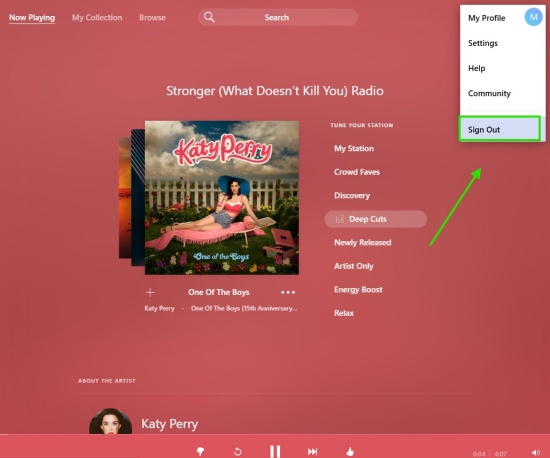
01Open the Pandora website in your browser.
02Click your Profile icon in the top-right corner.
03Select Sign Out from the menu.
04Your Pandora account will be logged out from that browser.
Part 3. How to Log Out of Pandora Other Devices
Sometimes, you may want to sign out of Pandora on smart home devices like Amazon Alexa or Google Nest. You need to disconnect the account rather than using a sign-out feature. This can be done directly through the respective smart home mobile apps.
Sign Out of Pandora on Amazon Alexa
To log out of Pandora on an Amazon Echo device, you need to unlink your Pandora account from the Alexa app. Follow these steps:
01Launch the Amazon Alexa app on your smartphone or tablet.
02Select More in the bottom-right corner.
03Tap Settings from the menu.
04Choose Music & Podcasts to view your connected music services.
05Tap Pandora from the list of linked services.
06Select Disable Skill or Unlink Account.
07Follow the on-screen instructions to remove your Pandora account from Alexa.
After unlinking Pandora, your Echo device will no longer use your Pandora account. You can connect a different Pandora account or another music service at any time.
Sign Out of Pandora on Google Nest or Google Home
Google Home does not have a direct log-out option for Pandora. To sign out, you need to unlink your Pandora account from Google Assistant.
01Launch the Google Home app on your phone or tablet.
02Select your profile picture in the top-right corner.
03Tap Assistant Settings.
04Open the Music option under the Services tab.
05Locate Pandora in your connected music services.
06Tap Unlink next to Pandora.
07Select Unlink Account to finish.
Once Pandora is unlinked, Google Assistant will stop using your Pandora account on Google Nest or Google Home devices. You can link another account whenever you need.
Part 4. How to Log Out of Pandora on All Devices
To sign out of Pandora on all devices in one go, you can visit the Pandora official website from a desktop or mobile web browser. Make sure you have signed in, click your Profile > Settings, scroll down to the bottom, and select Log out of all other devices. Enter your password to confirm when prompted.
In case unauthorized users or old devices log back in using your old credentials, you can also consider changing your password immediately after signing out.
Method 1: Log Out of All Devices from Pandora Website
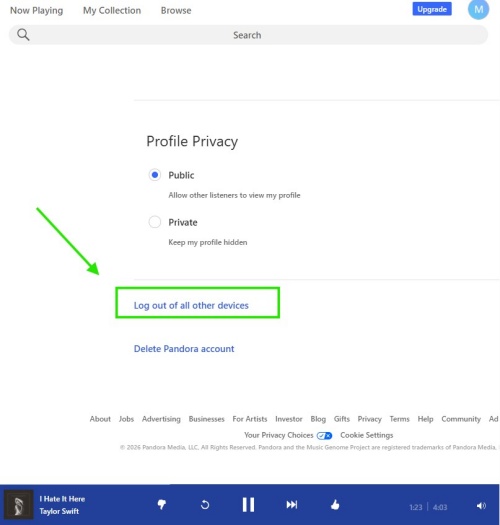
01Visit pandora.com and log in to your account.
02Click your Profile icon in the top-right corner and select Settings.
03Scroll down and click Log Out of All Other Devices.
04Enter your password and click Log Out.
Method 2: Change Your Pandora Password
Changing your password helps prevent old devices from accessing your Pandora account again.
On Desktop
01Open a web browser and visit the Pandora website.
02Click Profile > Settings on the Pandora website.
03Under Account Info, click Edit.
04Enter your new password in the password field.
05Click Save to update your password.
On Mobile
01Launch the Pandora app on your phone.
02Tap Profile and select the Settings tab.
03Select Account and enter your new password.
04Tap Save to confirm the change.
Part 5. Why Can't I Log Out of Pandora?
If you cannot sign out of Pandora smoothly, it may be because of app glitches, cached data, or constant background sessions. To sign out of Pandora, you can clear the app's cache, redownload the app, or use a web browser to sign out of all other devices. Here are some quick-fix tips:
Log out from the Pandora website: Sign in to Pandora through a browser, go to Profile > Settings, select Log Out of All Other Devices, and confirm with your password. The logout may take some time to apply across all devices.
Clear Pandora app data (Android): Go to Settings > Apps > Pandora > Storage, then select Clear Data to remove saved app information and login details.
Reinstall the Pandora app: Uninstall Pandora, restart your device, and install the latest version from your app store to refresh the app and remove possible login issues.
Bonus Tip: How to Listen to Pandora Music Offline Without Logging In
If you often log out of Pandora, switch devices, or want to avoid repeated sign-ins, saving your favorite Pandora music for offline listening can be a convenient option. Pandora itself only allows offline playback with certain subscription plans and within the Pandora app. The downloaded songs also remain locked inside the app and cannot be played on other devices.
For more flexible offline listening, you can use ViWizard Pandora Music Downloader to save Pandora songs, albums, and playlists as common audio files such as MP3, FLAC, WAV, AIFF, M4A, or M4B. It keeps original song information like titles, artists, and album details, allowing you to enjoy your Pandora music without opening the app or logging into your account every time.

Download songs, playlists, albums, and your whole music library from 10 major streaming platforms, including Pandora Music, to MP3, FLAC, WAV, AIFF, M4A, or M4B with original quality and ID3 tags for permanent offline listening.
How to Download Pandora Music with ViWizard
 Step 1: Adjust the Output Settings
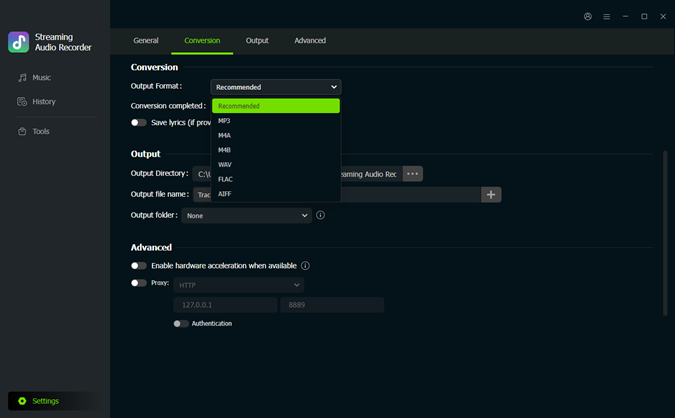
Launch ViWizard Pandora Music Downloader on your Windows or Mac computer. Click Settings in the bottom-left corner and select Conversion. Choose your preferred output format, such as MP3, FLAC, WAV, AIFF, M4A, or M4B, then customize the audio quality, output folder, and file organization settings if needed. After finishing the settings, click Music in the left sidebar.
 Step 2: Open Pandora
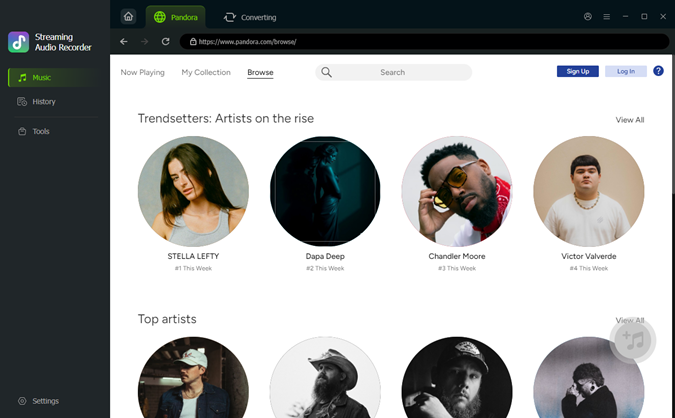
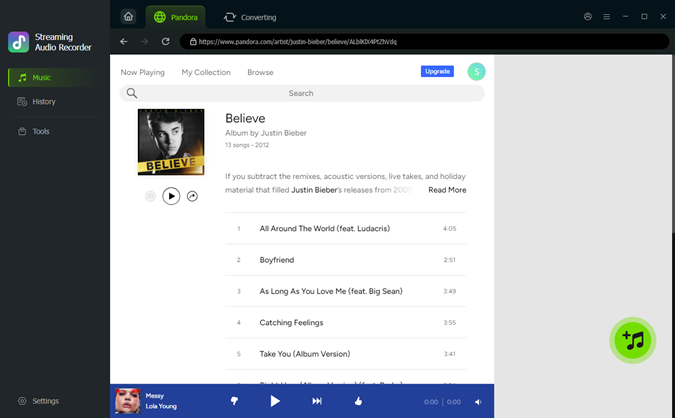
In the Music section, click the Pandora logo to open the built-in Pandora web player. Sign in to your Pandora account and browse the songs, albums, stations, or playlists you want to save for offline listening.
 Step 3: Add Pandora Music to the Conversion List
Search for the Pandora music you want to download. Open the song, album, or playlist page and click the green + button. ViWizard will analyze the available tracks and display them in a pop-up window. Select the songs you want to save and click Add to list.
 Step 4: Convert and Save Pandora Music for Offline Listening
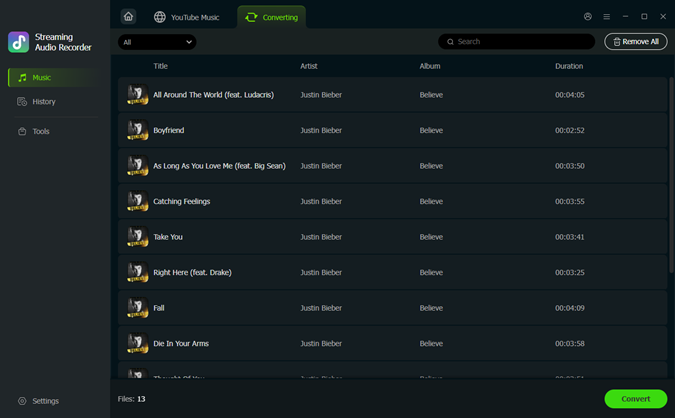
Click Converting at the top of the window to check your selected Pandora songs. Then click Convert in the bottom-left corner to start saving them as local audio files. Once the conversion is complete, open History to view the downloaded songs or click the folder icon to find the saved files on your computer. You can then transfer the music to other devices and enjoy Pandora songs offline without opening the app or logging in again.
Conclusion
All in all, you can easily log out of Pandora, whether you are using a phone, computer, or other smart devices. For mobile and desktop, you can log out directly from the Pandora app or website, while smart home devices need you to disconnect your Pandora account through their respective apps. What if you can't sign out successfully? Don't worry. Just take the troubleshooting tips.
If you want to enjoy Pandora music without repeated logins, you can use ViWizard Pandora Music Downloader to convert music into MP3s. Best of all, it supports multiple audio formats and saves the effort of opening the Pandora app. Let's begin a new music journey!
You May Be Interested




From new releases to old favorites, Matt Smith is always on the lookout for good music. He follows the latest in digital entertainment and shares songs and media he thinks are worth checking out.

Leave a Comment (0)