


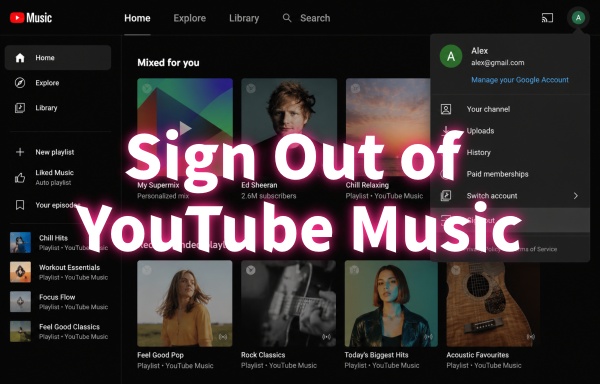
Signing out of YouTube Music across all devices is not as straightforward as it may seem. Since YouTube Music is fully linked to your Google Account, there is no single "log out everywhere" button inside the app. Instead, managing active sessions, removing devices, or changing account settings are the main ways to control access.
This guide explains step-by-step methods to sign out of YouTube Music on mobile, desktop, smart TVs, and all devices at once. It also covers what happens after signing out and how to keep your music available for offline listening when you log out. Let's start!
Part 1. Can You Sign Out of YouTube Music on All Devices?
Yes! But there is no "sign out of all devices" button within YouTube Music. You can sign out of your account from a specific device you use or manage your active sessions directly through Google. As we know, YouTube Music is tied to your Google Account. If you worry about your login details being known by others, you can change your Google password to force a sign-out on all devices. Just choose your way to log out with us!
Part 2. How to Sign Out of YouTube Music on Mobile
If you want to sign out of YouTube Music on Android or iPhone, you must remove your Google account from your device. Because YouTube Music is integrated with your Google account, and there is no simple "Sign Out" button.
If you just want to listen without recording history or recommendations, you can navigate to your profile picture and turn on YouTube Music's Incognito mode. Now, here are the steps of signing out of your Google account from iOS or Android.
On iPhone or iPad
01Open the YouTube Music app on your device.
02Go to your profile picture in the top right corner.
03Select Switch account.
04Scroll the list to tap Manage accounts.
05Choose the Google account you desire to sign out of.
06Tap Remove account from this device and confirm the move.
On Android
01Open your phone's Settings app.
02Scroll to select Accounts, Passwords & Accounts, or Users & Accounts (depending on your device).
03Select the Google account associated with YouTube Music.
04Tap Remove Account, and you have signed out.
Part 3. How to Sign Out of YouTube Music on Desktop
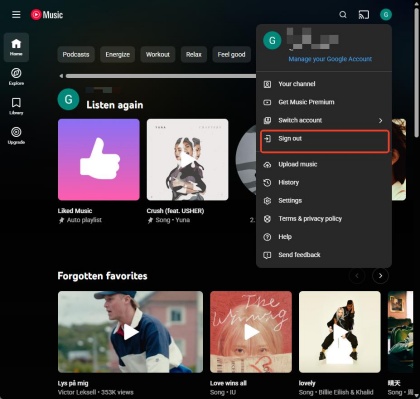
Just like on mobile, you cannot sign out of YouTube Music with a standalone "Sign Out" button on desktop. Signing out means you need to log out of your entire Google account across all services on your browser.
Sign Out from YouTube Music Website
01Click the web browser you prefer.
02Go to the YouTube Music website, and you log in automatically.
03Click the profile picture at the top right.
04Select Sign Out.
05When prompted, click Continue to finish the process. Now you have signed out across all Google services on your browser.
Part 4. How to Sign Out of YouTube Music on Smart TVs and Consoles
To log out of YouTube Music on smart TVs and gaming consoles, you need to delete your Google account from the music app. There are two methods for you: signing out on the TV or signing out remotely using your phone or computer.
Method 1: Sign Out on TVs/Consoles
Signing out directly through YouTube Music's app menu is super easy and fast.
01Go to the YouTube app on your smart TV or console.
02Navigate to the left-hand menu using your remote or controller.
03Scroll the menu up to choose your profile icon.
04Select your account from the list before you.
05Choose Sign Out (or Remove Account on a different device).
Method 2: Sign Out Remotely
You can also revoke YouTube Music access on your computer or mobile if the TV or console is far away from you.
01Open Google Chrome or another browser you like on your phone or computer.
02Navigate to your Google Account's Your Devices page.
03Log in to your account if prompted.
04Scroll down to locate your smart TV or console.
05Select the device and choose Sign Out.
Part 5. How to Sign Out of YouTube Music on All Devices at Once
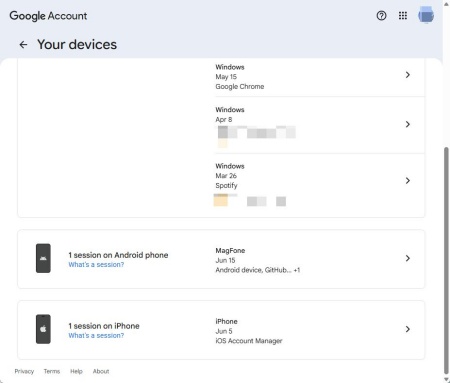
Though there is no "Log Out on All Devices" feature on YouTube Music. You can go to the Google Account Device Page to remove your Google account, including your YouTube Music access, from phones, tablets, and computers in one go.
Another option is to change your Google password. This could be the most effective way, and you can ensure you have signed out on each device you used. Here are the two methods.
Method 1: Sign Out from Google Account Settings
01Go to a web browser (Edge, Firefox, etc.) on your device.
02Navigate to the Google Account Device Activity Page.
03Sign in if you are prompted, and you can see the Your Devices section.
04Scroll all the way to click the device you want to remove.
05Choose Sign Out.
06After signing out, you can see there is a greyed-out device on the page.
Method 2: Change Your Google Password
01Visit Google Password Settings on a web browser.
02If you have signed in, just enter your new password; if not, type your current password to verify your identity.
03Confirm the new password.
04Click or tap Change password.
Part 6. What Happens After Signing Out of YouTube Music
When you sign out of YouTube Music, this means you've logged out of your Google Account as well. Your account is disconnected from the app or website, and you cannot use some features until you sign back in. Here are what you may meet.
No Access to Your Library: You cannot play your playlists, liked songs, subscriptions, uploads, and listening history.
No Downloads Playback: Offline downloads associated with your account can't be played while you're signed out.
Disappeared Personalized Recommendations: YouTube Music can no longer offer you music suggestions based on your listening habits.
Unavailable Premium Benefits: You cannot enjoy features like ad-free listening, background playback, and offline downloads.
Your Data Well Kept:. Signing out doesn't influence your playlists, likes, or downloads. Everything will be restored when you are back.
To switch accounts or troubleshoot the app, signing out is usually a reliable way. Your playlists and personalized features are connected to your Google account and will be available again the moment you sign back in.
Part 7. How to Keep YouTube Music After Signing Out
After signing out of YouTube Music, access to streaming content is removed because playback, library sync, and downloads are tied to your Google Account. This means playlists, liked songs, and offline downloads inside the app cannot be used until you sign back in. To avoid losing access to your favorite tracks, you can use ViWizard YouTube Music Converter to save them as local audio files.
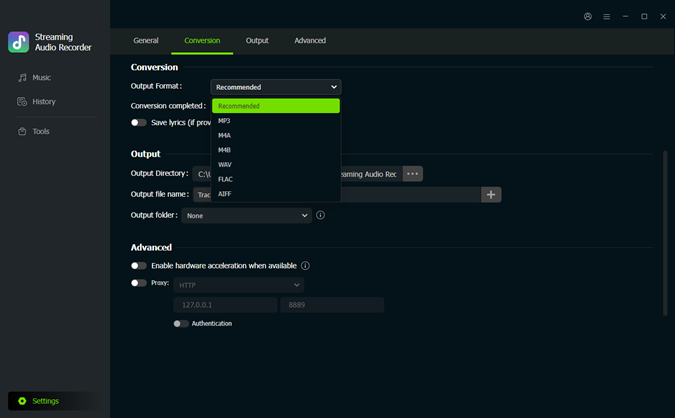
ViWizard converts YouTube Music playlists, albums, artists, and individual songs into widely supported formats such as MP3, M4A, WAV, FLAC, AIFF, or M4B on Windows and Mac. After conversion, the audio files are stored directly on your computer with original ID3 tags and metadata preserved, including title, artist, album, and cover art. These files can then be transferred to other devices for offline playback without requiring YouTube Music or a Google login. Just like owning a personal music library outside the YouTube Music ecosystem.

Need YouTube Music for offline listening? ViWizard YouTube Music Converter helps YouTube Music users save songs, playlists, albums, and artists with convenient music conversion. Start converting and enjoy your music beyond the app.
How to Use ViWizard YouTube Music Converter
 Step 1: Install ViWizard and Configure Settings
Download and install ViWizard YouTube Music Converter on Windows or Mac. Launch the application, then go to Preferences. Choose an output format under Conversion section such as MP3, M4A, WAV, or FLAC. Adjust the bitrate and sample rate if needed, then save the settings.
 Step 2: Open YouTube Music
After setting everything well, go to the home page. Open the built-in YouTube Music web player and sign in with your Google account.
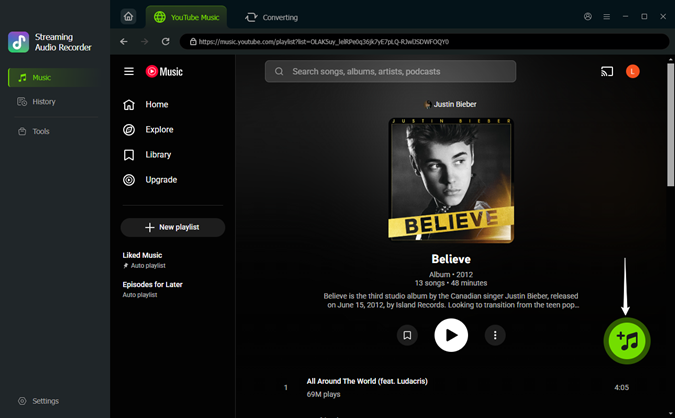 Step 3: Add songs or playlists for conversion
Browse your library inside the web player. Open a playlist, album, or artist page, then click Add to List to load tracks into the conversion panel. ViWizard can scan and load all the songs into the list.
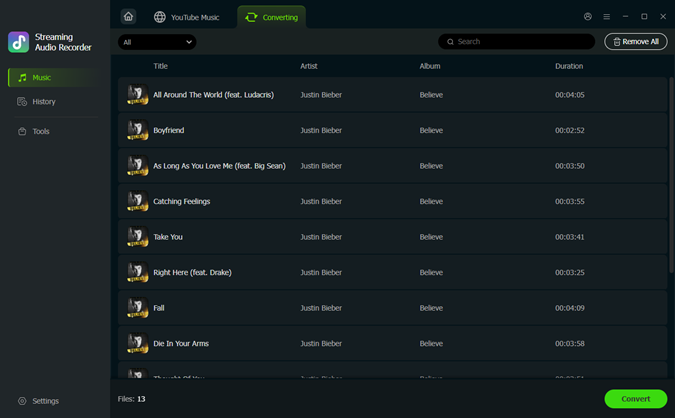 Step 4: Convert and access offline music
Click Convert to start processing. ViWizard will download for you at a fast speed. After conversion, open the output folder to find your saved files. Transfer them to phones, USB drives, or other devices for offline playback.
Conclusion
Signing out helps protect your account and manage devices, but it also removes access to streaming, downloads, and your library. To save your music library forever, you can consider ViWizard YouTube Music Converter. It can convert playlists and tracks into formats like MP3 or WAV for offline playback on any device. This way, you can sign out safely while still keeping your music available anytime.
You May Be Interested
How to Log Out of SoundCloud on All Devices

How to Log Out of Apple Music on All Devices: A Complete Guide

Solved: Log Out of Spotify Everywhere (All Devices)

Solved: Spotify Keeps Logging Me Out

YouTube Music Is Not Available in Your Area: Why It Happens and How to Fix It
How to Log Out of Pandora on Mobile, Desktop, and Other Devices

From new releases to old favorites, Matt Smith is always on the lookout for good music. He follows the latest in digital entertainment and shares songs and media he thinks are worth checking out.

Leave a Comment (0)