


Pandora is one of the music streaming services supported by Google Home and Google Nest devices. By connecting your Pandora account, you can play music with simple voice commands, control playback hands-free, and enjoy personalized stations throughout your home. You can also cast Pandora directly from your phone or computer to compatible Google Home speakers.
In this guide, you'll learn how to connect Pandora to Google Home, set it as your default music service, use useful voice commands, cast music to your speakers, and troubleshoot common issues. Let's dive in.
Part 1. Can You Connect Pandora to Google Home?
Yes, you can link Pandora to Google Home. Besides Pandora, music apps that are compatible with Google Home include Spotify, YouTube Music, Amazon Music, iHeartRadio, Apple Music, and Deezer.
To play Pandora on Google Home, you can connect your account to Google Home and tell Google Assistant what music to play. In addition, you can also cast Pandora to Google Home. Then, what devices can play Pandora? All devices built on the Google Nest and Google Home ecosystem are supported. For details, please look at this:
Supported Devices: Google Home, Google Nest Mini, Google Nest Audio, and Google Nest Max. Google Nest Hub and Google Nest Hub Max.Audio equipment, soundbars, and TVs that feature "Chromecast built-in" or natively support Google Assistant.
Part 2. How to Link Pandora to Google Home
Connecting your account requires a few steps, regardless of which mobile platform you are on. First, you open the Google Home app and go to Assistant Settings > Music. Then, you pick up Pandora under More and authorize the connection. To let Google Home play Pandora quickly, you can even set the app as your default (part 3). Here, we focus on connecting the two.
Link Pandora to Google Home (Android & iPhone)
01Activate your phone, and go to Google Home.
02Select the profile picture in the top right corner.
03Ensure that the active Google Account is the one connected to your device, like a Google Home speaker.
04Select the profile picture again and tap Assistant settings.
05Scroll all the way to choose Music under Services.
06Tap Pandora under More music services.
07Enter your sign-in details and authorize the connection if logging in to Pandora or if prompted. Just enjoy your Pandora!
Part 3. How to Set Pandora as Default on Google Home
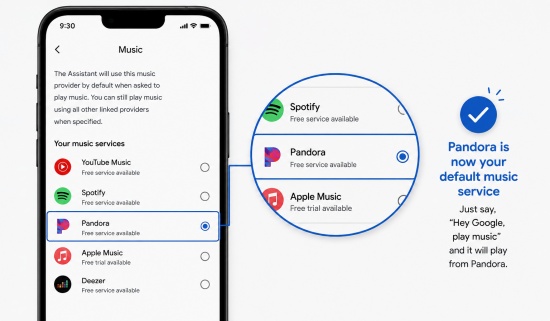
To save your effort of saying "on Pandora" at the end of every voice command, you can set Pandora as your default music service on Google Home. The moment you say, "Hey Google, play some music," the Assistant will automatically play Pandora music. Here are the step-by-step instructions to set Pandora as the default and useful voice commands.
Set Pandora as Default on Google Home
01Open the Google Home app on your Android or iPhone.
02Tap your profile icon in the top right corner to verify the Google account.
03Select the profile picture again, and tap Assistant settings > Music.
04Tap Pandora from the list and enter your login details.
05Go back to the Music menu and tap the circle near Pandora. This way, you have set Pandora as your default music service.
Best Voice Commands for Pandora on Google Home
Once you have set Pandora as your default, try these commands:
| Demands | Pandora Voice Commands |
|---|---|
| Play a station | "Hey Google, play my [genre/mood/activity] station." |
| Play your greatest hits | "Hey Google, play my Thumbprint Radio." |
| Specific tracks/artists/album (Premium Only) | "Hey Google, play [song name] by [artist]" or "Hey Google, play [the album name]." |
| Play personalized stations | "Hey Google, play Thumbprint Radio." |
| Like/dislike a song | "Hey Google, I like/dislike this song" or "Hey Google, thumb up/down." |
| Skip a song | "OK Google, Skip" or "Hey Google, next song." |
| Play a custom playlist (Premium Only) | "OK Google, play my [playlist name]. |
| Pause | "Hey Google, pause the music." |
| Resume | "Hey Google, continue playing." |
| Stop the music | "Hey Google, stop the music." |
| Adjust volume | "OK Google, turn it up/down." |
Part 4. How to Cast Pandora to Google Home
If you want a better audio quality without draining your mobile battery, you can cast directly from your Pandora app to Google Home. All you need to do is check the Wi-Fi network, open Pandora, tap Cast, then select the device to play on. This way, you can control playback from anywhere in your house and play Pandora to multiple smart speakers right away.
Cast Pandora to Google Home
01Make sure your mobile phone or computer is linked to the same Wi-Fi network as your Google Home.
02Sign in to your Pandora app on your phone or desktop.
03Go to Now Playing and tap the Cast icon, a square with a Wi-Fi symbol. (Web users can tap the three vertical dots in the top right corner to see Cast.)
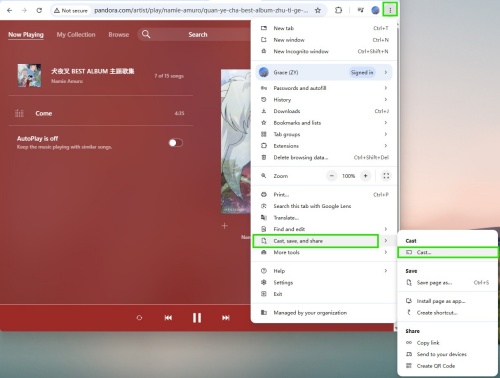
04Select your Google Home speaker and start playing music.
Part 5. How to Fix Pandora Not Working on Google Home
Pandora does not work on Google Home due to disconnected accounts, outdated versions, or Wi-Fi network issues. Or because your Digital Wellbeing filters are active, or you play music on grouped smart speakers. Here are some troubleshooting tips for you.
Reconnect Your Account: Tap Google Home and go to Settings > Music. Choose Pandora and tap Unlink. Go to Music > Pandora, and sign in again to connect your account.
Check for Updates: Go to the app store on your device and check that both apps, Google Home and Pandora, are updated; make sure your Google Home is updated and connected to the same Wi-Fi network as your phone.
Test with Specific Voice Commands: Try saying, "Hey Google, play my [genre] station on Pandora."
Check Digital Wellbeing Filters: Check your Google Home speaker or Google Nest's settings in the Google Home app to see whether the restrictions are active or not.
Clear Cache and Reboot: Unplug your Google Home speaker for 1 minute and plug it back in. If you are casting, try clearing the Pandora app cache in your phone's settings.
Part 6. How to Convert Pandora Music to MP3 for Offline Listening
While Google Home offers a seamless way to stream Pandora music with voice commands, it still requires an active internet connection to play songs. If you want to enjoy your favorite Pandora music more freely, you can consider converting Pandora music to MP3. And ViWizard Pandora Music Downloader is a handy tool for you.
With ViWizard, you can download and convert Pandora songs, playlists, and albums to MP3 and other widely compatible formats, including FLAC, WAV, M4A, and AIFF. The software preserves the original audio quality and keeps important ID3 tags such as title, artist, album, and artwork. After downloading, you can store your Pandora music permanently on your computer and transfer it to phones, tablets, USB drives, smart speakers, car audio systems, and more for offline playback.
Whether you're traveling, commuting, or listening in areas with unstable Wi-Fi, you can enjoy uninterrupted playback whenever you want. Here are the steps to use it.

Download songs, playlists, albums, and your whole music library from 10 major streaming platforms, including Pandora Music, to MP3, FLAC, WAV, AIFF, M4A, or M4B with original quality and ID3 tags for permanent offline listening.
Use ViWizard and Play Downloads on Google Home
 Step 1: Set Your Preferred Output Format
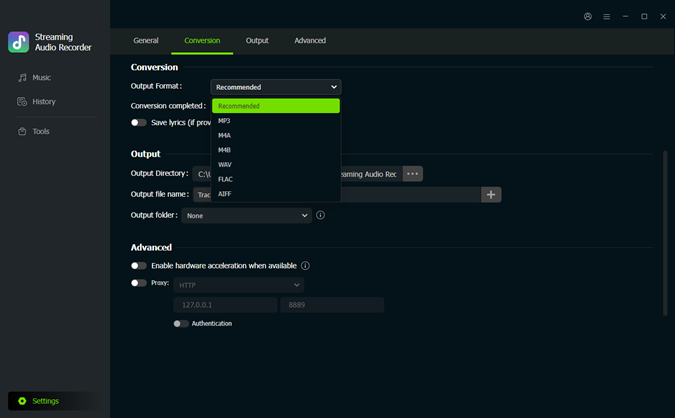
Open ViWizard Pandora Music Downloader and click the Menu icon in the upper-right corner. Select Preferences and switch to the Conversion tab. Here, you can choose MP3 as the output format and customize audio settings such as bitrate and sample rate. Once you've finished, click OK to save your settings.
 Step 2: Log In and Find Pandora Music
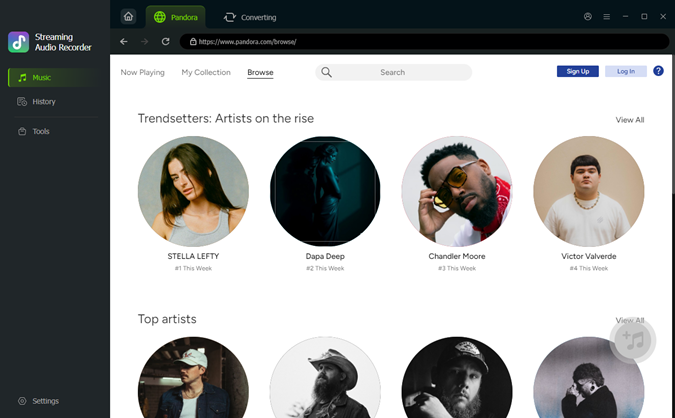
Go back to the main screen and open the built-in Pandora web player. Sign in to your Pandora account, then browse your library to find the songs, playlists, albums, or stations you'd like to download. Everything is accessible within ViWizard, saving you time.
 Step 3: Add Songs, Playlists, or Stations
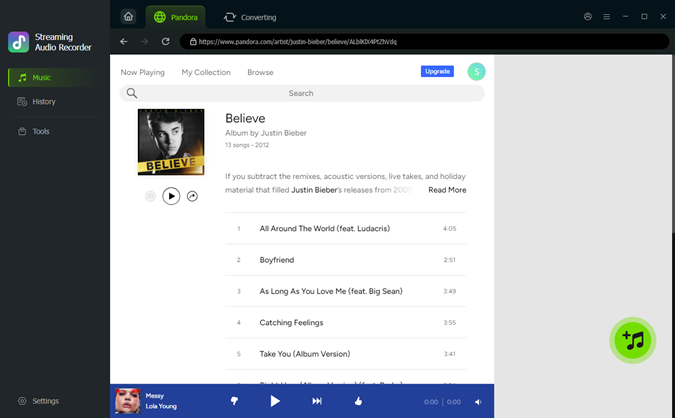
Open the Pandora content you want to save and click the Add Music button (+). ViWizard will automatically analyze the selected music and load all the tracks into the conversion list. Check for the desired tracks before proceeding.
 Step 4: Save and Play Pandora Music
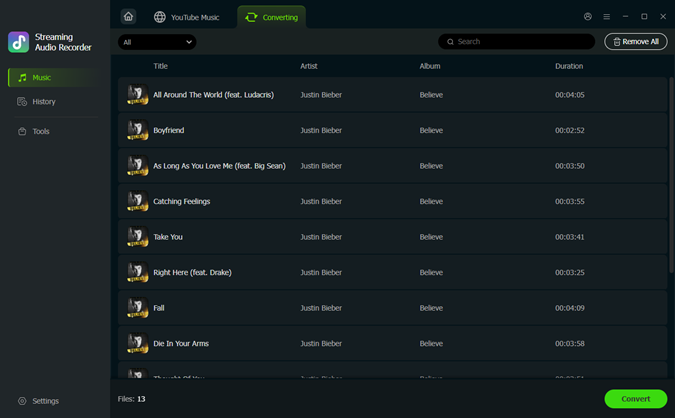
Click Convert to start downloading and converting your Pandora music. After conversion, the songs will be saved as MP3 files on your computer. You can then transfer them to your phone, USB drive, or other devices for offline listening. To play them on Google Home via Bluetooth, turn on Bluetooth on your phone, connect it to your Google Home speaker, then simply play the MP3 files from your music app.
Conclusion
You can easily play Pandora on Google Home. With the help of Google Assistant, you can enjoy music, podcasts, and personalized stations. Once your account is connected, you can start music with your voice, manage playback from anywhere in your home, and even stream to multiple compatible speakers.
While Google Home makes Pandora streaming convenient, it still depends on an internet connection. If you'd like to keep your favorite Pandora songs now and forever, ViWizard Pandora Music Downloader can help. With it, you can download Pandora tracks, playlists, albums, and stations to MP3 and other popular formats. Try it, and it never lets you down!
You May Be Interested



From new releases to old favorites, Matt Smith is always on the lookout for good music. He follows the latest in digital entertainment and shares songs and media he thinks are worth checking out.

Leave a Comment (0)