


We know that YouTube Music stands out with its ability to find unofficial, user-uploaded content not available on other music streaming platforms. And best of all, it is heavily bundled with Google Home. Using voice commands, people can easily control audio throughout their house. Really convenient, isn’t it? Now this post shows you 4 proven ways to play YouTube Music on Google Home. Let’s begin.
Part 1. Can Google Home Play YouTube Music?
Yes. You can play YouTube Music on Google Home easily, as they are products made by Google. To be specific, you can play your favorite tracks from YouTube Music on your Google Nest Mini, Google Nest Audio, Nest Hub, Nest Hub (7-inch screen), and so on.
But it should be stated that whether you have a free account or a paid Premium subscription can affect your listening experience. For example, if free users ask for a specific song or album, Google Home will play a similar "radio station" instead of the exact track they demand. And a Premium subscriber to YouTube Music will not meet this.
YouTube Music Free vs YouTube Music Premium: on Google Home
| YouTube Music Free | YouTube Premium | |
|---|---|---|
| On-Demand Playback | No (radio stations only) | Yes |
| Ad-Free | No | Yes |
| Repeat Songs | No | Yes |
| Go Back to Previous Songs | No | Yes |
| Skip Without Limits | No | Yes |
| Identify Playing Songs | No | Yes |
| Play Genre-Based Playlist | Yes | Yes |
| Play Mood Based Music | Yes | Yes |
Part 2. How to Link YouTube Music to Google Home and Set Default Service
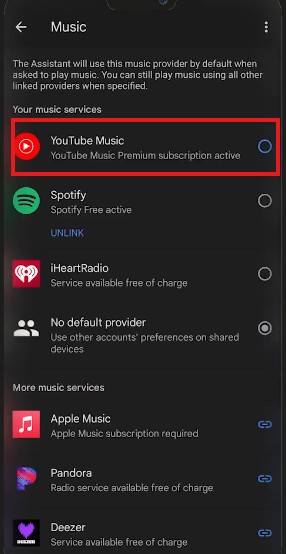
To play YouTube Music on Google Home, you need to link them. In this way, you can control music playback via voice, and even set it as the default to avoid specifying "on YouTube Music" every time. Most importantly, you have access to your library and can move music from your mobile to smart speakers seamlessly.
Steps to Link YouTube Music to Google Home:
Step 1 Make sure your phone or tablet is connected to the same Wi-Fi network or linked to the same account as your speaker or display.
Step 2 Open the Google Home App on your phone or tablet.
Step 3 Tap your profile picture or initial at the top right.
Step 4 Tap Home settings.
Step 5 Scroll down to find and tap Music under the Service section.
Step 6 Select YouTube Music (If it is not selected, choose it to set it as your default service).
Step 7 Use YouTube Music for all your linked Google devices by saying "Hey Google, play music."
Part 3. How to Play YouTube Music on Google Home via Voice Commands
Obviously, using voice commands can be the simplest way to play YouTube Music on Google Home. But you need to have a YouTube Music Premium, so that you can play specific songs, an artist, an album, a playlist, or your favorites with ease. Then, let’s get started.
Steps to Play YouTube Music on Google Home via Voice Commands:
Step 1 Open the Google Home app.
Step 2 Tap Settings at the bottom.
Step 3 Choose Music and then make sure you have checked YouTube Music as the default service.
Step 4 Once set as default, you can use voice commands to wake your YouTube Music on Google Home according to your demand. Here are some voice commands for you.
Voice Commands Table
| If you want to | Say "Hey Google," then |
|---|---|
| Play | "Play [Song Title/Artist Name/Playlist]." |
| Pause | "Pause" |
| Resume | "Resume" |
| Stop | "Stop" |
| Skip | "Skip to the next song." |
| Know the Playing Tracks | "What’s playing?" "What song is playing?" "What artist is playing?" |
| Control Volume | "Louder" "Set volume to 50%" "Increase/decrease the volume." |
Pro Tip: Voice Match Setup for Personalized Experience
If you want to access your unique YouTube Music playlists instead of generic ones. You can use Voice Match Setup to teach the algorithm your favorite music style, which provides a more personalized experience.
Step 1 Open the Google Home App.
Step 2 Tap your Profile Picture or initial in the top right corner.
Step 3 Choose Assistant settings.
Step 4 Select Hey Google & Voice Match.
Step 5 Make sure every device you want to link is checked.
Step 6 Tap Get started and follow the on-screen prompts to read a few phrases aloud so the Assistant can learn your voice.
Part 4. How to Play YouTube Music on Google Home via Casting
If you are in pursuit of better sound quality and control via phone, then this method is tailored for you. Casting from your phone or web to Google Home offers you high-quality audio. Besides, once connected, you can control your music via both voice commands and mobile. And here we’ll explain how to make it.
Steps to Play YouTube Music on Google Home via Casting (On Mobile/Desktop):
Step 1 Make sure that your phone or desktop is connected with Google Home/Nest speaker to the same Wi-Fi network.
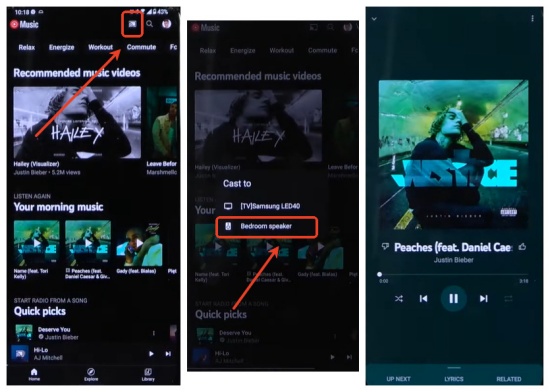
Step 2 Open the YouTube Music app or the YouTube Music website on your phone.
Step 3 Log in to YouTube Music with your account.
Step 4 Tap the cast icon in the top right corner.
Step 5 Select your Google Home from the list.
Step 6 After hearing a notification sound, play a song or album to begin playing.
Part 5. How to Play YouTube Music on Google Home via Bluetooth
Using Bluetooth to play YouTube Music on Google Home is also easy to operate. But you may wonder, what’s the difference from other methods? There are four main differences.
By using Bluetooth, free YouTube Music users can play music without the limitations of non-skippable, shuffle-only radio stations that are imposed on smart speaker casting. Moreover, you can use a phone-based equalizer to personalize sound, while native voice commands cannot do it for you. Most importantly, you can play any audio from any app, from YouTube videos to web browsers. Even if you are somewhere out of internet connection, you can enjoy downloaded music from YouTube Music on Google Home. Then, how to manage it?
Steps to Play YouTube Music on Google Home via Bluetooth:
Step 1 Open the Google Home app on your mobile device.
Step 2 Select your Google Home.
Step 3 Tap Settings > Audio > Paired Bluetooth devices.
Step 4 Select Enable pairing mode.
Step 5 Tap your phone’s Bluetooth settings and choose the Google Home to connect.
Step 6 Open the YouTube Music app on mobile.
Step 7 Select a song or album. The audio now plays through Google Home.
Step 8 Control playback (pause, resume, skip a song) via your phone or voice commands with Bluetooth connected.
Part 6. How to Fix YouTube Music Not Working on Google Home
You may also come across some questions like these: You have tried the methods, but YouTube Music is not working on Google Home. Or things turn wrong just now? Don’t worry, as we are here to help you. Try these steps:
Set YouTube Music as the Default Service: In the Google Home app, go to Settings and choose Music. Choose YouTube Music.
Reboot Your Devices: Unplug your Google Home and your router, then plug them back in.
Check the Link: Make sure the email in the YouTube Music app matches the one used in the Google Home app.
Relink Account: In the Google Home app, go to Settings > Music, tap “Unlink” under YouTube, then tap “Relink” to relink it immediately.
Specify Voice Commands: Make sure that you use specific voice commands like “Hey Google, play [Song Title] on YouTube Music.
Verify Premium Subscription: To have on-demand playback via voice commands, you need to be a subscriber to YouTube Music Premium. Otherwise, it may only play radio stations or songs with ads.
Check Wi-Fi Network: Make sure both devices are on the same Wi-Fi network.
Restart and Reconnect: For Bluetooth users, if pairing falls, restart the Google Home app and turn off your phone’s Bluetooth.
Turn Up Voice: If you use Bluetooth, make sure the volume is turned up on both your phone and the speaker.
Part 7. Best Alternative Way to Play YouTube Music on Google Home with No Issues
All in all, you can play your YouTube Music on Google Home via voice commands, casting, and Bluetooth. But to play music smoothly, you need to subscribe to YouTube Music Premium. Is there any way to use YouTube Music on Google Home without a Premium subscription? Yes, ViWizard YouTube Music Downloader can help you.
ViWizard YouTube Music Downloader can convert your favorite tracks from YouTube Music. Before converting music, you can customize the parameters like bit rate, sample rate, and bit depth (up to 24-bit, 320kbps, 192kHz). What about the output format? There are FLAC, MP3, WAV, AIFF, M4A, and M4B. Most importantly, your songs can be converted at super-fast speed (30x). Automatically, it saves metadata like song titles, artists, album art, and genres, so you can better organize them. It can be a handy tool for you, isn’t it?
But how to use this to play YouTube Music on Google Home? First, use ViWizard YouTube Music Downloader to download MP3s and then upload the tracks to YouTube Music, which can be done by Free users. Next, choose the method you like to play your YouTube Music on Google Home. Just follow us!

Download songs, playlists, albums, and your whole music library from 10 major streaming platforms, including YouTube Music, to MP3, FLAC, WAV, AIFF, M4A, or M4B with original quality and ID3 tags for permanent offline listening.
Steps to Use ViWizard YouTube Music Download:
Step 1 Customize Output Format and Audio Quality
Install ViWizard YouTube Music Downloader on the computer. Sign in to the app and click on the menu icon in the top right corner. Choose Preference and then Conversion. Choose the output format you like, such as MP3, WAV, AIFF, or FLAC. Set bitrate and sample rate as you like. And in the end, click Save to keep the settings.

Step 2 Sign in to YouTube Music in ViWizard
Go back to the main page. Choose the YouTube Music icon, and the built-in YouTube Music web player jumps out. Log in to the web with your account. You can view your library, albums, playlists, and liked music to see the song you would like to download.

Step 3 Select Songs, Playlists, and Albums on YouTube Music
Find the songs you want to download within the built-in player. Click the playlist or the song, and choose Add to List. ViWizard will load all the songs into the conversion list.

Step 4 Convert and Save YouTube Music Downloads on Desktop
After making sure the songs you want to download are in the conversion page, click Convert. Then the downloader converts songs fast with original quality. After conversion, go to the converted page (the third page) to find the files. Locate them in your output folder. And then you can upload your songs to YouTube Music.

Steps to Use ViWizard YouTube Music Download:
Step 1 Log in to the YouTube Music website with your account.
Step 2 Click your profile picture in the top right corner.
Step 3 Choose Upload music and locate the music you want, and click OK.
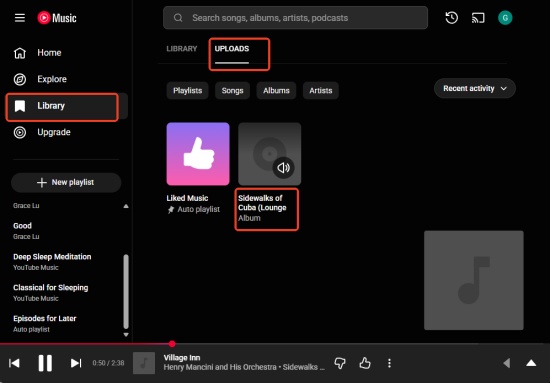
Step 4 Go to the website and click Library in the left sidebar.
Step 5 Choose UPLOADS in the middle top, and you can see the music you upload.
Step 6 Open the YouTube Music website, tap the Cast icon at the top right next to your profile picture. Select your Google Home to play. (You can also use Voice Commands or Bluetooth.)
Conclusion:
In a nutshell, we can play YouTube Music on Google Home through voice commands, casting, or Bluetooth. We hope you can successfully enjoy your YouTube Music on Google Home. But if you want to immerse yourself in your music world, you can choose ViWizard YouTube Music Downloader. Within a few clicks, you can have so many tracks to play. You can try it!
You May Be Interested

How to Play Apple Music on Google Home (Easy Guide)

How to Play Audible on Google Home: 4 Effective Methods

Ultimate Guide to Play Tidal on Google Home

How to Link Spotify to Google Home (Fixes Included)

5 Easy Methods to Play Amazon Music on Google Home (Free & Unlimited)
Chromecast YouTube Music From Mobile/Desktop
How to Play Pandora on Google Home

From new releases to old favorites, Matt Smith is always on the lookout for good music. He follows the latest in digital entertainment and shares songs and media he thinks are worth checking out.

Leave a Comment (0)