


Why do you want to Chromecast YouTube Music? Imagine this: you go to the kitchen for a cup of coffee, reply to the emails, and have a phone call while playing your favorite YouTube Music playlist. All these can be managed at the same time, as you can Chromecast YouTube Music from your phone or computer to TVs or speakers. Best of all, you are not tethered to the speaker or TV. Any device on the same Wi-Fi network, from Android to Mac, can control the music. Really convenient, right? Then, how to Chromecast YouTube Music from mobile and desktop? We will show you.
Part 1. Does YouTube Music Support Chromecast?
Yes, YouTube Music fully supports Chromecast. You can stream music from the app to TVs, speakers, and streaming devices. With a YouTube Music account, you can cast from your Android, iOS, and the web as you like.
What can Chromecast do with YouTube Music? When you Chromecast YouTube Music, the mobile app acts as a remote, allowing you to browse, search, and manage the queue on the TV. Besides, you can cast YouTube Music to multiple devices simultaneously, such as an "All Audio" group. And you can stream any content you like, songs, albums, and music videos directly from the YouTube Music app to a TV or connected speakers. But some features require a Premium subscription.
YouTube Music Chromecast Comparable Table: Free vs. Premium
| Feature | YouTube Music Free | YouTube Music Premium |
|---|---|---|
| Ads-Free | No | Yes |
| Background Play | Keep the app open and active | Yes |
| Uploaded Music Cast | No | Yes |
| Downloads/Offline | No | Yes |
| High Quality | 128kbps (normal) | 256kbps AAC (high) |
Part 2. How to Chromecast YouTube Music From Mobile (Android & iOS)
To Chromecast YouTube Music from Android or iOS, make sure your phone and TV/speaker are on the same Wi-Fi network, and your YouTube Music app is updated to the latest version. For iOS users (iOS 14+), you must enable Local Network Access in your device settings so that YouTube Music can find cast devices. (Settings > YouTube Music > Local Network > On) And to ensure the processing power, you need to turn off the Power Saving Mode on your phone.
Chromecast YouTube Music from Android & iOS
01Open the YouTube Music app on your mobile.
02Log in to your account.
03Tap the Cast icon (top-right square Wi-Fi symbol).
04Select the name of the Chromecast or Cast-enabled TV you hope to cast.
05Pick the track, album, or playlist you like to play. The equipment will play the artwork or video.
06Use the phone's lock screen or notification bar to adjust the volume and pause/skip songs.
Part 3. How to Chromecast YouTube Music From Desktop (Mac & Windows)
To Chromecast YouTube Music from a desktop (Mac & Windows), you can use the Google Chrome browser or the installed YouTube Music web app. Besides, both the computer and Chromecast/Nest speaker must be on the same Wi-Fi network. And you also need to make sure that your Chromecast is set up via the Google Home app on a mobile device.
What's the difference? The Web App acts more like a native "stream-to-device" function, whereas browser tab casting often mirrors the tab's audio, which can be less efficient. And the dedicated web app is generally more stable than casting a full browser tab. In addition, you can have better, more responsive playback control on your PC with the web app. You can choose your preferred method.
Method 1: Using the Google Chrome Browser
01Open Google Chrome and visit music.youtube.com.
02Sign in and start playing your desired song, album, or playlist.
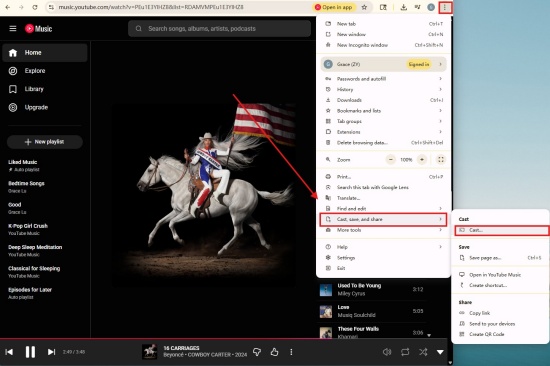
03Click the three-dot menu in the top right corner of Google Chrome.
04Hover your cursor over Cast, save, and share. Choose Cast...
05Select your Chromecast device from the pop-up network list.
Method 2: Using the YouTube Music Web App
01Launch the YouTube Music Web Player in your web browser.
02Click the Install icon (monitor with a drop arrow) near the URL address bar.
03Open the added YouTube Music desktop app shortcut.
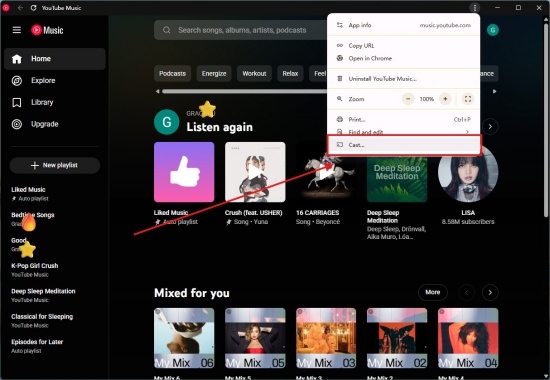
04Click the vertical three-dot icon in the top right corner.
05Select Cast and connect your playback device.
Part 4. How to Fix YouTube Music Not Working on Chromecast
You may find that your YouTube Music is not working on Chromecast. It may be because your mobile device and Chromecast are not connecting to the same Wi-Fi network. Or because your app and firmware are running old versions. Reasons vary, and here are some troubleshooting tips.
Restart Every Device: Unplug the Chromecast from power, wait 6 seconds, then plug it back in. Restart your phone and router.
Check Wi-Fi: Make sure your mobile device and Chromecast share the same Wi-Fi network.
Update Apps/Firmware: Check whether your YouTube Music app and Chromecast firmware are running the latest version. Open your app store to confirm the YouTube Music app, and go to the Google Home app to check for Chromecast firmware updates.
Clear Cache & Data: Go to Settings on your TV. Choose Apps > See all apps. Among the apps, choose the YouTube Music app. Choose Clear cache, then Clear data.
Bonus: How to Play YouTube Music Anywhere and Anytime
Chromecast YouTube Music lets us stream our favorite tracks, albums, and playlists from the cloud. And one can enjoy music videos on the big screen by casting to a TV. But most of us need a Premium subscription to unlock the bonus. Is there a way to better control your music library and bypass YouTube Music's requirement for a Premium subscription for certain casting features? Yes, ViWizard YouTube Music Converter can support you. It is a handy tool that converts YouTube Music into MP3 files. After converting, you can use the VLC Media player on a desktop or the VLC mobile app to Chromecast the music files.
What else can ViWizard YouTube Music Converter do for you? It keeps the metadata, so you don't need to worry about the original ID3 tags. Besides, there are many output formats to choose from, like AIFF, FLAC, M4A, WAV, M4B, MP3, and so on. And you can convert songs, albums, playlists, and Liked music on YouTube Music. If you like, you can also personalize the bit rate, sample rate, and bit depth (up to 24-bit, 320 kbps, 192 kHz). Within a few clicks, you will gain batch downloads with lossless high quality. Want to try for free?

Need YouTube Music for offline listening? ViWizard YouTube Music Converter helps YouTube Music users save songs, playlists, albums, and artists with convenient music conversion. Start converting and enjoy your music beyond the app.
How to Use ViWizard YouTube Music Converter
 Step 1: Customize Output Format and Audio Quality
After installation of the application, sign in and click the top-right menu icon. Click Preference, and then Conversion. Under Conversion, select the output format, including MP3, WAV, AIFF, or FLAC. Set audio quality parameters, up to 24-bit, 320 kbps, 192kHz. Choose Save to retain the settings.
 Step 2: Start YouTube Music in ViWizard
Click X on the Settings screen to go back to the main screen. Select YouTube Music to convert, and then the built-in YouTube Music web player appears. Log in to your YouTube Music account.
 Step 3: Ensure Songs, Playlists, and Albums on YouTube Music
Browse your library, albums, playlists, and your liked music in the built-in YouTube Music website. Click the playlist or the song, and select the + (plus icon). ViWizard scans and loads all the tracks to the conversion page.
 Step 4: Convert YouTube Music Downloads for Chromecast
Ensure all the songs you want are in the conversion page, and then click Convert. ViWizard starts downloading YouTube Music at 30x speed while preserving the original audio quality. After conversion, open the converted page to find the downloads. You can also locate the file by clicking the file icon next to the song title. Cast the songs using VLC Media Player on the desktop or using the VLC mobile app.
How to Chromecast MP3 Files of YouTube Music
You can Chromecast MP3 files of YouTube Music from VLC Media player on Windows or Mac, or from VLC app on your Android or iOS.
From VLC Media Player (Windows & Mac)
01Ensure your VLC Media Player is the latest version.
02Open VLC and navigate to the top menu bar.
03Select Playback > Renderer.
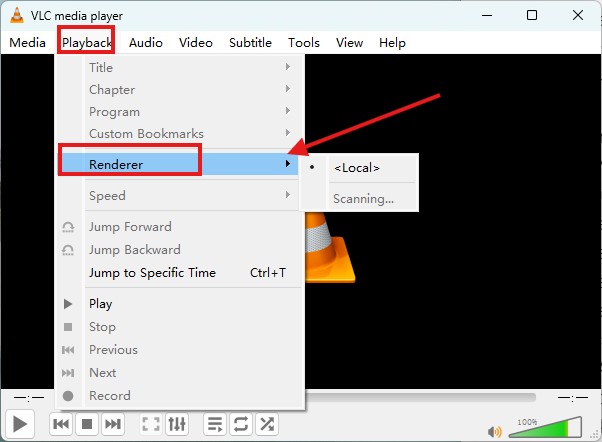
04Select your Chromecast-enabled TV or speaker from the list.
05Open your downloaded music file, and it starts playing through the TV or speaker.
06Click View certificate and choose Accept Permanently if you see an "Insecure site".
From VLC App (Android & iOS)
01Copy the MP3 files from your desktop to your Android/iOS device.
02Make sure your mobile and Chromecast are connected to the same Wi-Fi network.
03Launch the VLC app, and tap the Cast icon in the top right corner.
04Select Chromecast-enabled TV or speaker.
05Play the MP3 files, and your Chromecast begins.
Conclusion
Chromecast indeed makes YouTube Music more versatile, allowing you to control playback from mobile or desktop while enjoying music on TVs, speakers, or other devices. And best of all, casting is simple and accessible to all users, with additional features available for Premium subscribers.
If you hope to unlock more features, ViWizard YouTube Music Converter helps download and cast music in high quality via VLC. Want seamless, high-quality music streaming anytime, anywhere? You can try it now!
You May Be Interested
4 Ways to Play YouTube Music on Google Home

How to Add Music to Google Drive from YouTube [4 Ways]

5 Available Ways to Download Music from YouTube to Chromebook

How to Play YouTube Music on Roku [5 Available Ways]

How to Use Spotify with Chromecast (Step-by-Step)
5 Ways to Stream YouTube Music on WiiM

From new releases to old favorites, Matt Smith is always on the lookout for good music. He follows the latest in digital entertainment and shares songs and media he thinks are worth checking out.

Leave a Comment (0)