


WiiM is a brand of affordable, high-performance audio streamers and amplifiers that modernize traditional stereo systems, allowing users to stream music via Wi-Fi and Bluetooth. YouTube Music offers over 100 million songs, ranging from live performances to remixes. Then, how can you access YouTube Music's library on WiiM devices?
You can play YouTube Music on your WiiM device either directly through native app integration or by casting from your phone. Using native app integration requires a YouTube Music Premium subscription, and it is supported on all major models (WiiM Pro, Pro, Plus, Ultra, Amp, Amp Pro, Amp Ultra) except the WiiM Mini due to hardware limitations.
What about the other 4 methods? Three of them help you cast YouTube Music from your phone to WiiM devices, and another one helps convert music to local files and play them on your WiiM device. Let's dive in.
Way 1: Play YouTube Music on WiiM Using WiiM Home App
YouTube Music Service is now integrated into the WiiM Home app. You can access your favorite YouTube Music tracks on the WiiM device seamlessly. This method allows you to use WiiM features like EQ customization, presets, and multi-room grouping directly within the WiiM Home App.
Using WiiM Home App:
01Tap the WiiM Home app on your mobile device.
02Tap Browse at the bottom of the screen.
03Locate and select YouTube Music under the Music Service section.
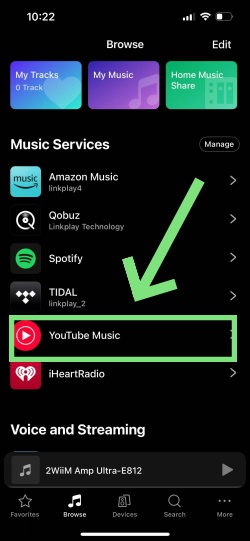
04Sign in with your YouTube Music Premium account.
05Make sure you tick the box for "View and manage your YouTube Music data" when prompted, in case your personal information does not sync.
06Tap the Music section to enjoy recommended songs or playlists.
07Select the Podcasts section to browse trending shows or the latest episodes.
08Tap Library to access your saved songs, albums, playlists, and so on.
Way 2: Play YouTube Music on WiiM Using Google Cast
If you prefer the official YouTube Music application interface, you can cast directly to any compatible WiiM streamers except WiiM Mini.
Using Google Cast:
01Make sure your mobile device and your WiiM device are using the same Wi-Fi network.
02Open the WiiM Home app.
03 Tap the Browse tab at the bottom.
04 Locate the Voice and Streaming section. Under it, enable Google Cast.
05Open the YouTube Music app and start playing a track, playlist, or album you like.
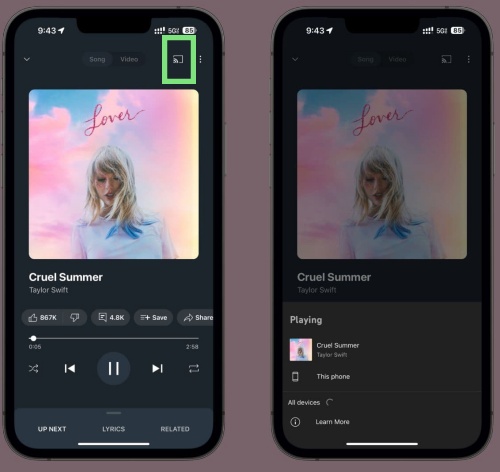
06Tap the Cast icon (a square Wi-Fi) in the top right corner of the Now Playing screen.
07Choose your WiiM device from the available device list to route the audio stream.
Way 3: Play YouTube Music on WiiM Using Apple AirPlay (iOS Only)
If you want to use Apple AirPlay to cast YouTube Music to your WiiM device, make sure you have an AirPlay-compatible WiiM device like the Pro and Pro Plus. You can refer to the two lists below, and then start casting.
WiiM Devices Supporting AirPlay 2: WiiM Mini, WiiM Pro, WiiM Pro Plus, WiiM Amp, A10 MKII WiiM Edition, and C10 MKII WiiM Edition.
WiiM Devices Not Supporting AirPlay 2: WiiM Ultra, WiiM Amp Pro, WiiM Amp Ultra, WiiM Sound, and WiiM Sound Lite.
Using Apple AirPlay (iOS Only):
01Make sure that your iOS and your WiiM device are connected to the same Wi-Fi network.
02Open the YouTube Music app on your iOS device.
03Start playing a song, album, or playlist.
04Tap the Cast/AirPlay icon on the Now Playing screen.
05Select AirPlay & Bluetooth devices.
06Select your WiiM device from the given list.
Way 4: Play YouTube Music on WiiM Using Bluetooth
If you are a free-tier user, you can use Bluetooth to stream YouTube Music on your WiiM device. This can be a universal workaround.
Using Bluetooth:
01 Open the WiiM Home app, head to Browse at the bottom of the screen.
02Under the Source Input section, tap Bluetooth.
03Open your mobile settings and turn on Bluetooth.
04Pair your phone with the WiiM device.
05Activate the YouTube Music app on your mobile and play your favorite track or playlist.
Way 5 Play YouTube Music on WiiM Using Local Files
If you'd rather not rely on casting or an integrated app, you can convert YouTube Music songs to standard formats like MP3 for offline listening. Once converted, you can transfer MP3 files to a phone or a USB drive for playback on WiiM. The problem is how to convert YouTube Music. Take it easy, as ViWizard YouTube Music Converter comes as a handy tool for you!
ViWizard YouTube Music Converter is a software that supports Mac and Windows. It can help you convert YouTube Music into your favorite output formats, like AIFF, FLAC, M4A, WAV, M4B, MP3, and so on. Best of all, it keeps the original ID3 tags of the downloads, so you can easily manage your music library. And you can convert tracks, albums, and playlists on more than 10 music streaming services, including YouTube Music. Within a few clicks, it processes batch downloads in high audio quality. You can stream YouTube Music on your WiiM device whenever and wherever you like.

Need YouTube Music for offline listening? ViWizard YouTube Music Converter helps YouTube Music users save songs, playlists, albums, and artists with convenient music conversion. Start converting and enjoy your music beyond the app.
How to Use ViWizard YouTube Music Converter
 Step 1: Customize Output Format and Audio Quality
After installation of the application, log in to the app. Click the menu icon in the top right corner. Click Preference, and then Conversion. Set your favorite output format, such as MP3, WAV, AIFF, or FLAC. Select audio quality parameters, up to 24-bit, 320 kbps, 192kHz. Click Save to keep the settings.
 Step 2: Sign in to YouTube Music within ViWizard
Go back to the main screen. Click YouTube Music as the converted app, and the built-in YouTube Music web player appears. Log in to it with your YouTube Music account.
 Step 3: Browse Tracks, Playlists, and Albums on YouTube Music
Look through your favorite tracks, albums, and playlists in the built-in YouTube Music website. Choose the playlist or the song, and select the + (Add to List). ViWizard scans and loads all the tracks to the conversion page.
 Step 4: Convert YouTube Music to MP3
Ensure all the songs you want are in the conversion page. Select Convert. ViWizard begins converting YouTube Music at 30x speed while preserving the original audio quality. After conversion, click the converted page to find the downloads. You can click the file icon next to the song title to locate it on PC. Prepare your USB or phone for playing music on the WiiM devices.
How to Play MP3 Files on Your WiiM Device
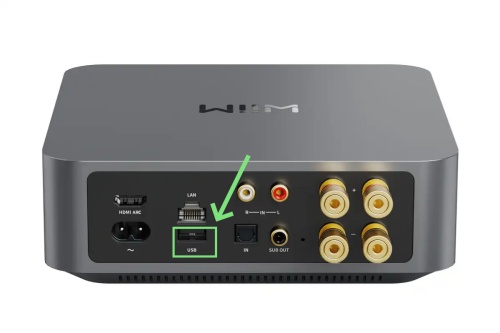
There are two methods of playing YouTube Music MP3 on WiiM devices: from your phone using Local Library of the WiiM Home App, or from USB Drive (WiiM Ultra and Amp support). You can save your MP3 files to a USB drive and plug it into your WiiM device. Then open the WiiM Home app and go to Browse > USB > MP3 files. The following steps are about playing MP3 files from your phone using Local Library of the WiiM Home App.
01Use a USB cable to connect your phone to the PC.
02Unlock your phone, tap the "Charging this device via USB" notification, and choose File Transfer.
03On your computer, open File Explorer, find your phone, and drag-and-drop the MP3 files into your phone's "Music" folder.
04Open the WiiM Home App on your phone.
05Select Browse at the bottom.
06Choose My Music and then tap Local or Phone.
07Play your MP3 files.
Conclusion
All in all, streaming YouTube Music on the WiiM device is now easier than ever, thanks to multiple options. Whether you prefer using WiiM Home app, Google Cast, Apple AirPlay, Bluetooth, or playing local files, there's a solution for every user and device type, including WiiM Amp, WiiM Pro, and WiiM Mini (with some limitations). If you want offline access, ViWizard YouTube Music Converter provides a reliable way to convert and play tracks seamlessly. Come and try it for free.
You May Be Interested

5 Available Ways to Download Music from YouTube to Chromebook
How to Install & Use YouTube Music on Garmin Watch
Chromecast YouTube Music From Mobile/Deskto

Can Alexa Play YouTube Music? Yes, But Only If You Do This

How to Play YouTube Music on Sonos
Connect YouTube Music to Last.fm (Windows/Mac/Linux/Android/iOS)

From new releases to old favorites, Matt Smith is always on the lookout for good music. He follows the latest in digital entertainment and shares songs and media he thinks are worth checking out.

Leave a Comment (0)