


YouTube Music is one of the most popular music streaming platforms, while Last.fm is always the go-to service for tracking listening habits. You simply connect YouTube Music to Last.fm, and it automatically records each track you play, building a complete listening history. Best of all, it covers details such as your top artists, albums, and tracks over time. Then how can you connect YouTube Music to Last.fm? Unfortunately, YouTube Music does not provide native Last.fm integration, but there are some ways to bridge the gap on Android, iPhone, Windows, Mac, and Linux.
In this guide, we will show you how to connect YouTube Music to Last.fm across different devices and explore an alternative method for scrobbling downloaded YouTube Music tracks offline.
Part 1. Can Last.fm Track YouTube Music?
Yes, Last.fm works with YouTube Music. Last.fm tracks music from virtually any app you use, including Spotify, Apple Music, and YouTube, offering you a unified view. You can check your top artists and tracks over days, weeks, months, or years.
But there is no built-in connection in YouTube Music with Last.fm; you need to use third-party tools or browser extensions to track your music. And you can connect YouTube Music to Last.fm on both mobile and desktop.
Part 2. How to Connect YouTube Music with Last.fm on Android
To connect YouTube Music with Last.fm, you can use the official Last.fm app or a third-party app like Pano Scrobbler to bridge the two. You can choose one of them and start connecting on your Android.
Use Pano Scrobbler to Scrobble YouTube Music on Android
This method is more recommended as it offers more control over how songs are recognized. You can edit or delete unwanted scrobbles.
01Install Pano Scrobbler from the Play Store.
02Open the app on your phone and sign in with your Last.fm account.
03When the app prompts you for Notification Access, turn it on.
04Tap Pano's settings, and go to Scrobbled Apps.
05Make sure YouTube Music is toggled ON.
06Pano Scrobbler begins to scrobble your YouTube Music.
Use the Official Last.fm App to Scrobble YouTube Music on Android
Before you take this method, make sure you have installed the Last.fm app and have an active account.
01Open the Last.fm app on your phone and log in.
02Tap Settings > Scrobbling.
03When the app prompts you to toggle on Notification Scrobbling, turn it on.
04Grant the app Notification Access when prompted by your Android system.
05Play a song on YouTube Music, and Last.fm begins tracking in the background.
Part 3. How to Connect YouTube Music with Last.fm on iOS
The official Last.fm iOS app does not support automatic background tracking for the native YouTube Music app. However, there are still three workable ways you can try: using the Web Scrobbler extension for Safari, using a third-party iOS scrobbling app like Finale for Last.fm, or using the Open Scrobbler to manually log your listening history.
Use the Extension to Scrobble YouTube Music on iOS
Using the browser is the most reliable workaround for YouTube Music scrobbling.
01Download a modern browser that supports extensions, like Safari or Firefox, on your iPhone.
02Install the Web Scrobbler extension from the Apple App Store or via the browser's extension store.
03Tap the Web Scrobbler extension in your Safari or Firefox.
04Log in to your Last.fm account, and grant permission.
05Go to the YouTube Music website in the browser and play a song.
06The Web Scrobbler extension automatically tracks and scrobbles each song you play if the tab keeps active.
Use Finale to Scrobble YouTube Music on iOS
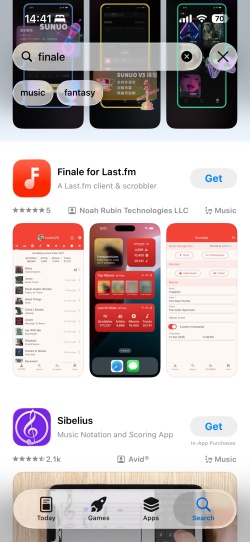
There is no direct integration between YouTube Music and third-party scribblers on iOS, and Finale cannot automatically scrobble songs playing from the YouTube Music app.
But you can use Finale's Audio Recognition (Shazam-like) feature to manually scrobble your now-playing songs from YouTube Music. Premium users can operate between two apps, while free users can scrobble between the browser and Finale app.
For YouTube Music Premium:
01Download Finale for Last.fm from the Apple App Store.
02Open Finale and log in to it with your Last.fm account.
03Open YouTube Music and play a track.
04Go back to the home screen and tap Finale.
05Select the Microphone icon (music recognition).
06Wait a while to let the app listen to your phone's speaker.
07Finale recognizes the track, and you can scrobble it to Last.fm.
For YouTube Music Free:
01Install Finale for Last.fm from the Apple App Store.
02Open Finale and sign in with your Last.fm account.
03Open Safari and visit the YouTube Music website.
04Select aA icon on the Safari toolbar and tap Request Desktop Website.
05Play a song in Safari.
06Open Finale and tap the Microphone icon to scan the music playing through your speakers.
Use Open Scrobbler to Scrobble YouTube Music on iOS
You can use Open Scrobbler to log your listening sessions one by one. Here are the steps, follow me.
01Go to the YouTube Music app.
02Navigate to your History to see what you just listened to.
03Tap Open Scrobbler and log in with your Last.fm account.
04Utilize the paste/text input field in the Scrobbler tool.
05Paste the recently played track list, and it will identify the artists and song names.
06Set the timestamp to the moment you log and select Submit.
Part 4. How to Connect YouTube Music with Last.fm on Windows/Mac/Linux
If you want to automatically scrobble your tracks across Windows, Mac, and Linux, you can connect YouTube Music to Last.fm by using a Web Scrobbler extension or a compatible desktop application, YouTube Music Desktop App (YTMD). YTMD is a standalone desktop app and natively integrates with Last.fm to scrobble without a browser extension.
Use the Web Scrobbler Extension to Scrobble on Windows/Mac/Linux
01Visit the Web Scrobbler extension on the web store and select Add to [Browser].
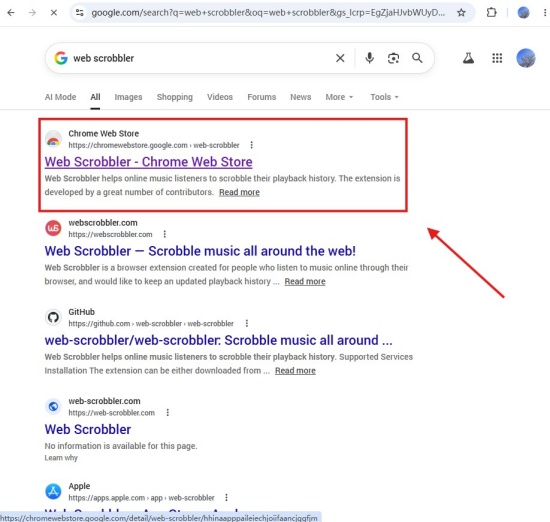
02Click the extension icon on the top toolbar and choose the Web Scrobbler to enter the settings.
03Select Accounts, and sign in to Last.fm among the scrobbling websites.
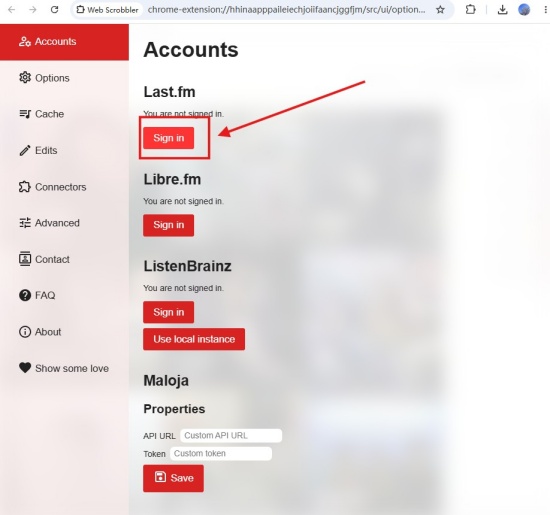
04When the extension redirects you to the Last.fm website, log in, and click Yes, allow access.
05Go to YouTube Music on your browser and play a song.
06Last.fm automatically logs your history.
Use the YouTube Music Desktop App to Scrobble on Windows/Mac/Linux
01Navigate to the YouTube Music Desktop App GitHub Releases.
02Download the appropriate installer for your OS, .exe for Windows, .dmg for Mac, or .AppImage/deb for Linux.
03Run the installer and activate the YouTube Music Desktop App on your device.
04Select Settings in the top-right corner. Scroll down to click Integration.
05Find Last.fm Scrobbler and toggle it on.
06Grant the prompts to log in and authorize the app.
Part 5. Best Alternative Method to Connect YouTube Music with Last.fm
Though YouTube Music does not offer a built-in Last.fm integration, you can still scrobble your listening activity through various third-party tools. While these solutions work, they may require additional setup, browser activity, or platform-specific workarounds. For a more flexible approach, ViWizard YouTube Music Converteris there for you.
ViWizard YouTube Music Converter is a versatile audio conversion tool available for both Windows and macOS. It allows you to download and convert YouTube Music content while preserving essential metadata, including ID3 tags such as song title, artist, album, and artwork. The software supports a variety of output formats, including MP3, FLAC, WAV, AIFF, M4A, and M4B. You can play the files in compatible media players that support Last.fm, without depending on browser extensions or internet access. Best of all, in addition to YouTube Music, ViWizard works with more than 10 popular streaming platforms, enabling you to convert individual tracks, complete albums, and playlists.

Need YouTube Music for offline listening? ViWizard YouTube Music Converter helps YouTube Music users save songs, playlists, albums, and artists with convenient music conversion. Start converting and enjoy your music beyond the app.
How to Use ViWizard YouTube Music Converter
 Step 1: Configure the Output Settings
Install and launch ViWizard on your computer. Click the menu icon in the upper-right corner and select Preferences > Conversion. Choose your preferred output format, such as MP3, FLAC, WAV, or AIFF. You can also adjust audio settings, including bitrate, sample rate, and bit depth, to suit your listening preferences. Once finished, click Save to apply the changes.
 Step 2: Open YouTube Music in ViWizard
Return to the main interface and select YouTube Music. ViWizard will open its built-in YouTube Music web player. Sign in with your YouTube Music account to access your library, playlists, albums, and saved tracks.
 Step 3: Add Music for Conversion
Browse through the built-in YouTube Music player and find the songs, albums, or playlists you want to download. Open the desired content and click the + button. ViWizard will automatically analyze the selection and load all available tracks into the conversion queue.
 Step 4: Convert and Transfer Your Music
Review the tracks in the conversion list and click Convert to begin the process. ViWizard converts the selected music at high speed while preserving the original audio quality. Once the conversion is complete, open the Converted section to access your downloaded files. You can also click the file icon next to a track to locate it directly on your computer. Afterward, transfer the converted audio files to your phone or scrobble these offline plays through compatible local music players and scrobbling apps.
How to Scrobble Downloaded Files to Last.fm
You can scrobble the music you downloaded from VIWIzard to Last.fm. Here we recommend two options: using MusicBee for Windows or using Spotify Local Files.
Option 1: Music Bee (Windows)
01Open a browser and search for MusicBee for download.
02Go to Edit > Edit Preferences > Plugins.
03Locate the Last.fm plugin, and sign in.
04Drag and drop downloaded files into the MusicBee library and press play.
Option 2: Spotify Local Files
01Open the Spotify desktop app, click your profile picture, and choose Settings.
02Scroll down and turn on Show Local Files.
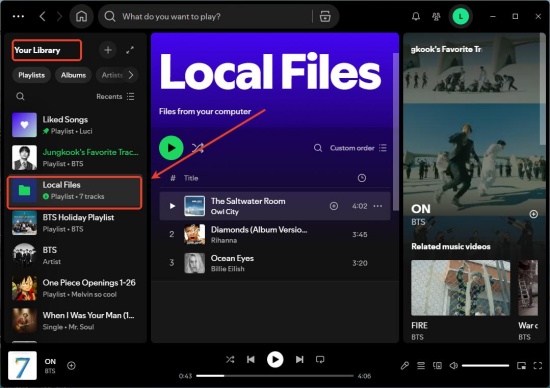
03Click Add a Source. Choose the folder where you saved the YouTube music.
04Go to Your Library > Local Files to check the tracks.
05Go to Last.fm and log in. Click Settings > Applications, click Connect near Spotify Scrobbling.
06After authorizing your Spotify account, you can play tracks on Spotify and scrobble to Last.fm.
Conclusion
You can easily connect YouTube Music to Last.fm on any device you like, though the setup process varies. Android users can use Pano Scrobbler or the official Last.fm app, while iPhone users may need browser extensions, audio-recognition tools, or manual scrobbling solutions. On desktop systems, Web Scrobbler and the YouTube Music Desktop App provide convenient ways to automatically track listening activity.
If you prefer offline playback or want more control over your music library, ViWizard YouTube Music Converter is a good choice. All you need to do is download YouTube Music tracks and play them through Last.fm-compatible music players, like MusicBee and Spotify Local Files Feature. Just choose your favorite method and let your Last.fm accurately track your music journey!
You May Be Interested

Scrobble Apple Music to Last.fm on Windows, Mac, Android, and iOS

How to Connect Tidal to Last.fm on Desktop and Mobile

Scrobble Spotify to Last.fm and Track Your Music Stats

How to Download Music from YouTube to iPod

How to Download Music from YouTube to Rekordbox
How to Listen on Repeat on YouTube Music
How to Connect Last.fm to SoundCloud (Step-by-Step Guide)

From new releases to old favorites, Matt Smith is always on the lookout for good music. He follows the latest in digital entertainment and shares songs and media he thinks are worth checking out.

Leave a Comment (0)