


Have a favorite song you can't stop listening to? Whether you're replaying a catchy tune, looping a study playlist, or keeping an album on repeat during a workout, YouTube Music offers a built-in repeat feature that makes continuous playback easy. In this guide, you'll learn how to loop songs, playlists, and albums on YouTube Music across Android, iPhone, Mac, and PC. We'll also cover common fixes when the repeat function isn't working properly and show you a workaround to enjoy unlimited offline loop playback on any device.
Part 1. Does YouTube Music Have an On-Repeat Feature?
Yes, YouTube Music has a manual loop feature. The loop button is clearly visible right next to the Play/Pause controls. Tapping it once will repeat the playlist or album, and tapping it a second time will put a little "1" inside the button to repeat your current track. Then, can it be more detailed? Keep reading.
Part 2. How to Loop Songs on YouTube Music (Android & iOS)
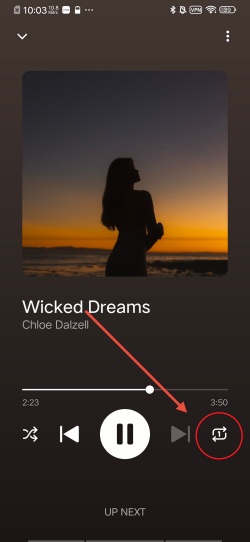
To loop a song, playlist, or album on the YouTube Music app for Android and iOS, you can play the song to expand the player. And then locate the Repeat button to operate according to your demand.
Repeat a Single Song on YouTube Music
01Open YouTube Music on your phone.
02Select a song you want to listen to, and you enter the Now Playing screen.
03Locate the Repeat button (Repeat Arrow) on the right of the Play/Pause button.
04Tap the Repeat arrow twice to see a "1" inside the icon, indicating the single track is now on loop.
05Loop the song as you like.
Repeat a Playlist or Album on YouTube Music
01Tap YouTube Music on your device.
02Choose a playlist or album you like.
03Tap Play under the Album Art so you open a full-screen player.
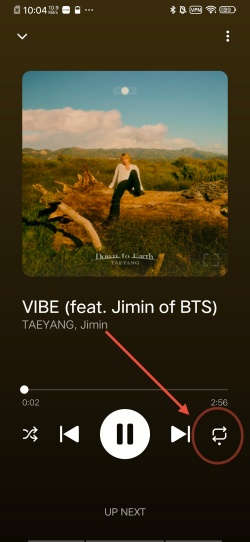
04Find the Repeat button (Repeat Arrow) at the bottom to the right of the Play/Pause button.
05Tap the Repeat button once. It will turn to white looping arrows with a dot under it. And you are looping the whole album or playlist.
Part 3. How to Loop Songs on YouTube Music (Mac & PC)
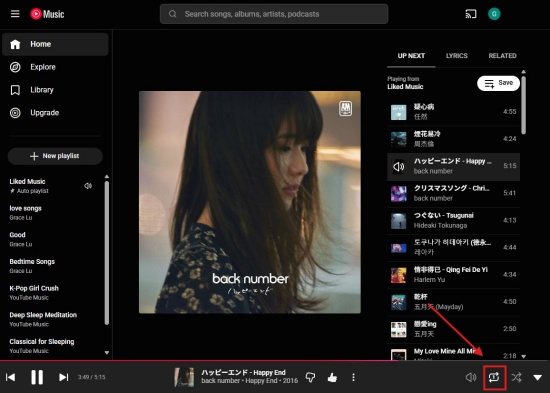
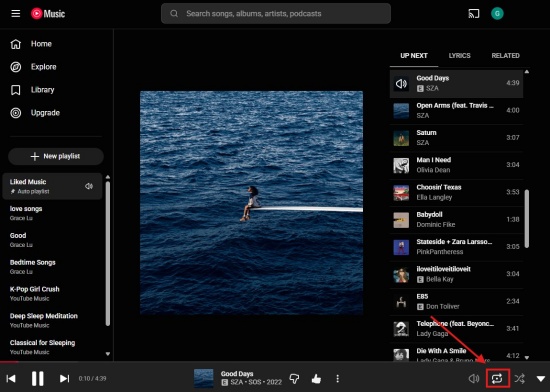
If you want to loop a song on YouTube Music for Mac or PC, you can play the track and click the Repeat button (two looping arrows) on the bottom right of the player bar. Click it once to repeat the whole album/playlist and twice until the number "1" appears to loop just the now-playing track.
Repeat a Single Song on YouTube Music
01Open a browser and navigate to the YouTube Music website.
02Sign in with your account.
03Play a track, and it turns into the Now Playing screen.
04Locate the Repeat button (a circular icon) at the bottom bar next to the volume controls icon.
05Click the button twice so that a tiny "1" appears in the center of the Repeat button.
06Now you have set this track on repeat. Enjoy it!
Repeat a Playlist or Album on YouTube Music
01Open YouTube Music on any browser you like and sign in.
02Select a playlist, and click the Play button under the playlist Art.
03Find the Repeat button (looping arrows) at the bottom right bar.
04Click the Repeat button once to see a small white dot in the button, which means you loop the entire playlist or album.
Part 4. How to Fix YouTube Music Looping Issues
When you loop YouTube Music tracks, you may encounter issues caused by a temporary software bug, poor internet, and so on. Don't worry, as we offer you the following tips. Just try them:
Disable Casting: If you are connected to a Google Cast or Home speaker, the repeat button may glitch and stop functioning entirely. You can disconnect from the Cast device, play the music locally on your phone, and try looping again.
Reinstall the App: Remove the YouTube Music app and restart your phone. Open you phone again and reinstall the app.
Verify the Repeat Toggle: Go to the player to see if the Repeat button is toggled on. If not, toggle it again.
Clear App Cache: If you do not want to reinstall, clear out the temporary data cluttering the app. iOS users need to redownload the app, as it does not have a standalone "clear cache" button. Android users go to Settings > Apps > YouTube Music > Storage > Clear Cache.
Check Your Connection: A poor internet connection results in app buffering and loop command skipping. Make sure you have a strong Wi-Fi or cellular signal, or try downloading the song locally to your device.
Part 5. How to Convert YouTube Music for Offline Listening
YouTube Music's built-in repeat feature makes it easy to loop a single song, playlist, or album on both mobile devices and computers. Click or tap the Repeat button, and you can enjoy your favorite songs. What if the YouTube Music loop is not working? Relax, try the troubleshooting tips one by one. If you want even more freedom with your YouTube Music library, ViWizard YouTube Music Converter is a powerful solution.
ViWizard YouTube Music converter is available for both Windows and Mac. You can download songs, playlists, albums, liked music, and artists' tracks from YouTube Music and save them in popular formats such as MP3, FLAC, WAV, AIFF, M4A, and more. To have a better listening experience, you can even customize the output quality with settings up to 24-bit, 320 kbps, and 192 kHz. Plus, ViWizard preserves original ID3 tags and metadata, making it easy to organize your music collection. Once downloaded, you can loop your favorite tracks anytime on any compatible player or device without relying on an internet connection.

Need YouTube Music for offline listening? ViWizard YouTube Music Converter helps YouTube Music users save songs, playlists, albums, and artists with convenient music conversion. Start converting and enjoy your music beyond the app.
How to Download and Loop YouTube Music Songs with ViWizard
 Step 1: Customize the Output Format and Audio Quality
Launch ViWizard YouTube Music Converter on your Windows or Mac computer. Click the Menu icon in the upper-right corner and select Preferences. Under the Conversion tab, choose an output format such as MP3, FLAC, WAV, AIFF, M4A, or M4B. You can also adjust the audio settings, including bitrate, sample rate, and bit depth, with support for up to 24-bit, 320 kbps, and 192 kHz. Click Save to confirm your settings.
 Step 2: Sign In to YouTube Music
Return to the main interface and select YouTube Music. The built-in YouTube Music web player will open automatically. Log in to your YouTube Music account to access your playlists, albums, liked songs, and favorite artists.
 Step 3: Add Songs, Albums, or Playlists to Download
Browse your YouTube Music library and select the songs, albums, playlists, or liked music you want to save. Click Add to List, and ViWizard will automatically load all selected tracks into the conversion queue.
 Step 4: Convert and Save Music for Unlimited Loop Playback
Click Convert to start downloading and converting your selected YouTube Music content. Once the conversion is complete, the tracks will be saved locally on your computer with the original audio quality and ID3 tags preserved. You can then open the downloaded files in any media player and use its built-in repeat or loop feature to play your favorite songs continuously. Unlike streaming playback, local music lets you enjoy uninterrupted looping without buffering, internet connection issues, or app-related repeat-function glitches.
Conclusion
YouTube Music makes it simple to listen to your favorite songs, playlists, and albums on repeat with its built-in looping controls on both mobile and desktop. If you run into issues with the repeat feature, the troubleshooting tips above can help you.
If you want to have full control over your YouTube Music library, ViWizard YouTube Music Converter is a good choice. It helps download YouTube Music content to multiple formats while preserving original ID3 tags and high audio quality. With ViWizard, you can enjoy uninterrupted loop playback anytime, anywhere. Just give a shot!
You May Be Interested




Matt Smith, a digital entertainment industry enthusiast at ViWizard, is dedicated to providing insightful commentary and solutions for music and media-related topics, including industry trends, analysis, and recommendations.

Leave a Comment (0)