


Listening to a favorite song on repeat is a common habit—whether you're enjoying background music, studying, working, or replaying a track you just discovered. If you're wondering how to loop a song on SoundCloud, you're not alone.
In short, yes! SoundCloud allows you to loop both single songs and playlists/albums, but the method depends on the device you are using. So, in this post, we will show you exactly how to do it on desktop and mobile, and how to loop playlists or albums. Also, we provide several efficient ways to fix when you encounter the SoundCloud loop button that is missing. Let's dive in!
Part 1. How to Loop a Single Song on SoundCloud
Looping allows you to enjoy your favorite songs on repeat. If you want to enable single song repeat on SoundCloud, you can follow the steps below to stream a song over and over again on your SoundCloud web player or mobile app.
On Desktop Browser
Step 1 Enter the SoundCloud website with the browser you trust.
Step 2 Once entering, you can search for your favorite song or just select a song from your SoundCloud library.
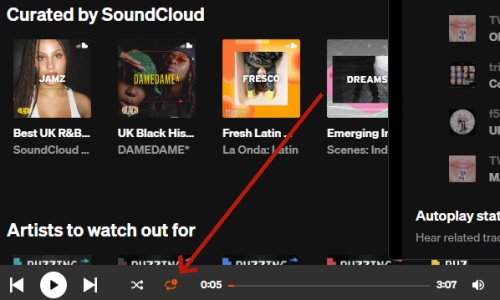
Step 3 Look at the Now Playing bar at the bottom of the SoundCloud screen. The Looping icon is next to the shuffle option.
Step 4 Click it, and you will see there is 1 image appear on the repeat icon, which means you are looping the selected SoundCloud song in your play queue.
Step 5 More conveniently, you can press Shift + L on your keyboard to turn the SoundCloud single song loop on.
On Mobile Application (iOS & Android)
Step 1 Launch the SoundCloud app on your home screen.
Step 2 Select the song you want repeat from the SoundCloud library.
Step 3 And then you can go to the player at the bottom of your screen to click the arrow icon.
Step 4 Clicking on the icon will turn it orange. The song will repeat until you uncheck the icon.
Part 2. How to Loop a SoundCloud Album or Playlist
Now that you know how to loop a single song on desktop and mobile, you might want to loop multiple songs in a playlist or album. Let's see how to repeat a full SoundCloud playlist or album seamlessly.
On Desktop Browser
Step 1 Enter the SoundCloud website with the browser you trust.
Step 2 After entering, you can select the playlist or album you want to repeat on your SoundCloud website.
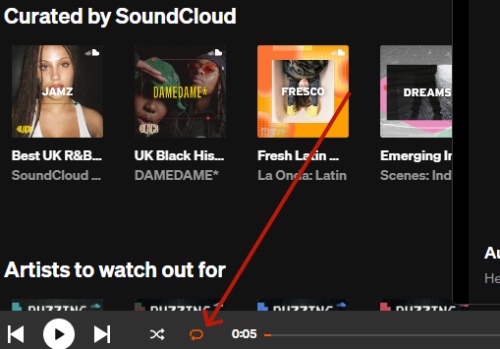
Step 3 The selected SoundCloud album or playlist will add to your play queue and will show on the Now Playing bar at the bottom of the screen.
Step 4 Click the Loop icon twice to see the icon turn orange. Then SoundCloud will loop the playlist until you cancel the loop.
On Mobile Application (iOS & Android)
Step 1 Launch the SoundCloud app on your home screen.
Step 2 And then you can choose the playlist or album you want to listen to repeatedly on SoundCloud.
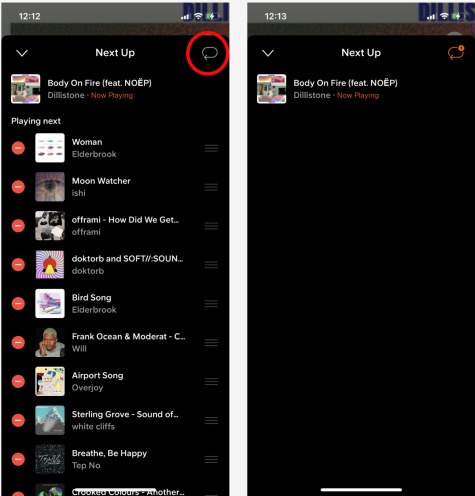
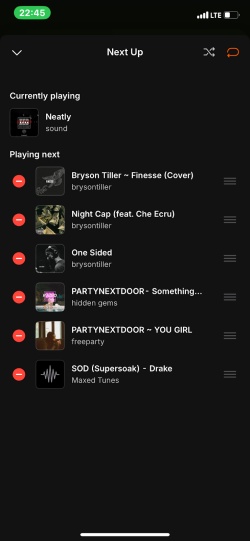
Step 3 Hit the Next Up icon at the bottom, and it will show all the songs in your selected playlist in SoundCloud play queue.
Step 4 Click the Loop icon at the top right corner once.
Step 5 After doing that, you have successfully enabled SoundCloud repeat playlist.
Part 3. Best Way to Loop SoundCloud Offline without a Subscription
SoundCloud also supports looping offline library playback, which follows the same steps as enabling online playback in repeat. However, once your SoundCloud subscription expires, the SoundCloud offline feature will also fail to continue. Meanwhile, you can't continue to loop your offline SoundCloud.
If you want to loop your favorite SoundCloud songs or playlists offline but don't have a paid subscription, there's an easy solution. Using the official SoundCloud Music Downloader can help achieve uninterrupted offline playback by using a music downloader like ViWizard SoundCloud Music Downloader. This tool allows you to download SoundCloud tracks or playlists to your device. And convert tracks to MP3, FLAC, WAV, or other formats for better compatibility with your local music player.

Download songs, playlists, albums, and your music libraries from SoundCloud, Spotify, Apple Music, Tidal, Deezer, Qobuz, Amazon Music, Pandroa, and Line Music as MP3, FLAC, WAV, AIFF, M4A, and M4B foramts with original audio quality and full metadata information.
Step 1 Launch ViWizard and Set MP3 Format
Open ViWizard on your computer. Click Menu > Conversion > Output Format, select MP3, and choose your preferred audio quality (64–256 kbps). Click OK to save the settings.

Step 2 Log in to SoundCloud
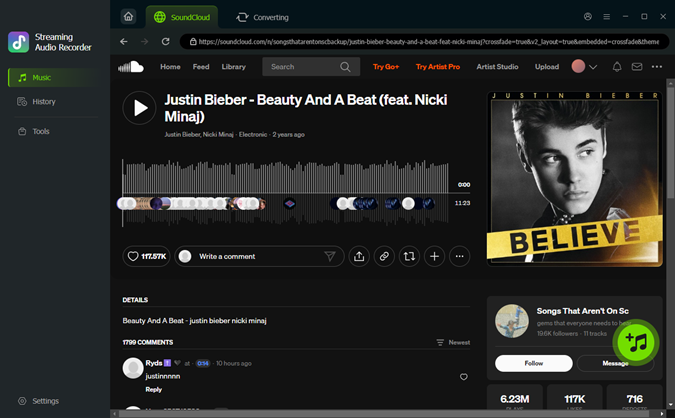
Click the SoundCloud icon in ViWizard. Log in with your SoundCloud account. The built-in web player will load the tracks, playlists, and favorites you want to download.

Step 3 Add Tracks and Start Recording
Browse SoundCloud to find the songs or playlists you want. Click Add to List to queue them in ViWizard. Once your list is ready, click Convert to start recording and converting the music to MP3 automatically.
Step 4 Access and Enjoy Your Downloads
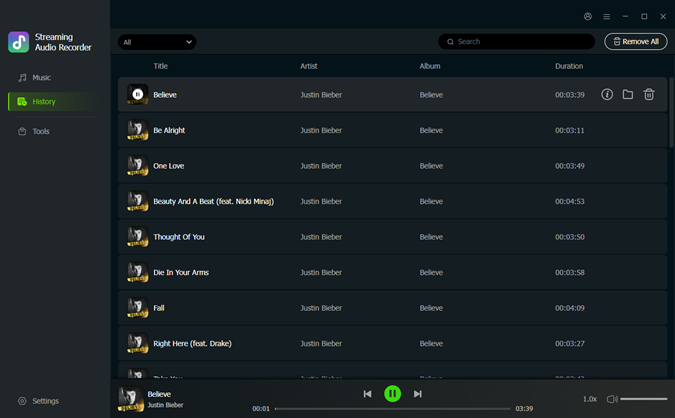
After conversion, open the History tab to view your downloaded tracks. You can now check and listen offline in ViWizard's built-in media player, transfer the files to other devices, or organize your music library.
Step 5 Loop SoundCloud Downloads on Media Player
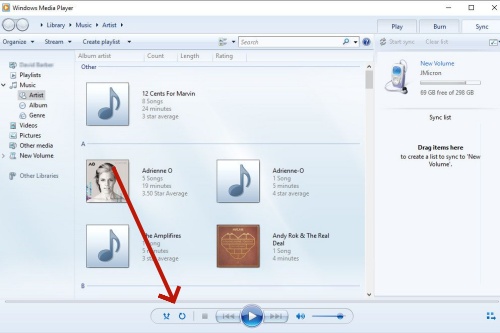
Click the folder icon next to the SoundCloud downloads' title to launch the designated folder. Choose the song you want to repeatedly play, and your computer will automatically open the media player. You can hit the Repeat icon in the now playing tab to loop your SoundCloud offline content.
Part 4. How to Fix the Missing Loop Button on SoundCloud
Sometimes, even after following the steps to loop a SoundCloud song or playlist, users may find that the loop button is missing, not showing, or not working. Don't worry—this is usually a simple issue related to the app interface or temporary glitches. Here's how to fix the missing SoundCloud loop button and restore uninterrupted playback.
-

Solution 1. Refresh the SoundCloud App or Web Page
Sometimes, the loop button may not appear due to temporary glitches in the app or website interface. For Web Users: Refresh the SoundCloud page in your browser to reload the player and restore the loop button. For Mobile App Users: Close the app completely and reopen it to fix temporary interface issues.
-
Solution 2. Check Your Internet Connection
A poor or unstable network connection can prevent the loop button from appearing or functioning correctly. Make sure your device is connected to a stable Wi-Fi or mobile data network. Try switching between Wi-Fi and mobile data to see if the loop button reappears. On desktop, you can also clear your browser cache and reload the SoundCloud web player to ensure a smooth connection.
-
Solution 3. Use the compact player view
The loop button may not appear in the compact player or on smaller screens. Expand the Now Playing screen to full view. On mobile, tap the song bar to open the complete player interface where the loop button is visible.
-
Solution 4. Update SoundCloud and Your Browser
SoundCloud frequently updates its app interface. The loop button may move or look different after an update.Update your SoundCloud app to the latest version in the App Store or Google Play Store. If you encounter a missing icon issue on the browser, you can go to settings on your browser to check whether a new version released.
-
Solution 5. Clean SoundCloud Cache
Cached data or temporary glitches can hide or disable the loop button. You can refresh the web page to remove the temporary glitches if you stream the SoundCloud website. For the SoundCloud app, you can clear the app cache by going to Settings > Storage > Clear Cache and locating the SoundCloud on the available list on Android. For iOS users, you can directly uninstall and reinstall SoundCloud to remove the cache.
-
Solution 6. Re-login to Your SoundCloud Account
Sometimes the loop button may not display correctly due to session errors. Log out of your SoundCloud account on the app or web player. Close the app or browser completely. Log back in and open your song or playlist—the loop button should now appear.
Conclusion
Looping songs on SoundCloud is easy on both desktop and mobile—expand the Now Playing screen on mobile or use the loop button on desktop. For offline looping without a subscription, ViWizard SoundCloud Music Downloader lets you download tracks and playlists to repeat them anytime. With these tips, you can enjoy continuous SoundCloud playback effortlessly.
You May Be Interested

How to Shuffle Songs on SoundCloud on PC

Best Ways to Connect SoundCloud to Discord and Show Now Playing

Top 10 SoundCloud MP3 Downloaders to Get Songs in 320kbps MP3

9 SoundCloud Ad Blockers That Work in 2026

How to Keep SoundCloud Playing After Turning Off Your Phone

How to See Your Most Played Songs on SoundCloud
How to Listen on Repeat on YouTube Music


Dave Henry, a multimedia technologist at ViWizard, focuses on delivering the best solutions for digital media challenges, including audio and video conversion, media optimization, and troubleshooting.

Leave a Comment (0)