


SoundCloud is a great place to discover new music, remixes, and independent artists, but keeping track of your listening history across different platforms can be challenging. If you use Last.fm to record your music activity, you may want to connect it with SoundCloud so your favorite tracks, artists, and listening habits can be saved in one place.
Last.fm offers a SoundCloud Beta Integration to help link your accounts and track your plays. However, since the feature is still in beta, scrobbling may not work perfectly in every situation. In this guide, we will show you how to connect Last.fm to SoundCloud using the beta integration, browser extensions, and third-party apps. We will also cover how to fix common scrobbling problems, check your SoundCloud scrobbles, and save SoundCloud playlists for offline listening.
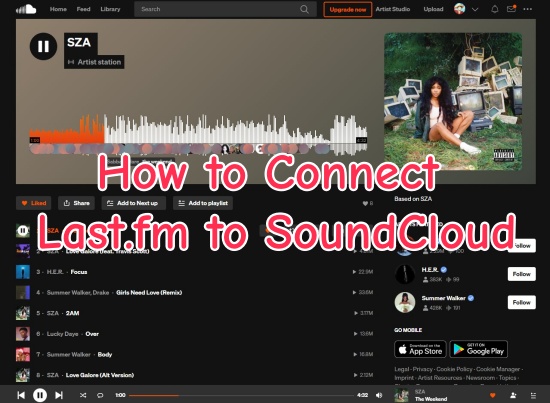
Part 1. Does Last.fm Support SoundCloud?
Yes, Last.fm offers a SoundCloud Beta Integration that lets you connect your accounts and automatically track your SoundCloud listening activity. However, because the feature is still in beta, you may need to use a third-party scrobbling tool or browser extension. These tools can detect the tracks you play on SoundCloud and automatically send your listening data to your Last.fm profile, including song titles, artists, and play counts.
Keep in mind that scrobbling only works when the tool is active and properly configured. If you listen through the SoundCloud mobile app or another unsupported device, your plays may not be recorded. For the most reliable experience, many users choose to use a desktop browser extension such as Web Scrobbler to connect SoundCloud listening with Last.fm.
Part 2. How to Connect Last.fm to SoundCloud
To automatically track your SoundCloud listening history on Last.fm, you can use the official Last.fm SoundCloud Beta Integration or install a browser extension like Web Scrobbler. If you mainly listen on mobile, apps such as Pano Scrobbler for Android can help record your plays. Follow the steps below to choose the right option for your needs:
Option 1: Connect SoundCloud from Last.fm
01Open your web browser and go to the official Last.fm SoundCloud Integration page.
02Enter your Last.fm account details and log in.
03Select Connect Accounts to start linking your accounts.
04Enter your SoundCloud login details when prompted.
05Click the button to give Last.fm permission to access your SoundCloud account.
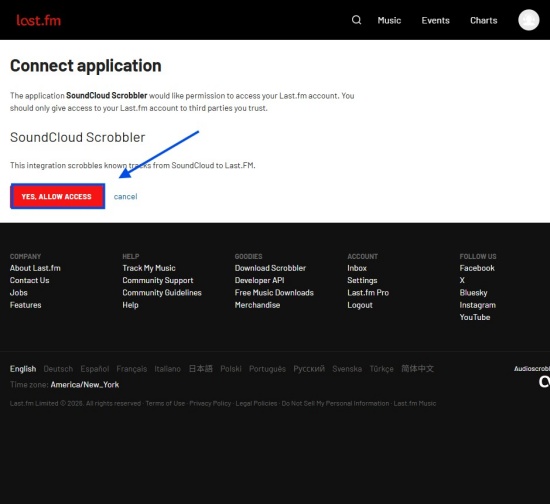
06Open SoundCloud in your browser and start playing a track.
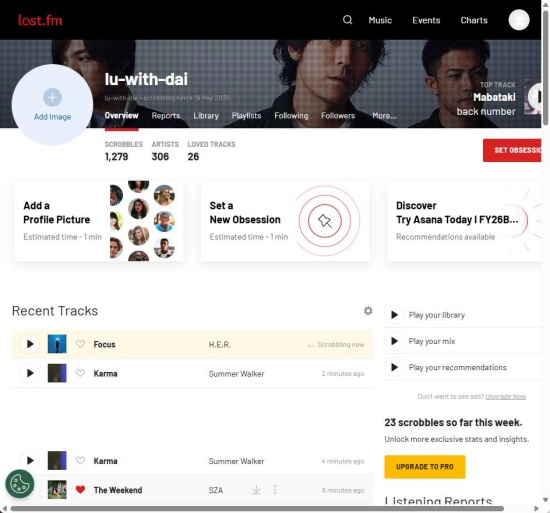
07Open your Last.fm profile to confirm that your SoundCloud plays are being scrobbled.
Option 2: Use the Last.fm Web Scrobbler
01Open the Web Scrobbler website and install the extension for your desktop browser, such as Chrome, Firefox, or Edge.
02Click the setup notification after installation and sign in to your Last.fm account.
03Grant Web Scrobbler permission to connect with your Last.fm account.
04Launch your browser and visit the SoundCloud website.
05Start playing a song on SoundCloud.
06Web Scrobbler will detect the track and send the scrobble to your Last.fm listening history.
Option 3: Use a Third-Party App (Android Only)
Since SoundCloud does not offer built-in Last.fm scrobbling support on mobile devices, you need to use a third-party scrobbling app to track your plays. Apps like Pano Scrobbler read the media notifications generated when you play SoundCloud tracks on your phone and use that information to send your listening data to your Last.fm account.
01Download Pano Scrobbler from the Google Play Store.
02Open the scrobbling app and log in with your Last.fm account details.
03Follow the in-app instructions and allow the scrobbling app to access your phone notifications.
04Open the app settings, go to Enabled Apps, and turn on SoundCloud.
05Open the SoundCloud app and start playing a track.
06The scrobbling app will detect the track information from SoundCloud and send your listening activity to your Last.fm account.
Part 3. How to Fix Last.fm SoundCloud Scrobbling Not Working
If your SoundCloud tracks are not appearing on Last.fm, the issue may come from your scrobbling app, browser settings, or playback behavior. Try the following fixes to get scrobbling working again.
Use a Dedicated Scrobbling Extension on Desktop: SoundCloud does not support Last.fm scrobbling directly on desktop. Install a tool like Web Scrobbler on Chrome, Firefox, or Safari, then connect it to your Last.fm account.
Check Browser Extensions and Ad Blockers: Ad blockers, privacy extensions, or private browsing modes can sometimes stop scrobbling tools from detecting songs. Try disabling them temporarily or allow SoundCloud and Last.fm in your extension settings.
Fix SoundCloud Scrobbling on Android: Use apps like Pano Scrobbler or the Last.fm app. Make sure Notification Access is enabled so the app can detect your SoundCloud playback.
Make Sure You Listen Long Enough: Last.fm usually needs a song to play for around 30 seconds before it records a scrobble. Skipping tracks too quickly may prevent them from appearing in your listening history.
Reconnect Your Last.fm Account: If scrobbling suddenly stops, disconnect your Last.fm account from the scrobbling app or extension, restart it, and connect your account again.
Part 4. How to Check Your SoundCloud Scrobbles on Last.fm
Once you connected Last.fm to SoundCloud, the songs you played will automatically log into your history and can be viewed directly on your Last.fm profile. Follow these steps to view your SoundCloud scrobbles.
Check Your SoundCloud Scrobbles on Last.fm
01Open the Last.fm website.
02Sign in with the account linked to your SoundCloud scrobbling setup.
03Click your profile icon and go to your Last.fm profile, where your listening activity is displayed.
04Select "Scrobbles" or "Recent Tracks" to see your latest listening history.
05And you can see your SoundCloud plays.
06Review the song titles, artists, and timestamps to make sure your SoundCloud tracks are being tracked correctly.
07If a song is missing, wait a few minutes and refresh your Last.fm history, as scrobbles may not appear instantly.
Part 5. How to Transfer SoundCloud Playlists for Offline Listening
While Last.fm helps you track your SoundCloud listening history, it does not provide an option to download SoundCloud tracks or save playlists for offline playback. If you want to listen to your favorite SoundCloud playlists without an internet connection, you need to use a playlist transfer tool or a music downloader.
There are two common methods to save SoundCloud playlists for offline listening: using a playlist transfer service like Soundiiz to move your playlists to another streaming platform, or using a dedicated SoundCloud music downloader like ViWizard SoundCloud Music Downloader to save tracks as local audio files.
Method 1: Download with ViWizard SoundCloud Music Downloader
ViWizard SoundCloud Music Downloader is a simple desktop tool that helps you download SoundCloud songs, albums, and playlists for offline listening. It can convert SoundCloud music to popular formats like MP3, FLAC, WAV, AIFF, M4A, and M4B, allowing you to play your saved tracks on different devices without opening the SoundCloud app.
With ViWizard, you can customize the output format and audio quality, keep original song information, and build a personal offline music library from your favorite SoundCloud tracks.

Want more flexibility with your SoundCloud music? ViWizard SoundCloud Music Converter helps SoundCloud listeners convert tracks, playlists, and albums with seamless music conversion. Save your favorites and keep your SoundCloud collection accessible.
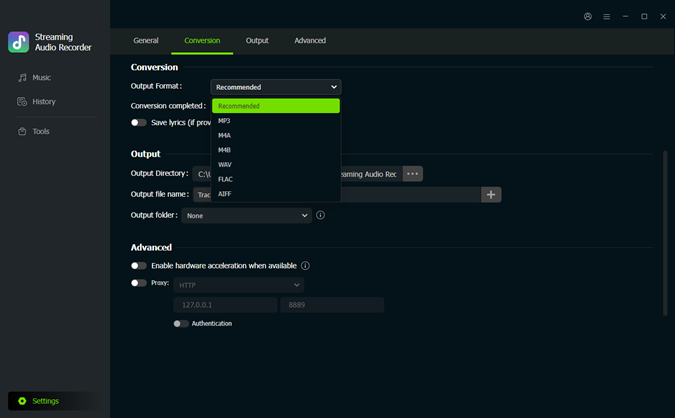 Step 1: Set the Output Preferences
Launch ViWizard SoundCloud Music Downloader on your computer. Click the Settings icon at the bottom left and open the Conversion section. Choose the output format you need, including MP3, FLAC, WAV, AIFF, M4A, or M4B. You can also customize the audio quality, save location, and other output options. Once finished, go back to the Music interface.
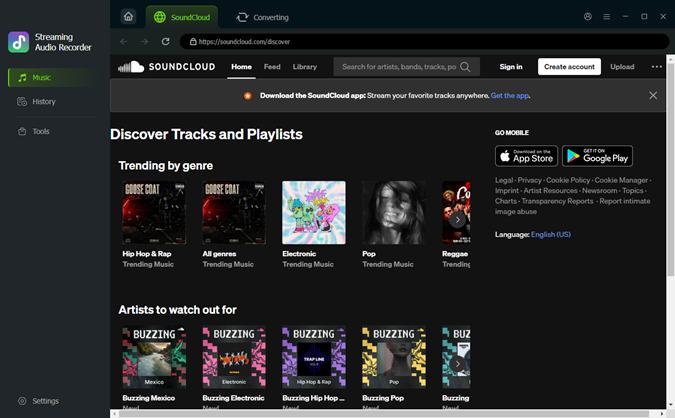 Step 2: Open SoundCloud in ViWizard
Click the SoundCloud icon in ViWizard to access the built-in SoundCloud player. You can browse SoundCloud directly or use the search function to find the songs, albums, playlists, or artists you want to download.
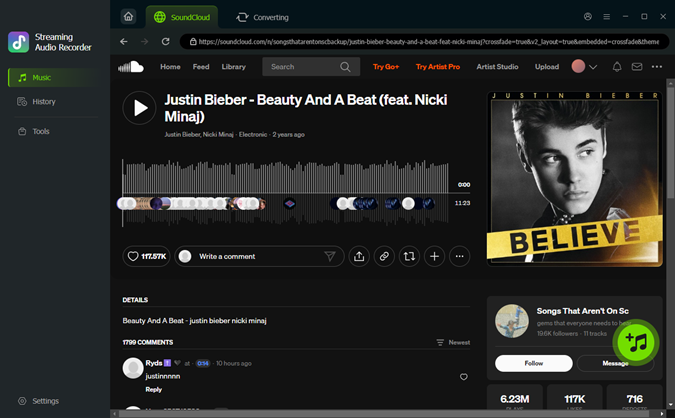 Step 3: Add SoundCloud Tracks to the Download Queue
Open the SoundCloud track, playlist, or album you want to save and click the + button. ViWizard will automatically analyze the content and show the available tracks. Select the songs you want and add them to the download list.
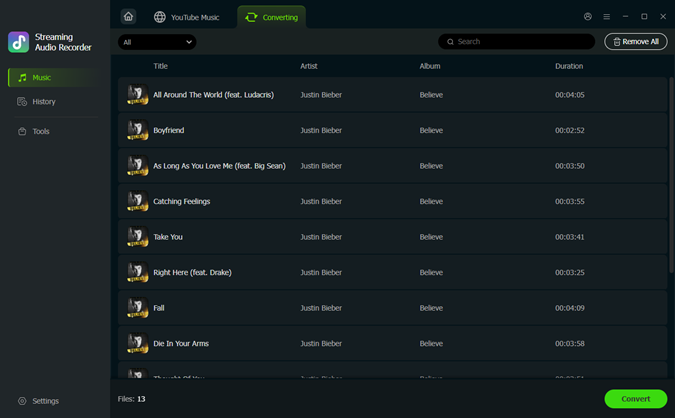 Step 4: Download SoundCloud Music
Open the download list and check the selected SoundCloud tracks. Click Convert to start downloading. After the process is complete, go to the History section to find your saved files. By saving SoundCloud music locally, you can keep a backup of your favorite tracks and still enjoy your music even when managing your SoundCloud or Last.fm settings.
Method 2: Transfer SoundCloud Playlists with Soundiiz
If you do not need to save SoundCloud tracks as local files but want to move your playlists to another streaming service, Soundiiz is a useful option. It can transfer playlists between supported platforms, helping you keep your music collections when switching services.
01Open the Soundiiz Web App and sign in to your account. If you are new to Soundiiz, create an account first.
02From the dashboard, click Transfer.
03Connect and link your SoundCloud account and the music platform you want to transfer playlists to.
04Click the Transfer option from the left menu and select Start.
05Choose SoundCloud as the source platform. Select the playlists you want to transfer and click Confirm.
06Edit the playlist details if needed, check the track list, choose the destination platform, and start the transfer.
Conclusion
Connecting Last.fm to SoundCloud helps you track your listening history and keep your favorite music organized. You can use the SoundCloud Beta Integration, Web Scrobbler, or a mobile scrobbling app based on how you listen.
If you want to listen to SoundCloud music offline, Last.fm cannot help because it only tracks your plays. In this case, ViWizard SoundCloud Music Downloader is a handy tool to save your favorite SoundCloud songs and playlists as local audio files for offline playback. Now try your preferred way!
You May Be Interested





Dave Henry loves movies and all things video. He likes checking out different video formats and trying new media players to see how they change the viewing experience.

Leave a Comment (0)