


If you are tired of carrying your phone during workouts just to listen to your favorite albums or playlists, there's good news: YouTube Music is now available for your Garmin watch. This integration means you can sync playlists directly to your wrist for distraction-free and relaxing exercise. The following guide offers details about compatible models, a step-by-step process, and a workaround for those without a Premium subscription.
Part 1. Does Garmin Watch Support YouTube Music?
Yes, the Garmin watch supports YouTube Music. Before you use YouTube Music on your watch, you have to make sure your device is compatible with the app, and you have met the requirements below.
Requirements to Use the YouTube Music App:
- You need to have a YouTube Premium or YouTube Music Premium, so that you can listen to YouTube Music on your watch without an internet connection.
- Your Garmin Watch must be paired to your smartphone through the Garmin Connect app.
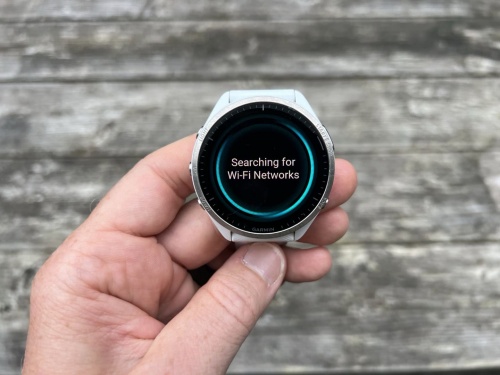
- Your Garmin Watch needs to be set up to connect to a secure Wi-Fi network.
- Move within range of a Wi-Fi network.
- From the Garmin Connect app, select the horizontal three-line or the horizontal three dots.
- Select Garmin Devices, and select your device.
- Select General > Wi-Fi Networks > Add a Network.
- Select an available Wi-Fi network, and enter the login details.
Compatible Garmin Watch List:
High-End Multisport & Adventure (fēnix / epix / MARQ / Enduro
[fēnix® Series]: Covers 6, 7, 7 Pro, 8, and E series (including S, X, Pro, Solar, and Sapphire variants).
[epix™ (Gen 2) Series]: Includes standard, Pro, and various sizes (42/47/51mm).
[MARQ® (Gen 2) Collection]: Includes Carbon, Aviator, and specialty editions.
[Enduro™ Series]: Enduro 2 and 3.
Tactical, Aviation, & Marine (tactix / D2 / quatix / Descent)
[tactix® Series]: Delta and 7/8 series (AMOLED, Pro, Ballistics).
[D2™ Series]: Air X15, Mach 1, and Mach 2 (including Pro).
[quatix® Series]: 6, 7, and 8 series (Solar, Sapphire, Pro, AMOLED).
[Descent™ Series]: MK3 / MK3i (43mm and 51mm).
Running & Fitness (Forerunner)
[Forerunner® Series]: 165 Music, 255/265 series (including S and Music), 955/965/970, and 570.
Lifestyle & Smartwatch (Venu / vívoactive)
[Venu® Series]: 2, 2S, 2 Plus, 3, 3S, 4 (41/45mm), Sq 2 Music, X1, and Mercedes-Benz editions.
[vívoactive® Series]: 5 and 6.
Golf (Approach)
[Approach® Series]: S50 and S70 (42mm/47mm).
Part 2. How to Install YouTube Music App on Garmin Watch
You have two ways to install the YouTube Music app on your Garmin watch: download and install from your watch, or from the Connect IQ Store on your smartphone. You can follow the steps below to install the YouTube Music app on your watch.
Option 1: Install From Your Watch
To install the YouTube Music app on a Garmin watch, you need a Bluetooth connection to your paired smartphone and a compatible watch beforehand.
Compatible devices: Primarily include the Fēnix 7/8/Pro, Epix (Gen 2)/Pro, MARQ (Gen 2), Tactix 7/8, and Forerunner 955/965/970 series.
01 Press START to access the activity and app list on your watch.
02Choose Connect IQ Store.
03Select Browse.
04Scroll to select Music.
05Scroll down to select YouTube Music from available music apps.
06Select Install to complete the installation.
Option 2: Install From the Connect IQ Store Using Your Smartphone
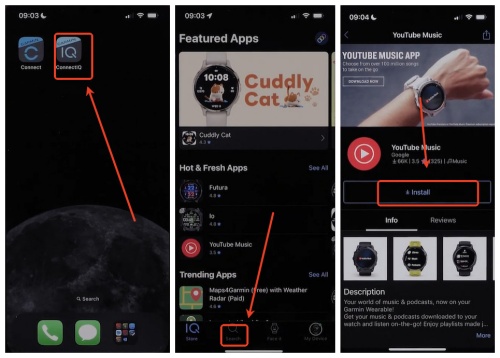
01Open your phone and tap the Connect IQ Store app.
02Select Search and enter YouTube Music.
03Select YouTube Music from the search results, and select Install.
04Agree to any app permissions requests.
05Once the app is installed, you will see a message on your Garmin watch.
Part 3. How to Set Up YouTube Music App on Garmin Watch
If you have downloaded and installed the YouTube Music app on your Garmin Watch, you can tie your YouTube Music Premium Subscription to the watch.
Steps to set up the YouTube Music app on a Garmin Watch:
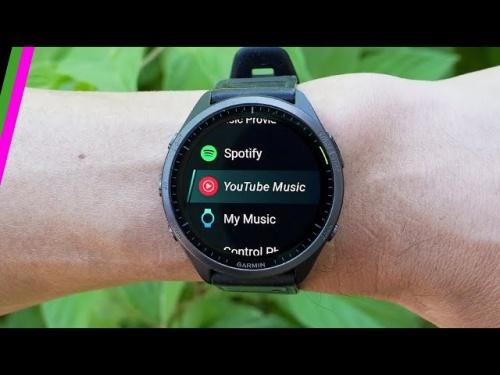
01Access Music on your watch, then select Music Providers.
02Under Music Providers, select YouTube Music.
03A message appears on your watch, letting you open Garmin Connect on your phone to sign in to YouTube Music.
04Confirm the request on the watch to send a notification to your phone.
05Select the notification from your phone to begin the sign-in process.
06Enter the code displayed on your Garmin watch in the Connect a device page.
07Sign in to your YouTube Music Premium account. This will link your YouTube Music Premium account to your Garmin Smart Watch.
08 Read and agree to the Garmin Connect IQ Terms & Conditions.
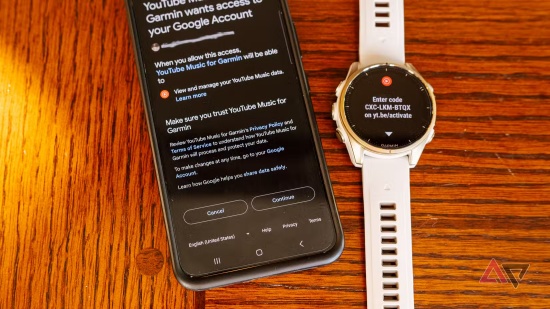
09 Once completed, you will see the "device connected" message on your smartphone.
Part 4. How to Use YouTube Music on Garmin Watch
One thing to note is that Garmin watches don't support live streaming, so you need to download your tracks beforehand. In this way, you can play the music from YouTube Music without an internet connection. What if you want to delete content in the YouTube Music on a Garmin watch? Don't worry. Here are the steps to download, play, and remove YouTube Music content on your watch.
4.1 How to Download Music from YouTube Music on Garmin Watch
01Open the YouTube Music app on your watch.
02Select Music > Music Providers> YouTube Music.
03In the YouTube Music section, select from your Library, Recommendations, or Podcasts.
04Select the playlist or album you like and tap Download.
4.2 How to Play Music from YouTube Music on Garmin Watch
01Put your headphones into Bluetooth pairing mode.
02Open your watch, and select Settings > Music > Headphones > Add New.
03Select your headphones.
04Access the YouTube Music app on your watch.
05Select your downloaded albums or playlists, and press Play.
4.3 How to Remove Content in the YouTube Music App on Garmin Watch
01Open the YouTube Music app on your Garmin watch.
02Go to Music > Music Providers > YouTube Music.
03Select Remove.
04Choose Music or Podcasts.
05Choose the content you dislike to remove.
Part 5. How to Play YouTube Music on Garmin Watch Without Premium
The official Garmin YouTube Music app strictly requires a paid Premium subscription to store and play music offline. To break through the restriction, one way is to use a music converter to download music from YouTube Music directly to your PC, and manually transfer the files onto your compatible Garmin watch. Is there a music converter highly recommended? Yes, it is ViWizard YouTube Music Converter.
ViWizard YouTube Music Converter is a software that supports Windows and Mac. It lets you download playlists, albums, and tracks from more than 10 music streaming services, including YouTube Music. You can set your favorite output formats and start to convert with high audio quality and ID3 tags. There are a lot of formats to choose from: MP3, WAV, FLAC, AIFF, M4A, and so on. Moreover, it saves your time and money, as there is no limit on the number, and the speed is up to 30x. After converting, you can transfer the songs onto your watch and enjoy music while running or cycling.
You can follow the steps to download and use YouTube Music on your Garmin watch.

Need YouTube Music for offline listening? ViWizard YouTube Music Converter helps YouTube Music users save songs, playlists, albums, and artists with convenient music conversion. Start converting and enjoy your music beyond the app.
How to Download YouTube Music to PC
 Step 1: Set Output Format for Garmin Watch
After installing ViWizard YouTube Music Converter, open it. Click the top right menu icon, and choose Preferences. Select Conversion, and you can set your favorite Output Format, such as MP3 or M4A. Garmin music watches support a variety of audio file formats, most notably standard non-DRM .MP3 and .M4A files. You can also customize the bitrate to 320kbps for maximum quality. Click OK to save your settings.
 Step 2: Log in to Your YouTube Music Account
Go back to the main screen and select YouTube Music. The built-in YouTube Music website appears, and you can sign in to it with your account. Look through your library, playlists, or albums to determine what to download.
 Step 3: Select Tracks for Garmin Watch
Upon ensuring the playlists, click Add to Playlist to load the tracks into the converter. You can manually add or delete specific songs or playlists for conversion.
 Step 4: Convert for Offline Garmin Watch Playback
Click Convert to start the process. Then ViWizard YouTube Music Converter downloads tracks at 30x speed while preserving high audio quality. On the converted page, you can play the song and even locate the file on PC by clicking the file icon next to the song title.
How to Transfer and Play Downloads to Your Garmin Watch
Before transferring downloads to your Garmin watch, you need to prepare a USB charging cable and Bluetooth headphones and install Garmin Express on your computer.
01Locate the MP3 files on your PC.
02Link your Garmin watch to your PC using the provided USB charging cable.
03Open the Garmin Express desktop app on your computer.
04Choose your watch device and click Music.
05Click the + (Add) icon to browse the downloaded MP3 files on your computer.
06Choose the songs or playlists you want to move and click Send to Device.
07Disconnect your watch from the computer.
08Take out your Bluetooth headphones and pair them with your Garmin watch.
09Open the Music controls widget on your watch. Swipe or press your music source and change it to My Music.
10Choose your transferred songs or albums, press Play, and enjoy your workout!
Conclusion
By following the guide, you've learned how to install and use YouTube Music on your Garmin Watch. We really hope you can enjoy your phone-off workout with music. If you find this post helpful and your Premium subscription soon expires, don't forget to try ViWizard YouTube Music Converter. Let's enjoy the music!
You May Be Interested



From new releases to old favorites, Matt Smith is always on the lookout for good music. He follows the latest in digital entertainment and shares songs and media he thinks are worth checking out.

Leave a Comment (0)