


If you're serious about sound quality, Qobuz is probably on your radar. This French-founded music platform offers over 100 million tracks, from lossless CD quality to Hi-Res audio up to 24-bit/192 kHz. It also has a digital music store where you can buy albums and keep the actual audio files. Pretty appealing if you'd rather own your music than just stream it!
But downloading Qobuz music comes with a few questions: Can you save subscription tracks permanently? How do purchased downloads work? And can you transfer your music to other devices? Let's break down the official download options, desktop software, and open-source tools, so you can enjoy your Qobuz music offline and across devices.

Part 1. Can You Download Music from Qobuz?
Yes, you can download music from Qobuz in several ways, but the available formats and how you can use the downloaded files depend on the method you choose. Qobuz offers two official options: purchase individual albums or tracks from the Qobuz Download Store, or download music for offline listening with a paid streaming subscription. The main difference is that purchased music is yours to keep as downloadable files, while subscription downloads are stored within the Qobuz app and require an active subscription to access.
But what if you want to listen to Qobuz music outside its app or play it on an MP3 player, USB drive, car stereo, or other devices? That's where third-party desktop software and open-source tools come into the picture. Here are the main methods you can explore:
-

Official Qobuz downloads
If you purchase music from the Qobuz Download Store, you can download the files in the formats and audio quality offered for that release, including FLAC, WAV, ALAC, AIFF, and MP3 where available. These are standard audio files that you can transfer to compatible devices and keep without relying on a Qobuz subscription. With a paid subscription, you can also download albums and playlists for offline listening, but these downloads remain inside the Qobuz app. You can't simply locate them as regular MP3 or FLAC files and transfer them elsewhere.
-
ViWizard Qobuz Music Converter
If you want compatible audio files for other devices, desktop software such as ViWizard Qobuz Music Converter is another option to explore. It can capture and convert Qobuz music into common formats such as MP3, FLAC, WAV, and other supported formats, with options for audio quality and ID3 tags. This gives you more flexibility when organizing your music library or preparing files for playback on devices that don't support the Qobuz app.
-
Open-source tools
Projects such as QobuzDownloaderX-MOD, OrpheusDL, and Streamrip provide alternative ways to access and download Qobuz tracks. Depending on the tool and its current version, they may support different output formats, quality options, metadata, and batch downloads. However, they often require extra setup, configuration, or technical knowledge, so they may take more effort than a regular desktop application.
Let's start with Qobuz's official options. If you want to download Qobuz to more compatible audio formats, ViWizard Qobuz Music Converter is also worth exploring.
Part 2. How to Download Music from Qobuz with Official Methods
Qobuz offers two official ways to download music: purchasing individual albums or tracks from its Download Store, or saving music for offline listening with a paid streaming subscription. The first option gives you permanent, DRM-free audio files, while the second stores music inside the Qobuz app for offline playback.
Before getting started, you'll need a free Qobuz account and access to the service in a supported country. You don't need a paid subscription to purchase music, but offline streaming requires an eligible subscription.

Option 1. Download Purchased Music from Qobuz

If you want to own your music files, purchasing from the Qobuz Download Store is the official option. You can buy individual tracks or albums without paying for a monthly streaming plan. Prices vary by release and audio quality, with many albums costing around $10–$25 or more.
Qobuz offers different formats depending on the release, including FLAC, WAV, ALAC, AIFF, and MP3. You can also choose between CD-quality and Hi-Res downloads where available. Purchased files are DRM-free, so you can keep them locally and transfer them to compatible devices.
- A free Qobuz account.
- Access to Qobuz in a supported country.
- A Windows or Mac computer for the Qobuz Downloader, or a supported web browser for browser downloads.
- Sufficient storage space. Large Hi-Res albums can take up 500 MB to over 2 GB.
Steps to download purchased Qobuz music:
01 Visit the Qobuz website and sign in. Search for the album or track you want to download.
02 Open the album page, select your preferred audio quality, and add it to your cart. Complete the purchase.
03 Go to My Purchases in your account and find the album or track you just bought.
04 Select Download from browser to download the music as a ZIP file. Extract the archive on your computer to access the audio files.
⭐Tip: Alternatively, use Qobuz Downloader: Open your purchased release in the dedicated Qobuz Downloader application, select an available format, choose a destination folder, and start the download queue. Once downloaded, your purchased music is yours to keep. You can play it with compatible music players or transfer it to other devices without maintaining a Qobuz subscription.

Read More : How to Buy Music on Qobuz on Desktop and Mobile
Read More : How to Get Qobuz Student Discount [Step-by-Step Guide]
Option 2. Download Qobuz Music with a Subscription
If you'd rather access a large music library without purchasing albums individually, Qobuz's streaming subscriptions are another option. Eligible plans include offline listening, so you can save albums, tracks, and playlists in the desktop or mobile app.
Qobuz subscription pricing in the US:
| Plan | Price | Main benefits |
|---|---|---|
| Studio Solo | $12.99/month or $129.99/year | Hi-Res streaming and offline downloads |
| Studio Family | $17.99/month | Streaming and offline downloads for 2–6 accounts |
| Studio Student | $4.99/month | Studio benefits for eligible students |
| Sublime Solo | $14.99/month (annual billing at $179.99) | Studio benefits plus up to 60% off Hi-Res purchases |
Prices are based on the supplied US pricing information and may change. Check the official Qobuz plans for current offers.
- An active eligible Qobuz streaming subscription.
- The Qobuz desktop app for Windows or macOS, or the mobile app for iOS or Android.
- A supported device and enough storage space for offline music.
- For the Student plan, successful student verification. The supplied offer requires eligible students aged 24 or under.
Steps to download Qobuz music for offline listening:
01 Open the Qobuz desktop app on your Windows or Mac computer and sign in with your subscription account.
02 Find the album, track, or playlist you want to save.
03 Click the three-dot icon next to the album or track and select Import..., or use the available download/offline icon.

04 Choose your preferred audio quality and start downloading.
05 Click the download icon at the top of the app to check your download progress and queued music.
After the download finishes, you can find your saved music in the app's offline library and listen without an internet connection.
Read More : How to Download Qobuz Music on Windows [Step-by-Step]
Read More : Top 3 Ways to Download Qobuz Music on Android
Part 3. How to Download Music from Qobuz with Desktop Software
Qobuz's official download options work well, but they have a limitation: purchased music can be expensive if you want to build a large collection, while subscription downloads stay locked inside the Qobuz app. This can be inconvenient if you want to organize your own music library, transfer tracks to an MP3 player, or play them through other music apps.
If you don't want to purchase every album individually, ViWizard Qobuz Music Converter is another option to consider. It works with Qobuz through a built-in music player and lets you download songs, albums, and playlists into common audio formats for offline playback. Best of all, it supports six output formats, including MP3, FLAC, WAV, AIFF, M4A, and M4B, making it easier to prepare Qobuz music for different devices and music players.
- Multiple output formats: Convert Qobuz music into formats compatible with different devices and players.
- Lossless audio quality: Preserve lossless audio quality when creating FLAC or other supported audio files.
- Album and playlist downloads: Save complete albums, playlists, and music collections instead of adding songs one by one.
- Batch conversion: Add multiple tracks to the download list and process them together.
- Metadata preservation: Keep important ID3 tags to help organize your downloaded music library.

Ready to build a personal Qobuz music library? ViWizard Qobuz Music Converter helps Qobuz subscribers save songs, albums, and playlists with reliable audio conversion. Start converting and keep your favorite music within reach.
Download Music from Qobuz with ViWizard
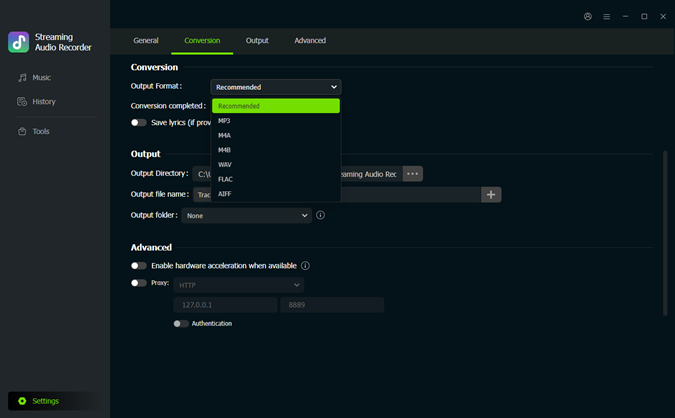 Step 1. Choose the Output Format
Download and install ViWizard Qobuz Music Converter on your Windows or Mac computer. Open the program and click the Settings icon in the bottom-left corner. Go to Conversion and choose your preferred output format, such as MP3 or FLAC. You can also adjust the audio quality and output folder.
 Step 2. Find Music on Qobuz
Return to the main interface and click the Qobuz icon to open the built-in player. Browse your music library or use the search bar to find the track, album, or playlist you want to download.
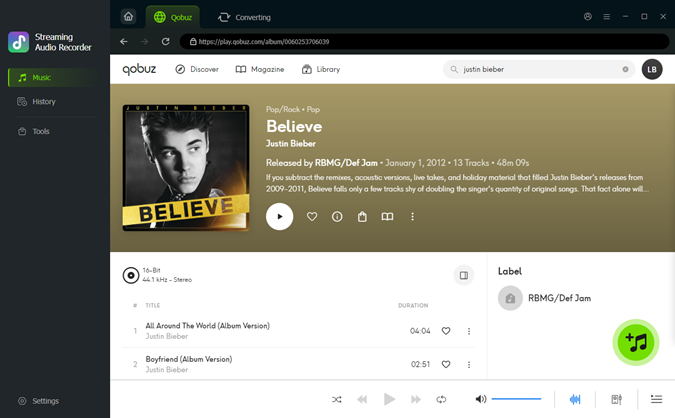 Step 3. Add Tracks to the Download List
Open your chosen track, album, or playlist and click the + button to analyze its contents. Select the songs you want to save and add them to the download list.
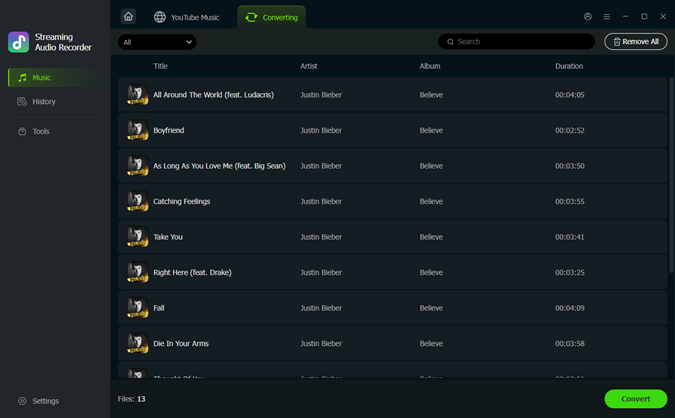 Step 4. Download Your Music
Open the download list and review your selected tracks. Click Convert to start processing. When finished, go to History to locate your converted audio files in the output folder. Now you can organize the resulting audio files and transfer compatible formats to your phone, MP3 player, or other devices.
Transfer Downloaded Qobuz MP3 Music to Phone

Once you've converted your Qobuz music to MP3, you can transfer the files to your phone for offline listening. Here are two common ways:
For Android:
01 Connect your Android phone to your computer using a USB cable.
02 Select File Transfer on your phone if prompted.
03 Open your phone's Music folder on the computer.
04 Copy and paste your downloaded MP3 files into the folder.
05 Disconnect your phone and open your preferred music player.
For iPhone:
01 Open Apple Devices on Windows or Finder on Mac.
02 Connect your iPhone to the computer.
03 Use the available file-sharing or music-sync options to transfer your MP3 files.
04 Open a compatible music player or the Music app, depending on how you transferred the files, to play your music offline.
That's it! Your music can now travel with you without needing to open the Qobuz app every time.
Part 4. How to Download Music from Qobuz with Open-Source Tools
If you're comfortable with a little technical setup, open-source tools offer another way to download music from Qobuz. Projects like QobuzDownloaderX-MOD, OrpheusDL, and Streamrip support different download formats, audio quality options, and metadata features. However, most require manual installation, account configuration, or command-line instructions. Here's how each tool works and how to use it to download Qobuz music.
Tool 1. QobuzDownloaderX-MOD
QobuzDownloaderX-MOD is a tool that downloads music streams directly from Qobuz and saves them as FLAC or MP3 files. It works by accessing the public Qobuz API to fetch music streams and stores them locally with detailed metadata. To use it properly, you need a valid Qobuz subscription (Studio or Sublime). Otherwise, you’ll only be able to download the 30-second preview of each track.

01 Download the latest release .zip file from the official GitHub page and extract the contents to a folder on your Windows computer.
02 Double-click the main executable file (e.g., QobuzDownloaderX.exe) to run the program.
03 Enter your Qobuz email and password in the app, then click Login. The app will automatically fetch the App ID and App Secret from the current Qobuz web player.

04 When you open the app for the first time, choose a base folder on your computer where your downloaded music will be saved.
05 Before you download, you can find the music you want to download in two main ways:
- Link/URL Method: Copy the URL of a track, album, playlist, etc., from the Qobuz web player and paste it into the designated "Qobuz link" text box in the application.
- Integrated Search: Use the Open Search button to look for albums or tracks directly within the application's interface.

06 After entering a valid link or selecting an item from the search results, choose your desired output quality and format.
07 Click the Download button to begin the download process.
08 The files are saved to your chosen folder with metadata and artwork.

Tool 2. OrpheusDL
OrpheusDL is an open-source, modular music downloader built with Python, supporting services such as Qobuz, Tidal, Deezer, Apple Music, Spotify, and Amazon Music through separate modules.
OrpheusDL can download individual tracks, albums, artists, and playlists. It also supports lossless and Hi-Res audio, including FLAC up to 24-bit/192 kHz when supported by the source service and account tier. Another useful detail is its metadata handling: it can save track information and album artwork, as well as retrieve lyrics through supported integrations. It runs on Windows, macOS, and Linux, with Android support through Termux. Although primarily command-line based, community-developed GUI options are available for users who prefer a visual interface.

Step 1 Install Python
01 Visit the official Python website and download the version suitable for your Windows, macOS, or Linux computer.
02 Run the installer. On Windows, make sure to check Add Python to PATH before completing the installation.
Step 2 Install OrpheusDL and the Qobuz Module
01 Open Command Prompt or Terminal.
02 Clone the OrpheusDL repository and enter its folder:
cd OrpheusDL

03 Navigate to the modules folder and install the compatible Qobuz module by following its repository instructions.
04 Install the required dependencies using the project's requirements file, if provided:
Step 3 Configure Your Qobuz Account
01 Run the main script once to generate the default configuration files:
02 Open the generated config/settings.json file.
03 Locate the Qobuz module settings and enter the required authentication information, such as your Qobuz username, password, and the app credentials required by your module version.
Keep your login details and app credentials private. Only use authentication methods documented by a repository you trust.
Step 4 Download Music from Qobuz
Once the setup is complete, you can use a Qobuz URL, search query, or music ID to locate the content you want.
- Download using a direct album or track URL:
- Search for a track:
- Download using a track ID:
Replace the example URL, song name, or ID with your target music. Follow the command-line prompts if required, then check the configured output folder for your downloaded files.
Tool 3. Streamrip
Streamrip is a command-line Python tool for ripping music from streaming services like Qobuz, Tidal, Deezer, and SoundCloud. It works on Windows, macOS, and Linux, but you need Python 3.10 or higher, pip, and FFmpeg installed. The tool has a clear interface, making it easy to use. You can also customize the audio quality and format, from 128 kbps MP3/AAC up to 24-bit Hi-Res 192 kHz.

01 Install the tool using Python's package manager:
02 Run the configuration command:
03 Locate the generated config.toml file and open it in a text editor. If unsure how to configure, type:

04 In the config file, enter the necessary authentication tokens or login details for your streaming service accounts.
05 Go to the Qobuz web player and copy the link to the album, track, or playlist you want to download. Use the rip url command followed by the link:
06 You can add flags to specify the output quality and file format. For example, downloading an album at 24-bit/96kHz quality and converting it to MP3:

07 You can also search for content directly from the command line:
08 Streamrip saves files to a downloads folder within the directory where you run the command.

⭐Tip: For more ways to download music from Qobuz for free, check out this review of Qobuz-DL and learn how to use it to download Qobuz songs.

Discover how to use Qobuz-DL and its alternatives, like QBDLX and ViWizard Qobuz Downloader to save Hi-Res tracks offline with ease.
Part 5. FAQs about Downloading Music from Qobuz
- Purchased music: Yes. Purchased DRM-free files remain yours to keep, even after your subscription expires or you cancel it.
- Subscription downloads: No. Offline access to subscription-based music requires an active eligible subscription.
To save your favorite tracks permanently from different music services, you can consider ViWizard.
Part 6. Conclusion
Qobuz has plenty to offer music lovers, especially if sound quality matters to you. Whether you prefer buying albums to build a permanent collection, downloading music for offline listening, or exploring other tools for compatible audio formats, there's more than one way to enjoy your favorite tracks.
And if your music taste travels further than the Qobuz app, ViWizard Qobuz Music Converter is another option worth exploring. After all, great music deserves a place wherever you like to listen!
You May Be Interested





From new releases to old favorites, Matt Smith is always on the lookout for good music. He follows the latest in digital entertainment and shares songs and media he thinks are worth checking out.

Leave a Comment (0)