


If you've ever tried recording Spotify with a regular audio recorder like Audacity, you know it can get a little tedious. You have to keep Spotify playing while you record, then split and organize the tracks yourself. That's fine for a few songs, but it gets old when you're dealing with a full playlist.
Spytify takes a more Spotify-focused approach. It's a free, open-source Windows tool that records Spotify playback and can automatically split songs into separate MP3 or WAV files, along with metadata and album artwork.
The basic idea is still real-time recording, but features like automatic track splitting, ad-free recording, and Virtual Audio Cable make things easier. If you'd rather skip playback or need more output formats, ViWizard Spotify Music Converter takes a conversion-based approach instead. This guide looks at what Spytify does, how it works, and how it compares with that alternative.

Need Spotify music for offline listening? ViWizard Spotify Music Converter helps Spotify Premium and free users save songs, playlists, albums, podcasts, and audiobooks in popular audio formats with fast, reliable conversion. Start converting and enjoy Spotify music across more devices.
Part 1. What Is Spytify?

- Platform:
- Windows
- Pricing:
- Free, open source
- Core Function:
- Record Spotify playback and save it as local audio files
- Audio Output:
- MP3, WAV
- Features:
- Automatic track splitting, ad muting, metadata and album artwork, playlist recording
- Output Audio:
- Up to 160 kbps with Spotify Free; 320 kbps with Spotify Premium
- License:
- MIT
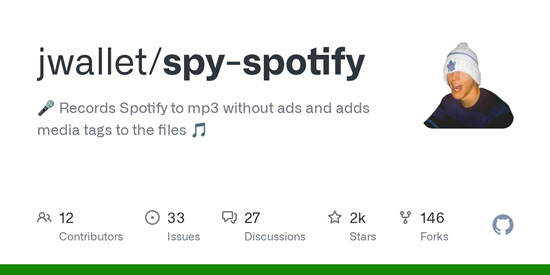
Spytify is a free, open-source Spotify recorder for Windows that captures audio from the Spotify desktop app and saves it as local files. The official project describes it as a tool that "records Spotify to mp3 without ads" and automatically adds media tags. Unlike a conventional Spotify downloader such as SpotDL, Spytify records Spotify playback in real time rather than directly downloading the music files.
Spytify is available on GitHub under the MIT license. It requires Windows, .NET Framework 4.6.1 or higher, and the Spotify desktop app; there are no native versions for macOS, Linux, iPhone, or Android.
Part 2. What Does Spytify Do?
Spytify can detect individual songs and save them as separate MP3 or WAV files instead of leaving an entire playlist as one continuous recording. By default, filenames use the artist and track name, and you can also add album track numbers. For MP3 files, Spytify can add metadata through Last.fm or the Spotify API, including the artist, track title, album, track number, genre, and album artwork. The Spotify API option requires your own credentials; Last.fm does not require a Spotify API connection.
Spytify can also mute Spotify ads and other applications, skip previously recorded tracks, and use Virtual Audio Cable to isolate Spotify's audio. This gives you more control over what gets captured when recording Spotify alongside other audio on the computer.
-

Record Spotify music as local files
Spytify is a Windows Spotify recorder that captures audio played through the Spotify desktop app and saves it as local music files. Rather than downloading Spotify's original audio files, it records playback in real time and saves it as separate tracks outside the Spotify app. Recording takes roughly as long as the music takes to play.
-
Split and organize recorded tracks
Spytify automatically detects when one song ends and another begins, so you don't need to split long recordings yourself. It uses the artist and track name for filenames, while Last.fm or the Spotify API can add metadata such as the title, artist, album, genre, and album artwork. This makes playlists easier to record and organize.
-
Save recordings as MP3 or WAV
Spytify saves recordings as MP3 or WAV files. Its documentation says MP3 quality can reach Spotify's output quality, including up to 160 kbps with Spotify Free and 320 kbps with Spotify Premium. WAV is also available for uncompressed recordings.
-
Mute ads and keep other sounds out
Spytify can mute Spotify audio advertisements during recording, so they are not included in the resulting files. Its virtual audio cable can also separate Spotify's audio from other computer sounds, helping keep notifications, videos, and audio from other apps out of the recording.
-
Record playlists with less manual work
You can leave a Spotify playlist playing while Spytify records and processes the tracks. It can also skip tracks that have already been recorded, which is useful for larger playlists or later recording sessions.
-
Turn Spotify playback into an organized music library
Spytify combines recording, track splitting, metadata, album artwork, and file output in one workflow. Instead of cleaning up one long recording afterward, you can get separate MP3 or WAV files with useful track information already attached.
Part 3. How Does Spytify Work?
Spytify works alongside the Spotify desktop app rather than accessing or downloading the original music files. Open Spotify on Windows, select the appropriate audio device in Spytify, and start recording before playing the music. As the songs play, Spytify captures the audio output, detects individual tracks, and saves them as separate files. Since recording happens in real time, it generally takes as long as the music takes to play; the documentation also describes longer sessions, including overnight recording.
If you want Spotify's audio separated from other applications, you can install Virtual Audio Cable through the Speakers+ option and route Spotify through it. This gives Spotify its own audio path and helps keep other applications out of the recording. The final recording quality depends on Spotify's playback quality; the documentation lists up to 160 kbps for Spotify Free and 320 kbps for Spotify Premium.
Step 1Download and Open Spytify
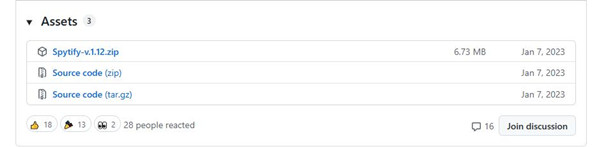
Download the latest Spytify-v.X.Y.Z.zip from the Assets section of Spytify's GitHub release. Extract the ZIP file and run Spytify.exe. If Windows Defender shows a warning, click More info > Run anyway.
Step 2Choose the Output Settings
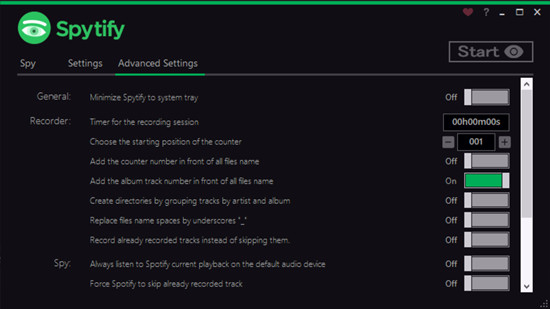
Open Spytify's Settings and check Output Path to choose where you want your recordings saved. The default is the Music folder. Under Audio Format, choose MP3 or WAV. MP3 supports metadata and album artwork, while WAV has fewer encoding limitations.
Step 3Select the Audio Device
Go to Settings > Audio Device and select the same device Spotify is using. If you're not sure which one that is, check Windows Sound Settings > App volume and device preferences.
Step 4Set Up Virtual Audio Cable
To keep other computer sounds out of your recordings, click Speakers+ > Install Driver under Audio Device to add Spytify's Virtual Audio Cable. Select the virtual device in Spytify and set Spotify to use it too. Turn on Always listen to Spotify current playback on the default audio device if you still want to hear Spotify normally.
Step 5Adjust Spotify's Playback Settings
Open Spotify and go to Profile > Settings. Under Music Quality, set Streaming quality to Very High, or High with Spotify Free, and turn on Normalize Volume. Under Show advanced settings, turn off Crossfade songs and Allow smooth transitions between songs in a playlist. Spytify also recommends enabling Enable hardware acceleration under Compatibility.
Step 6Prevent Unwanted Playback
Turn off Autoplay similar songs when your music ends if you don't want Spotify to continue with suggested songs. Spytify also recommends setting Spotify's in-app volume to maximum before recording.
Step 7Start Recording
Play the Spotify playlist or other content you want to capture, then start recording in Spytify. It captures Spotify's audio as it plays, detects individual songs, and saves them separately. Since it records in real time, the recording generally takes as long as the music takes to play.
Step 8Check Your Recordings
Once you're done, open the folder selected under Output Path and check the files. Spytify uses the artist and track name for filenames by default. MP3 files can also include the artist, track title, album, track number, genre, and album artwork.
Step 9Set Up Spotify Metadata
To use Spotify for MP3 metadata, open Settings and click the key icon to open the Spotify API Credentials window. Enter your Client ID, Client Secret, and Redirect URI from the Spotify Developer Dashboard. Spytify recommends http://localhost:4002 as the default Redirect URI. Last.fm does not require a Spotify API connection.
Step 10Record Longer Playlists
For a long playlist, leave Spytify recording while the music plays. The official documentation describes longer sessions, including overnight recording, especially when using Virtual Audio Cable to keep Spotify's audio separate.
Part 4. Is Spytify Safe to Use?
Spytify is an open-source project published on GitHub under the MIT license, with its source code, releases, and documentation publicly available. Users can obtain it from the official GitHub releases. The official sources do not provide a general security certification or guarantee that Spytify is completely safe, but its source code and release history are publicly inspectable.
Spytify can use Last.fm for metadata without connecting to the Spotify API. The Spotify API option requires users to create their own API credentials. The latest listed release is Spytify 1.12, released January 6, 2023, so compatibility with newer Spotify or Windows versions should not be assumed beyond what the project documents.
Part 5. Best Spytify Alternative for Spotify Music Conversion
If you want to keep Spotify music as local files without recording every song in real time, ViWizard Spotify Music Converter offers a different way to do it. It's a desktop tool that lets you select individual songs, albums, or playlists for batch conversion, with support for MP3, M4A, WAV, FLAC, AIFF, and M4B.
That's where it has an advantage over Spytify. Spytify records Spotify playback in real time and saves it as MP3 or WAV. ViWizard uses a dedicated conversion process, so you don't need to play each song from start to finish. Batch processing also makes larger playlists much easier to handle.
The wider format support can be useful if you keep Spotify music across different players and libraries. You can choose from FLAC and WAV as well as M4A, AIFF, and M4B, while metadata handling, playlist conversion, and file organization help keep the resulting local files in order.
Key Features of ViWizard Spotify Music Converter
Free Trial Free Trial* Security verified. 5, 481,347 people have downloaded it.
- Convert Spotify songs, playlists, albums, podcasts, and audiobooks
- Export Spotify music in 6 formats for different devices and players
- Support Spotify Premium and free accounts for music conversion
- Preserve music metadata when organizing converted collections
- Batch download Spotify playlists and large music libraries
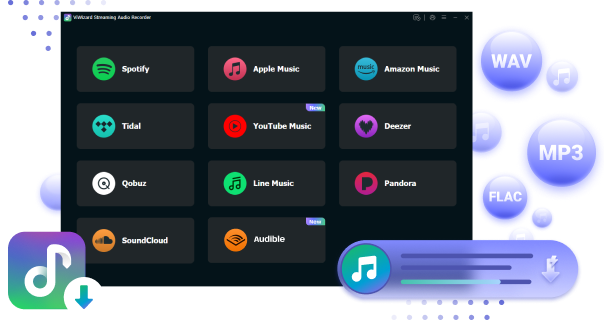
 Step 1: Install and open ViWizard Spotify Music Converter
Download and install ViWizard Spotify Music Converter on your Windows or Mac computer, then launch it. Sign in to your Spotify account through the built-in Spotify Web Player to access your library directly in the converter. Both Free and Premium accounts are supported.
 Step 2: Add Spotify songs or playlists to the conversion list
Browse your Spotify library and select the songs, albums, or playlists you want to convert. You can drag and drop them into ViWizard or paste a Spotify URL into the search bar. The selected tracks will then appear in the conversion list, where you can review individual songs or entire playlists before converting.
 Step 3: Choose MP3 as the output format
Click the Menu icon in the top-right corner and select Preferences > Convert. Choose MP3 as the output format, then adjust options such as bitrate, sample rate, and file organization if needed. You can also choose how the converted files are organized, such as by artist or album. Click OK to save your settings.
 Step 4: Convert and save the music locally
Return to the conversion list, review the tracks you want to convert, and click Convert. ViWizard processes the selected Spotify tracks and saves the resulting MP3 files to the designated output folder. When the conversion is complete, you can find the files in the History section and use the Open Folder icon to access them locally.
Part 6. Spytify vs. ViWizard Spotify Music Converter
| Feature | Spytify | ViWizard Spotify Music Converter |
|---|---|---|
| Type | Free, open-source Spotify recorder | Paid Spotify music converter |
| Platform | Windows | Windows and macOS |
| How it works | Records Spotify playback and automatically splits it into tracks | Converts selected Spotify songs, albums, playlists, podcasts, and audiobooks |
| Output formats | MP3, WAV | MP3, M4A, WAV, FLAC, AIFF, M4B |
| Speed | Real-time recording | Up to 15× faster conversion, according to ViWizard |
| Audio quality | Records Spotify playback at its available quality, up to 320 kbps with Premium | Supports adjustable bitrate/sample rate and lossless formats such as FLAC and WAV |
| Metadata | Can add title, artist, album, genre, track number, and artwork | Preserves metadata and supports album artwork and lyrics |
| Playlists | Can record entire Spotify playlists | Can convert playlists in batches |
| Ads | Can mute Spotify ads during recording | Not applicable to its conversion-based workflow |
| Ease of use | Requires a little more setup because it is recording-based | More straightforward desktop conversion workflow |
| Price | Free | Paid, with a free trial |
| What users like | Free access, open-source design, automatic track splitting, and direct Spotify playback recording | Fast batch conversion, more output formats, easy playlist handling, and local-file management |
| Main limitation | Large playlists take as long as the music takes to play | Paid software; some recent reviews report Spotify-access or licensing issues |
| Best suited for | Users who want a free way to record Spotify music into local files | Users who want to convert and organize larger Spotify collections |
Spytify and ViWizard Spotify Music Converter use different approaches to creating local Spotify audio files. Spytify records Spotify playback, so songs must play during recording before they can be saved as separate MP3 or WAV files. ViWizard Spotify Music Converter uses a Spotify music conversion workflow instead of computer-audio recording. Spytify therefore depends on real-time playback and Windows audio routing, while ViWizard centers on selecting Spotify music and converting it in batches.
Spytify also provides automatic track splitting, metadata and album-art support, ad-free recording, and Virtual Audio Cable options. ViWizard supports more output formats, including MP3, M4A, WAV, FLAC, AIFF, and M4B, along with adjustable audio settings, metadata and album-art support, and faster batch conversion. The two therefore differ not only in how they process Spotify music, but also in the flexibility and speed of the resulting workflow.
Part 7. Is Spytify Worth Using?
Spytify's main advantages are its free and open-source model, Windows support, automatic track splitting, MP3 and WAV output, metadata and album-art support, Virtual Audio Cable, and ad-free recording. The catch is that it records Spotify in real time, so a playlist must play from start to finish. It also requires the Spotify desktop app and only works on Windows. Overall, Spytify is a useful option if you're comfortable with real-time recording, but that workflow can be limiting when processing a large playlist.
If you'd rather skip real-time recording, ViWizard Spotify Music Converter offers a different workflow. It lets you convert songs, albums, and playlists to MP3, M4A, WAV, FLAC, AIFF, or M4B without playing each track from start to finish. Try ViWizard Spotify Music Converter if you want a faster way to build a local Spotify music collection.
You May Be Interested



Nick Orin often turns to tech forums to see what apps people are talking about. He likes testing different software, comparing features, and finding out which tools are worth a try.

Leave a Comment (0)