


Have you ever tried to download large Tidal playlists or your entire library for a long flight? Sometimes, tracks get added to the download queue, but nothing happens. Downloads may stay paused, not progress past a few tracks, or even disappear, making offline listening impossible.
Many users report that Tidal downloads get stuck or show as "paused," even with a good internet connection and enough storage. Most of the time, the Tidal app may struggle with large downloads, which can cause tracks to get stuck or disappear from the queue. Other times, device settings like Background App Refresh on iOS or Battery Optimization on Android can also interfere.
The good news is this problem can be fixed. In this guide, we will explain why Tidal downloads keep pausing and show step-by-step ways to get them working again.
Part 1: Why Tidal Downloads Keep Pausing
Tidal downloads can pause because of network problems, device settings, app glitches, or certain tracks and playlists. Downloads may stop when the screen is locked or the app is minimized. On Android, battery-saving features and background restrictions can interfere, while on iOS, background app refresh may slow or stop progress. Making sure these basic factors are set correctly can help downloads run smoothly on iPhone, iPad, Android phones, and computers.
Unstable Internet Connection
Tidal downloads require a steady internet connection to complete. If your Wi-Fi or mobile data is weak or drops intermittently, downloads can pause or stall. Even a brief slowdown may stop progress entirely, and using VPNs or restricted networks can sometimes interfere with downloading as well.
Android:
Open the Settings app on your device.
Tap Network & Internet.
Tap Wi-Fi and select a reliable network to connect.
Alternatively, go back to Network & Internet and tap Mobile Network to use cellular data.
If a VPN is enabled, open the VPN app and turn it off.
Restart your router or mobile hotspot if the connection is still unstable.
iOS:
Open the Settings app on your device.
Tap Wi-Fi and select a stable network.
If you prefer mobile data, tap Cellular and enable Cellular Data.
If a VPN is active, go to Settings > VPN and turn it off.
Restart your router if Wi-Fi issues continue.
Background App Refresh on iOS
On iPhones and iPads, apps running in the background may not continue downloading content unless they are actively open. Tidal downloads can pause if the app is left in the background, requiring you to open it again to resume progress.
iOS:
Open the Settings app.
Scroll down and tap Tidal.
Enable Background App Refresh.
Go back to Settings > General > Background App Refresh.
Make sure it is set to Wi-Fi or Wi-Fi & Cellular.
Close the Settings app and restart Tidal.
Battery Optimization or Power Management
Battery-saving modes on Android devices can limit background activity for apps, including Tidal. If your phone is in low-power mode or has aggressive battery optimization settings, downloads may pause when the screen is locked or the device is idle.
Android:
Open the Settings app.
Tap Apps & notifications > See all apps.
Scroll and tap Tidal.
Tap Mobile data & Wi-Fi and enable Background data.
Return to Settings > Battery > Battery optimization.
Scroll and select Tidal, then choose Don't optimize.
Turn off Power Saving Mode or Adaptive Battery if enabled.
Restart the Tidal app and try downloading again.
iOS:
Open the Settings app.
Tap Battery.
Check if Low Power Mode is enabled.
If it is, turn off Low Power Mode.
Close Tidal and reopen it to resume downloads.
Insufficient Storage Space on Device
When your device is low on storage, Tidal may automatically pause downloads to ensure the app functions properly. Adequate storage is necessary to avoid interruptions and prevent crashes while downloading large playlists or libraries.
Android:
Open the Settings app.
Tap Storage and review the available space.
Delete unnecessary apps, videos, or files if storage is low.
Go back to Settings > Apps > Tidal and clear cache if needed.
Open Tidal and resume your downloads.
iOS:
Open the Settings app.
Tap General > iPhone Storage and review storage usage.
Delete unused apps, videos, or files to free up space.
Restart your iPhone.
Open Tidal and try downloading the songs again.
Tidal App Bugs
Sometimes the issue is internal to the app. Outdated versions can accumulate cache and develop glitches that prevent downloads from completing. Persistent app bugs can pause tracks repeatedly without error messages and may even affect offline playback.
Playlist or Track-Specific Bugs
Certain songs or playlists may consistently cause downloads to stop. Problematic tracks can trigger pauses or fail to download entirely. Removing these tracks or manually restoring offline content often resolves the issue and allows the rest of the downloads to complete smoothly.
Part 2. How to Fix TIDAL Downloads That Keep Pausing
If the basic checks don't get Tidal downloads moving, there are steps you can take to refresh the app and clear stuck downloads. These actions help resolve corrupted files, clear cache, and make sure Tidal runs smoothly on phones, tablets, and computers.
1. Keep the Tidal App in the Foreground During Downloads
Many users notice that downloads stop when the app is minimized or the screen is locked. Mobile systems often limit background activity to save battery and memory. If TIDAL stays open, downloads continue without interruptions. Large playlists may take longer, but the chance of paused or failed downloads decreases.
Step 1 Open the Tidal app and go to the track, album, or playlist you want to download.
Step 2 Start the download and keep the app open on your screen until it finishes.
Step 3 Do not switch to other apps or lock your screen while downloading because this can pause the process.
Step 4 If your device locks automatically, go to Settings > Display (Android) or Settings > Display & Brightness > Auto-Lock (iOS) and increase the auto-lock time.
2. Check Tidal Offline Mode Settings
Downloads can pause if Offline Mode is not enabled or the app cannot access storage. Offline mode lets TIDAL save music to your device. Granting storage access ensures tracks are saved correctly. Checking these settings often resolves paused downloads.
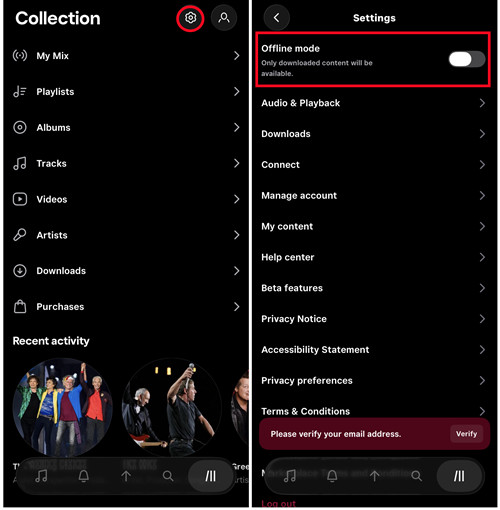
Step 1 Open the Tidal app and tap My Collection at the bottom of the screen.
Step 2 Tap the gear icon in the top-right corner to open Settings.
Step 3 Scroll down to Offline Mode and see if it is turned on.
Step 4 If Offline Mode is on, tap the switch to turn it off so downloads can continue.
Step 5 Go back to your downloads and check if they resume.
3. Force Stop and Restart the Tidal App
App glitches can freeze downloads. Close the app and open it again to reset its processes. This simple step often allows paused downloads to continue.
Step 1 On Android, open the Settings app and tap Apps & notifications > See all apps, then scroll and tap Tidal.
Step 2 Tap Force Stop, close the settings app, and reopen Tidal to continue downloading.
Step 3 On iOS, swipe up from the bottom of the screen (newer models) or double-click the Home button (older models) to see the app switcher.
Step 4 Find the Tidal app preview and swipe it up to close it completely, then reopen the app to resume downloads.
4. Clear Tidal App Cache (Android Only)
Corrupted cache files can block downloads. The cache stores temporary data like partially downloaded tracks and playlist information. Clearing it removes these files and forces the app to rebuild its offline library.
Step 1 Open the Settings app > Apps & notifications > See all apps, then select Tidal.
Step 2 Tap Storage & cache > Clear Cache to remove temporary files without deleting your downloads.
Step 3 Open Tidal and try downloading your music again.
5. Log Out and Log Back In to Your Tidal Account
Account sessions can sometimes interfere with downloads. Logging out and signing back in refreshes the connection to TIDAL servers. This can fix errors from interrupted sessions or account mismatches. After signing in again, the download queue usually works, and paused tracks resume downloading.
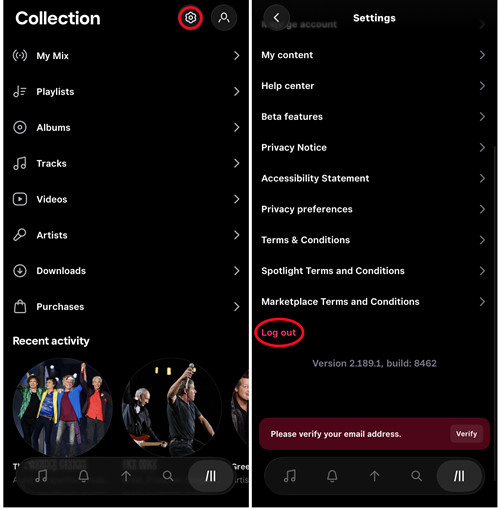
Step 1 Open the Tidal app and tap My Collection, then tap the gear icon.
Step 2 Scroll down and tap Sign Out.
Step 3 Close the app completely and reopen it.
Step 4 Tap Sign In and enter your account details.
Step 5 Check your downloads again to see if they work.
6. Remove Problematic or Corrupted Tidal Downloads
Some tracks or playlists may be corrupted or incomplete, which can pause other downloads. Remove the problematic items to let the remaining downloads continue. Download the affected tracks individually afterward to identify which files are causing the issue.
Step 1 Open the Tidal app > My Collection > Downloads.
Step 2 Find any tracks or playlists that are stuck or incomplete.
Step 3 Tap the three-dot menu next to the item and select Remove Download.
Step 4 Find the same track or playlist and tap Download again to try a fresh download.
7. Redownload Tidal Music or Playlists
If downloads keep failing, try downloading the affected playlists or albums again. Smaller batches often reduce the risk of a frozen queue. This ensures tracks are complete and properly stored for offline use.
Step 1 Open the Tidal app and go to the track, album, or playlist you want to download.
Step 2 Tap the Download icon to start downloading again.
Step 3 Make sure your internet connection is stable and the app stays open while downloading.
8. Reinstall the Tidal App
Reinstalling the app can solve persistent download problems. Uninstalling removes old settings, corrupted files, and minor bugs, while installing the latest version gives the app a clean start. Many users find this fixes issues that other steps could not and makes offline downloads more reliable.
Step 1 Open the Google Play Store (Android) or App Store (iOS).
Step 2 Search for Tidal in the store.
Step 3 Tap Update if it is available.
Step 4 If the problem continues, uninstall the app by tapping Uninstall (Android) or Delete App (iOS).
Step 5 Reinstall Tidal from the store.
Step 6 Open the app, sign in, and try downloading your music again.
Part 3. Best Alternative Methods to Download Tidal Without Paused Issues
Still, dealing with Tidal music download paused messages after troubleshooting? Here's the ultimate solution you can't afford to miss! Try ViWizard TIDAL Music Converter! This is a professional converter designed for Tidal downloads. It works perfectly on both Windows and Mac computers. ViWizard allows you to download unlimited Tidal tracks, playlists, and albums in MP3, FLAC, WAV, and more open file formats with hi-res audio quality preserved. So you can still enjoy Tidal's premium sound quality.
We've been using ViWizard TIDAL Music Converter for a long time now, and not once, we've encountered download problems, like Tidal download keeps pausing. What surprised us even more? The download speed of this program is super fast, up to 40 times faster when downloading music from Tidal to computer. Once the download is complete, you'll OWN the music. This means you can transfer the converted Tidal music to your phone or any other devices, or keep listening after your subscription ends. There are a lot of benefits to this program, and the best way to check if the ones mentioned above are true is to download the program for yourself.

Key Features of ViWizard TIDAL Music Converter
Free Trial Free Trial* Security verified. 5, 481,347 people have downloaded it.
- Convert TIDAL songs, playlists, albums, artists, podcasts, and audiobooks
- Export TIDAL music in 6 formats for different devices and players
- Preserve Hi-Res FLAC and original audio quality
- Preserve Dolby Atmos audio and metadata during conversion
- Batch download TIDAL playlists, albums, and large music collections
Step 1Add Tidal Tracks
Download and install ViWizard TIDAL Music Converter on your Windows or Mac. Open the program and use the built-in Tidal web player to find your favorite tracks, playlists, or albums. Once you've found what you want to download, click the "Add Music" button at the bottom right to add it to your download list.

Step 2Set Output Preferences
Hit the menu button in the upper-right corner and click "Preferences." Select your desired output format and set the output folder. You can also adjust settings like bit rate, sample rate, and audio channel to the highest Tidal sound quality (24-bit/192 kHz). Click "OK" to save your changes.

Step 3Download Tidal Music to Your Computer
Select the tracks you want and click the "Convert" button to start the download. You can let the software download in the background and do other things on your computer. ViWizard will download all the tracks in a few minutes. After the download is complete, your music will be saved as a local audio file in the format you set. After that, you will be able to play these songs freely on any device.

Conclusion:
The Tidal keeps pausing download issue can be frustrating, but it's fixable with the right approach. By checking your internet, updating the app, adjusting settings, and downloading in smaller batches, you can resolve most problems. For a permanent solution, ViWizard TIDAL Music Converter ensures you enjoy Tidal music offline without interruptions. Try these steps today and get back to seamless offline listening!
You May Be Interested


Rick Lee is the kind of person who likes to figure out why a computer is acting up. He follows useful PC tips, learns about system settings, and looks for simple fixes to common computer problems.

Leave a Comment (0)