


Want to delete your YouTube Music account but aren't sure where to start? Since YouTube Music is connected to your Google Account, the process isn't as simple as deleting a standalone music account. Depending on what you want to do, you may only need to cancel your YouTube Music Premium subscription, remove your account from a device, clear your listening history, or permanently delete your Google Account.
In this guide, we'll explain the differences between these options and walk you through each method step by step. We'll also show you how to save your favorite YouTube Music songs and playlists before deleting your account, so you won't lose the music you want to keep.
Part 1. Can You Delete Your YouTube Music Account?
Before deleting your YouTube Music account, it is important to understand how YouTube Music works. YouTube Music does not have a separate account system. It is connected to your Google Account, which means you cannot delete only your YouTube Music profile while keeping the same Google Account active.
If you want to stop using YouTube Music, you have several options depending on your needs. You can cancel your YouTube Music Premium subscription, remove your account from a device, clear your listening history and personal data, or permanently delete your entire Google Account.
Before you delete anything, make sure you understand what will happen. Removing YouTube Music data may delete your playlists, likes, downloads, recommendations, and listening history. If you have saved important songs or created personal playlists, consider backing them up first.
- Connection Between YouTube Music and Google Account: Deleting your Google Account will also remove access to other Google services, such as Gmail, YouTube, Google Drive, and Google Photos.
- YouTube Music Premium Cancellation Not Deleting Your Account: You can still use YouTube Music with ads after your subscription ends.
- Removed Downloaded Songs by Premium Cancellation or Deleted Account: Make sure to save any music you want to keep before taking action.
- Unrecoverable Playlists and Music Preferences: Once YouTube Music data is removed, your recommendations, likes, and history may be permanently lost.
- Remove Your Account from a Device for Device Switches: If you are switching phones or computers, signing out or removing the account may be enough, rather than deleting it completely.
Understanding these differences can help you choose the right method and avoid accidentally losing your favorite music or other Google data.
Part 2. How to Delete Your YouTube Music Data
Since YouTube Music is tied to your Google Account, there isn't a single button that deletes only your YouTube Music account. Instead, you can choose the method that best fits your demand.
You can cancel your subscription if you only want to stop paying for Premium. If you are switching devices, remove your account from that device. For a fresh start, you can clear your listening history and activity. Choose the method in part 3 to permanently delete your Google Account if you do not need any Google services.
Method 1: Cancel Your YouTube Music Premium Subscription
Canceling YouTube Music Premium ends future billing but does not delete your account or playlists. When your paid time ends, you can access YouTube Music as a Free-tier user.
On Android
01Launch the YouTube Music app on your phone.
02Tap your profile picture in the top-right corner.
03Select Paid memberships from the menu.
04Tap on your active YouTube Music Premium plan.
05Tap Deactivate, then select Continue to cancel.
06Pick your reason for leaving, tap Next, and hit Yes, cancel to confirm.
On iOS
If you signed up through Apple, you need to cancel via the device settings instead of the YouTube app.
01Launch the Settings app on your iOS device.
02Tap your name/Apple ID at the very top of the screen.
03Tap Subscriptions.
04Select YouTube Music Premium from your list of active services.
05Tap Cancel Subscription and confirm your choice.
On Desktop
01Go to music.youtube.com and sign in to your account.
02Click your profile picture in the top-right corner.
03Click Paid memberships, then select Manage membership.
04Click the Deactivate button.
05Click Continue to cancel and follow the final prompt to confirm.
Method 2: Remove Your Account from Your Device
If you no longer want to use YouTube Music on a specific device, you can remove your Google Account from that device. This logs you out without deleting your data or harming your Google Account.
On Android
01Launch the main Settings app on your phone or tablet.
02Scroll down and tap Passwords & accounts or just Accounts, depending on your device.
03Tap the Google Account you want to remove.
04Tap the Remove account button.
05Verify your choice if prompted by your device.
On iOS
01Launch the YouTube Music app.
02Tap your profile picture in the top-right corner.
03Tap Switch account from the menu.
04Select Manage accounts on this device.
05Tap Remove from this device next to the Google Account you want to sign out of.
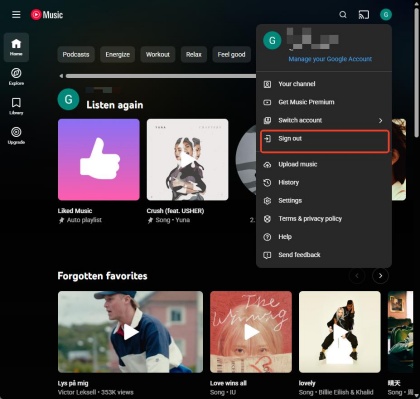
On Desktop
01Open any web browser you prefer on the desktop.
02Navigate to the YouTube Music website, and it usually be signed in automatically.
03Click your profile picture.
04Click Sign Out.
Method 3: Clear Your Music History & Data
If you want to erase your listening activity instead of deleting your account, you can clear your YouTube Music history and activity.
On Mobile & Desktop
01Open the YouTube Music app or the website.
02Sign in to your Google Account.
03Click or tap your profile picture.
04Open Settings.
05Select Privacy & location.
06Choose Manage watch history.
07Delete your history by selecting Delete today, Delete custom range, or Delete all time.
Delete today: Erases only the music you played today.
Delete custom range: Lets you pick a specific timeframe to wipe.
Delete all time: Permanently clears your entire history from day one.
Part 3. How to Delete Your YouTube Music Account Permanently
If you no longer want to use any Google services, you can permanently delete your Google Account. This removes your YouTube Music account along with Gmail, YouTube, Google Drive, Google Photos, Google Calendar, and other Google services associated with that account.
Delete the Google Account Permanently
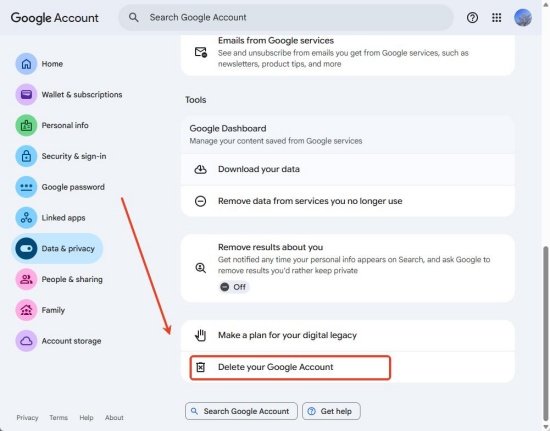
01Open a web browser and go to myaccount.google.com.
02Sign in to your Google Account.
03Click Data & Privacy.
04Scroll to More options.
05Click Delete your Google Account.
06Verify your identity by entering your password.
07Read the information about what will be deleted.
08Check the confirmation boxes.
09Click Delete Account to permanently remove your Google Account.
Once the process is complete, your YouTube Music account and all associated Google services will be deleted permanently.
Part 4. How to Keep Your YouTube Music Songs Before Deleting Your Account
After deleting your YouTube Music account or Google Account, you will eventually lose access to your music library, including downloaded songs, playlists, liked tracks, and other saved content. Even if you only cancel your YouTube Music Premium subscription, your offline downloads will no longer be available once your subscription expires.
If there are songs or playlists you want to keep, it's best to save them before deleting your account. One practical way to do this is with ViWizard YouTube Music Converter. You can use it to download songs, albums, playlists, and podcasts from YouTube Music and convert them to popular audio formats, including MP3, FLAC, WAV, AIFF, M4A, and M4B. Besides, you can customize the output quality and organize the downloaded files as you please. Once converted, the music is stored locally on your computer. Transfer it to other devices and enjoy your music!

Need YouTube Music for offline listening? ViWizard YouTube Music Converter helps YouTube Music users save songs, playlists, albums, and artists with convenient music conversion. Start converting and enjoy your music beyond the app.
How to Save YouTube Music Songs with ViWizard
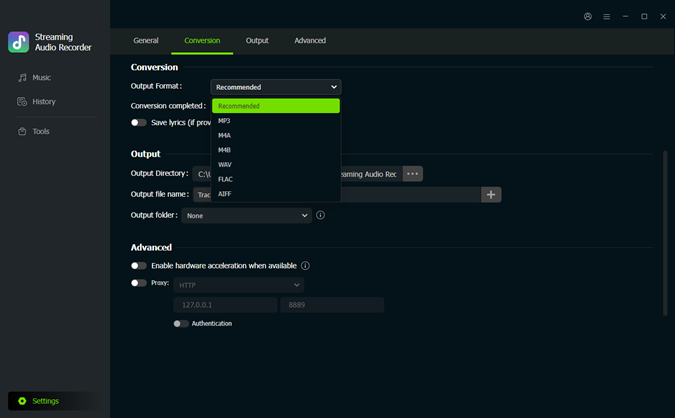 Step 1: Adjust the Output Settings
Launch ViWizard YouTube Music Converter on your Windows or Mac computer. Click Settings in the bottom-left corner and select Conversion. Choose an output format, such as MP3, FLAC, WAV, AIFF, M4A, or M4B, then adjust the bitrate, sample rate, output folder, and file organization settings as needed. When finished, click Music in the left sidebar.
 Step 2: Open YouTube Music
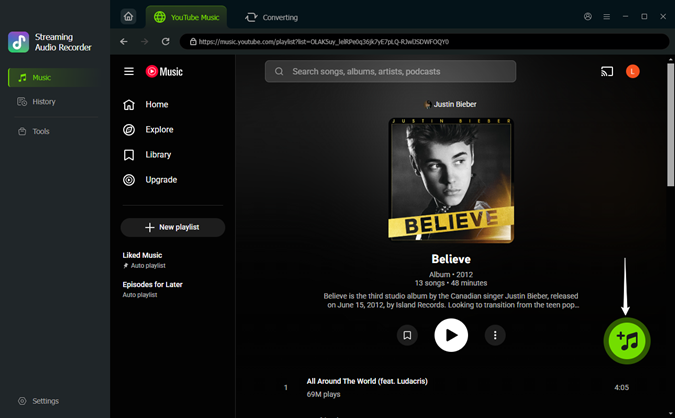
In the Music section, click the YouTube Music logo to open the built-in YouTube Music web player. Sign in to your YouTube Music account and browse the songs, albums, playlists, or artists you want to save.
 Step 3: Add the Music to the Conversion List
Search for the songs, albums, or playlists you want to download. Open the music page and click the green + button. ViWizard will load the available tracks in a pop-up window. Select the songs you want and click Add to list.
 Step 4: Convert and Save Your Music
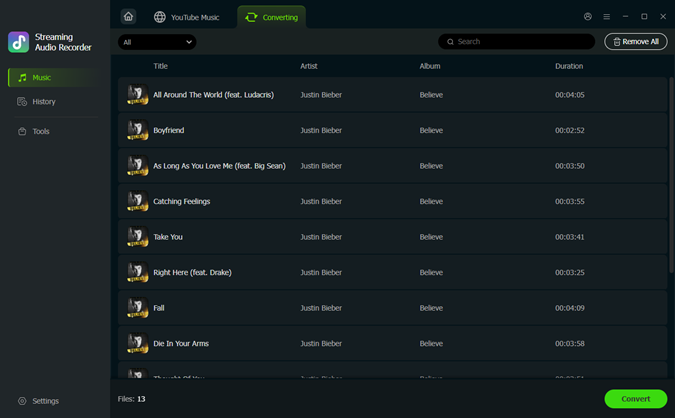
Click Converting at the top of the window to review your selected songs. Then click Convert in the bottom-left corner to start downloading them. When the conversion is complete, open History to play the converted songs or click the folder icon to locate the saved files on your computer.
Conclusion
Before deleting your YouTube Music account, make sure you choose the right option for your needs. Canceling YouTube Music Premium only stops your subscription, while deleting your Google Account removes all related Google services and data.
If you have important playlists, liked songs, or downloaded music, remember to back them up first. Using a tool like ViWizard YouTube Music Converter can help you save your favorite YouTube Music tracks as local audio files, so you can continue listening even after leaving YouTube Music.
You May Be Interested





From new releases to old favorites, Matt Smith is always on the lookout for good music. He follows the latest in digital entertainment and shares songs and media he thinks are worth checking out.

Leave a Comment (0)