


Want to cancel your YouTube Music Premium subscription but don't know how? Whether you want to end a free trial, switch to the free plan, or take a break, you can cancel it in just a few steps. The process may be different depending on whether you subscribed through YouTube, Google Play, or Apple.
This guide shows you how to cancel YouTube Music Premium in 2026 on desktop, mobile devices, and third-party platforms. We will also explain what happens after cancellation and how to pause your membership instead. At the end, there is also a workaround for keeping your favorite music now and forever. Let's begin!
Part 1. Can You Cancel YouTube Music Subscription?
Yes, you can. If you want to cancel your YouTube Music subscription, sign in to your account, select your profile picture, choose Paid membership, go to your membership, and select Deactivate or Cancel. You can also navigate to your Google Play Store or Apple App Store to manage your subscriptions.
Part 2. How to Cancel YouTube Music Premium Subscription
To cancel your YouTube Music Premium subscription, you can go to your YouTube Music app or website. Just visit the Purchase and Memberships page, choose your active membership, and then select Deactivate. Follow the pop-up prompts and choose Yes, cancel to confirm. During your paid time, you still enjoy the benefits.
What if you billed through Apple or Google Play? No worries, you can cancel directly through the app store.
Cancel YouTube Music Premium on Desktop
01Open YouTube Music in your browser and sign in to your account.
02Click your profile picture in the top-right corner.
03Select Paid memberships from the menu.
04Find your YouTube Music Premium plan and click Manage membership.
05Click Deactivate, then select Continue to cancel.
06Choose a reason for canceling and click Next.
07Click Yes, cancel to confirm your cancellation.
Cancel YouTube Music Premium on Mobile
01Open the YouTube or YouTube Music app on your device.
02Tap your profile picture in the top-right corner.
03Tap Paid memberships.
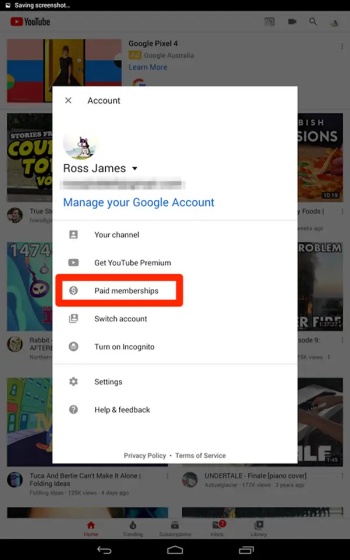
04Tap the YouTube Music Premium membership you want to cancel.
05Tap Continue to cancel.
06Choose a reason for canceling.
07Tap Next, then tap Yes, cancel.
Cancel YouTube Music Premium Through Third-Party Platforms
If you sign up through Apple or the Google Play Store, you will need to cancel your YouTube Premium subscription directly through them.
For Apple (iPhone/iPad)
01Open the Settings app on your device.
02Tap your name at the top of the screen.
03Tap Subscriptions.
04Select your YouTube Music subscription.
05Tap Cancel Subscription.
For Google Play (Android)
01Open the Google Play Store app on your device.
02Tap your profile picture in the top-right corner.
03Tap Payments & subscriptions.
04Tap Subscriptions.
05Select YouTube Music and tap Cancel subscription.
Part 3. Why Can't You Cancel YouTube Music Subscription?
You cannot cancel your YouTube Music subscription directly via the app or website, as you may be billed for YouTube Music Premium through a third party, like Apple or Google Play. Or because you sign into the wrong Google account. Here are some tips to fix it.
Log Out and Back in: Ensure that you are using the right Google Account associated with your membership.
Cancel via a Web Browser: The YouTube Music app may restrict cancellations. Sign in to YouTube Paid Memberships on a computer or mobile browser.
Check Your Third-party Billing: If you subscribed through Google Play Store or Apple, you must cancel via them.
Part 4. What Happens After Cancelling YouTube Music Premium?
Canceling YouTube Music Premium does not delete your account data. You can still keep your saved playlists, liked songs, uploaded music, and listening history. However, once your Premium benefits end, your account will switch back to the free version of YouTube Music. Here is what you can expect:
Premium Benefits Continued During Paid Time: You can continue using YouTube Music Premium features until the end of your current billing cycle. You will not be charged for the next subscription period.
Unavailable Offline Downloads: Any songs or podcasts downloaded for offline listening will no longer be available after your Premium membership expires.
Free-tier Access: You can still use YouTube Music for free, but you will hear ads, need an internet connection for streaming, and lose features like background play on mobile devices.
Playlists and Library Saved: Your playlists, liked songs, music library, and listening history remain linked to your Google account. If you subscribe again later, you can access them without starting over.
Part 5. How to Cancel YouTube Music Free Trial
If you want to cancel your YouTube Music free trial, go to your Purchases and memberships page on the YouTube or YouTube Music website or app, select your trial membership, then select Cancel.
Canceling your free trial will end your subscription without charges. And you will still retain ad-free music benefits until the trial period expires.
Cancel YouTube Music Free Trial on Desktop
01Open YouTube and click your profile picture in the top-right corner.
02Click Purchases and memberships from the menu.
03Click Manage membership under your membership details.
04Click Deactivate or Cancel.
05Follow the on-screen instructions to confirm the cancellation.
Cancel YouTube Music Free Trial on Mobile
01Open the YouTube or YouTube Music app.
02Tap your profile picture in the top-right corner.
03Tap Paid memberships or Purchases and memberships.
04Select the YouTube Music Premium membership you want to cancel.
05Tap Continue to cancel.
06Follow the prompts and tap Yes, then tap Cancel to confirm.
Part 6. How to Pause YouTube Music Premium Instead of Canceling
You can also pause your YouTube Music Premium subscription instead of canceling, which lets you halt payment for 1 to 6 months. This move saves your downloaded tracks and your custom playlists when you return. Same, you can easily halt your subscription directly through a browser or the mobile app.
Pause YouTube Music Premium on Desktop
01Sign in to your YouTube account and open the Purchases and memberships page.
02Locate your YouTube Music or YouTube Premium plan.
03Click Manage membership.
04Click Deactivate.
05Click Pause instead in the pop-up window.
06Use the slider to choose a pause period from 1 to 6 months.
07Click Pause membership.
Pause YouTube Music Premium on Mobile
01Open the YouTube app and tap your profile picture.
02Tap Paid memberships.
03Tap the YouTube Music or YouTube Premium plan you want to pause.
04Tap Deactivate.
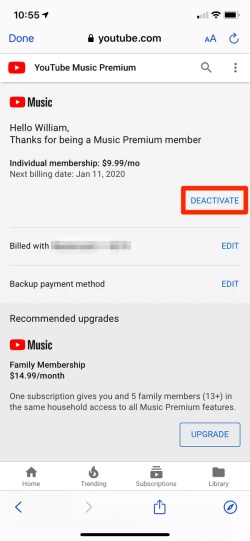
05Tap Pause instead.
06Choose how many months you want to pause your membership.
07Tap Pause membership.
Part 7. Best Alternative to Listen to YouTube Music Without Subscriptions
Canceling YouTube Music Premium means you will lose some convenient features, especially offline listening and background playback. If you still want to enjoy your favorite YouTube Music songs without keeping a monthly subscription, using a music converter can be a practical solution.
ViWizard YouTube Music Converter is designed to help you save YouTube Music content as regular audio files for offline playback. It supports converting songs, playlists, albums, and other music content from YouTube Music to popular formats, including MP3, FLAC, WAV, AIFF, M4A, and M4B. The converted files keep the original metadata, such as song titles, artists, and album information, making it easier to organize your music library.
With ViWizard YouTube Music Converter, you can listen to your downloaded music on various devices and media players without relying on the YouTube Music app or an active Premium subscription. It can be a convenient choice for users who want more flexibility over how and where they enjoy their music.

Need YouTube Music for offline listening? ViWizard YouTube Music Converter helps YouTube Music users save songs, playlists, albums, and artists with convenient music conversion. Start converting and enjoy your music beyond the app.
How to Use ViWizard YouTube Music Converter
 Step 1: Adjust Output Settings
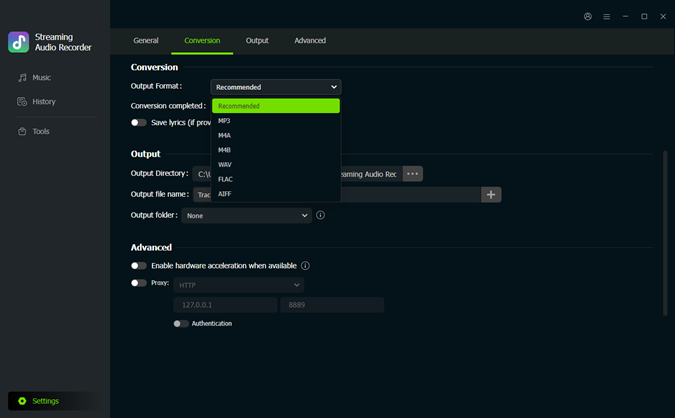
Launch ViWizard YouTube Music Converter on your computer. Click the Settings menu in the bottom-left corner and choose Conversion. Here, you can select your preferred output format, such as MP3, FLAC, WAV, AIFF, M4A, or M4B, and adjust the bitrate and sample rate according to your needs. You can also choose the output folder and customize file organization settings. Once everything is set, click Music in the left sidebar.
 Step 2: Open YouTube Music in ViWizard
In the Music section, select the YouTube Music logo as the source platform. The built-in YouTube Music web player will open inside ViWizard. Sign in to your YouTube Music account and browse your favorite songs, albums, playlists, or artists directly in the application.
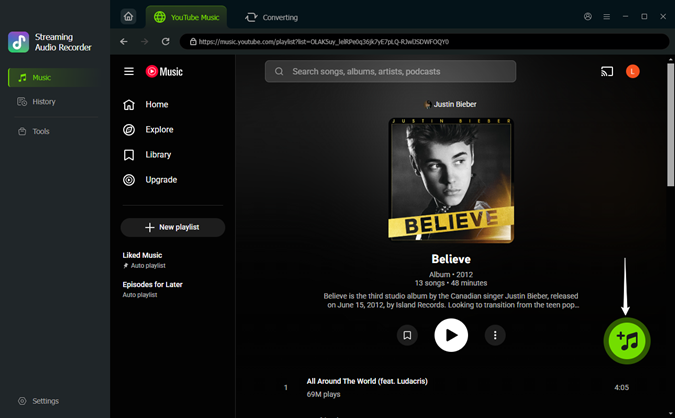 Step 3: Select YouTube Music Songs to Download
Use the built-in search bar to find the YouTube Music songs, albums, or playlists you want to convert. Open the song or playlist page, then click the green plus (+) button. ViWizard will analyze the page and display all available tracks in a pop-up window. Select the songs you need and click Add to list.
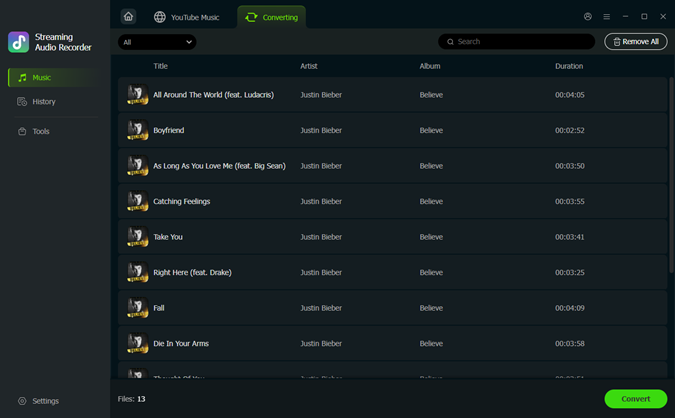 Step 4: Start Converting YouTube Music
Click Converting at the top of the screen to review the selected songs. Then click Convert at the bottom left to start the conversion process. After the conversion is complete, go to History in the left sidebar. You can play the converted songs directly or click the folder icon to open the output folder and access your YouTube Music files.
Conclusion
Canceling YouTube Music Premium is easy if you follow the right steps. After you cancel, you can still use Premium features until your current billing period ends, and your playlists, liked songs, and listening history will stay on your account.
If you do not want to keep a monthly subscription but still want offline listening, you can use a tool like ViWizard YouTube Music Converter to save your favorite YouTube Music tracks as regular audio files and listen to them anytime!
You May Be Interested

Step-by-Step Guide to Cancel SoundCloud Subscription
How to Cancel Deezer Subscription and Save Your Music

How to Cancel Apple Music Subscription Wisely

How to Cancel Tidal Subscription [Full Guide]
YouTube Music Subscription Cost 2026: Is Premium Still Worth It?
How to Delete YouTube Music Account (Step-by-Step Guide)

From new releases to old favorites, Matt Smith is always on the lookout for good music. He follows the latest in digital entertainment and shares songs and media he thinks are worth checking out.

Leave a Comment (0)