


As a popular streaming service that offers a vast amount of music across different genres, YouTube Music provides a personalized experience with smart recommendations based on users' listening history and preferences. Whether you're looking for the latest hits or classic tunes, YouTube Music has something for everyone, making it a top choice for music streaming. The platform also allows for seamless integration with other Google services, making it easy to access music across different devices.
If you own a Tesla, you might want to listen to your favorite music while driving, making your long journey more enjoyable. Up to now, Tesla supports media apps like Spotify, Apple Music, and Tidal to play in its touchscreen. Then how about YouTube Music? Does YouTube Music work on Tesla? The answer is yes. Keep reading to check out how to play YouTube Music on Tesla.

Part 1. Does Tesla Have YouTube Music?
As is mentioned above, Tesla does have the YouTube Music service. With the release of the newest version 2024.26 software update, Tesla has added YouTube Music into its streaming service.
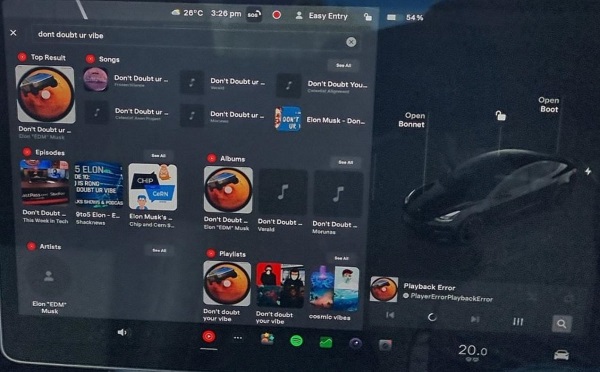
What Do You Need to Use YouTube Music in Tesla?
- Software version 2024.26 or higher
- A YouTube Music Premium or YouTube Premium account
- An active Premium Connectivity subscription or a mobile hotspot
- A Google account
What Will You Get from the Tesla YouTube Music App?
- Access your entire library and personalized mixes
- View synchronized lyrics on the big screen when parked
- Control playback from the steering wheel
- Seamlessly switch from your phone to your Tesla and pick up right where you left off
If you can't check off all the requirements, no worries! This guide has got your back with different ways to enjoy YouTube Music in your Tesla, even if you're offline or don't have a YouTube Music Premium account.
Part 2. How to Play YouTube Music in Tesla
You can enjoy YouTube Music in your Tesla through various methods. Some allow for online streaming, while others enable offline listening. In the following sections, we'll detail the requirements for each method and guide you through the steps to get started.
Before diving into the methods, let's take a quick overview to compare them.
Comparison of Methods for Playing YouTube Music on Tesla
| Feature | ViWizard (USB) | YTM Native Tesla App | Bluetooth | Tesla Web Browser | TeslaMirror |
|---|---|---|---|---|---|
| High-Fidelity Sound | ✅ Yes (Lossless) | ❌ No | ❌ Limited | ❌ No | ❌ No |
| Offline Playback | ✅ Yes | ❌ No | ⚠️ Partial | ❌ No | ❌ No |
| No YTM Premium Needed | ✅ Yes | ❌ No | ✅ Yes | ✅ Yes | ✅ Yes |
| No Premium Connectivity | ✅ Yes | ❌ No | ✅ Yes | ⚠️ Needs Hotspot | ⚠️ Needs Hotspot |
| Steering Wheel Control | ✅ Yes | ✅ Yes | ✅ Yes | ❌ No | ❌ No |
Method 1. Use the YouTube Music App for Tesla
If your vehicle is compatible with the YouTube Music app, you can easily stream music right from your car's touchscreen, no phone needed! Just keep in mind that availability varies based on your Tesla model and software version.
What you need: Tesla Software version 2024.26 or higher, a YouTube Music Premium account, and an active Tesla Premium Connectivity subscription.
Step 1 Open the Application Launcher (the icon with three dots) on your Tesla touchscreen.
Step 2 Find the YouTube Music icon and select it.
Step 3 A QR code will appear on the screen.
Step 4 Scan the QR code with your mobile phone or just go to yt.be/activate.
Step 5 Open the link that appears in the web browser of your phone and log in with your Google account.
Step 6 Enter the code that appeared on your Tesla screen.
Step 7 Tap "Allow" to grant Tesla permission to manage your music.
Step 8 Once authorized, your playlists and library will load on the Tesla screen

Method 2. Stream YouTube Music to Tesla via Bluetooth
Streaming via Bluetooth allows you to play YouTube Music from your phone through your Tesla's speakers. This is a fantastic backup option if the car's YouTube Music app is having issues or if your vehicle isn't compatible with the app.
What you need: A smartphone with the YouTube Music app and a working Bluetooth connection.
Step 1 Open the Settings app on your phone and head over to the Bluetooth section. Make sure it's turned on.
Step 2 On your Tesla's touchscreen, tap the gray Bluetooth icon in the upper right corner. From there, select Add New Device and hit Start Search.
Step 3 Look for your phone's Bluetooth name and select it.
Step 4 Once the devices are paired, open the YouTube Music app on your phone and start playing your favorite songs.
Step 5 Select Bluetooth as the audio source on the Tesla Media Player to hear the sound through the car's speakers.

After the connection of two devices, you can use your phone hands-free to receive calls and messages while enjoying YouTube music at the same time.
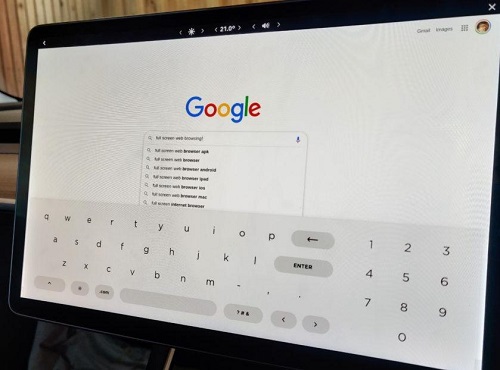
Method 3. Play YouTube Music on Tesla via the Web Browser
Tesla includes a built-in web browser that can be used to access YouTube Music. This option does not require your phone, but the browser experience may feel limited and is not always smooth.
Note: This method usually works best when the car is in Park.
What you need: A stable internet connection (Premium Connectivity or a mobile hotspot).
Step 1 Open the Web Browser from the Tesla app drawer.
Step 2 Go to the website: music.youtube.com.
Step 3 Sign in with your Google credentials.
Step 4 Use the mouse pointer on the screen to select and play your music.
Method 4. Cast YouTube Music in Tesla via the TeslaMirror App
TeslaMirror lets you project your phone screen onto the Tesla's big display. It's perfect for accessing mobile-only features or enjoying music videos while parked.
TeslaMirror is not officially supported by Tesla though. Here we should note that this app is named TeslaMirror on Android and TslaMirror on iOS.
What you need: An Android or iOS phone with the TeslaMirror app, a mobile hotspot, and a Tesla Model 3, Y, S, or X.
Step 1 Install the TeslaMirror/TslaMirror app on your phone from Play Store for android and App Store for iOS.

Step 2 Turn on your phone's Mobile Hotspot and connect your Tesla to it.
Step 3 Open the TeslaMirror/TslaMirror app on your phone.
Step 4 For Android, please tap the Apps button, then tap on TeslaMirror > Mirroring on your Tesla's screen.
Step 5 If you are an iPhone user, firstly turn on the Bluetooth and connect it to your car, then go to the TslaMirror app and click the Start Mirroring button.
Step 6 On your Tesla's web browser, enter the specific IP address shown in the app (e.g., http://3.3.3.3:3333).
Step 7 Your phone screen will appear on the Tesla display, and you can play YouTube Music directly.

Method 5. Play YouTube Music in Tesla with ViWizard (Offline)
If you're an audiophile or a frequent traveler, the ViWizard YouTube Music Converter is your go-to solution. It lets you download high-quality music files directly to a USB drive, so you can enjoy your YouTube Music offline without worrying about sound quality or network issues.
What you need: A computer, a USB flash drive, and the ViWizard YouTube Music Converter software.
You don't need a YouTube Music Premium subscription or Premium Connectivity subscription for this. Plus, it's compatible with nearly all Tesla models that have a USB port.

Download music from 10 popular streaming platforms like YouTube Music and save it in formats like MP3, FLAC, WAV, AIFF, M4A, or M4B while keeping the original sound quality. Then, transfer the files to a USB drive for lossless offline playback in your Tesla whenever you hit the road.
Step 1 Set Output Format for Tesla Audio System
Launch ViWizard YouTube Music Converter. Click the Menu icon and select Preferences, then switch to the Conversion tab. To get the best experience from Tesla's premium sound system, select FLAC (Lossless) or MP3. Ensure the Bit Rate is set to 320kbps to avoid the "thin sound" issues often reported with the native app. Click OK to save your settings.

Step 2 Open YouTube Music in ViWizard
On the main screen, click the YouTube Music icon to open the built-in web player. Sign in to your YouTube Music account so you can access your playlists, albums, and liked songs.

Step 3 Select YouTube Music Songs to Download
Browse or search for the songs, albums, or playlists you want to play in your Tesla. Open a track or playlist, then click the Add (+) button. You can select multiple songs at once or an entire playlist in one click. Next, click Add to List to confirm your selection.

Step 4 Convert YouTube Music to Lossless Files
Click the Convert button to begin the process. ViWizard will download and transform the YouTube Music streams into DRM-free, high-quality audio files. Once finished, click the folder icon to locate your music files on your computer.

Step 5Transfer Music to USB and Play on Tesla
- Plug a USB flash drive (formatted to exFAT or FAT32) into your computer.
- Find the folder with your downloaded YouTube music and drag the files to the USB Drive window.
- After transferring, safely eject the USB and plug it into your Tesla's front USB port.
- On the Tesla touchscreen, open the Media Player and choose USB as the audio source.
- Select the folder with your YouTube music and use the touchscreen or steering wheel controls to pause, skip tracks, or adjust the volume.


Part 3. Troubleshooting YouTube Music Not Working in Tesla
The new native Tesla YouTube Music app is a cool update, but many drivers face tech issues. Here are the common problems and quick fixes from the Tesla community.
1. Fix "Please allow Tesla to view and manage your YouTube Music"
If you have successfully logged in but cannot see your playlists or play songs, you are likely facing an Insufficient Permissions error.
How to fix it:
When you scan the QR code and log in on your phone, you will see a list of permissions. You must manually check the box that says "View and manage your YouTube Music data" before clicking "Continue." If you missed it, remove "Tesla" from your Google Account's app access and try logging in again.
2. Fix "Tesla YouTube Music Invalid Playback URL"
This error often occurs due to a glitch between Tesla software and YouTube's servers.
How to fix it:
- Double-Wheel Reset: Hold both scroll wheels until the screen goes black and the Tesla logo appears.
- Re-log: Log out of the YouTube Music app in your car and log back in to refresh the playback token.
3. Fix "Tesla YouTube Music Bad Sound" Quality
As discussed in recent Reddit threads, many audiophiles find the native app's bitrate to be lower than Spotify or Tidal, resulting in poor sound.
How to fix it:
Currently, Tesla doesn't have a "High Quality" option for YouTube Music. For better sound, use ViWizard YouTube Music Converter to download original audio files and play 320kbps MP3s or Lossless FLACs via USB.
4. Fix "Tesla Internet Not Working" or "Network Down"
Since the app is cloud-based, it won't work in dead zones or if the network is down.
How to fix it:
- Check Connectivity: Ensure your Premium Connectivity is active under Controls > Software.
- Use a Hotspot: If the car's built-in LTE is failing, turn on your phone's Mobile Hotspot and connect your Tesla via Wi-Fi.
- USB Playback: To avoid silence during trips, use the USB Offline Method mentioned in Part 2 to ensure your music plays regardless of cell signal.
Part 4. FAQs about YouTube Music on Tesla
Does Tesla have Apple Music?
Yes, Tesla supports Apple Music in some models. For Model 3, Tesla has Apple Music, and other media apps like Amazon Music, Apple Podcasts, Audible, Spotify, Tidal, and TuneIn. For Model S, Tesla has Apple Music, Amazon Music and Apple Podcasts and more. If you want to play Apple Music on Tesla, you can connect your phone to car via Bluetooth, or just download Apple music to your USB Drive and transfer it to your car.
How to play music from your phone on Tesla Model Y?
You can connect your phone to Tesla for music playing via Bluetooth. Firstly, enable your phone's Bluetooth, then on your Tesla's touchscreen, select Controls > Bluetooth to scan the nearby devices. Find your phone's name and select Connect, then confirm that you want to pair on your phone. Or you can download your favorite music to a USB Drive and transfer them to your Tesla Model Y with the help of ViWizard YouTube Music Converter.
Does Tesla have Apple CarPlay or Android Auto?
Unfortunately, Tesla currently does not have Apple CarPlay or Android Auto. While many people are talking about potentially adding these functionalities in the future, it doesn't seem likely that they will be available anytime soon. However, Tesla already has an extremely robust infotainment system that offers all the features of Apple CarPlay and Android Auto, and even more.
Conclusion
In this post, you can master five ultimate ways to play YouTube music on your Tesla. If you want to enjoy offline YouTube music on Tesla, we suggest you use ViWizard YouTube Music Converter to save YouTube music to your computer locally and transfer them to your Tesla with a USB Drive. Click the "Download" button to have a try right away!
You May Be Interested



From new releases to old favorites, Matt Smith is always on the lookout for good music. He follows the latest in digital entertainment and shares songs and media he thinks are worth checking out.

Leave a Comment (0)