


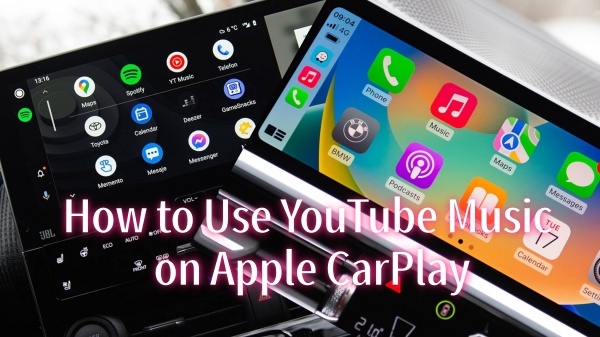
It is an enjoyment to have YouTube Music on Apple CarPlay. Whenever and wherever you set out, you can play your favorite music, podcasts, and curated playlists while driving, distraction-free and seamlessly if the tracks are downloaded. More importantly, Apple CarPlay syncs with your YouTube Music account, provides a customized feed, and entirely supports voice commands via Siri. Then, how to use YouTube Music on Apple CarPlay? After reading the article, you will know how to use it.
Part 1. Can I Use YouTube Music on Apple CarPlay?
Yes, YouTube Music works with Apple CarPlay. But you need to make sure you have installed the latest version of the YouTube Music app on your phone, and your iPhone is running iOS 7.1 or later. Also, an active YouTube Music Premium is necessary to access your YouTube Music library via CarPlay. Another thing to note is that your car must be equipped with factory-installed Apple CarPlay (either wired or wireless). Nowadays, Apple CarPlay is available in over 800 vehicle models from nearly every major automaker.
Here are the Major Car Brands that Support Apple CarPlay: Acura, Audi, BMW, Buick, Cadillac, Chevrolet, Chrysler, Dodge, Ford, GMC, Honda, Hyundai, Infiniti, Jeep, Kia, Lexus, Mazda, Mercedes-Benz, Nissan, Subaru, Toyota, Volkswagen, and Volvo.
With your app and compatible car, you can stream your favorite tracks, playlists, and albums from YouTube Music and control playback directly from the car's dashboard.
Part 2. How to Use YouTube Music on Apple CarPlay
To use YouTube Music on Apple CarPlay, you can download the YouTube Music app and log in to your account. Keep in mind that playing YouTube Music on Apple CarPlay is a built-in feature; you can access your tracks and playlists by tapping the car's dashboard screen.
Step 1: Connect Your iPhone to Apple CarPlay
If you meet the requirements, you can connect your iPhone to Apple CarPlay. Please ensure your car is turned on and your iPhone's Siri, Wi-Fi, and Bluetooth are enabled. You can connect using a wired USB cable or wirelessly, depending on your vehicle.
For Wired Connection:
01Activate your vehicle and ensure the infotainment screen is open.
02Connect one end of your Apple-certified Lightning or USB-C cable to your car's designated USB port (usually marked with a CarPlay or smartphone icon) and the other to your phone.
03Open your screen and select Allow if a prompt appears.
04The Apple CarPlay icon automatically shows up on the car's dashboard. If it doesn't appear, tap the CarPlay icon on your car's dashboard screen.
For Wireless Connection:
01Start your vehicle. On the home screen, touch Smartphone Connection > Connect New Device (Device Manager or Add Device). This ensures your infotainment system is in "Bluetooth" or "Pairing" mode.
02Swipe down your iPhone screen to ensure both Bluetooth and Wi-Fi are turned on. (Going for iPhone settings to check them is also workable.)
03On your iPhone, tap Settings > General > CarPlay.
04Tap your car name when you see the "Available Cars" list on your iPhone.
Step 2: Launch YouTube Music on Apple CarPlay
Once connected, your car's display will shift to the Apple CarPlay home screen. You can locate the YouTube Music icon on the dashboard and tap it to launch. If you don't see it, swipe to the next page of apps.
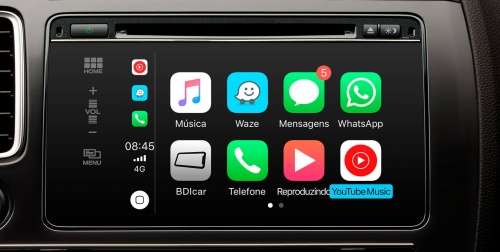
Step 3: Play YouTube Music on Apple CarPlay
Upon launching your YouTube Music on Apple CarPlay, you can play music via the car's display screen or Siri voice assistant.
Play YouTube Music via CarPlay Display:
01Make sure YouTube Music is open on your CarPlay display.
02Use the tabs at the top or side of the screen to navigate.
03Tap Home/Recommended to discover new music based on your listening history.
04Tap Library to access your liked music, playlists, albums, artists, and even AI playlists.
05Tap Downloads to play your offline music (Premium feature).
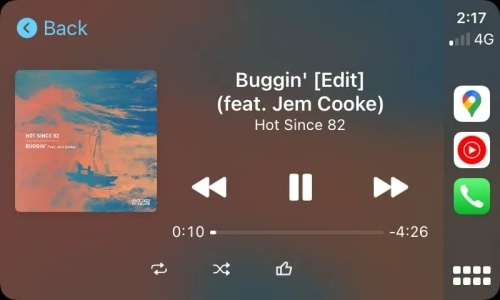
Play YouTube Music via Siri Voice Assistant:
Using Siri can be one of the most competitive features of Apple CarPlay. More importantly, it is extremely safe and hands-free. Just press and hold the voice command button on your steering wheel or say "Hey Siri", and express your needs, for example:
- For YouTube Music: "Hey Siri, play YouTube Music".
- For Liked music on YouTube Music: "Hey Siri, play my Liked music on YouTube Music".
- For skipping a song: "Hey Siri, skip this song".
Part 3. How to Fix YouTube Music Not Working on Apple CarPlay
When you use YouTube Music on Apple CarPlay, you may encounter the app icon not showing up on the car display. Or sometimes you want to watch music videos on your color-touch screen. Don't worry, we can work them out for you.
App Not Appearing? Open your iPhone, go to Settings > General > CarPlay, choose your car, tap Customize, and ensure "YouTube Music" is added to the active apps list.
CarPlay Freezes or Disconnects Frequently? Tap Settings > General > CarPlay on your iPhone, select your car, and tap "Forget This car". And try to re-pair your iPhone with the car.
Media Controls Not Working (Skip/Pause/Play)? Use "Hey Siri" to "skip this track" or "pause". Alternatively, open the app on your phone, play a song, and try steering wheel controls again.
Audio Plays, But Data Disappeared? Tap Settings > General > Background App Refresh and make sure it is turned on for YouTube Music.
Songs Won't Play? Open Airplane Mode for 5 seconds. Then turn off to freshen your cellular connection.
Part 4. Best Alternative for Playing YouTube Music in Your Car (With or Without CarPlay)
As music lovers, it's our nature to listen to music in a car whenever we can, especially on a long drive, which is sheer pleasure. With YouTube Music on CarPlay, you can easily pause, skip, or play a track via Siri, or you can tap Recommended on the screen to enjoy music offered by the app based on time, location, etc. But when it comes to the best offline experience in areas with poor reception, downloading your favorite playlists or albums to your iPhone before your trip is necessary, and YouTube Music downloads can only be played within its app, which can be a headache.
Is there any way to download YouTube Music? Definitely! ViWizard YouTube Music Converter can help you. It can download tracks, playlists, and albums from YouTube Music and save them as MP3 or other output formats like AIFF, FLAC, M4A, WAV, M4B, MP3, etc. Moreover, you can customize the bitrate, sample rate, and bit depth, up to 24-bit, 320 kbps, 192 kHz. Then you choose YouTube Music as the platform to convert. Equal importance should be attached to keeping original ID3 tags so that you can sort through the songs. Whenever and wherever you go, you can download YouTube Music to MP3, and then play the files in your car using USB drives.

Need YouTube Music for offline listening? ViWizard YouTube Music Converter helps YouTube Music users save songs, playlists, albums, and artists with convenient music conversion. Start converting and enjoy your music beyond the app.
How to Download via ViWizard YouTube Music Converter and Play in the Car
 Step 1: Set Output Format and Audio Quality
After installing the software, log in and select the menu icon in the top right corner. Click Preference to set output format. Select Conversion, and click your favorite format, such as MP3, WAV, AIFF, or FLAC. Adjust audio quality parameter, for example, you can set it up to 24-bit, 320 kbps, 192kHz. Select Save to retain the settings.
 Step 2: Sign in to YouTube Music inside ViWizard
Go back to the main screen. Select YouTube Music, and then the built-in YouTube Music web player appears. Log in to the website with your account to access your music data.
 Step 3: Select Songs, Playlists, and Albums on YouTube Music
Browse your library, tracks, albums, and playlists on the built-in website. Click the playlist or the track, and select Add to List. ViWizard then scans and loads all the tracks to the conversion screen.
 Step 4: Convert and Keep YouTube Music Downloads on Computer
Make sure all your desired songs are in the conversion screen, and then choose Convert. ViWizard starts downloading YouTube Music and retains the original audio quality. After converting, open the converted page and locate the downloads.
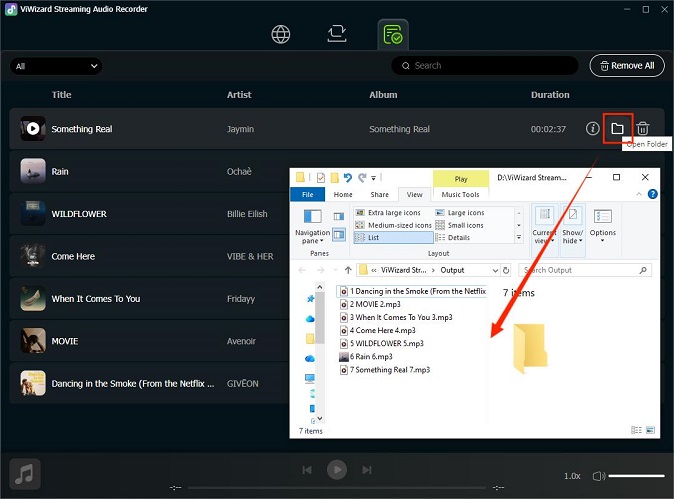 Step 5: Transfer Converted YouTube Music
Once there is an MP3 music collection, insert the USB into the computer, right-click it, and select Format. Choose FAT32 as the file system and click Start. And then drag and drop MP3 files to the drive. Plug the USB into the car's data port and select "USB" as the audio source on the car stereo. Use steering/dash controls to play music. Enjoy this permanent and moving music library in the car!
Read More : How to Play YouTube Music in Car (6 Ways)
Conclusion
Have you let your YouTube Music play on Apple CarPlay? It is super easy and convenient to control playback of YouTube Music via voice commands or the dashboard. If you have any issues while playing music, remember to check the requirements and details of each step. Want an uninterrupted listening experience? Just give a shot at ViWizard YouTube Music Converter!
You May Be Interested




Matt Smith, a digital entertainment industry enthusiast at ViWizard, is dedicated to providing insightful commentary and solutions for music and media-related topics, including industry trends, analysis, and recommendations.

Leave a Comment (0)