


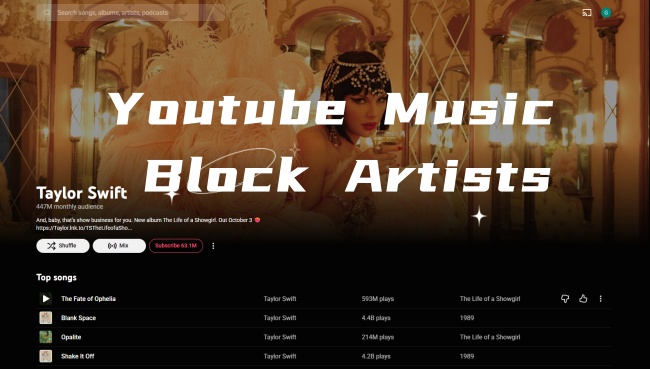
YouTube Music is renowned for its enormous, unparalleled library and user-friendly interface. You can easily dislike or like a song so that the algorithm can provide tracks, playlists, and albums that may interest you. One thing to note is that there seems to be no way to block an artist on YouTube Music. Don't worry, and we can help you.
In this article, we will show 6 workable ways to block an artist from you on your YouTube Music, from clicking the Dislike icon to installing a browser extension. As a matter of fact, clicking Dislike (the thumbs-down icon) is the simplest way. And frequent "Not Interested" on the Home page can also train your algorithm. Another option is to clear your history and library, which ensures your recommendations and Autoplay queues remain tailored to your actual tastes. Want to know more details? Let's dive in.
Part 1. Can You Block Artists on YouTube Music?
No, you cannot block artists through a native, direct feature on YouTube Music. When you dislike a song, you can click a thumbs-down icon to tailor our recommendations. But chances are, you dislike every track of the artist that seems tricky to remove. Is there any way to hide the artist? Yes, there is. Follow us to the next part.
Part 2. How to Block an Artist on YouTube Music
Although there is no "Block Artist" button within the app, you can use a combination of recommendation settings and manual filtering to prevent an artist from appearing in your feed. There are six methods for you to choose from.
Method 1: Use Dislike Songs Icon
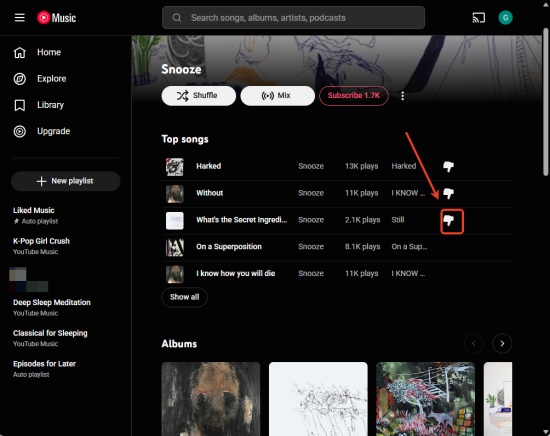
This can be the most effective way to stop an artist from appearing in your recommendations. As time passes by, the "Google magic" will filter the artist out of your automated radio stations and mixes.
Disliking a song on mobile is slower than on a desktop. On the desktop, there is a visible dislike icon next to each song, which makes it faster to block an artist.
01 Visit the YouTube Music website/app and sign in.
02 Search for the artist you dislike.
03 Go to the profile page.
04 Hover your mouse over a song on the page, and choose the thumbs-down icon. (On mobile, tap the three vertical ellipses next to an artist's song and choose Dislike.)
Method 2: Use "Not Interested"
YouTube and YouTube Music share data, so you can also select Don't recommend channel to keep your options consistent.
01 Open the YouTube Music app and make sure you log in.
02 Find a music video or a song by the artist on your Home screen.
03 Tap on the three-dot icon next to the song name.
04 Scroll down to click Not interested or Don't recommend channel.
Method 3: Remove from Library
Sometimes, unwanted artists appear because you listened to them or because you "subscribed" to them by accident. Then you need to remove the artist from the Library.
On Mobile (Android & iPhone)
01 Sign in to the YouTube Music app with your account.
02 Choose Library, and then you can see the Artists.
03 Tap the three dots next to the artist.
04 Select Remove from library, and it will never show up.
On Desktop (Web Browser)
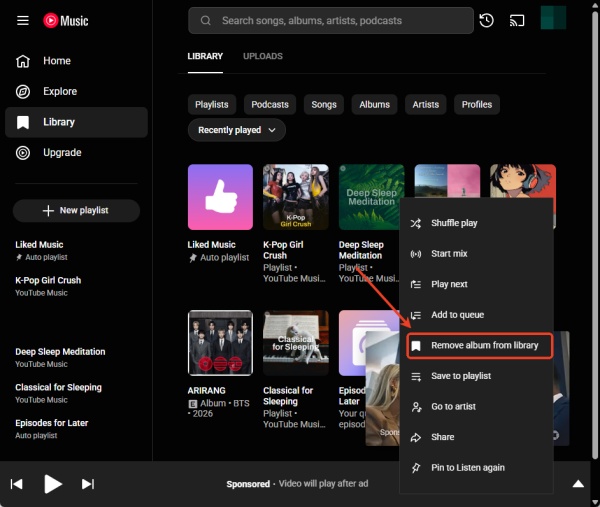
01 Log in to the YouTube Music Website with your account.
02 Navigate to your Library on the left bar.
03 Hover your mouse over the artist's album or song.
04 Click the three dots next to the song and choose Remove from library.
Method 4: Delete Listening History
YouTube Music Algorithm may consider your listening history. So, you need to clear the recently played tracks of the unwanted artist from the play history.
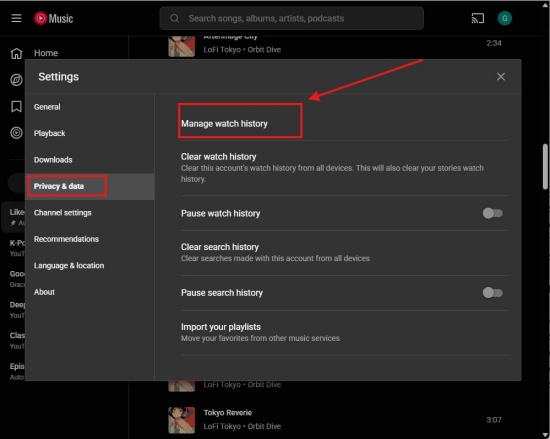
01 Sign in to the YouTube Music app or website with your account.
02 Click your profile picture and choose Settings.
03 Choose Privacy & data.
04 Select Manage watch history under Privacy & data.
05 Search for and delete any history entries related to that artist.
Method 5: Use Voice Commands
If you use a smart device or smart speaker, you can use Google Assistant to hide an artist. Some users have found this surprisingly useful when they want to filter specific artists from future automated queues.
01 Make sure the song is playing.
02 Say, "Hey Google, don't play this artist ever again."
Method 6: Use Browser Extension (Desktop Only)
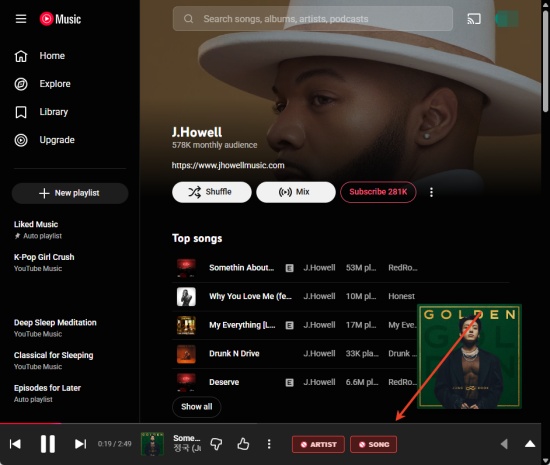
If you use YouTube Music in a browser like Chrome, you can use third-party tools for blocking artists, which can act as a real "Block" button. There are two ways to use it: click the browser extension in the top right corner to directly add the artist's name, or hide the artist inside YouTube Music. The details about the second method are as follows.
01 Open your search engine (Firefox, Chrome, Bing, and the like)
02 Search for YTM AI Artist & Song Blocker, and click the link from the Chrome Web Store.
03 Click Add to Chrome.
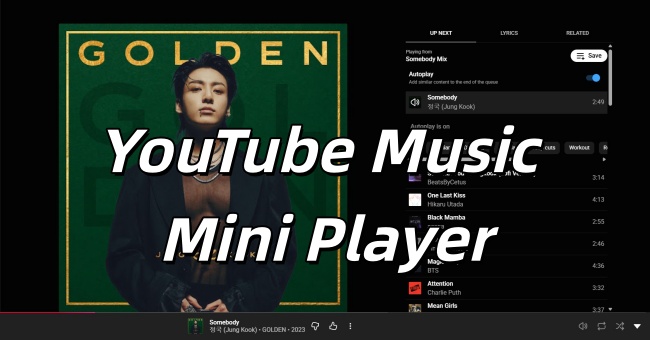
04 Block the artist or song from the mini player at the bottom bar.
Bonus: Back Up Your YouTube Music Library by Converting Songs to MP3
Backing up your YouTube Music library can be necessary when you need to clean up your Liked Music or playlists. It serves as a supplementary library that enables you to play music on other streaming services or retain access to those unique tracks even if the original video is taken down or made private.
Then, how to back up? ViWizard YouTube Music Converter can support you. There are a lot of output formats for you to choose from, such as AIFF, FLAC, M4A, WAV, M4B, MP3, etc. Certainly, you can convert more songs, albums, playlists, and Liked music on YouTube Music to MP3. If you like, you can also customize the bit rate, sample rate, and bit depth (up to 24-bit, 320 kbps, 192 kHz). Within a few clicks, these tracks can be downloaded in lossless high quality. You can easily find the music files on your macOS or Windows.
Most importantly, ViWizard YouTube Music Converter keeps the metadata, so you don't need to worry about the original ID3 tags. We ensure you can sort your tracks according to the titles, album names, and artists with ease. It is just like a mobile music library, where you can enjoy boundless tracks from YouTube Music without interruption. Want to try for free?

Download music from 10 streaming platforms to MP3, FLAC, WAV, AIFF, M4A, or M4B with original quality and ID3 tags for permanent offline listening.
How to Use ViWizard YouTube Music Converter
 Step 1: Customize Output Format and Audio Quality
After installation, log in to the app and select the menu icon in the top right corner. Click Preference to customize output format. Choose Conversion, and then choose the output format, including MP3, WAV, AIFF, or FLAC. Set audio quality parameters, such as bit rate and sample rate (up to 24-bit, 320 kbps, 192kHz). Choose Save.
 Step 2: Activate YouTube Music in ViWizard
Click X on the Settings screen to go back to the main screen. Click YouTube Music, and then the built-in YouTube Music web player appears. Sign in to the YouTube Music website with your account.
 Step 3: Select Songs, Playlists, and Albums on YouTube Music
Look through your library, albums, playlists, and your liked music within the built-in website. Click the playlist or the song, and select the Add to List. ViWizard starts to scan and load all the songs to the conversion page.
 Step 4: Convert and Save YouTube Music Downloads on Desktop
Make sure all the songs you want are in the conversion page, and then select Convert. ViWizard starts downloading YouTube Music at super-high speed while keeping the original quality. After conversion, open the converted page to find the downloads. And you can play the songs on any media player.
Conclusion:
You can easily block artists on YouTube Music in different ways. The simplest way must be the thumbs-down icon. If you use a speaker or mobile device, you can use voice commands, which is really convenient and energy-saving. Also, excluding music from the library and listening history can tailor the algorithm. For web users, you can add a browser extension if you want a blocking button.
You can choose your preferred method to enhance your listening experience. If you want a backup of your YouTube Music library, click Download to try ViWizard YouTube Music Converter for free!
You May Be Interested





Matt Smith, a digital entertainment industry enthusiast at ViWizard, is dedicated to providing insightful commentary and solutions for music and media-related topics, including industry trends, analysis, and recommendations.

Leave a Comment (0)