


Most of us like listening to music, playlists, podcasts, or deep sleep music on YouTube Music before going to sleep. However, it is unnecessary to play the music all night long, which drains our device's battery, consumes data, and interrupts our sleep. Fortunately, YouTube Music offers some ways to stop playback automatically after a set period.
Whether we're using an Android phone, iPhone, Windows PC, or Mac, we can easily set up a sleep timer and enjoy our favorite content without worrying about turning it off manually. Let's turn on the sleep timer on our device!
Part 1. How to Set a YouTube Music Sleep Timer on Android & iOS
It is easy to set a sleep timer on YouTube Music, as there is a built-in Sleep Timer directly within the app. Another option is to use the phone's native Clock app to trigger music to stop at a set time. Now choose the one you like.
Method 1: Use the Built-In Sleep Timer
01Open YouTube Music on your phone and sign in.
02Play a song or playlist in the app.
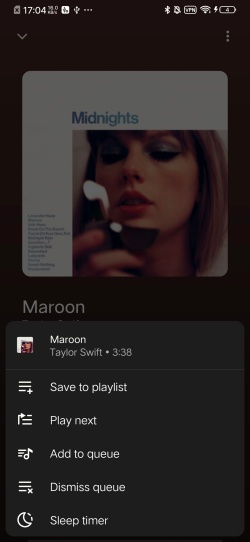
03Select the three dots at the top right of your Now Playing screen.
04Scroll the pop-up list to tap Sleep Timer.
05Set your preferred time duration, including 5, 15, 30 minutes, 1 hour, or the "End of track".
Method 2: Use the Native Clock App for Custom Timers
If you are on Android, you can set up a bedtime routine in the native Clock app to link directly with YouTube Music. iOS users can configure the native Clock app to close any media, and YouTube Music is, of course, included.
On Android
01Navigate to the Clock app on Android.
02Tap Bedtime and follow the setup instructions.
03Skip the alarm setup if you only want the timer.
04Under Sleep sounds, select Choose another sound.
05Choose YouTube Music and pick your favorite playlist or singer.
06YouTube Music automatically plays and stops according to your bedtime routine.
On iOS
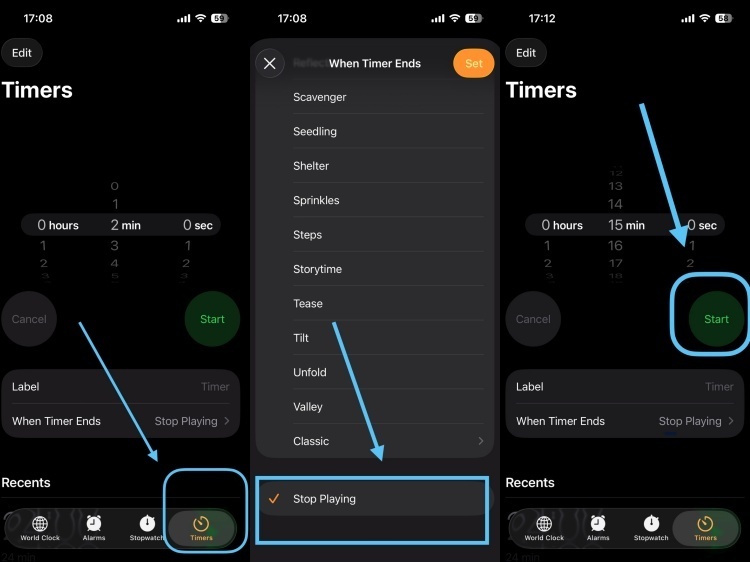
01Open your iPhone and go to Clock.
02Tap Timer at the bottom right of the screen.
03Tap When Time Ends, and scroll to the bottom to select Stop Playing.
04Select Set at the top right to keep the settings.
05Select your favorite time, such as 15 min, and tap Start.
06Your music will stop playing when the time is up.
Part 2. How to Set a YouTube Music Sleep Timer on Mac & Windows
Unlike YouTube Music on mobile devices, the desktop web browser version doesn't support a built-in sleep timer. But Mac and Windows users can still rely on these alternatives to automatically pause the music. Choose the one you prefer and get started.
Method 1: Use a Browser Extension
Using the YouTube Sleep Timer extension is the most convenient method for PC and Mac users. It runs in your web browser.
01Open the Google Chrome browser on your computer.
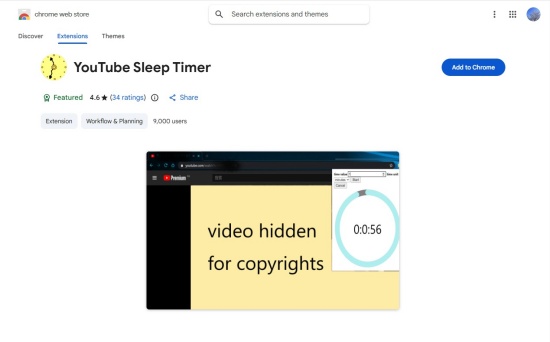
02Navigate to YouTube Sleep Timer in the Chrome Web Store.
03Select Add to Chrome to install the extension.
04Visit the YouTube Music website and play a track you like.
05Click the Extension icon in the top-right corner of your browser, and then the timer icon.
06Set the time unit and value to your desire, and click Start.
07To easily access the extension, you can pin YouTube Sleep Timer to the toolbar. Now enjoy your music!
Method 2: Use Built-in OS Timer
On a desktop, however, there is no clock app with an auto-shutoff feature. But you can set your computer to sleep automatically after a period of inactivity. When you set it well, all background music playback stops. There are some differences between devices. Follow the steps below.
On Mac
01After activating your device, click the Apple logo.
02Navigate to System Settings.
03Select Lock Screen or Energy Saver.
04Choose your display and computer sleep timers so the Mac runs off after your music is scheduled to end.
On Windows
01Go to Settings > Systems > Power & battery.
02Click Screen and Sleep.
03Set the time frame for when your computer should go to sleep when plugged in or running on battery.
Method 3: Use Cast Feature on Your Mobile
You can play YouTube Music on your mobile device, cast it to your computer using Google Cast, and turn on the mobile app's built-in Sleep Timer. Before you start, make sure both your phone and computer are on the same Wi-Fi network. And it is necessary to have a casting-supported browser like Google Chrome on your Mac or Windows.
01Open your phone and tap the YouTube Music app.
02Tap the Cast icon (the square with a Wi-Fi).
03Choose your computer from the list of devices.
04Play your favorite song in the mobile app to enter the Now Playing screen.
05Select the three dots in the top right corner.
06Scroll to tap Sleep Timer, and set the amount of playing time.
Part 3. Best Alternative to Save YouTube Music Playlists for Offline Listening Before Bed
YouTube Music offers some ways to set a sleep timer. On mobile, you can easily set a sleep timer via the built-in mobile feature or your device's native clock app. Using browser extensions or system sleep settings can let you get a sleep timer on the desktop. The casting feature in YouTube Music even lets you control playback on a computer from your mobile phone. However, if you're looking for the best alternative to save YouTube Music playlists for offline listening before bed, ViWizard YouTube Music Converter is worth considering.
Available for both Windows and Mac, ViWizard helps download songs, playlists, albums, liked music, and artists' tracks from YouTube Music and save them in multiple formats such as MP3, FLAC, WAV, AIFF, M4A, and more. For a better listening experience, you can customize the output quality up to 24-bit, 320 kbps, and 192 kHz while preserving original ID3 tags and metadata for easy music management. Once downloaded, your favorite tracks are yours to enjoy offline on any compatible player or device. Just create the perfect bedtime playlist and pair it with your preferred sleep timer now!

Need YouTube Music for offline listening? ViWizard YouTube Music Converter helps YouTube Music users save songs, playlists, albums, and artists with convenient music conversion. Start converting and enjoy your music beyond the app.
How to Use ViWizard YouTube Music Converter and Set Sleep Timer
 Step 1: Set Your Preferred Output Format and Quality
Open ViWizard YouTube Music Converter on your Windows or Mac computer. Click the Menu icon in the top-right corner and choose Preferences. In the Conversion section, select your desired output format, such as MP3, FLAC, WAV, AIFF, M4A, or M4B. You can also fine-tune the audio quality by adjusting the bitrate, sample rate, and bit depth, with options up to 24-bit, 320 kbps, and 192 kHz. When you're satisfied with the settings, click Save.
 Step 2: Access Your YouTube Music Library
Go back to the main screen and click YouTube Music. The integrated YouTube Music web player will launch automatically. Sign in with your YouTube Music account to browse your playlists, albums, liked songs, and other content.
 Step 3: Select the Music You Want to Download
Find the songs, albums, playlists, or liked tracks you want to keep offline. Click Add to List, and ViWizard will detect and import all selected tracks into the list for conversion.
 Step 4: Convert Music and Listen with a Sleep Timer
Click Convert to start downloading and converting your selected YouTube Music content. Once the conversion is finished, the tracks will be saved locally on your computer. You can choose your preferred way to listen to it with a sleep timer: On a desktop, play the downloaded songs on any media player and set the computer's sleep timer; or on mobile, upload the converted music to your phone and use your phone's Clock app or YouTube Music built-in sleep timer.
Conclusion
Now you know how to set a YouTube Music sleep timer on both mobile devices and computers. From the built-in Sleep Timer and native Clock app on Android and iPhone to browser extensions, system sleep settings, and casting options on Windows and Mac, there are so many ways to make your bedtime listening more convenient.
If you also want to keep your favorite YouTube Music playlists available offline, ViWizard YouTube Music Converter offers the best alternative for downloading and saving tracks in high-quality formats. Just enjoy your favorite music before bed and have playback stop automatically at your chosen time.
You May Be Interested


Matt Smith, a digital entertainment industry enthusiast at ViWizard, is dedicated to providing insightful commentary and solutions for music and media-related topics, including industry trends, analysis, and recommendations.

Leave a Comment (0)