


Want quicker access to your favorite music on YouTube Music? That's exactly what Speed Dial is designed for. This handy feature lets you pin your favorite songs, albums, playlists, and radio stations to the Home tab, so you can start listening with just one tap. No more digging through your library or searching for the same tracks over and over again.
In this guide, we'll show you how to find YouTube Music Speed Dial, add and remove content, rearrange your favorites, and fix common issues. As a bonus, you'll also learn how to convert YouTube Music to MP3, so that you can keep your favorite Speed Dial tracks and listen to them offline anytime. Now let's begin.
Part 1. What Is YouTube Music Speed Dial?
YouTube Music Speed Dial is a mobile-only feature on the YouTube Music homepage. With it, you can easily access your favorite tracks and albums (up to 27 items). It replaces the old Listen Again section. Here are the details of Speed Dial.
- Quick Access: A shortcut to your current favorite music.
- Pinning Favorites: Pin single tracks, albums, playlists, radio stations, and your "Liked Music" to Speed Dial as you please.
- Customization: You can pin and unpin the YouTube Music content or manually rearrange the items' order.
- Auto-Generated Picks: Unpinned spots are filled automatically by YouTube Music using your recent listening history and top favorites.
- One-Tap Play: You can play your most-loved music with one tap, without opening the "Now Playing" screen.
Part 2. How to Find Speed Dial on YouTube Music
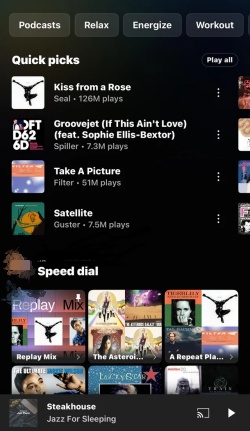
To find Speed Dial on YouTube Music, you can navigate to the Home page in the app and scroll down slightly to view your pinned content.
Find Speed Dial on YouTube Music
01Open the YouTube Music app on Android or iPhone.
02Tap Home and locate Speed Dial on this screen.
03To view the full items in Speed Dial, horizontally swipe through the section or tap the arrow.
04Tap any pinned song, and it plays immediately without forcing you into the expanded player.
Part 3. How to Pin Songs to Speed Dial on YouTube Music
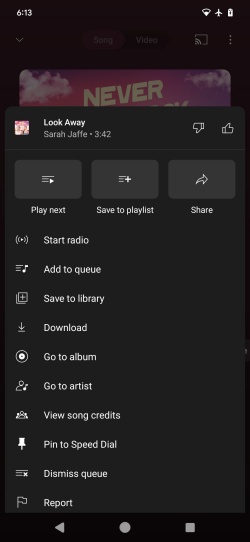
To pin a song, playlist, or album to your Speed Dial on YouTube Music, you can find the track and tap the vertical ellipsis near the content and choose Pin to Speed Dial. Now follow me to use this feature.
Pin a Single Song to Speed Dial
01Open YouTube Music on your Android or iPhone and sign in.
02Locate the song you want to access quickly.
03Tap the three dots icon near the track.
04Select Pin to Speed Dial from the list.
05You can see the track with a small pin icon in your Speed Dial section.
Pin a Playlist or Album to Speed Dial
01Navigate to the YouTube Music app on your mobile phone and log in.
02Find the playlist in your Library or use the search bar.
03Select the three-dot menu icon near the playlist.
04Tap Pin to Speed Dial from the given list.
05Go to the Home tab to find the playlist in the Speed Dial carousel.
Part 4. How to Remove Songs from Speed Dial on YouTube Music
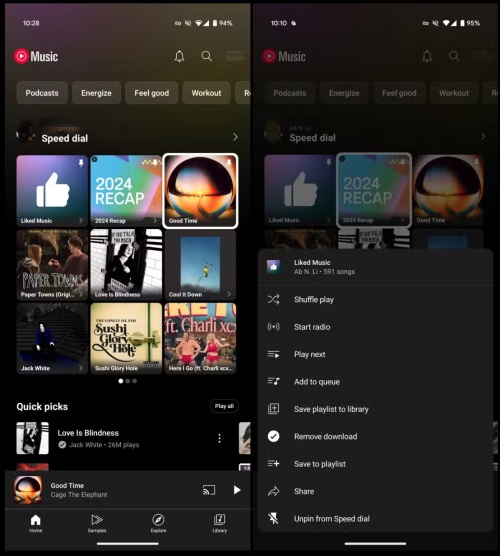
If you want to remove a song from Speed Dial on YouTube Music, you can select Unpin from Speed Dial. To delete it completely, you need to remove it from your watch history so it stops appearing as a suggestion.
Remove a Single Song from Speed Dial
01Run the YouTube Music app on your phone and log in.
02Navigate to Home > Speed Dial.
03Locate the song you want to remove.
04Press and hold the song and choose Unpin from Speed Dial.
Remove a Playlist or Album from Speed Dial
01Navigate to YouTube Music and sign in with your account.
02Make sure you are on the Home tab.
03Find the playlist or album you want to remove.
04Long-press the playlist or album.
05Choose Unpin from Speed Dial.
Delete a Song or Playlist from Watch History
01Open YouTube Music on your phone and select your Profile picture.
02Tap Settings > Privacy. (Or go to History directly.)
03Find the song or playlist you want to delete.
04Select the three dots near the song.
05Choose Remove from History.
Part 5. How to Rearrange Pinned Songs of Speed Dial on YouTube Music
To rearrange the pinned songs of Speed Dial on YouTube Music, you need to unpin your music and re-pin it in your desired spot. YouTube Music does not support changing the order by dragging and dropping the content. Here are the steps to make it.
Rearrange Pinned Songs of Speed Dial
01Launch YouTube Music on your Android or iOS device.
02Go to Speed Dial on the Home tab.
03Tap the three dots (vertical ellipsis) near your pinned song or playlist, or long-press it.
04Tap Unpin from Speed Dial.
05Find the song or playlist again in your Library or search bar.
06Tap the three dots and choose Pin to Speed Dial.
07Pin the content in the order you like.
Part 6. How to Fix YouTube Music Speed Dial Not Working
Speed Dial on YouTube Music often doesn't work due to backend server bugs, corrupted temporary files, or A/B server testing by Google. Here are some troubleshooting tips for you.
Swipe to See More: The feature usually limits the view to 6 items. You can tap and drag your finger right-to-left across the Speed Dial section to show more pinned songs or playlists.
Restart the App: Swipe YouTube Music away from your recently used apps screen and open it again.
Re-pin the Songs: Locate the track or album under Speed Dia. Tap the three dots next to the content and choose Unpin from Speed Dial. Then find and pin it again.
Clear Your App Cache: Corrupted temporary files cause widgets to stop loading. At this moment, you need to clear your app cache.
- Android: Tap Settings > Apps > YouTube Music > Storage and choose Clear Cache.
- iPhone: Tap Settings > General > iPhone Storage > YouTube Music and choose Offload App. (This never deletes your downloaded music, so don't worry)
Update or Reinstall the App: Open your phone's app store to check for YouTube Music's updates. If it is updated, try deleting and reinstalling it.
Toggle Your Network: Turn on Airplane Mode on your phone, wait for a while, and turn it off again. This starts a fresh, stable network connection. Go to YouTube Music to see your Speed Dial.
Bonus: How to Convert YouTube Music to MP3 for Offline Listening
YouTube Music's Speed Dial feature offers a convenient way to keep your favorite songs, albums, playlists, and radio stations just a tap away. All you need to do is pin the frequently played music to Speed Dial, and then you can quickly access the content you like best. And you never bother to search through the library. It is indeed a handy feature that enhances your listening experience and keeps your personal top picks organized.
While YouTube Music's Speed Dial feature offers quick access to your favorite content within the app, you may also want to enjoy those most-played tracks offline. If you're looking to convert YouTube Music to MP3 and keep your Speed Dial favorites forever, ViWizard YouTube Music Converter can help.
ViWizard YouTube Music Converter supports both Windows and Mac. You can use it to download songs, playlists, albums, liked music, and artists' tracks from YouTube Music and save them in MP3, FLAC, WAV, AIFF, M4A, and other formats. With output quality up to 24-bit, 320 kbps, and 192 kHz, it builds an offline music library and preserves ID3 tags and metadata for better management. Just enjoy your favorite Speed Dial content on any player or device without internet access.

Need YouTube Music for offline listening? ViWizard YouTube Music Converter helps YouTube Music users save songs, playlists, albums, and artists with convenient music conversion. Start converting and enjoy your music beyond the app.
How to Use ViWizard YouTube Music Converter and Enjoy Your Speed Dial Favorites Offline
 Step 1: Set Your Preferred Output Format and Quality
Launch ViWizard YouTube Music Converter on your Windows or Mac computer. Click the Menu icon in the top-right corner and select Preferences. Under the Conversion tab, choose your preferred output format, such as MP3, FLAC, WAV, AIFF, M4A, or M4B. You can also customize the audio quality by adjusting the bitrate, sample rate, and bit depth, with support for up to 24-bit, 320 kbps, and 192 kHz. Once configured, click Save.
 Step 2: Access Your YouTube Music Library
Return to the main interface and click YouTube Music. The built-in YouTube Music web player will open automatically. Sign in to your YouTube Music account and browse your playlists, albums, liked songs, artists, and other music collections.
 Step 3: Select the Music You Want to Download
Locate the songs, albums, playlists, or liked tracks you want to save. If you frequently play music from YouTube Music Speed Dial, you can find and add them. Click Add to List, and ViWizard will load all selected tracks for conversion.
 Step 4: Convert Music and Keep Your Speed Dial Favorites Forever
Click Convert. It starts downloading and converting your selected YouTube Music content. After conversion, the songs will be saved locally on your computer in the format you selected. Now you have kept offline copies of the tracks and playlists you regularly play from YouTube Music Speed Dial. Just play your favorites on any compatible device or media player without relying on the YouTube Music app or an internet connection.
Conclusion
Speed Dial is a great way to keep your favorite music front and center on YouTube Music. Once you've pinned the songs, playlists, and albums you love most, you can access them instantly from the Home tab and enjoy a more personalized listening experience.
For more freedom with your music, you can use ViWIzard to convert YouTube Music to MP3 and other formats. Once completed, you can save the tracks from Speed Dial on your computer and transfer them to other devices as you please. Whether you're traveling, commuting, or simply listening without an internet connection, you'll always have your favorite YouTube Music tracks ready to play.
You May Be Interested




Matt Smith, a digital entertainment industry enthusiast at ViWizard, is dedicated to providing insightful commentary and solutions for music and media-related topics, including industry trends, analysis, and recommendations.

Leave a Comment (0)