


iTunes or Apple Music users may notice that not all songs behave the same. Some play normally, while others become unavailable or stop working. This can be confusing because everything sits in one library.
The reason is that Apple Music downloads, purchased iTunes songs, imported CDs, and personal audio files follow different licensing rules. Some are restricted by DRM, which limits sharing and device use.
DRM stands for Digital Rights Management. It is a system used by streaming services and content providers to prevent unauthorized sharing. Apple uses FairPlay DRM for Apple Music downloads. A common example is offline downloads. Users assume they are permanent like MP3 files, but Apple Music downloads only work while the subscription is active and the account is authorized.

Need Apple Music in more flexible audio formats? ViWizard Apple Music Converter helps Apple Music subscribers create a personal music library with seamless music backup. Build your collection and keep your music beyond the Apple Music app.
In this guide, we'll explain what DRM is, how it affects Apple Music and iTunes music, and ways to access music anytime, anywhere - even without DRM restrictions.
Part 1. What Is DRM in Apple Music and iTunes?
Understanding DRM is the first step to knowing what users can and cannot do with Apple Music and iTunes. DRM turns music into a controlled access model rather than full ownership. Users can stream or download content, but only within Apple's ecosystem and only while access is valid.
How Apple Subscriptions Affect DRM:
| Subscription | Stream / Download | Re-download Purchases | Matched Songs | Upload Songs |
| None | No | Yes | No | No |
| iTunes Match | No | Yes | Yes (DRM) | Yes (no DRM) |
| Apple Music | Yes (DRM) | Yes (DRM if Apple Music) | Yes (DRM) | Yes (no DRM) |
| Both | Yes (DRM) | Yes (DRM if Apple Music) | Yes (no DRM) | Yes (no DRM) |
What Is Apple Music DRM?
Apple Music DRM (Digital Rights Management) is a protection system used by Apple to control access to licensed music. Apple uses FairPlay as its digital rights framework, also applied across other Apple media services. FairPlay protects Apple Music content by encrypting files instead of storing them as standard audio formats. Apple states that this system ensures content is licensed, not owned.
Does Apple Music Use DRM?
Yes. Apple Music uses DRM for all subscription streaming and downloads to prevent them from being copied, shared, or used outside authorized Apple apps and devices. This applies to all Apple Music downloads. In contrast, many iTunes Store purchases are DRM-free depending on purchase date and format, though some older songs may still have restrictions.
How Does Apple Music DRM Work?
Apple Music DRM works through Apple's FairPlay system. FairPlay controls who can play the music and makes sure only approved users can access it. When you download a song, it is linked to your Apple ID. Your device must check that your subscription is still active before it can play the song. If your subscription ends or cannot be confirmed, the song stays on your device but will not play.
Apple also checks your subscription from time to time, which may require an internet connection. Music can only be played in Apple apps, such as Apple Music on iPhone and Mac, or the Music/iTunes app on Windows.
Part 2. How to Check If Apple Music or iTunes Music Has DRM
DRM is not clearly labeled in Apple Music, but you can identify it by file type and playback behavior. On Mac or Windows, protected tracks may show as "Protected AAC audio file." A key sign is access—if a song only plays inside Apple apps or stops working after account or subscription changes, it is usually DRM-protected. Once a subscription ends, Apple can no longer verify access rights, so DRM checks fail and access stops.
You can also check the format. DRM-protected tracks are usually M4P files with extra restrictions. Unlike MP3 files, they only work within Apple's ecosystem.
Check DRM Status in iTunes (Mac or Windows)
01Open iTunes on your Mac or Windows computer and go to your Music library.
02Right-click a song and choose "Song Info" or "Get Info".
03Look at the "Kind" field in the details window.

04If it shows "Protected AAC audio file", the song is DRM-protected and only plays in Apple apps. If it shows "iTunes Plus" or "Purchased AAC audio file", the song is DRM-free and can be used in other players.

Check DRM Status in Apple Music App
01Open the Apple Music app on iPhone or Mac and go to your library.
02Select a song and tap the three dots or right-click it.
03Open "Song Info" or "Details".
04If it shows "Apple Music" or "Protected", the song is DRM-protected and cannot be used outside Apple apps.
Check iCloud Music Library or iTunes Match
01Open your music library in iTunes or Apple Music.
02Look for a cloud icon next to the song.
03Cloud-stored songs are usually DRM-free.
04Some older downloaded files may still have DRM.
05iTunes Match can replace older protected songs with DRM-free versions when available.
Check Purchase Date and Format
01Open your Apple ID purchase history.
02Check when the song was bought.
03Songs purchased before April 2009 are more likely to be DRM-protected.
04Songs purchased after this date are usually DRM-free AAC files.
Check File Extension on Your Device
01Find the downloaded song file on your computer.
02Right-click and open file info or properties.
03If the file ends in ".m4p", it is a protected Apple Music file.
04These files only play inside Apple apps and are DRM-protected.
Part 3. Should You Remove DRM from Apple Music and iTunes?
DRM becomes noticeable when users try to move, back up, or reuse music outside Apple devices or apps. For normal listening within Apple Music, DRM does not cause problems, but for users who want full control of their files, it can feel limiting because access depends on subscription status or Apple ID authorization.
Critical Reasons to Remove DRM
- If you want to play your music on non-Apple devices, you should remove DRM.
- If you want to avoid losing access to your iTunes library when your Apple Music subscription ends, you should remove DRM.
- If you need to back up your music collection securely, removing DRM ensures you can always access your files.
- If you want to transfer your songs freely between devices - including non-Apple ones - you should remove DRM.
Everyday Reasons to Remove DRM
- If you're downloading music from Apple Music, removing DRM makes the files truly yours.
- If you've purchased music from iTunes, check if it's labeled as Protected AAC (with DRM) - if so, you should remove it.
- If you're using iTunes Match, combining it with DRM removal will fully unlock your entire music library.
Part 4. How to Remove DRM from Protected Apple Music
Unofficial iTunes DRM removal tools come in handy when you want more control over your music. Options like ViWizard Apple Music Converter provide a simple, one-time way to make your music fully DRM-free.
Method 1: Use ViWizard Apple Music Converter to Remove DRM from Apple Music

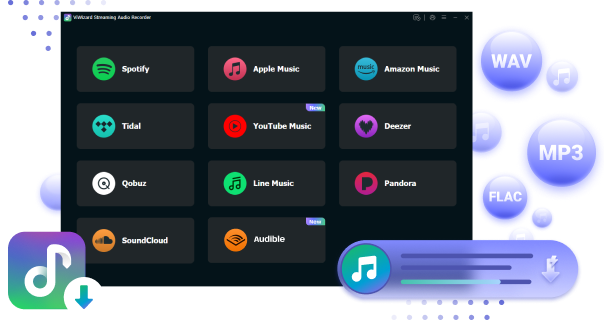
ViWizard Apple Music Converter (also called ViWizard DRM Removal) is one of the easiest ways to make Apple Music or iTunes tracks DRM-free. It converts protected files into formats like MP3, M4A, M4B, WAV, FLAC, or AIFF. You just select your music, choose the output format, and ViWizard will remove DRM and download DRM-free files. Once converted, your music can be backed up, shared, or edited without any FairPlay limitations. It's a one-time setup that ensures your tracks are truly yours.
Key Features of ViWizard Apple Music Converter
Free Trial Free Trial* Security verified. 5, 481,347 people have downloaded it.
- Convert Apple Music songs, playlists, albums, and artists
- Export Apple Music in 6 formats for different devices and players
- Preserve metadata and lyrics when creating music collections
- Organize converted music by artist and album
- Batch download large Apple Music collections
 Step 1: Install the App and Sign in to Apple Music
Download and install ViWizard Apple Music Converter on your Windows PC or Mac. Open the program and use the built-in Apple Music web player. Sign in with your Apple ID so your full music library loads inside the interface, including songs, albums, and playlists.
 Step 2: Set Output Format
Before selecting music, open the settings or preferences menu. Choose MP3 as the output format for broad device compatibility. You can also adjust quality settings such as bitrate or sample rate. If needed, keep metadata options like song info and album artwork enabled to maintain organized files after conversion.
 Step 3: Select Apple Music Content to Convert
Browse your Apple Music library inside the app like a normal music player. Select playlists, albums, or individual songs you want to convert. Add them to the conversion list using the Add button or plus icon. When ready, click Convert to start processing Apple Music tracks into local audio files.
 Step 4: Access and Use Converted DRM-Free Files
After conversion is complete, open the output folder or check the History section in ViWizard. Your songs will be saved as standard audio files without DRM protection. You can now play them outside Apple Music, transfer them to mobile devices or USB drives, or store them as backups while keeping metadata like titles and artwork.
- Easy-to-use interface
- Works directly with Apple Music web app
- Supports multiple formats
- Preserves lossless audio and metadata
- One-time setup; batch conversion possible
- Paid software
- Requires computer installation
- Only works with Apple Music or iTunes tracks
Method 2: Use Requiem to Remove DRM from iTunes Music

Requiem is a free tool for older DRM-protected iTunes tracks. It's less polished than ViWizard and requires some technical knowledge to use. Requiem is not designed for everyone—it works best with older iTunes versions and specific system setups. Still, it's effective for decrypting AAC files and creating DRM-free copies. If you don't mind a bit of setup and fewer extra options, it's a reliable way to unlock older purchases.
01Ensure iTunes 10.7 is installed. If a newer version is on your computer, uninstall it to avoid conflicts.
02Download Requiem 4.1 from a trusted source.
03Navigate to your iTunes library folder (e.g., C:\Users\[Your Name]\Music\iTunes on Windows) and rename the folder for backup.

04Open iTunes 10.7, download the songs you want to remove DRM from, and deauthorize/de-authorize your computer.
05Close iTunes and open Requiem. It will automatically detect DRM-protected files in your library.
06Requiem will remove DRM and create DRM-free copies of your tracks. Open iTunes to confirm the files are DRM-free.
- Free to use
- Works for older DRM-protected iTunes tracks
- Creates DRM-free AAC copies
- Not user-friendly; technical setup required
- Only compatible with older iTunes versions and systems
- Limited to older purchases; doesn't support Apple Music subscription tracks
- No batch processing or format conversion
Method 3: Use WinXDVD to Remove DRM from iTunes Music

This article introduces 4 top free iTunes DRM removal tools to help you remove FairPlay DRM from iTunes movies, TV-shows, music and audiobooks.
WinXDVD's Media Trans works similarly to ViWizard but is less widely known. It converts protected Apple Music tracks into standard formats and supports batch processing for multiple songs at once. If you want a simple way to make your music library portable, this is a solid option.
01Open WinXDVD Apple Music DRM Removal on your computer. Click the Remove DRM option on the main screen.
02If you need guidance, click How to set up iTunes at the bottom left to check instructions for configuring iTunes properly.
03Click Add File in the top bar and select the DRM-protected files you want to remove. Files with a DRM icon indicate that they are protected.
04Click Remove DRM at the bottom right. If iTunes is currently open, a message will appear asking you to close it. The software will then launch iTunes automatically and begin converting your files.
05Once the conversion is complete, WinXDVD will open the folder containing your DRM-free output files automatically.
- Supports multiple output formats
- Batch processing for multiple songs
- Simple way to make music portable
- Less well-known; fewer tutorials/support available
- Paid software
- User interface is not as polished as ViWizard
Part 5. How to Get DRM-Free Music from Apple Music and iTunes
The most reliable DRM-free music comes from iTunes purchases made after Apple removed DRM from most store content. These songs are usually standard AAC files. After purchase, they can also be converted into formats like MP3, WAV, or Apple Lossless (ALAC).
Users can also import local music or ripped CDs into iTunes, but these do not come from Apple's catalog. Because of this, purchasing DRM-free tracks remains the most consistent option to avoid DRM restrictions.
- Method 1: Purchase DRM-Free Music from iTunes Store
- Method 2: Upgrade to DRM-Free Versions of iTunes Purchases
- Method 3: Rip DRM-Free Music from Audio CDs to iTunes
- Method 4: Convert iTunes Music to DRM-Free Formats
- Method 5: Add DRM-Free Music to Apple Music or iTunes
Method 1: Purchase DRM-Free Music from iTunes Store
After Apple removed DRM from most purchases in 2009, most tracks became standard AAC files that work like normal audio files. Once downloaded, they can be moved, copied, or backed up without limits.
01Open the iTunes Store or Apple Music app.
02Search for the song or album you want.
03Check if the track is labeled as iTunes Plus or DRM-free AAC.
04Click Buy to purchase the music.
05Download the purchased music to your library.
06The files will be saved as DRM-free tracks.
- Songs are DRM-free after purchase
- Simple and direct process
- Works across Apple devices
- No conversion needed
- May need to repurchase music
- Does not affect Apple Music downloads
- Older DRM files are not updated automatically
Method 2: Upgrade to DRM-Free Versions of iTunes Purchases

Older iTunes libraries may include both DRM-protected and DRM-free songs because Apple once used DRM for purchases. In some cases, older tracks can be replaced with DRM-free versions through re-download or cloud matching. This depends on whether a clean version exists in the current catalog and whether the track can be matched through iTunes Match. Another option is using iTunes Match to re-download DRM-free versions of purchases made before 2009.
If you use iTunes Match or , look for a cloud icon next to a song. Songs stored in iCloud are usually DRM-free, but older downloads may still carry DRM protection.
01Open iTunes and sign in with your Apple ID.
02Select iTunes Match and subscribe to the service.
03Go to View > Show View Options and select Kind to check whether the track is labeled as iTunes Plus or Protected AAC Audio File.
04Go to File > Library > Update iCloud Music Library to start matching your songs with DRM-free versions.

05Locate tracks with the Cloud icon and click to download the available version.

06Check whether the downloaded file is DRM-free.
- Official Apple service
- Can upgrade some older iTunes purchases
- Helps replace files with DRM-free versions
- No extra software needed
- Does not work for Apple Music subscription songs
- Paid service required
- Not all tracks can be upgraded
Method 3: Get DRM-Free Music from Audio CDs
If possible, use audio CDs. When a CD is imported into iTunes or Apple Music, songs are converted into files such as AAC, MP3, or Apple Lossless (ALAC). These files are created locally and are not tied to an Apple ID or subscription. The main limitation is convenience, since it requires a standard commercial audio CD.
01Insert an audio CD into your computer.
02Open iTunes or Apple Music.
03Wait for the CD to appear in the sidebar.
04Go to Settings and open Import Settings.

05Choose a format like MP3 or AAC.
06Select the tracks and click Import CD.
07Wait for the ripping process to finish.
08The songs will appear in your library as DRM-free files.
- Creates fully DRM-free files
- Works for any audio CD
- No Apple restrictions
- Good for building offline library
- Requires physical CDs
- Time-consuming process
- Limited to available discs
Method 4: Add DRM-Free Music to Apple Music and iTunes Libraries
Apple Music and iTunes can store music from outside Apple's system. DRM-free files from downloads, backups, or personal collections can be added directly into the library. Once added, they behave like normal local files and are not affected by subscription changes. This allows personal music and Apple Music content to exist in one library while keeping imported files fully accessible.
01Open iTunes or Apple Music on your computer.
02Go to Settings and open Import Settings.
03Choose a format like MP3, AAC, or WAV.
04Go to your music library.
05Select the songs you want to convert.
06Right click and choose Convert or Create MP3 Version.
07Wait for the conversion to complete.
08The new files will appear in your library.
- Improves file compatibility
- Works with DRM-free tracks
- No extra tools needed
- Supports common formats like MP3
- Only works on DRM-free music
- Cannot remove DRM from Apple Music files
- May take time for large libraries
Method 5: Convert iTunes Music for DRM-Free Use
Music conversion is used to make files work on more devices. This does not remove DRM from protected songs. It only works when the file is already DRM-free from ripped audio, local files, or eligible purchases. The goal is flexible formats like AAC, MP3, or Apple Lossless, not unlocking restricted content. For extra support, consider ViWizard Apple Music Converter, which supports more formats and works with streaming Apple Music tracks.
01Open iTunes or Apple Music on your computer.
02Click File in the top menu.
03Select Add File to Library or Add Folder to Library.
04Choose your DRM-free music files.
05Click Open to start importing.
06Wait for the songs to finish importing.
07The music will appear in your library ready to use.
- Supports external DRM-free files
- Easy file import process
- Works with MP3, AAC, WAV, etc.
- Not affected by subscription status
- Does not work with DRM-protected songs
- No automatic conversion
- Large libraries may need sorting
Bottom Line:
So, DRM can still make things less flexible. Even with DRM-free iTunes purchases and options like CDs or cloud matching, Apple Music subscription songs are still tied to an Apple ID and subscription status. This is where ViWizard Apple Music Converter comes in. It is often used to make Apple Music tracks more usable in more formats and on more devices. Keep reading.
Part 6. Comparison of Apple Music and iTunes DRM Methods
Apple Music and iTunes use DRM in different ways. Apple Music depends on subscription access and account checks. iTunes purchases are more permanent, but some older songs still have DRM. Problems are usually solved by re-downloading, re-authorizing the account, or syncing the library. Results can vary based on when the music was obtained.
| Method | Best for | DRM result | Ease | Limitation |
|---|---|---|---|---|
| iTunes Store Purchase | Buying new music | DRM-free | Very easy | Only store music available |
| Upgrade iTunes Purchases | Old purchased songs | Sometimes DRM-free | Easy | Not all songs can upgrade |
| Audio CD Rip | Offline music | Fully DRM-free | Medium | Needs physical CDs |
| Convert Music | Changing file formats | DRM-free only | Easy | Cannot remove DRM |
| Add Music to Library | Importing files | DRM-free if already clean | Very easy | No DRM removal |
| Tool | Best for | DRM support | Ease | Limitation |
|---|---|---|---|---|
| ViWizard Apple Music Converter | Apple Music songs | Removes Apple Music DRM | Easy | Paid tool |
| Requiem | Old iTunes songs | Removes iTunes DRM | Medium | Outdated tool |
| WinXDVD | iTunes music | Removes iTunes DRM | Easy | Limited Apple Music support |
Part 7. Key Takeaways on Apple Music and iTunes DRM
Apple Music and iTunes use DRM in different ways depending on how the music is obtained. New iTunes purchases are usually DRM-free, while Apple Music downloads and older iTunes files may still be restricted.
The most reliable way to get DRM-free music is to buy songs from the iTunes Store or use audio CDs. These methods create clean files that can be used on different devices. Other methods mainly help with managing or upgrading existing music, but they do not always remove DRM.
For protected Apple Music or older iTunes files, tools are often used to convert them into normal audio formats. A common option is ViWizard Apple Music Converter, which helps handle Apple Music DRM and keeps songs playable on more devices.
You May Be Interested


Adam Gorden, the digital media specialist at ViWizard, is dedicated to providing the best solutions for digital media management, including audio and video conversion, file optimization, and media workflow enhancements.

Leave a Comment (0)