


In 2023, Audible launched the Virtual Voice beta program to offer users more language and audio options. However, due to technological limitations, most of these AI-generated audiobooks fall short in quality compared to carefully crafted human narrations. Understandably, users prefer audiobooks with rich human emotion and high production value. Therefore, seeing Virtual Voice titles clutter up Audible search results can be frustrating. So how can you get rid of them?
This guide covers 3 practical methods to help you filter out Virtual Voice on Audible. The first method works well across all devices, while the other two offer even greater convenience for desktop users. Choose the one that suits you best. Plus, you'll also learn how to enjoy your favorite Audible audiobooks on any device you own.
Part 1. What Is Virtual Voice on Audible?
Audible Virtual Voice is a synthetic speech technology that uses artificial intelligence to narrate audiobooks instead of human voice actors. It provides publishers with an automated tool to turn the written text into audiobooks without expensive studio costs. Due to the low cost, more and more audiobooks on Audible are now adopting virtual voices. They are usually labelled as "Narrated by: Virtual Voice".
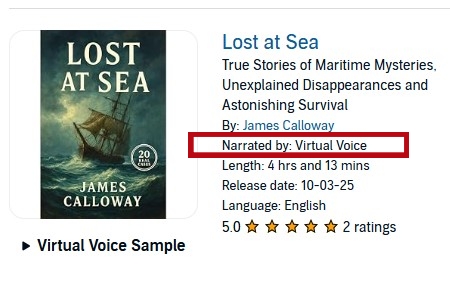
For Audible users, there are both pros and cons. On the plus side, Virtual Voice enables a faster turnaround, giving you access to more audiobooks. It also makes it possible to create audiobooks for older titles and expand language options. However, the biggest drawback of these AI-generated audiobooks is that they lack genuine human emotion. They can also contain errors, such as mispronunciations. As a result, the quality of Virtual Voice audiobooks generally falls short of those narrated by real people.
Part 2. Use "-virtual_voice" to Filter out Virtual Voice on Audible
Using "-virtual_voice" is the most recommended method among Audible users. This simple search tag works across all devices, including phones, tablets, and desktops. This is the fastest and most effective method among all solutions. The steps are also rather easy to follow.
Before starting, let's clear one thing up. As some users have pointed out, you can type either "-virtual_voice" or "-virtual" to filter out Virtual Voice audiobooks. The first option hides all search results tagged with "Virtual Voice". The second option removes any book that includes the word "virtual" in its metadata. Therefore, it's more likely to lead to accidental collateral damage. For example, it may filter out genuine, human-narrated titles that happen to have "Virtual" in their name, such as Escape from Virtual Island. In short, using "-virtual_voice" is the safer and more precise choice.
In the Search bar
By adding "-virtual_voice" after your keyword, you'll get a list of audiobooks free of Virtual Voice titles. This works well on both mobile devices and desktops.
01Open Audible and log into your account.
02Locate the search bar. On mobile devices, click the search icon at the top-right corner. On desktops, you can find the search bar below your account name.

03Type your keyword. Then, add a space. Type -virtual_voice.

04Start your search. On mobile devices, click the search button on your input method. On desktops, press Enter or click the search icon at the left of the search bar.
[Video Tutorial] How to Filter out Audible Virtual Voice Audiobooks
In the URL
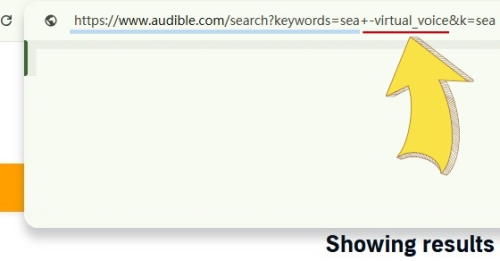
You can also directly add "+-virtual_voice" to the URL of your search results page. This is a handy trick if you forget to type "-virtual_voice" in the search bar and your results are flooded with Virtual Voice titles.
01Open the Audible search results page.
02Locate "keywords=" in the URL.
03Type "+-virtual_voice" after your keywords and press Enter.
In the Advanced Search
As mentioned above, using the search tag in the URL or the search bar may occasionally block human-narrated audiobooks by accident. For more accurate results, you can use it within Audible Advanced Search instead. While this feature isn't available in the Audible app, you can access it through a web browser on your mobile device as a workaround.
01Go to Audible Advanced Search. You can find the entrance below the search bar. The entrance is usually located just below the search bar. If you don't see it, Advanced Search may be hidden. You can access it using the address bar. Type into the address bar and type:
02Click the Narrator or Host text box.
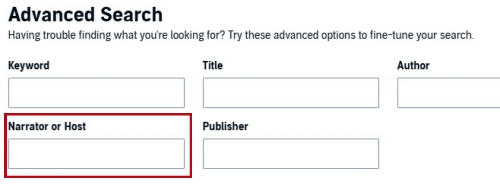
03Enter -virtual_voice. No space is required.
04Press Enter or click the Submit button. You can also add more search filters by checking them.
Part 3. Use a Tampermonkey Script to Filter out Virtual Voice on Audible
If you want both accurate results and a more convenient workflow, you can use a Tampermonkey script to add a Virtual Voice filter directly to the Audible interface. This method works well on Chrome, Firefox, Edge, Safari, and Opera.
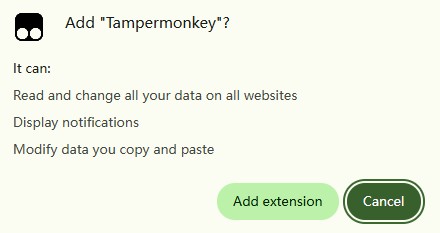
01Install the Tampermonkey extension by Jan Biniok. You can search on Google and then install it from the Chrome Web Store or other extension stores for your browser.
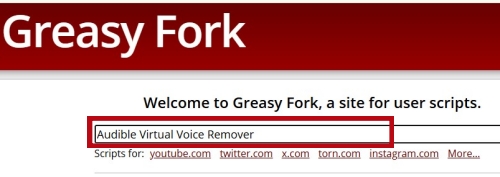
02Go to the Greasy Fork website and search for the user script Audible Virtual Voice Remover.
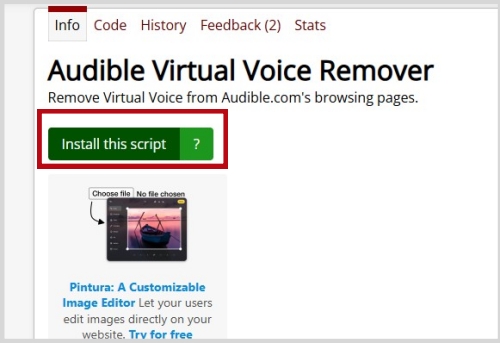
03Install Audible Virtual Voice Remover by clicking Install this script. Then click Install in the new tab automatically created by Tampermonkey.
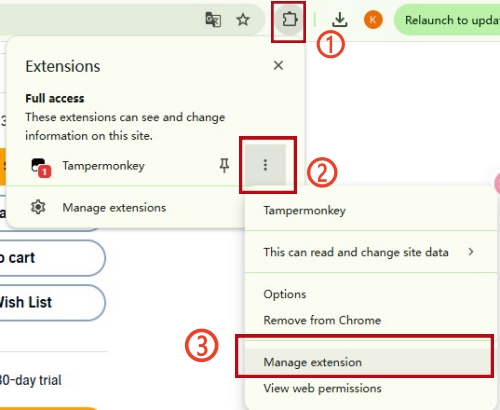
04Click the extensions icon on the toolbar. Then, click the three-dot icon next to the Tampermonkey extension. Click Manage extension.
05Toggle on Allow User Scripts.
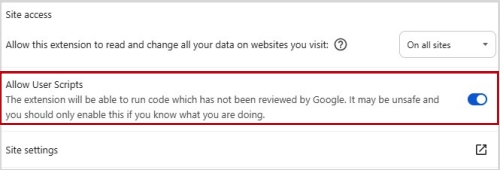
06Go to Audible and search. You can now find a Virtual Voice filter in the left filter column.
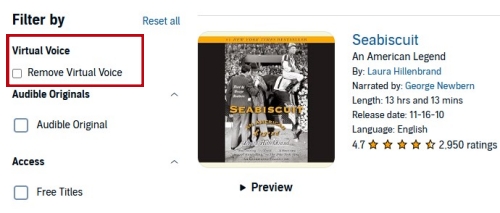
07Check Remove Virtual Voice. Then, you can get what you want.
Part 4. Use the DevirtualizeAudible Extension to Filter out Virtual Voice on Audible
As you can see, all the methods above require you to set a filter manually. This can be a bit inconvenient if you want to avoid Virtual Voice audiobooks every time you search. To solve this, you can use the DevirtualizeAudible extension, which does the filtering for you automatically.
01Search for the DevirtualizeAudible Extension and install it. If you add it through the Chrome Web Store or Firefox Add-ons, it will be automatically installed on your browser.
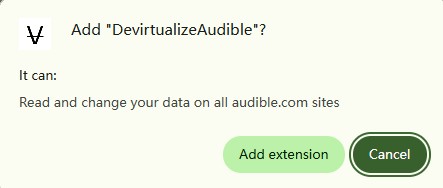
02Make sure the extension is enabled by clicking the extensions icon at the top-right corner of your browser.
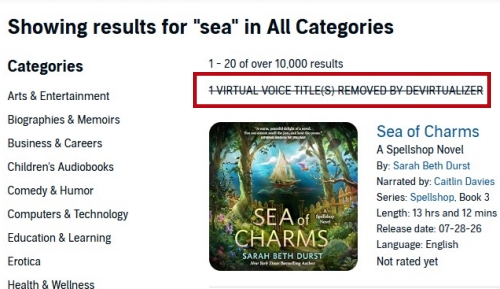
03Go to Audible and search for topics you are interested in. The extension will run in the background and automatically strip away any product listings matching virtual voice patterns.
Bonus: How to Enjoy Your Favorite Audible Audiobooks on All Devices
Once you successfully filter out the AI clutter and purchase premium, human-narrated audiobooks, you may encounter another new problem: the device restrictions of Audible. Since Audible files use the protected AAX format, you can only listen to them through Audible. That's to say, you can't play your favorite Audible audiobooks on any MP3 player or other audiobook platforms.
What if you want to enjoy Audible audiobooks on devices that Audible doesn't support? Well, ViWizard Audible Converter can download Audible titles in MP3 format. That means you can listen to your audiobooks on all devices with no limitations from Audible. Moreover, if you want high audio quality, you can convert audiobooks to Lossless or FLAC. You can also choose M4A, M4B, WAV, or AIFF to meet the requirements of your device.
Want a seamless Audible experience on all devices? Give ViWizard Audible Converter a try.

Key Features of ViWizard Audible Audiobook Converter
Free Trial Free Trial* Security verified. 5,481,347 people have downloaded it.
- Convert Audible audiobooks without AA/AAX format limitations
- Export audiobooks in 6 formats for different devices and players
- Split audiobooks by chapters or sections for personalized listening
- Preserve chapter information and metadata when creating collections
- Manage Audible audiobook libraries across converted files
 Step 1: Get Access to Audible Library
Open ViWizard Audible Converter, and you will see a quick start window to help you get started. Close the window and click the Confirm button. Follow the prompt and click Sign in. Log in to Audible to access the Audible Library.
 Step 2: Confirm Output Settings
You can go to the output settings section by clicking the menu icon. Then, choose a suitable output format for the audiobook. For better compatibility, MP3 will be a good choice. Click OK to make sure your changes are applied.
 Step 3: Add Audiobooks to the Download List
In the built-in Audible web player, browse as you do on your browser. You can also use the method in Part 2 to get search results without Virtual Voice audiobooks. Open an audiobook you want. Click the green icon at the bottom-right corner and click Add to List.
 Step 4: Start Downloading
Once the audiobooks are added to the download list, click the conversion icon at the top center of the interface. To split an audiobook, hover over the item and click the split icon. Then, choose a suitable split mode. Click Convert to download instantly.
Conclusion:
To filter out Virtual Voice on Audible, the common way is to use the "-virtual_voice" search tag while searching for audiobooks. For users on desktop, it's convenient to use a Tampermonkey script to add a filter to Audible. What's better, the DevirtualizeAudible Extension can automatically remove virtual voice audiobooks from the search results. All methods work well. You can choose as you need.
If you want to enjoy Audible audiobooks on all devices, you can use ViWizard Audible Converter to save them in MP3 or other suitable formats.
You May Be Interested


Adam Gorden is always looking for new ways to explore music and videos. He likes trying different media tools and learning how to manage audio and video files with ease.

Leave a Comment (0)