


Many audiophiles choose Tidal because it delivers lossless, studio-quality music, making it one of the best streaming platforms for sound purity. However, if you want to adjust the track's sound quality, like stronger bass, clearer vocals, or a more balanced sound, Tidal will disappoint you for lacking the built-in EQ setting.
Don't despair, there are still several third-party equalizer programs that support you in adjusting Tidal output. Follow our steps to explore how to enhance your Tidal listening experience on Android, iOS, Windows, and Mac.

Part 1. Does Tidal Have an Equalizer?
Tidal does not have a built-in equalizer. The reason is unclear, but it may be because Tidal focuses on providing high-quality, artist-intended sound. The platform wants users to hear music exactly as artists and sound engineers designed it. That means Tidal gives users less control over customizing the sound compared to some other streaming services, like Spotify, Amazon Music, and more.
1.1 What Is an Equalizer and How Does It Work?
An equalizer (EQ) is a tool that lets you adjust different sound frequencies. In simple terms, it helps you control the bass, mids, and treble in your music. If a song sounds too sharp, you can lower the high frequencies. If it lacks bass, you can boost the low frequencies.
Equalizers are commonly found in music production software, audio devices, and even some streaming services, giving users the ability to tailor the sound to their preferences or correct audio issues.
1.2 Why You Need an Equalizer for Tidal?
Different devices produce different sound quality. While Tidal offers high-quality audio, the sound you hear depends on your headphones, speakers, and device settings. Some devices may not fully bring out Tidal's rich sound, making the music feel flat or lacking bass. Without an equalizer, you're stuck with your device's default sound. But with an equalizer, you can adjust the audio to match your preferences and improve your listening experience. More specifically, it helps you to (not limited to the following):
- Personalize listening: Everyone has different sound preferences. Some enjoy deep bass, while others prefer crisp vocals. An EQ lets you customize the sound.
- Fix unbalanced sound: Not everyone listens to music on high-end speakers or studio-quality headphones. Some headphones or speakers may sound too sharp or lack bass. An EQ can adjust this.
- Customize for music genres: You can adjust the sound to fit different types of music. For example, boost the bass for hip-hop or emphasize the mid-range for rock music.
Part 2. Best Tidal Equalizer on Android
For Android users, we collect the 3 top Tidal equalizers on the following to improve your Tidal listening experience:
Top 1. Poweramp Equalizer
Poweramp Equalizer is a powerful audio processing app for Android devices, based on the popular Poweramp music player. It is famous for its customization options for EQ bands (up to 32), bass, treble, and tone controls, and more. While it doesn't directly integrate with Tidal, it works by adjusting the audio output system-wide, meaning you can use it with any music app, including Tidal.
However, detecting a music streaming app on your phone may require a learning process as it requires some command-line fiddling. Poweramp Equalizer is not free, but it offers a 30-day free trial before charging about $5 for the premium version.

Key Features:
- Supports Tidal and other streaming apps
- Parametric and graphic equalizer for precise sound control
- Bass boost and surround sound options
- Works with wired and Bluetooth headphones
- Custom presets for different audio setups
How to Use Poweramp Equalizer with Tidal:
Step 1 Download and install Poweramp Equalizer from the Google Play Store.
Step 2 Open the app and go to Settings > Equalizer > turn on “Enable Audio Processing.”
Step 3 In the settings, go to "Advanced Player Tracking" to and enable “Notification Listener Permission” for it to work with other apps.
Step 4 Open Tidal and start playing a song.
Step 5 Switch to Poweramp Equalizer and adjust the sound frequencies using the equalizer controls.

- Pros
- Works with Tidal and most music apps
- Offers deep customization for sound tuning
- Supports Bluetooth and wired headphones
- Cons
- Not free
- Requires a learning curve
Top 2. UAPP
The full name of UAPP is USB Audio Player Pro. It is a high-fidelity music player app known for bypassing Android's audio limits (16-bit, 48 kHz) and outputting music with bit-perfect and high-resolution. You can get the installation from the Google Play Store.
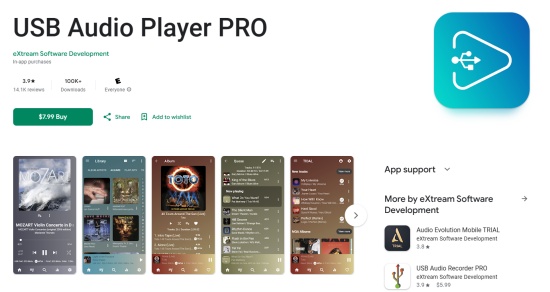
Key Features:
- Support Tidal and Qobuz streaming services
- Works with external USB Digital-to-Analog Converters
- Play Tidal Hi-Res at High resolutions
- Provides Tidal original quality without resampling
How to Use UAPP Equalizer with Tidal:
Step 1 Buy and install UAPP from the Google Play Store.
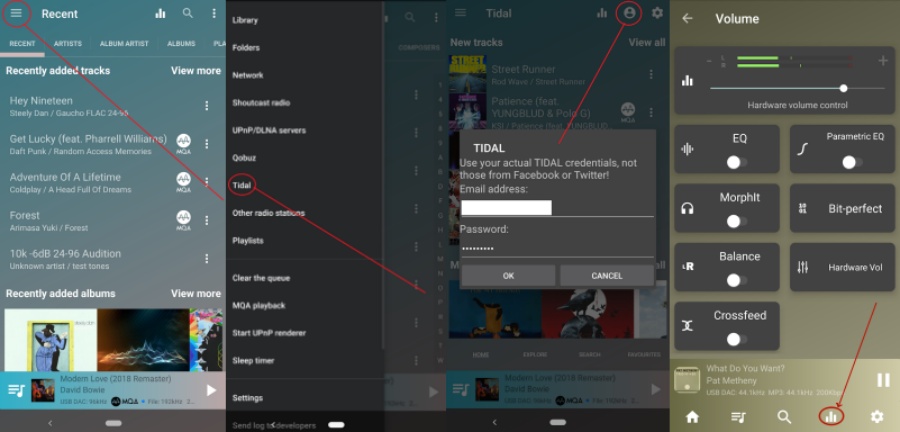
Step 2 After entering the UAPP initial interface, click the menu icon at the top left corner.
Step 3 Select Tidal from the list and set it as the source library.
Step 4 Return to the Home page and click the profile icon next gear to link your Tidal account.
Step 5 After connecting to Tidal, click the gear icon to set Lossless as your Tidal streaming quality. Choose any Tidal song to play, and click the Volume setting icon next to the search.
Step 6 You will find the EQ option in the top line, and you can adjust the Tidal output quality by turning it up or down. Remember to close the Bit-perfect mode first to make the EQ run successfully.
- Pros
- Excellent External DAC support
- Perform perfect audio playback
- Support Tidal and other music services online streaming
- Cons
- Outdated UI design
- Paid app not free
- Complex Setup
Top 3. Wavelet
Wavelet app is an Android software designed to enhance your headphone sound with the best resolution. The feature, AutoEq, can automatically apply corrections based on the Harman target curve for a neutral sound. This software is best for Tidal users who prefer to listen with headphones.
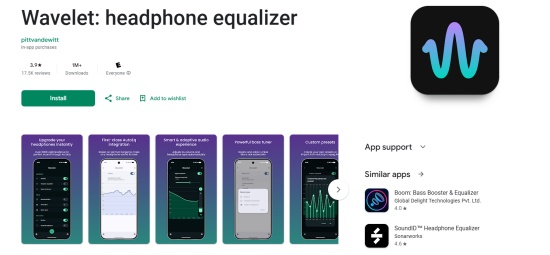
Key Features:
- AutoEq availability
- Consist of 9 bands of a graphic equalizer
- Integrate Limiter to remove volume spikes
- Support Bass boost to amplify the lower frequencies
How to Use Wavelet Equalizer with Tidal:
Step 1 Install the Wavelet app from the Google Play Store or HMS.
Step 2 After entering, click the More option at the top-right of the screen to agree to legacy mode.
Step 3 Tap the AutoEq option on the initial interface to pair your headphones in the pop-up window by searching for your headphones' model.
Step 4 Toggle on AutoEq, and then you can launch Tidal and connect your headphones to your phone.
Step 5 Your headphones will deliver the Tidal track in amazing sound quality.
- Pros
- AutoEq setting to improve sound quality instantly
- Custom presets for different headphones or music genres
- Support Tidal and other popular music streaming services
- Cons
- Not free
- Not easy for beginners with manual EQ
- AutoEq is not perfect for every situation
- Over-boosting frequencies causes audio distortion
Part 3. Best Tidal Equalizer on iPhone
iOS devices have the built-in EQ feature in Settings; however, it doesn't work for Tidal streaming. Alternatively, you can try the following 3 equalizers to obtain higher-resolution Tidal playback:
Top 1. Boom
Boom 3D can offer a powerful system-wide audio enhancement with 3D surround, volume boosting, and detailed EQ controls for Mac/iOS. With it, you can make your Tidal playback more immersive and clearer.
Key Features:
- Cinematic 3D surround sound
- 31 bands for gradual control
- App volume control is independent
- Automatic headphone EQ
How to Use Boom Equalizer with Tidal:
Step 1 Install Boom from the App Store.
Step 2 Launch it and enter the Boom Home page after installing.
Step 3 Click the More option at the top left interface to select Tidal as your source.
Step 4 Link your Tidal HiFi account in the on-screen guidance.
Step 5 Choose any song from Tidal to play and enter the Now Playing screen.
Step 6 Click the icon at the bottom left corner, and you can choose the preset EQ settings or hit the create option to manually adjust.
Step 7 If you wear headphones to listen to Tidal, click the bottom right icon to open the 3D effect.
- Pros
- Immersive 3D sound effect
- Support Tidal and other music streaming apps
- Offer handcrafted EQ presets and manual control for fine-tuning
- Provide specific EQ profiles for kinds of headphones
- Cons
- Poor user experience with crashes, popping, and crackling
- Influence the native audio sample rate on your device
- Disappointed with customer support
Top 2. ToneBoosters Equalizer
ToneBooster Equalizer Pro is a professional tool for you to have deep control over any details on your Tidal track. Its spectral analysis, AI assistance for suggestions, and support for immersive audio make your Tidal playback with advanced loudness matching.
Key Features:
- Offer extensive filters
- Provide dynamic EQ for visual control
- Support AI assistant and spectral analysis
- Support High channel counts like Atmos
How to Use ToneBoosters Equalizer with Tidal:
Step 1 Get ToneBoosters equalizer from the Apple App Store.
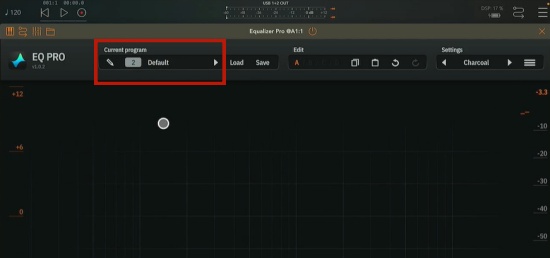
Step 2 Enter TB Equalizer Pro after installing, and click the Current program option next to the EQ Pro icon.
Step 3 Select the Default tab from the curated setting list.
Step 4 Open the Tidal app and choose a song to play.
Step 5 Head back to TB Equalizer Pro and double-click the screen to add a filter to it.
Step 6 Then you can adjust the Tidal playback with the filter on the TB screen or click the Auto Match icon at the bottom left.
- Pros
- 16 non-linear filter sections with over 30 filter types
- AI integration
- Comprehensive tool with high-end mixing
- Dynamic audio playback and adjustment process
- Cons
- Not free
- Complex setup process for beginners
Top 3. Hiby Music
Hiby Music is a free high-quality music player specially designed for HiFi. It is not exclusive for iOS users but also available on Android and Windows. While it's designed for playing local music, it also works as an equalizer for Tidal when using Bluetooth or AirPlay.

Key Features:
- 10-band equalizer with advanced sound controls
- Built-in equalizer with multiple presets
- Support Hi-Res audio formats
- Free to use with no extra costs
- User-friendly interface
How to Use HiBy Equalizer with Tidal:
Step 1 Download HiBy Music from the App Store.
Step 2 In HiBy Music, enable HiBy link to connect with your device (an external speaker or headphone) for Tidal playback.
Step 3 In HiBy Music, tap profile icon > Equalizer, and adjust the parameters to your liking.
Step 4 Open Tidal and start playing music while keeping HiBy Music running in the background.
Step 5 The equalizer settings will apply to the Tidal output.

- Pros
- Free to use
- Easy setup with Bluetooth and AirPlay
- Supports Hi-Res audio
- Cons
- No direct integration with Tidal
- Requires external audio devices for best results
- Output device should be compatible with HiBy
Part 4. Best Tidal Equalizer on Windows
For users who tend to stream Tidal on Windows, the 2 best Tidal equalizers can suit your needs to stream Tidal in high audio quality.
Top 1. Amarra
Amarra is a suite of high-quality audio software designed to enhance the listening experience on music streaming services like Tidal and Qobuz. Primarily targeted at Windows and Mac platforms, Amarra is now also available for iOS devices and audio DACs.Best of all, it supports Tidal, which means that you can tweak the quality of Tidal's sound right out of Amarra!

Key Features:
- Built-in Tidal integration for seamless playback
- 16-band parametric equalizer for precise adjustments
- Supports Hi-Res audio up to 192kHz
- Works with external DACs and sound systems
How to Use Amarra Luxe with Tidal:
Step 1 Download and install Amarra Luxe from its official website.
Step 2 Open the app and log in to your Tidal account.
Step 3 Enable Amarra to scan your Tidal music library.
Step 4 Go to the equalizer settings and adjust the sound frequencies.
Step 5 Play your Tidal music directly through Amarra Luxe for the best experience.

- Pros
- Full Tidal integration
- High-quality sound processing
- Works with external audio equipment
- Cons
- Costs around $99
- Requires a powerful computer for best performance
Top 2. APO Equalizer
APO Equalizer is a powerful, free, and open-source audio equalizer for Windows. It can enhance the Tidal playback by controlling your PC's sound with unlimited filters to fine-tune your PC's audio output quality. To make better equalize Tidal tracks, you can also install Tidal peace plugins to make the interface more user-friendly.

Key Features:
- Lightweight and efficient program
- Process all audio and bypass the device audio limit
- High configuration with an unlimited number of filters
How to Use APO Equalizer with Tidal:
Step 1 Install Equalizer APO and Peace GUI plugins from SourceForge.
Step 2 Configure and run APO Equalizer from the downloaded folder, choose your primary playback device, and click OK.
Step 3 Launch Tidal app on your desktop and select any track to play, and click the three-dot option to enter the Settings page to turn off Tidal Exclusive Mode.
Step 4 Return to the APO Equalizer Peace and click Continue to allow your PC to run it. You may need to reboot APO Equalizer Peace if necessary.
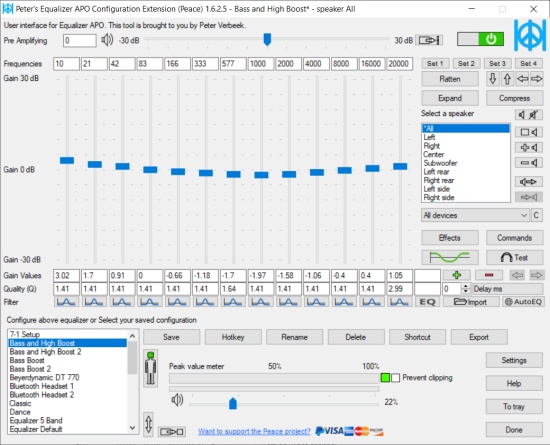
Step 5 And then you can see the detailed EQ settings on the Equalizer APO initial interface. Now, you can set up your personal Tidal listening experience with the APO.
- Pros
- Free and open source
- Low latency when you stream Tidal
- Unlimited filters for the equalization curve
- Low CPU usage
- Cons
- Complex setup requiring technical understanding
- Outdated default interface
- Over-correct the dips
- Windows only
Part 5. Best Tidal Equalizer on Mac
For users who prefer to stream Tidal on Mac, here are the top 2 equalizers for you to enhance the listening experience.
Top 1. SoundSource
SoundSource is a Mac audio control app that lets you apply an equalizer to the output, input, and the audio coming from any app on your Mac computer. In this case, SoundSource is capable of controlling the sound effect of your Tidal music. With its system-wide audio enhancement, meaning you can adjust Tidal's sound in real-time.

Key Features:
- Works with all Mac apps, including Tidal
- 10-band equalizer with fine-tuned adjustments
- Volume boosting and audio effects
- Low CPU usage
How to Use SoundSource with Tidal:
Step 1 Download and install SoundSource from Rogue Amoeba's website.
Step 2 Open the app and select Tidal as the target application.

Step 3 Enable the 10-Band EQ settings, choose the output device, and adjust the frequencies as needed.

Step 4 Play your music on Tidal and enjoy customized sound settings.
- Pros
- Works directly with Tidal
- Offers system-wide sound customization
- Lightweight and easy to use
- Cons
- Requires $45 for a license key
- Not available for Windows
Top 2. Audirvana
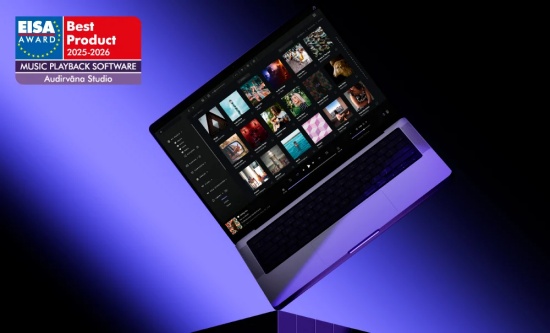
Audirvana is a high-fidelity audio playback software for Mac, Windows, and Linux. Many audiophiles choose it for the features of integration with the Tidal streaming service. Audirvana allows users to optimize and perfect Tidal playback by minimizing the computer interface for pristine digital-to-analogue conversion output.
Key Features:
- Exclusive kernel streaming
- Bit-perfect audio output
- Integrated with Tidal streaming
- Advanced audio processing
How to Use Audirvana Equalizer with Tidal:
Step 1 Install Audirvana from the App Store.
Step 2 Enter Audirvana Studio Settings once you have finished the installation.
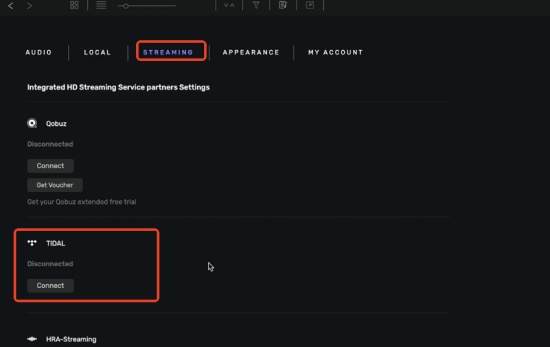
Step 3 Choose the STREMAING section next to the local option.
Step 4 Scroll down to find the Tidal option and click the Connect icon to link your Tidal with Audirvana.
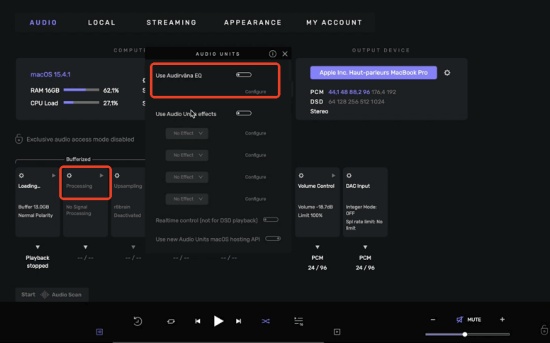
Step 5 Head back to Audirvana's initial interface, choose the AUDIO tab.
Step 6 Click the Processing option and Toggle on the button to Use Audirvana EQ in the pop-up window.
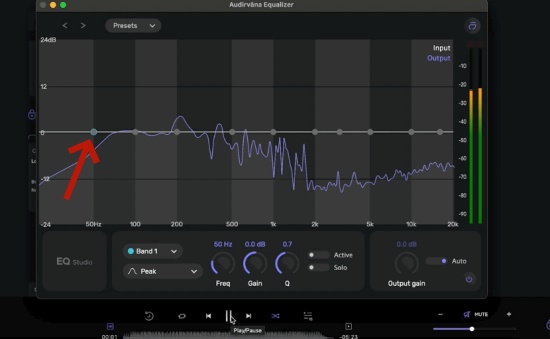
Step 7 And then you can start to play a Tidal track and hit the now playing bar. It will appear as the dynamic EQ setting, and you can drag the band to adjust Tidal output quality within Audirvana.
- Pros
- Superior sound quality
- Support versatile operating systems
- Allow audio path optimization
- Integrate with Tidal and other music streaming services
- Cons
- Buggy and clunky interface
- Complex metadata to handle
- DSP limitation when you stream music with UPnP or Chromecast
- Paid service
Part 6. How to Play Tidal with Any Equalizer on Any Device [Best Solution]
The methods we discussed earlier can help you use an equalizer with Tidal on Android, iOS, Mac, and Windows devices, but they come with limitations:
- Some apps require payment: Some apps are free to download but charge a fee for the full-featured version.
- Complicated setup: Some equalizers need additional settings or external connections to work with Tidal.
- Limited compatibility: Most equalizer apps do not integrate directly with Tidal, there may be some issues, such as tracks stopping or skipping unexpectedly.
So, is there a way to use any equalizer with Tidal without these issues? Yes! The best solution is to download Tidal music in DRM-free format, which allows you to play it on any equalizer software without restrictions.
Why Downloading Tidal Music Lets You Use Any EQ?
Tidal music is protected by Digital Rights Management (DRM), which means even if you download songs using the Tidal app, they are just cache files, not actual audio files.
These files can only be played within the Tidal app and cannot be imported into other software, including equalizer apps. Converting Tidal audio to standard formats like MP3, FLAC, or WAV allows you to:
Play Tidal music in any music player that supports equalizer adjustments.
Use any equalizer app without worrying about compatibility issues.
Listen offline without needing the Tidal app.
To do this, you need a professional and reliable music converter that can download and convert Tidal songs while keeping the original audio quality intact.
Best Way to Download Tidal Music for Flexible Playback
ViWizard TIDAL Music Converter is a professional converter designed for Tidal users, both free and premium, to help download and convert Tidal songs, albums, playlists, into DRM-free audio formats in HiRes quality. Once converted, the tracks can be played without the Tidal app and added to any equalizer apps for full sound customization. It is also a good option if you prefer to listen to Tidal through your speaker but want some control over the audio quality settings for the optimal listening experience.

Key Features of ViWizard TIDAL Music Converter
Free Trial Free Trial* Security verified. 5, 481,347 people have downloaded it.
- Convert TIDAL songs, playlists, albums, artists, podcasts, and audiobooks
- Export TIDAL music in 6 formats for different devices and players
- Preserve Hi-Res FLAC and original audio quality
- Preserve Dolby Atmos audio and metadata during conversion
- Batch download TIDAL playlists, albums, and large music collections
Step 1Add Tidal Playlists
Download and install the right version of ViWizard TIDAL Music Converter on your computer. To access the Tidal library, launch ViWizard and log into your Tidal account using the built-in Tidal web player. Next, search or navigate to your Tidal music playlists, then click the "Add Music" button in the bottom right corner. Choose the tracks to download.

Step 2Choose Output Format
Click the menu button in the upper-right corner and select Preferences. Click the Conversion option and select the format for the exported Tidal music files. ViWizard supports MP3, AIFF, FLAC (lossless), M4A, and other commonly used formats. Once you've made your selection, click OK to save the changes.

Step 3Convert and Download Tidal Playlists
Once you've selected the tracks to download, go to the conversion list. Next, click the "Convert" button and ViWizard will start to download the Tidal music in the configured format to your computer.

Step 4Import Tidal Songs to Any Equalizer Apps
Once the conversion is finished, open the output folder where you specified to save the converted Tidal tracks. You may now easily import them into any media player or equalization program for further customization. If you're using a smartphone, send the DRM-free Tidal music to it and then add it to any equalization app (taking HiBy Music Player as an example below).

Conclusion
Tidal may not have a built-in equalizer, but there are still ways to adjust your sound using third-party apps on Android, iPhone, Windows, and Mac. But some of them are complex to use and set up. Fortunately, with ViWizard TIDAL Music Converter, you can then integrate into any equalization tool without restriction, allowing you to enjoy personalized sound settings on any device and ensuring the finest possible audio experience.
You May Be Interested
YouTube Music Equalizer: How to Find and Use It on Android, iOS, and Desktop
Deezer Equalizer Guide: Best Settings & Alternatives

Ultimate Guide to the Best Spotify Equalizer Settings

Use the Apple Music Equalizer on iPhone, iPad, Android, Mac, and Windows

Tidal Master Quality Unavailable? Try Tidal HiRes FLAC!

How to Improve Tidal Music Bitrate [Quick & Easy]


Dave Henry loves movies and all things video. He likes checking out different video formats and trying new media players to see how they change the viewing experience.

Leave a Comment (0)