


Deezer offers millions of songs across different genres, but sound quality doesn't depend on bitrate alone. A proper Deezer equalizer (EQ) setting can significantly improve bass depth, vocal clarity, and overall listening balance.
However, many users quickly discover that Deezer's equalizer support is limited to certain devices, leaving Windows and Mac users searching for alternatives. In this guide, we'll explain whether Deezer has a built-in equalizer, how to enable it, the best Deezer EQ settings, and how to use Deezer with any equalizer on any device.
Part 1. Does Deezer Have a Built-in Equalizer?
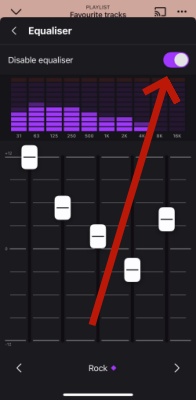
Yes, Deezer features a built-in equalizer, but it is exclusively available on its Android and iOS mobile applications. Similar to other mainstream audio equalizers, Deezer offers five adjustable frequency bands along with preset sound profiles for popular music genres, including Jazz, Rock, Classical, Pop, and a Custom option. By simply sliding the equalizer controls up or down, you can easily fine-tune the audio output to suit your personal listening preferences.
Deezer Equalizer Limitations You Should Know
- Only works inside the mobile app.
- No custom frequency bands on desktop.
- Cannot save advanced presets.
- Not compatible with external audio plugins.
- Only your device has one built-in EQ functions that Deezer Equalizer works.
If you mainly listen on a computer, you'll need a third-party Deezer equalizer solution, which we'll cover in Part 4 and Part 5.
Part 2. How to Enable and Use Deezer Equalizer
So, Deezer Android and iOS users, you are lucky to access the equalizer settings on your mobile device. If you have no idea how to find the equalizer icon on Deezer, the following we will share with you the detailed instructions.
How to Turn on Deezer Equalizer
Step 1 Launch Deezer app on your Android or iOS device.
Step 2 Select the song you want to customize the level of audio frequencies.
Step 3 Enter the Now Playing interface and click Audio output icon.
Step 4 Choose Equalizer option and you now activate the Deezer Equalizer.
Step 5 Select and glide the dials until you think its suit for your listening habits.
Step 6 Confirm your choice and the Deezer equalizer settings will be kept until next time you change.
How to Turn off Deezer Equalizer
Step 1 Go to Deezer app on your phone.
Step 2 Choose a song to play and tap the Now Playing tab on screen.
Step 3 You can hit the Audio output icon on Deezer main interface.
Step 4 After entering the Audio output page, toggle of the Disable equalizer option.
Step 5 Now that you can continue to enjoy the original audio quality of Deezer.
Part 3. 6 Best Deezer Equalizer Settings for Different Music Genres
Choosing the right Deezer equalizer settings can dramatically improve how music sounds on different headphones, speakers, and listening environments. After handling how to enable EQ settings on Deezer, the below are optimized Deezer EQ settings you can apply on your Deezer audio playback.
Best Deezer EQ Setting for Pop Music
Recommended EQ: Bass: +5; Mid: 0; Treble: +1
Pop music focuses heavily on clear vocals and polished instrument layers. A slight boost in bass adds warmth, while enhanced treble improves vocal brightness and detail without sounding harsh. With this setting, the deep bass on Pop music will reduce muddy vocals.
Best Deezer EQ Setting for Rock & Metal
Recommended EQ: Bass: +3; Mid: +2; Treble: +3
Rock and metal tracks benefit from strong low-end impact and crisp highs. Boosting mids ensures guitars stay powerful, while treble adds clarity to cymbals and distortion effects. With this setting, your Deezer will delivere more natural instruments and detailed soundstage.
Best Deezer EQ Setting for Podcasts & Audiobooks
Recommended EQ: Bass: 0; Mid: +4; Treble: +1
Speech clarity depends mainly on midrange frequencies. Boosting mids enhances voice intelligibility, while reducing bass minimizes rumble and background noise.
Best Deezer EQ Setting for Hip-Hop & Bass
Recommended EQ: Bass: +5; Mid: 0; Treble: +1
Hip-hop and bass-heavy genres rely on deep sub-bass and punchy kicks. Increasing bass dramatically enhances impact, while keeping mids neutral prevents vocals from sounding muffled.
Best Deezer EQ Setting for Jazz & Classical
Recommended EQ: Bass: +3; Mid: +2; Treble: +3
These genres prioritize natural instrument tone and spatial detail. A strong midrange highlights vocals, strings, and brass, while moderate treble boosts preserve air and realism.
Best Balanced Deezer Equalizer Setting
Recommended EQ: Bass: +2; Mid: +2; Treble: +2
This balanced EQ provides a clean, neutral sound suitable for mixed playlists. It avoids extreme boosts, making it ideal for long listening sessions without ear fatigue.
Part 4. Best Deezer Equalizer for Windows
Unlike its mobile apps, Deezer does not offer a built-in equalizer on Windows or Mac. This means desktop users have no native way to adjust bass, treble, or overall sound balance when listening through the Deezer app or web player. So, Windows users need system-wide EQ software to customize sound. Here are the top recommended options:
Boom 3D (Paid)
Boom 3D provides professional-grade 3D surround sound and EQ. It also supports per-app volume control, meaning Deezer can be adjusted separately from other programs.

How to Play Deezer with Boom 3D
Step 1 Install Boom 3D for Windows.
Step 2 Open Boom 3D and choose your output device.
Step 3 Launch Deezer (desktop or web player).
Step 4 Use Boom 3D's EQ presets or manually adjust sliders.
Step 5 Enable optional features like 3D Surround for Deezer immersive audio playback on your computer.
Equalizer APO (Free/Open Source)
Equalizer APO is a powerful, free, open-source system-wide equalizer for Windows. It provides parametric EQ, graphic EQ, and unlimited filters, making it ideal for desktop users and audiophiles.

How to Play Deezer with Equalizer APO
Step 1 Download and install Equalizer APO from the official website.
Step 2 During installation, select your playback device (headphones, speakers, or DAC) where Deezer outputs sound.
Step 3 Restart your computer if prompted.
Step 4 Open Configurator and ensure your device is checked.
Step 5 Launch Deezer (desktop app or web player) and play music.
Step 6 Open Equalizer APO's interface or the Peace GUI (optional GUI for easier control).
Step 7 Apply your preferred EQ settings. Changes will apply in real-time to Deezer audio.
FxSound (Paid)
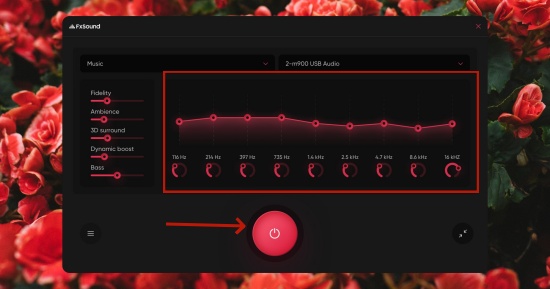
FxSound is a user-friendly EQ software with presets for music, movies, and podcasts. It also offers bass boost, 3D surround sound, and clarity enhancements, ideal for casual users.
How to Play Deezer with FxSound
Step 1 Download and install FxSound.
Step 2 Set your default audio playback device in Windows.
Step 3 Launch Deezer (desktop or web) and start playback.
Step 4 Open FxSound and select a preset (e.g. Pop, Rock, Bass Boost) or customize manually.
Step 5 Sound will now be enhanced system-wide, including Deezer.
Part 5. Best Deezer Equalizer for Mac
Mac users face the same limitation: Deezer desktop app and web player do not have built-in EQ. System-wide equalizers let you enhance Deezer audio across the operating system.
eqMac (Free & Open Source)
eqMac is a lightweight, free system-wide equalizer for macOS. It provides 5-band EQ, volume normalization, and advanced audio routing.

How to Play Deezer with eqMac
Step 1 Download and install eqMac.
Step 2 Open eqMac and select your playback device (headphones or speakers).
Step 3 Launch Deezer (desktop or web).
Step 4 Adjust EQ sliders in eqMac to enhance bass, mids, or treble.
Step 5 Changes apply immediately to Deezer audio.
Audio Hijack (Paid)
Audio Hijack is a professional audio routing and enhancement tool. It lets you capture Deezer audio, apply EQ and effects, and route it to speakers or headphones.

How to Play Deezer with Audio Hijack
Step 1 Install Audio Hijack.
Step 2 Create a new session > choose Application Audio > select Deezer desktop app or browser.
Step 3 Add an EQ block in the session.
Step 4 Start the session and play music on Deezer.
Step 5 Audio Hijack processes the sound in real-time, applying your EQ settings.
Part 6. How to Play Deezer with Any Equalizer on Any Device
If you are audiophiles, the built-in equalizer on Deezer or the equalizer app we mentioned may not enough to meet your needs. So, how to play Deezer in more professional and powerful equalizer no matter in digital program or hard device? The best way is to save Deezer tracks to local and transfer the downloads to USB drive so that you can play it on any equalizer on any devices.
However, Deezer has DRM protection to restrict you only to stream within app, to transfer the downloads to the local or other devices, you need the assist of third-party tool. There are many Deezer downloaders you can access without effortless. If you are looking for a best Deezer downloader for Windows and Mac, ViWizard Deezer Music Downloader must be your go-to choice.
Why Choose ViWizard Streaming Audio Recorder
- Support multiple output format: MP3, FLAC, WAV, AIFF, M4A and M4B
- Keep the downloads quality up to 24-bit, 320 kbps, and 192kHz
- Offer batch downloading and downloading speed up to 65x
- Despite Deezer, ViWizard also support other 9 popular music service converting
- 100% privacy and security of your Deezer account

Download songs, playlists, albums, and your whole music library from 10 major streaming platforms, including Deezer, to MP3, FLAC, WAV, AIFF, M4A, or M4B with original quality and ID3 tags for permanent offline listening.
How to Download Ad-free Deezer Music Using ViWizard
Step 1 Adjust the Download Deezer Music Format
Install and register ViWizard Streaming Audio Recorder from the official website, and launch it from your desktop. Once you enter the main interface, click the Menu icon at the top-right corner, select Conversion, and click the drop-down icon next to Output Format. Choose the desired music format for your Deezer downloads, then click OK to save your settings.

Step 2 Link Your Deezer Account
Return to the main interface, and click the Deezer icon from the list of supported platforms. Enter your Deezer account credentials in the login window. ViWizard ensures your account privacy and security while connecting.

Step 3 Add Deezer Music
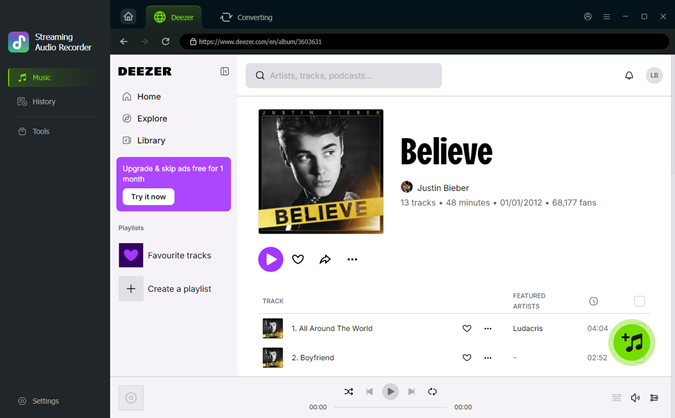
Once inside the built-in Deezer web player in ViWizard, navigate to your favorite songs, albums, or playlists. Open the page of the music you want to download, then click the Add to List icon. ViWizard will automatically detect the tracks and add them to the conversion list.
Step 4 Start Downloading
After confirming all the music in your conversion list, click the Convert button at the bottom-right corner. ViWizard will begin downloading the tracks immediately. Once the process is complete, open the History window to view your downloads. Click the folder icon to access the folder on your computer where all your Deezer music is saved.

Conclusion
While Deezer technically has an equalizer, it is basic, limited, and unavailable on desktop platforms. If you want full control over your sound, especially on Windows or Mac, try the Deezer equalizer we share you in the post. If you already have picked Equalizer but fail to play Deezer on it, ViWizard Deezer Music Downloader may helpful to make you enhance Deezer audio output!
You May Be Interested



Dave Henry loves movies and all things video. He likes checking out different video formats and trying new media players to see how they change the viewing experience.

Leave a Comment (0)