


Music plays a crucial role in gaming, regardless of whether you're gaming solo or with friends. Having your favorite music playing in the background can boost your energy and help you get into the right mindset. As more and more mobile devices used to play music coming into our daily life, we have more freedom to stream music anytime and anywhere, like enjoying YouTube music with your iPod when you are out, or singing along with your favorite YouTube songs in your home with Sonos and Alexa devices. And it's even more ideal if you can enjoy your favorite tunes without pausing your gameplay. In this case, Xbox Consoles come to your side to make your gaming experience more enjoyable.
As currently one of the most popular gaming consoles, Xbox boasts not only an extensive array of exclusive games but also delivers a comprehensive multimedia entertainment experience. Users have access to a wide range of streaming services such as Netflix, Amazon Music, and more. Whether you are gaming, streaming movies and TV shows, listening to music, or browsing the web, the Xbox Consoles effortlessly accommodates the diverse requirements of different users. Then how about listening to YouTube Music on Xbox? Unfortunately, it's currently unavailable to stream YouTube Music directly via YouTube Music app on Xbox. For this reason, we are here to provide simple methods of playing YouTube Music on Xbox.

Part 1. Is YouTube Music on Xbox?
As mentioned above, playing YouTube Music on Xbox directly is not natively supported since there is no official YouTube Music app for the console. While the standard YouTube app is available, music playback stops immediately when you switch to a game.
For Xbox One and Series X|S users, the most feasible way to get YouTube Music while gaming is by using third-party background apps like AirServer or Cast to stream audio from a mobile device to the console. For a simple workaround, you can use the Microsoft Edge browser on Xbox to stream YouTube Music. However, playback will stop once you switch to a game or another app, as Edge does not support background audio on Xbox.
In the following sections, we will introduce these methods in detail.
Part 2. How to Play YouTube Music on Xbox
Although there is no official YouTube Music app on Xbox, you can still access YouTube Music in several indirect ways. Here's a detailed guide on how to set up each option and what performance you can expect.
Note: If your goal is to play YouTube Music in the background on your Xbox console while gaming, you can skip to Method 4 or Part 3, where we explain how to get background playback on Xbox.
Method 1. Play YouTube Music on Xbox via the YouTube App
Although the official YouTube Music app isn't available on Xbox, you can find the official YouTube for Console app. It may not be labeled "YouTube Music," but Google has integrated your music profile into the main interface. This gives you access to your curated "My Supermix," liked songs, and custom playlists.
Step 1. Navigate to the Microsoft Store on your Xbox dashboard. Search for YouTube and install the app.
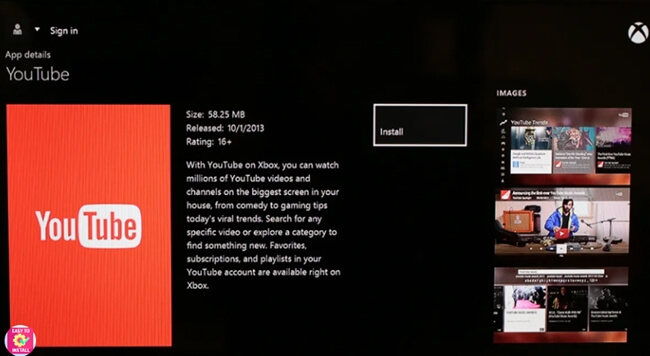
Step 2. Launch the YouTube app and select Sign In. You will typically be prompted to enter a code at google.com on your phone or laptop.
Step 3. Once logged in, scroll down the left-hand sidebar menu to the "Music" section
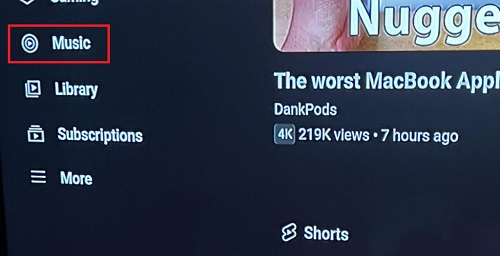
Step 4. Select your desired playlist or album to begin playback.
This method provides the most stable streaming experience and the highest audio bitrate available on the console. It is also the only way to view music videos in full 4K resolution with HDR support. But this app does not support background audio. If you press the Xbox button and return to the home screen or launch a game, the music will immediately pause.
Method 2. Stream YouTube on Xbox via Microsoft Edge
If you want an interface that looks and feels the desktop version or need specific browser features, try using the built-in Microsoft Edge browser. This method essentially turns your Xbox into a PC, allowing you to view lyrics, manage "Up Next" queues, and explore your library with a more intuitive layout than the YouTube console app offers.
Step 1. Press the Xbox button on your controller to open the guide and select My games & apps > See all > Apps.
Step 2. Find and launch Microsoft Edge.

Step 3. In the address bar, type music.youtube.com and press Enter.
Step 4. Sign in to your Google account to access your personal library, uploaded tracks, and customized "For You" mixes.
Step 5. Use the left thumbstick to move the cursor and the 'A' button to select and play your music.
Method 3. Cast YouTube Music from Mobile to Xbox
Another way to get YouTube Music on your Xbox is to cast the YouTube Music playing on your mobile devices to your Xbox. By using the Cast feature of YouTube Music on your smartphone, tablet or PC, you are able to cast the audio to your Xbox under the same WiFi network connection. Also, you can connect your device to Xbox via Bluetooth. Here are the detailed steps:
Step 1. Launch the YouTube Music app on your mobile device, such as a smartphone or tablet. Then play the music you like from the library, playlist or recommendations.
Step 2. Locate the "Cast" icon at the top right corner of the screen and select your Xbox name in the pop-up list of available devices.

Step 3. Once you successfully cast YouTube Music on Xbox, the music will start playing on your Xbox. You can both control the playback on your mobile device or by using your Xbox Controller to pause or adjust volume.
After casting YouTube Music on Xbox, you can use your mobile device as normal, like browser website, and text messages. If you want to stop the casting, just click the Cast icon again, then select "Disconnect" or "Stop Casting".
Method 4. Use AirServer to Mirror and Play YouTube Music
AirServer is a versatile app that acts as a multi-protocol receiver. It enables you to stream YouTube Music content from your various devices to Xbox. It offers AirPlay, Google Cast, and Miracast, permitting you to mirror your screen. That means you can make YouTube Music play as background on Xbox. Are you ready to know how to use it? Let's move on.
Step 1. Install AirServer on Xbox and AirServer Connect on your YouTube Music playing devices.
Step 2. You need to launch AirServer and press right on the directional pad, then press A to display an on-screen QR code. Open the AirServer Connect on your YouTube Music playing device, tap on the Scan QR code shown in the bottom right corner of the app on both platformsthen it will establish a connection between your device and Xbox.

Step 3. After connecting, the AirServer will mirror your screen to Xbox, you can turn on YouTube Music and stream any tracks. It will continue to play YouTube Music as background while you switch to a game or other app on your Xbox.
Part 3. Best Way to Play YouTube Music in the Background on Xbox
If you want music playing in the background while gaming on Xbox, most of the earlier methods won't work. The YouTube app, Microsoft Edge, and basic casting solutions don't support real background playback.
Even third-party mirroring tools like AirServer seem flexible, but they still depend on screen mirroring. This setup needs a stable Wi-Fi connection, often requires a paid license, and demands that a mobile device or PC stays on. Sometimes, playback pauses when you switch apps, and you might face latency, lag, or battery drain on your mobile device.
The Real Solution: Download YouTube Music for Background Playback
Xbox offers a media player called Simple Background Music Player that lets you play MP3, M4A, MP4, FLAC, and WMA tracks from a USB drive. You can download YouTube music in formats compatible with Xbox and transfer them to your console. To achieve this, you'll need ViWizard YouTube Music Converter.
ViWizard YouTube Music Converter allows you to:
- Download tracks, albums, and playlists from YouTube Music.
- Convert them to MP3, WAV, FLAC, and other formats that Xbox supports.
- Remove DRM restrictions.
- Maintain the original audio quality and ID3 tags.
- Store music permanently with no expiration.
- Transfer the converted files to a USB stick for playback on Xbox.

Download songs, playlists, albums, and your whole music library from 10 major streaming platforms, including YouTube Music, to MP3, FLAC, WAV, AIFF, M4A, or M4B with original quality and ID3 tags for permanent offline listening.
Download songs, playlists, albums, and your whole music library from 10 major streaming platforms, including YouTube Music, to MP3, FLAC, WAV, AIFF, M4A, or M4B with original quality and ID3 tags for permanent offline listening.
Download songs, playlists, albums, and your whole music library from 10 major streaming platforms, including YouTube Music, to MP3, FLAC, WAV, AIFF, M4A, or M4B with original sound quality and full song info and keep your music forever.
Now the following instruction will show you how to download YouTube Music to your Xbox to play offline music and games at the same time.
Step 1 Choose an Xbox-Supported Output Format
Launch ViWizard YouTube Music Converter on your Windows or Mac computer. Click Menu > Preferences > Conversion. Select MP3 as the output format. You can also select M4A or FLAC, which work with Xbox consoles. Choose an output folder and click OK to confirm your settings.

Step 2 Open the YouTube Music Web Player
On the main interface, click the YouTube Music icon to open the built-in web player.Sign in to your YouTube Music account. Access your library, playlists, albums, or liked songs.

Step 3 Select Songs or Playlists to Download
Browse through your library and open the song, album, or playlist you wish to save. Click the + (Add) button to load the tracks into the conversion window. You can check specific songs or select the entire album, then click Add to List.

Step 4 Convert YouTube Music for Xbox
Open the conversion list and click Convert. Once the process is complete, click the folder icon to locate your files on your computer.

Step 5Transfer the Downloaded YouTube Music to USB Drive
Insert your USB Drive into your computer and locate the folder in which the downloaded music files are stored. Transfer by copying and pasting these music files to your USB drive folder.
Step 6Play YouTube Music on Xbox in the Background
Plug the USB drive into your Xbox console.

Install and open Simple Background Music Player from the Microsoft Store.
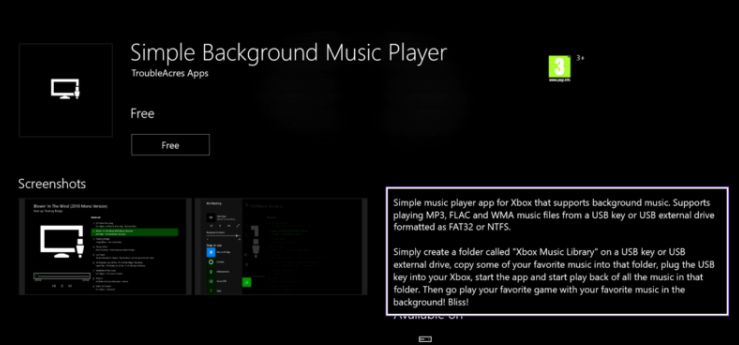
Select your USB drive as the music source.
Choose a song and start playback.

Press Y on your controller to start playing your music. Press the Xbox button to return to the home screen and launch any game. Your YouTube Music will continue to play in the background.
Part 4. FAQs about Playing Music on Xbox
Can you play YouTube Music on Xbox while gaming?
No, you can't play YouTube Music on Xbox in the background while gaming using the YouTube app, Microsoft Edge, or casting. The music will stop as soon as you start a game. To listen while gaming, you need to use ViWizard YouTube Music Converter to download your music and use a background music player app on Xbox.
Is Apple Music on Xbox?
Yes, Apple Music is available on Xbox through the Microsoft Store. Since October 2022, Apple Music has been compatible with Xbox consoles including Xbox One, Xbox Series S, and Xbox Series X, and you can enjoy Apple Music on your Xbox in several easy ways. However, Apple Music is not compatible with earlier Xbox generations like the original Xbox, Xbox 360, or Xbox 360 Slim/Elite.
Can I connect a speaker to my Xbox Series X?
Sure, you can connect a speaker to your Xbox Series X to immense in your own world of music. Although the Xbox Series X doesn't natively support USB, optical, or Bluetooth audio outputs, you can use the 3.5mm audio jack on the wireless controller to connect speakers that accept this input.
What music apps do Xbox Series X/S support?
Xbox Series X/S support an abundance of music apps, including Spotify, Amazon Music, Pandora, TuneIn Radio, SoundCloud, Vevo, Dolby Access, VH1, MTV and YouTube.
Conclusion
This guide showed how to play YouTube Music on Xbox while gaming. Streaming through the app, Edge, or casting works, but none support background playback. The best option is to download YouTube Music, convert it to an Xbox-supported format, and transfer it via USB for offline background music. This gives you uninterrupted playback and the freedom to use your music on other devices as well.
You May Be Interested



From new releases to old favorites, Matt Smith is always on the lookout for good music. He follows the latest in digital entertainment and shares songs and media he thinks are worth checking out.

Leave a Comment (0)