


YouTube Music has gained great popularity among people thanks to its abundant, unmatched catalog that includes unofficial uploads, remixes, and especially live performances from YouTube. However, Linux users may be frustrated when they want to use YouTube Music, as there is no native app available.
Luckily, we are here to introduce 4 proven ways to use YouTube Music on Linux without losing audio quality. Let's get started.
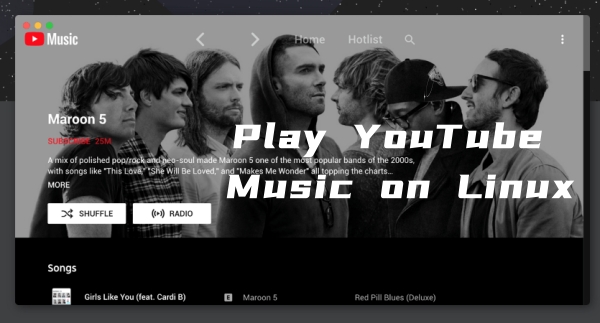
Part 1. Is There a YouTube Music App for Linux?
No, there is no official YouTube Music app developed by Google for Linux. YouTube Music developed dedicated apps for iOS and Android, as well as a web browser player. Of course, you can also cast YouTube Music to smart TVs, speakers, and smart displays. But is there another way to use YouTube Music on Linux? Yes. And you have more than one way to listen to your favorite YouTube Music tracks on Linux.
Part 2. How to Play YouTube Music on Linux
To play YouTube Music on Linux, we have to use third-party tools like YouTube Music Desktop App (electron-based), yt-music-tui, and Audio Tube. Too tricky, any simple methods? Certainly, you can access the YouTube Music Web player. For detailed steps and features, follow us!
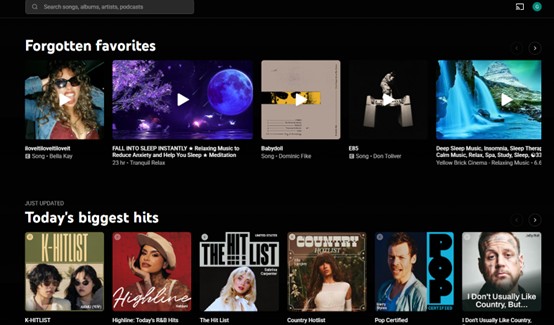
Method 1: Use YouTube Music Web Player on Linux
The simplest way to use YouTube Music on Linux must be the website. All you need to do is open any modern browser and visit https://music.youtube.com/. And generally speaking, using YouTube Music on Linux will not affect audio quality, as it relies on the same web streaming technology.
Step 1 Click on any browser you prefer (Chrome, Firefox, Brave).
Step 2 Log in to https://music.youtube.com/.
Step 3 Start streaming your favorite music.
- Pros
- No installation required
- System Resource Management
- Flexibility and Customization
- Access to Broad Catalog
- Cons
- More CPU/RAM than native applications
- Less integration
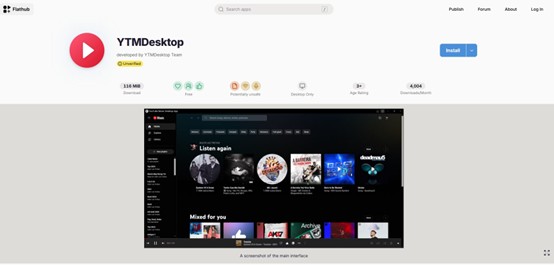
Method 2: Use the YouTube Music Desktop App (Electron-Based)
Unlike the web player, the YouTube Music Desktop App can guarantee better integration with Linux desktop features. If you want to pause or skip a song, this app can offer better service.
Step 1 Download the YouTube Music Desktop App from Flathub.
Step 2 Follow the setup instructions for your Linux.
Step 3Upon launching, log in with your Google account to access your playlists, library, and personalized mixes.
Step 4Click on the settings icon to adjust features like AI-blocking, Themes, Discord Rich Presence, and Mini Player to customize your settings.
- Pros
- Dedicated window (no browser tab clutter)
- Built-in ad blocking
- MP3 downloading capability
- Discord rich presence support
- Lyrics display via plugin
- SponsorBlock integration
- System tray playback controls
- Crossfade between tracks
- Cons
- Based on Electron (uses more RAM than terminal apps)
Method 3: Use yt-music-tui (Terminal-Based Player)
If you prioritize terminal-centric workflow, low system resource usage, and a distraction-free environment to stream YouTube Music, this method is tailored for you! With yt-music-tui, you can operate seamlessly with command-line tools like mpv and yt-dlp. Besides, it offers a "set and forget" music experience that is easy to manage. Then, how to run it?
Step 1 Before operating the TUI, make sure you have the core dependencies installed on your Linux system:
-
Install mpv: Most TUI players use mpv as the underlying audio engine.
sudo apt install mpv python3 python3-pip # Debian/Ubuntu
sudo pacman -S mpv python # Arch Linux
-
Install yt-dlp: It is necessary for fetching the audio streams from YouTube.
Ubuntu/Debian: sudo apt install yt-dlp (or use pip install yt-dlp for the latest version).
pip3 install yt-dlp
Step 2 Clone and run yt-music-tui.
cd yt-music-tui
python3 yt_music_tui.py

There are also some keyboard controls that help you run it.
| key | Action |
|---|---|
| / | Search for a song or artist |
| Space | Pause/resume |
| N | Skip to next track |
| j/k | Volume down/up |
| ,/. | Seek backward/forward 10 seconds |
| q | Quit |
- Pros
- Very lightweight
- No ads
- Auto-queue of similar tracks
- Keyboard-driven workflow
- Play history tracking
- Cons
- Terminal-only interface
- Requires setup of dependencies
- No Native GUI
- Cookie setup required by some videos
Method 4: Audio Tube (KDE Native Application)
This method is suitable for KDE Plasma users who want native integration and prefer Qt/KDE applications.
Step 1 Install Audio Tube
Before using Audio Tube, you need to install it depending on your Linux distribution:
-
On Arch Linux / Manjaro:
Audio Tube is available in the Arch User Repository (AUR), so you can install it easily using an AUR helper such as yay:
yay -S audiotube
Alternatively, you can install it manually by cloning the AUR repository:
git clone https://aur.archlinux.org/cgit/aur.git/diff/audiotube.git
cd audiotube
makepkg -si
-
On Ubuntu / Debian-based System:
As of now, Audio Tube isn't officially packaged for Ubuntu/Debian, but you can still install it through Flatpak or AppImage:
-
Flatpak:
Step 1 Install Flatpak if you don't have it:
sudo apt install flatpak
Step 2 Install Audio Tube via Flatpak:
flatpak install flathub io.github.AudioTube.AudioTube
-
AppImage:
Step 1 Download the latest AppImage release from the Audio Tube GitHub page.
Step 2 Make it executable and run it:
chmod +x AudioTube-x.y.z.AppImage
./AudioTube-x.y.z.AppImage
-
Flatpak:
Step 2 Launch Audio Tube
You can start Audio Tube in several ways after installation:
- From the Application Menu: On KDE, you should find Audio Tube in your application launcher. Search for "Audio Tube" or "audiotube" and launch it directly.
-
Via Terminal: If you installed via Flatpak, you can launch Audio Tube with:
flatpak run io.github.AudioTube.AudioTube
-
For AppImage: navigate to the folder containing the AppImage file and execute it:
./AudioTube-x.y.z.AppImage
Step 3 Using Audio Tube
Once Autio Tube is running, the interface is intuitive and similar to a typical music player. And you can search, play, and enjoy your music!
- Pros
- Native KDE/Qt application
- Integrates well with the Plasma desktop
- Clean, native interface
- Good for mobile Linux (Pine Phone)
- Cons
- Requires KDE dependencies
- Still in early development
- Limited features compared to Electron app
| Feature | Desktop App | yt-music-tui | Audio Tube |
|---|---|---|---|
| Graphical Interface | Full GUI | Terminal only | Native Qt |
| Ad Blocking | Built-in | No ads by design | No |
| Download MP3 | Via plugin | Streaming only | No |
| System Tray | Yes | No | No |
| Keyboard Shortcuts | Yes | Yes | Yes |
| Resource Usage | Medium high | Very low | Low |
| Discord Presence | Yes | No | No |
| KDE integration | No | No | Yes |
Part 3. How to Play YouTube Music on Linux without Limits
For most of us, YouTube Music Desktop is the most complete experience with all the features. If you are a developer who is seeking an incredibly lightweight and efficient terminal, you can use yt-music-tui. For KDE users, AutioTube offers native integration. However, If you want an app to help you download actual files like playlists, songs, audiobooks, an app that saves 100% original fidelity, and an app that keeps you from longer and more complicated content, ViWizard YouTube Music Downloader is the one.
Use ViWizard YouTube Music Downloader to download your favorite YouTube Music songs to your local device. Anytime, anywhere, you can listen to the tracks with high audio quality, and most importantly, without limits. Beyond YouTube Music, ViWizard supports multiple platforms, like Spotify, Deezer, Apple Music, and so on. That means you don't need to switch between streaming services. Moreover, you can have a lot of output formats: FLAC, MP3, WAV, AIFF, M4A, and M4B. And you can personalize the bit rate, sample rate, and bit depth (Up to 24-bit, 320 kbps, 192kHz) as you like. Once your setting is done, you can download the songs, each kept with the original ID3 tags. For playlist downloading, it can figure them out with 30x downloading speed.

A versatile all-in-one streaming music recorder that downloads music from YouTube Music, Spotify, Apple Music, Amazon Music, Tidal, Deezer, Pandora, SoundCloud, Qobuz and LINE MUSIC into MP3, FLAC, WAV, AIFF, M4A, and M4B formats in high quality.
How to Download Tracks on YouTube Music Using ViWizard:
Step 1 Download and install ViWizard YouTube Music Downloader on your Linux. Launch the app and click the menu icon on the top right. Click Preference and then Conversion to select your preferred output formats such as MP3, WAV, AIFF, or FLAC. Adjust audio quality parameters to your favored one, including bitrate and sample rate. Save the setting.

Step 2 Back to the main screen and choose YouTube Music. Then you will jump into the built-in YouTube Music web player. Log in to the web with your own account, and you will see your library, your liked songs, and so on.

Step 3 Within the built-in web player, browse the page and find the songs or playlists you desire to download. Open the music page and click the "Add to List" button. ViWizard will scan and load all tracks into the conversion list automatically.

Step 4 Ensure the songs you want are in the conversion page, and then click the Convert button. ViWizard starts downloading YouTube Music at high speed while preserving the original quality. After conversion, go to the converted Page to locate and manage the downloaded music files on Linux.

Conclusion
YouTube Music can be used on Linux through 4 proven methods. The entire process can be simple, lightweight, and most importantly, safe. And if you want to download YouTube Music tracks for offline listening, go and get ViWizard YouTube Music Downloader. You can set your preferred formats, bitrate, and download at a pretty fast speed. Come and give it a try!
You May Be Interested





Nick Orin often turns to tech forums to see what apps people are talking about. He likes testing different software, comparing features, and finding out which tools are worth a try.

Leave a Comment (0)