


If you are looking to enjoy YouTube audio offline without compromising quality or wasting storage, converting videos to OGG is a good choice. OG is an open-source, patent-free audio format renowned for high-quality sound and efficient compression. Unlike MP3, OGG preserves audio clarity while keeping file sizes smaller—perfect for music, podcasts, lectures, or any content you want to store and play on multiple devices.
In this guide, we'll explore why OGG is valuable, the best online and desktop tools for YouTube-to-OGG conversion, and how to use them, step by step.
Part 1. Why Do We Convert YouTube to OGG?
Before you pick a YouTube to OGG converter, you need to know what OGG is and whether it is necessary to convert YouTube to OGG.
What is OGG?
It is an open-source, free multimedia container format. It's mostly used for high-quality audio (often Vorbis) and video streaming. It's designed for efficient compression without software patent restrictions. What do the OGG files feature?
In-Game Audio: OGG files are often used for video game sound effects and background music because they support gapless playback.
Internet Streaming: Because of the efficient compression and high quality, OGG files are good for internet streaming.
Open-Source Use: OGG files are favored by open-source projects, Linux systems, and creators who wish to avoid proprietary format restrictions.
Data Storage: OGG can even store audio data and metadata, such as artist information.
OGG vs MP3 Files: Compared with MP3 files, OGG files offer higher quality and smaller size, and even support seamless looping for audio.
Why Do We Convert YouTube Videos to OGG Files?
Converting YouTube to OGG means higher audio quality, smaller file sizes, an open-source utility, and metadata storage. In addition to them, many portable music players and apps support the OGG format. As a result, we convert YouTube videos to OGG files.
Part 2. Best Online Converters to Convert YouTube to OGG
The best online converters from YouTube to OGG include TubeRipper.cc, YT OGG, and AceThinker Free Online Audio Ripper. They are famous for their ease of use, free, and fast conversion capabilities. More importantly, these web-based tools allow for quick extraction of audio from YouTube links in OGG format without requiring software installations.
What's the difference? Here is a comparison table for you.
| Feature | TubeRipper.cc | YT OGG | AceThinker Free Online Audio Ripper |
|---|---|---|---|
| Best for | Fast, general-purpose ripping | Quick high-quality OGG | Editing & detailed settings |
| Converting Speed | Fast | Very Fast | Fast |
| Ease of Use | High | High | Moderate |
| Ads | Yes | Yes | Low |
| Batch Conversion | No | No | No |
Option 1: TubeRipper.cc
To use TubeRipper to convert YouTube videos to OGG format, you can follow these steps to extract the audio and save it to your device.
01Navigate to YouTube, find the video you want to convert.
02Copy the URL from the browser's address bar.
03Go to the TubeRipper website and paste the link into the given conversion box.
04Click the arrow button or press Enter, allowing the site to scan the video and present the result.
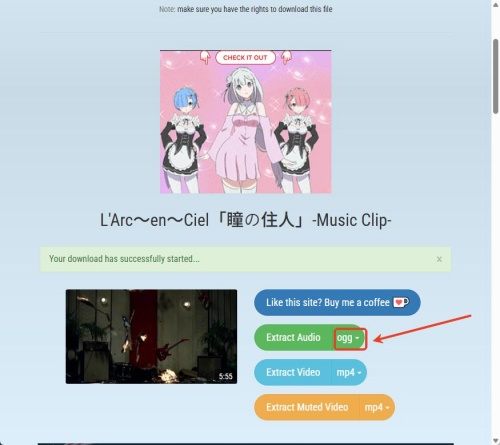
05The video picture appears, and make sure the Extract Audio format is set to OGG.
06Click Extract Audio, and it begins converting.
Option 2: YT OGG
YT OGG is a reliable option for quick, ad-free audio extraction.
01Log in to YouTube and search for the video you want to convert.
02Copy the link of the video from the browser's address bar.
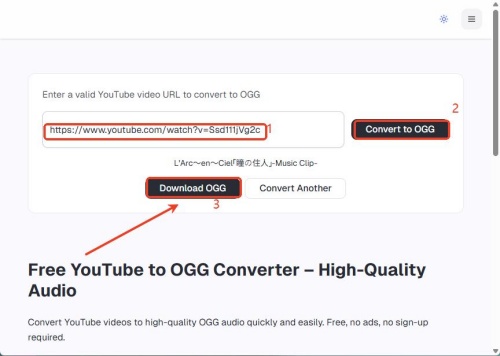
03Paste the URL into ytogg.com and click "Convert to OGG".
04Wait for the site to analyze the YouTube video. (Up to 45 minutes)
05Click "Download OGG" to save the file.
Option 3: AceThinker Free Online Audio Ripper
There are also no ads in the ripper, and it is free to use and converts YouTube fast.
01Open Google Chrome and log in to YouTube.
02Find the video you want to convert, and copy its link in the address bar.
03Search for and click AceThinker Free Online Audio Ripper.
04Paste the URL in the given box and click the search icon to analyze the link.
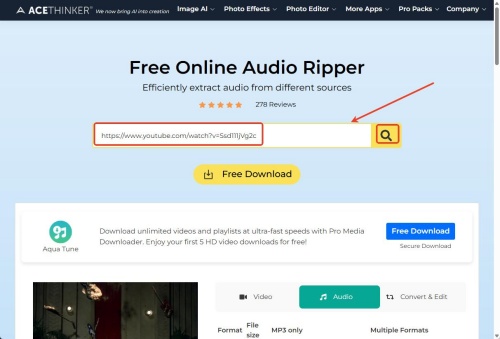
05The video appears. You can scroll down and click Download OGG.
Part 3. Best Desktop Software to Convert YouTube to OGG
Top desktop software to convert YouTube to OGG includes ViWizard YouTube Converter, MiniTool Video Converter, and VLC Media Player. The three tools are reliable to use.
Option 1: ViWizard YouTube Audio Recorder
If you want a multifunctional audio capture tool, we recommend ViWizard YouTube Audio Recorder. It can capture any sound playing on your Mac or Windows, including YouTube. It can extract audio from any YouTube video while maintaining the original quality and preserving ID3 tags. In addition, it supports multiple popular output formats. You can easily save the recorded YouTube audio in formats like OGG, MP3, WAV, FLAC, and more for you to play offline on your device.

Key Features of ViWizard YouTube Audio Recorder
Free Trial Free Trial* Security verified. 5, 481,347 people have downloaded it.
- Record any audio from streaming services, live broadcasts, and system sounds
- Support multitrack recording and save files in MP3 and more formats
- Automatically detect and retain ID3 tags while allowing manual editing
- Offer flexible audio splitting and merging tools for full customization
You can follow the steps to figure out how to convert YouTube to OGG via ViWizard YouTube Audio Recorder.
 Step 1: Sign in to ViWizard YouTube Audio Recorder and Ensure the Target Browser
After installing ViWizard YouTube Audio Recorder, launch it on your computer. Click Capturing in the left sidebar. Select the browser in the top-left corner. After determining the browser, you can use it to visit youtube.com.
 Step 2: Set Output Parameters
In ViWizard YouTube Audio Recorder, locate Format at the bottom-left corner of the Capturing section. Click Format and select OGG audio format. To customize the audio, you can even hover your cursor over the OGG data, click the Settings icon, and modify the quality, encoder, channel, sample rate, and bitrate. Click Create and apply to save the settings.
 Step 3: Start Converting YouTube to OGG
After setting the audio format, you can click Start next to the chosen browser. Go to the YouTube website, find the video you want to convert, and play it. Then the recorder begins to record the audio it captures. Once the video ends, click Stop in ViWizard YouTube Audio Recorder. The recorded music will then appear in the capture list.
 Step 4: Check and Edit the Recorded YouTube Audio
In the capture list, click the Play icon of the audio to preview it. You can also trim the track to your preferred length or edit the ID3 tags to complement metadata. Upon editing, click Apply.
 Step 5: Save the OGG Files from YouTube
Go back to your capture list, where you can see the edited audio. Click Save to store the OGG files on your computer. Check the downloaded files in the History section, and locate the OGG file on the computer by clicking the file icon next to the track.
Option 2: MiniTool Video Converter
MiniTool Video Converter is a free, all-in-one Windows tool that converts YouTube videos. It supports more than 1000 formats, batch conversion, and high-speed processing. Using MiniTool Video Converter includes downloading the video from YouTube and then converting it to OGG. It is simple to operate; follow me.
01Make sure you log in to YouTube and copy the URL of the video you want.
02Install MiniTool Video Converter from Google Chrome, and open it.
03Click Download Video in the left sidebar, and select Paste URL in the top left corner of the section.
04Paste the link you copied and click Download.
05Choose the MP4 format under Download Video, and click Download.
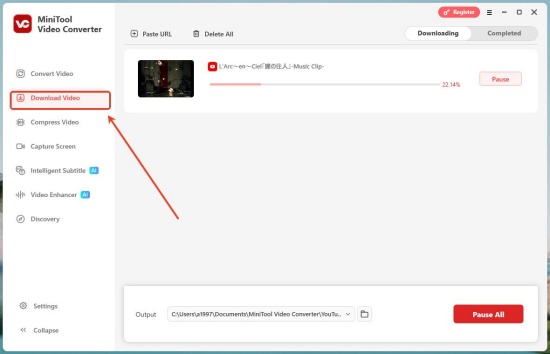
06Once it is finished, click the file icon next to the downloaded video to make sure where it is.
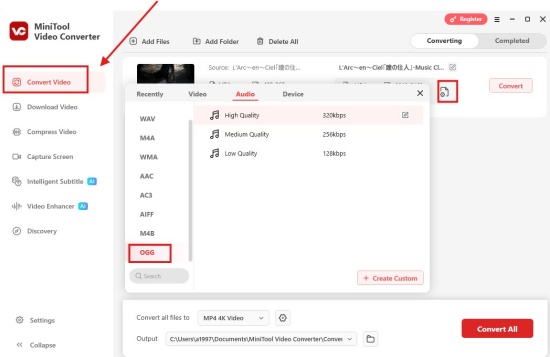
07Click the Convert Video section in the left sidebar. Click Add Files at the top and select the downloaded video.
08Click the output format settings icon (a file with settings inside it) to set the Audio to OGG.
09Click Create Custom, and then click Convert.
Option 3: VLC Media Player
VLC is best for users who prefer a graphical interface. You can stream the YouTube videos and transcodes it into an OGG Vorbis audio file. If VLC cannot open the URL, you need to make sure you have permission or are downloading copyright-free content.
01Open the VLC Media Player on your computer.
02Click Media > Convert / Save.
03Click Network, paste the video's URL you copied from YouTube.
04Click Convert / Save.
05Choose Audio-Vorbis (OGG) from the Profile dropdown.
06Click Browse to select a destination file that ends with .ogg.
07Select Start to convert YouTube.
Part 4. Best Open-Source Developer Tools to Convert YouTube to OGG
Using yt-dlp is the most reliable and high-quality method for converting YouTube videos to OGG. yt-dlp is paired with FFmpeg, which ensures the best audio quality by directly converting the source audio. And it supports batch downloads and provides the highest quality audio (typically Opus). One thing to note is that this command-line tool is best for power users.
Using yt-dlp to Convert YouTube to OGG
01Ensure yt-dlp and FFmpeg are installed.
02Open your Terminal or Command Prompt.
03Start the following command, and you need to replace URL with your YouTube video link:

04You can check the OGG file in your current folder.
Bonus: How to Convert YouTube Music to Local Files
Want to keep your liked songs on YouTube Music forever? We recommend ViWizard YouTube Music Converter. It is available for Windows and Mac. You can download your favorite tracks, playlists, albums, and artists' catalogs from YouTube Music. Besides, there are many output formats to choose from: MP3, AIFF, MP4, WAV, etc. You can customize settings like bitrate, sample rate, and bit depth—up to 24-bit, 320 kbps, and 192 kHz, for high-quality audio. Best of all, ViWizard supports batch downloads while preserving all metadata, like ID3 tags. Let ViWizard YouTube Music Converter take you to enjoy your favorite playlists anytime, anywhere.

Need YouTube Music for offline listening? ViWizard YouTube Music Converter helps YouTube Music users save songs, playlists, albums, and artists with convenient music conversion. Start converting and enjoy your music beyond the app.
Conclusion
Whether you prefer online converters, desktop software, or open-source tools, converting YouTube to OGG offers superior sound quality, smaller file sizes, and full flexibility. Online converters like TubeRipper and YT OGG are fast and handy, and desktop software like ViWizard YouTube Audio Recorder offers stable metadata preservation. Power users can rely on yt-dlp for professional-grade results. For music fans, ViWizard YouTube Music Converter can provide high-quality downloads with all metadata intact. Let's start converting and enjoy our favorite content now!
You May Be Interested




Matt Smith, a digital entertainment industry enthusiast at ViWizard, is dedicated to providing insightful commentary and solutions for music and media-related topics, including industry trends, analysis, and recommendations.

Leave a Comment (0)