


Discord is the go-to platform for chatting, gaming, and sharing music with friends, and many users want to bring their YouTube Music experience into their servers. Whether you want to play your favorite tracks, show what you're listening to, or integrate YouTube Music with Discord's Rich Presence, there are several ways to make it happen.
In this guide, we'll show you how to play YouTube Music in Discord using music bots, display your current listening activity, and even use a YouTube Music downloader with Spotify integration for seamless playback. By the end, you'll know all the best methods to enjoy YouTube Music while hanging out on Discord.
Part 1. How to Play YouTube Music in Discord
To play YouTube Music in Discord, the first question you might ask is: Can you link YouTube Music to Discord? The short answer is: no, not officially. Discord doesn't offer native support for YouTube Music like it does for Spotify.
But don't worry! There are ways to bridge them seamlessly. In the following sections, we'll show you two methods to play YouTube Music audio on Discord: one using a Discord music bot, and the other using a Spotify integration trick.
1.1 Using a Discord Music Bot That Plays YouTube Music
The easiest way to share music with your friends is by adding a bot to your server. Even though many bots have shut down recently, some strong alternatives have stayed available.
Best YouTube Music Bots for Discord
We've tested the top options out there, these three bots can pull links from YouTube Music and play the songs:
- Rythm: This bot is super stable and officially supported. It works with YouTube Music, letting you control playback, like songs, and sync them to your library.
- Jockie Music: This is perhaps the most feature-rich bot. You can add up to four Jockie bots to the same server, so different voice channels can host their own YouTube Music parties at the same time.
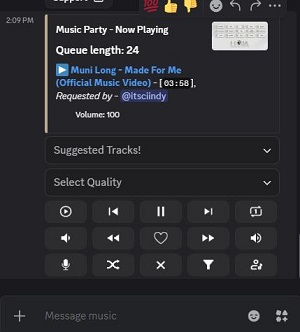
- LunaBot: If you prefer a visual experience, LunaBot is a great choice. It has a simple button interface, so you won't need to memorize a bunch of text commands to skip or pause songs.
How to Add and Use a Discord youTube Music Bot
Option 1. Play YouTube Music in Discord with Rythm
Step 1Visit the Rythm website and click Invite Rythm.
Step 2 Log in to your Discord account and select the server where you want to add the bot.
Step 3 Authorize the required permissions.
Step 4 Join a voice channel on your Discord server.
Step 5 Copy a song or playlist link from YouTube Music.
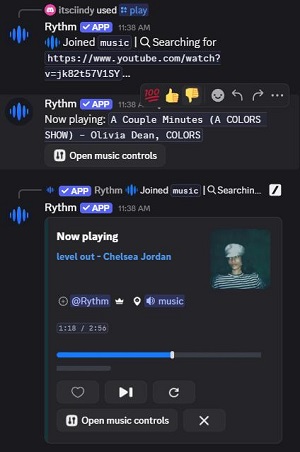
Step 6In a text channel, type: /play YouTube Music link.
Step 7 Rythm will join the voice channel and start playing the audio.
Step 8 You can click the Open music controls button in the playback box to like, skip, pause, or do more with the music.
Option 2. Play YouTube Music in Discord with Jockie Music
Step 1 Go to the Jockie Music Invite Page and click Invite Jockie Music (1).
Step 2 Select your server and click Authorize.
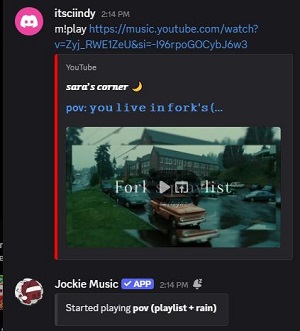
Step 3 Join a voice channel and type m!play in any text channel.
Step 4 After the command, paste your YouTube Music Link. It can be a playlist, a radio station, or an individual track from YouTube Music.
Step 5 The bot will join your channel and start playing.
You can control the playback with these commands:
- m!skip (or m!s): Skip the song that's currently playing.
- m!stop (or m!dc): Stop playback and disconnect the bot from the voice channel.
- m!queue (or m!q): View the current song queue.
- m!pause: Temporarily pause the music.
- m!resume: Continue playing a paused track.
- m!volume: Adjust the playback volume.
Option 3: Play YouTube Music in Discord with LunaBot
Step 1 Visit the LunaBot Website and click Add to Discord.
Step 2 Grant the bot permissions to your server.
Step 3 Type /play followed by your YouTube Music search term or link in a text channel.
Step 4 LunaBot will post an interactive player message. Instead of typing commands, you can click the Play/Pause, Skip, Loop, or Heart buttons on the message to control and manage your YouTube Music stream.
Step 5 To see what's playing, type /nowplaying.
1.2 Using a YouTube Music Downloader with Spotify Integration
Discord bots are a quick fix, but they often lag, get stuck on ads, or shut down suddenly because of YouTube's strict API rules. If you're looking for a more reliable way to connect YouTube Music to Discord, check out ViWizard YouTube Music Downloader.
With ViWizard, you can download your favorite YouTube Music tracks straight to your computer as high-quality files (like MP3 or FLAC). After that, just import these songs into Spotify. Since Discord works seamlessly with Spotify, you can easily play your YouTube Music library on Discord and automatically show your "Listening to..." status.
Why Use a YouTube Music Converter Instead of a Discord Bot?
| Feature | ViWizard YouTube Music Downloader | Discord Music Bots |
|---|---|---|
| Plays YouTube Music links | ✔️ | ✔️ |
| Ad-free | ✔️ | ❌ |
| Playback stability | ✔️ Fully stable | ❌ May lag or disconnect |
| Subject to YouTube restrictions | ✔️ | ❌ |
| Audio quality control | ✔️ High-quality output | ❌ Limited |
| Spotify integration | ✔️ | ❌ |
| Discord Rich Presence support | ✔️ Full (via Spotify) | ❌ Limited |

Download music from 10 popular streaming platforms like YouTube Music and save it in formats like MP3, FLAC, WAV, AIFF, M4A, or M4B while keeping the original sound quality.
How to Download YouTube Music and Import to Spotify
Step 1 Download YouTube Music with ViWizard
Install and launch ViWizard YouTube Music Downloader.
Go to Menu > Preferences > Conversion to set your output format, audio quality, and output folder.
Click the YouTube Music icon to launch the built-in web player.
Browse for songs, albums, playlists, or radios, then hit the Add (+) button. Choose all or pick a few and click Add to List.
Click Convert to download the music to your computer.

Step 2 Import Downloaded YouTube Music Songs into Spotify
Open Spotify and go to Settings.
Turn on Show Local Files and click the Add a source button.
Add the folder where ViWizard saved your YouTube Music downloads.
Your YouTube Music tracks will show up in the Spotify Local Files playlist.

Read More : How to Add Your Own Music to Spotify with Local Files
How to Play YouTube Music on Discord via Spotify
In Discord, go to User Settings -> Connections and click the Spotify icon. Follow the prompts to link your account.
Make sure the options for Display on profile and Display Spotify as your status are turned ON.

Open Spotify and play your imported YouTube Music from the Local Files.
Now, your Discord profile will show Listening to Spotify.

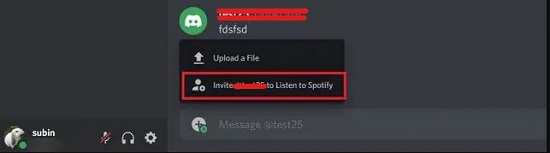
In your Discord text chat, click the + icon and choose Invite [User/Channel] to Listen to Spotify.
Your friends just need to click Join on the invite. Discord will sync their Spotify app with yours, so you all play the same YouTube Music track together. Just a heads up: Your friends need to have Spotify, and usually Spotify Premium, for everything to sync smoothly
Part 2. How to Show YouTube Music Activity on Discord
Playing music is awesome, but letting your friends see what you're currently vibing to is even better. You can do this with Discord Rich Presence, which shows off details like the song title, artist, and album art on your mini-profile.
If you're not using the Spotify method above, here's how to show you're listening to YouTube Music on Discord using two simple methods.
2.1 Using PreMiD for Browser-Based Rich Presence
PreMiD is a free browser extension that lets Discord show Rich Presence for websites, including YouTube Music. Here's how to enable YouTube Music Discord Rich Presence with PreMiD:
Step 1 Install the PreMiD browser extension for your preferred browser.
Step 2 Open music.youtube.com.
Step 3 Start playing a song.
Step 4 Open Discord (web version) and click the PreMiD icon in the toolbar.
Step 5 Select YouTube Music and make sure options like Show Cover and Show Timestamps are enabled.
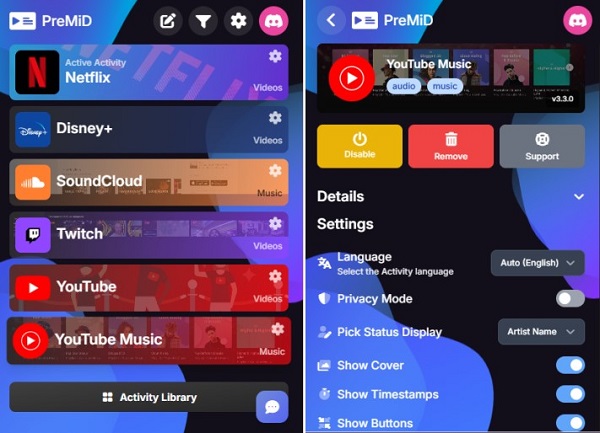
Step 6 Once a song is playing, Discord will display "Listening to YouTube Music."
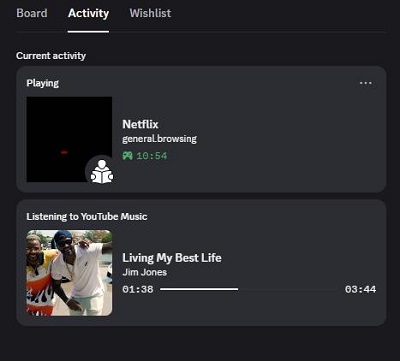
Pro tip: If your status gets stuck on "Watching Ads," try refreshing the page after the song starts or use an ad blocker so the track information updates correctly.
Read More : How to Block/Remove Ads on YouTube Music without Premium
2.2 Using the YouTube Music Desktop App
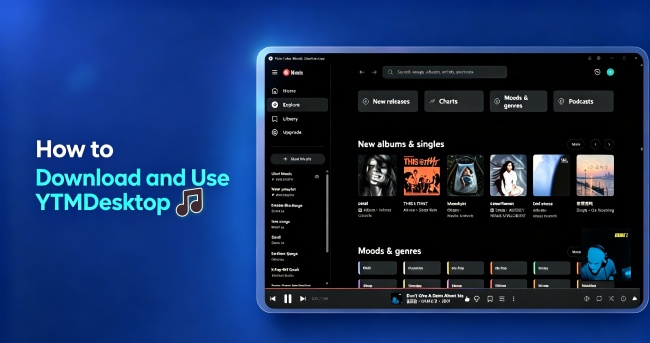
You can also try the YouTube Music desktop app, which offers built-in or optional Discord Rich Presence support. Since YouTube Music doesn't have its own desktop app, check out some open-source options like YTMDesktop. We've tested it, and it's safe and secure.
Step 1 Download and install YTMDesktop from the official website: https://ytmdesktop.app/.
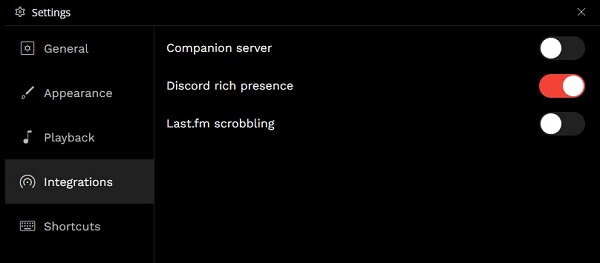
Step 2 Open the app and click the Settings icon (gear) in the top-right corner.
Step 3 Scroll down to the Integrations section.
Step 4 Turn on Discord Rich Presence.
Step 5 Start playing music in YTMDesktop.
Step 6 Open Discord, either the app or the web version, and your listening activity will pop up automatically, showing the exact track you're playing in real time.
Read More : How to Get the YouTube Music Desktop App on Your Computer
Part 3. FAQs About YouTube Music on Discord
Can you link YouTube Music to Discord officially?
How do I fix the "YouTube Music status not showing" on Discord?
- Make sure your PreMiD extension or YTMDesktop Rich Presence is running.
- Refresh the YouTube Music tab or app after you start a song.
- Check that the Share my activity option is on in your Discord Activity Settings.
- Restart Discord and your browser/app to refresh the Rich Presence info.
Can I show YouTube Music status on Discord Mobile?
Why is my Discord bot not playing certain YouTube Music links?
- YouTube restricts specific tracks, playlists, or content based on your region.
- Bots can get outdated or disabled because of YouTube's policy changes. But music bots like Rythm, Jockie Music, and LunaBot should work well with YouTube Music.
- There could be link formatting issues, so make sure to copy the direct video URL from YouTube Music.
Will using a YouTube Music bot get my Discord account banned?
Is it legal to use a YouTube Music Downloader for Discord?
Final Thoughts
While there is no native YouTube Music Discord integration, you can still bridge the gap with the right tools. Whether you invite a discord music bot like Rythm, Jockie Music, or LunaBot for group listening, or use PreMiD and YTMDesktop to show your status, the options are plenty. If you want the most stable, ad-free experience, use ViWizard YouTube Music Downloader to import tracks into Spotify. It gives you high-quality audio and an official rich presence in one go.
You May Be Interested

How to Connect Apple Music to Discord (Step-by-Step Guide)

Easy Guide to Play Spotify on Discord [2026 Updated]

Best Ways to Connect SoundCloud to Discord and Show Now Playing

7 Proven Ways to Connect Tidal to Discord
7 Best YouTube to OGG Converter of 2026
Connect YouTube Music to Last.fm (Windows/Mac/Linux/Android/iOS)
How to Download and Use YTMDesktop in 2026


Nick Orin, a software developer at ViWizard, focuses on providing solutions for software-related challenges, including reviews, troubleshooting, and optimization tips.

Leave a Comment (0)